

Ranger StarRocks plugin
Enable StarRocks plugin
To enable the Ranger StarRocks plugin, follow the steps below:
-
Go to the Clusters → <ADH_cluster> → Services page.
-
Find StarRocks and click the

 icon in the Actions column. In the drop-down menu, select the Manage Ranger plugin action.
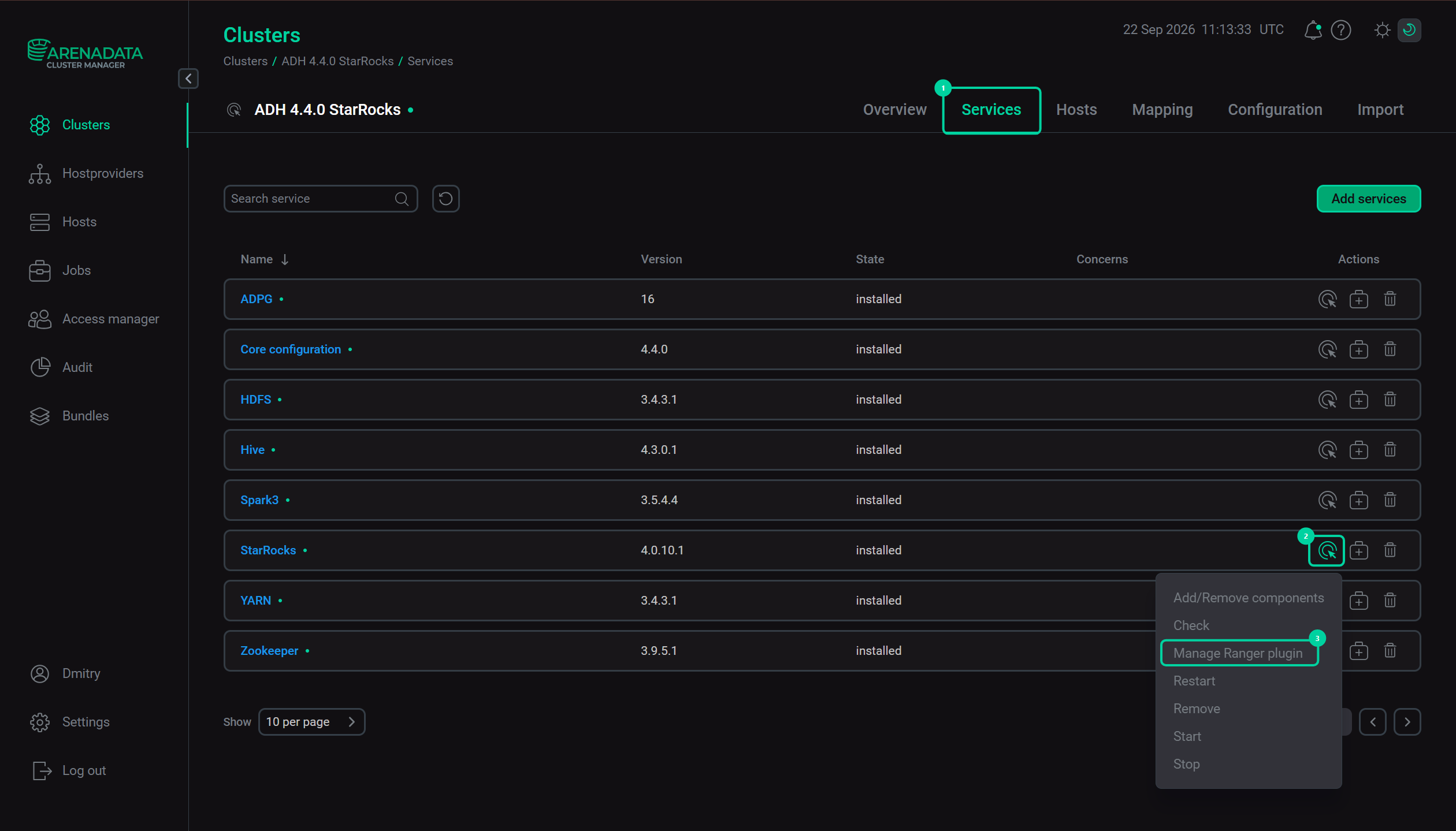 Manage Ranger plugin action
 -
Select the required state of the Plugin enabled flag. Also, here you can set the name of the Ranger service that will be added. If a service with such name already exists, you can override it by enabling the Override service policies parameter — in that case, the old service will be deleted and policies will be generated for the new service.
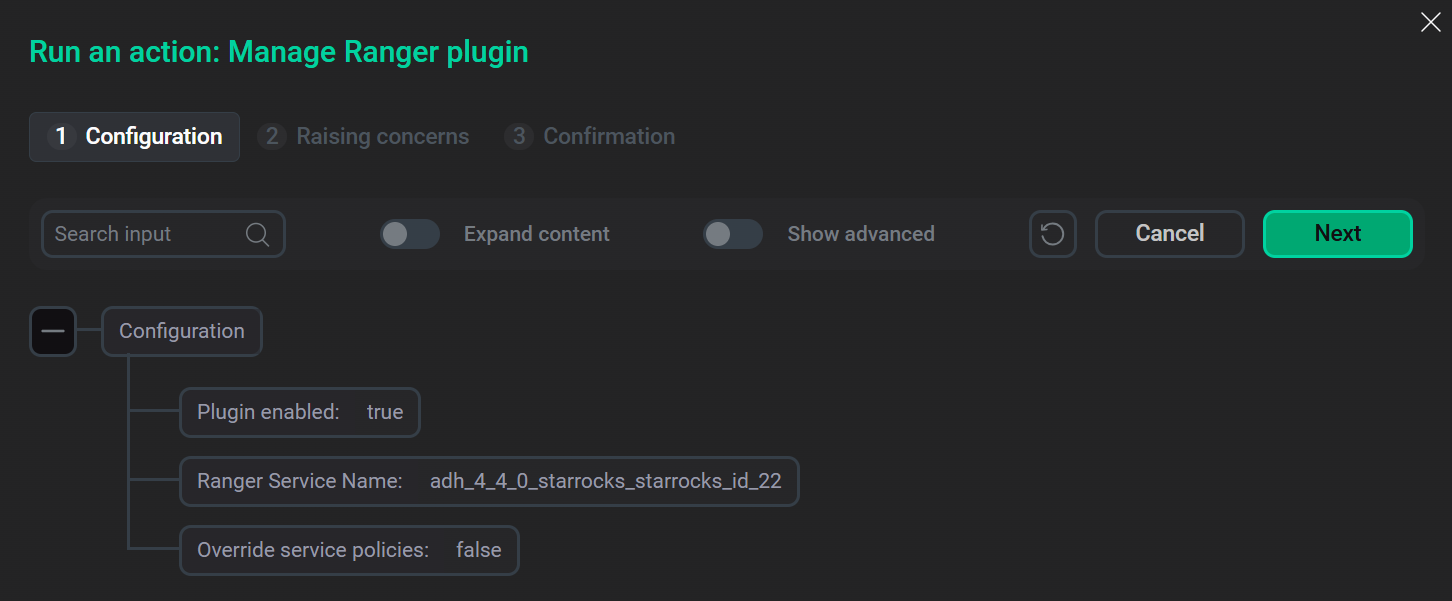 Ranger plugin enabledNOTEOn the first plugin enabling, a service with policies will be created (if it doesn’t exist yet) regardless of the Override service policies parameter.
 -
Click Run.
-
Сhoose whether to raise non-blocking concerns and click Next.
-
Сonfirm the action in the pop-up window.
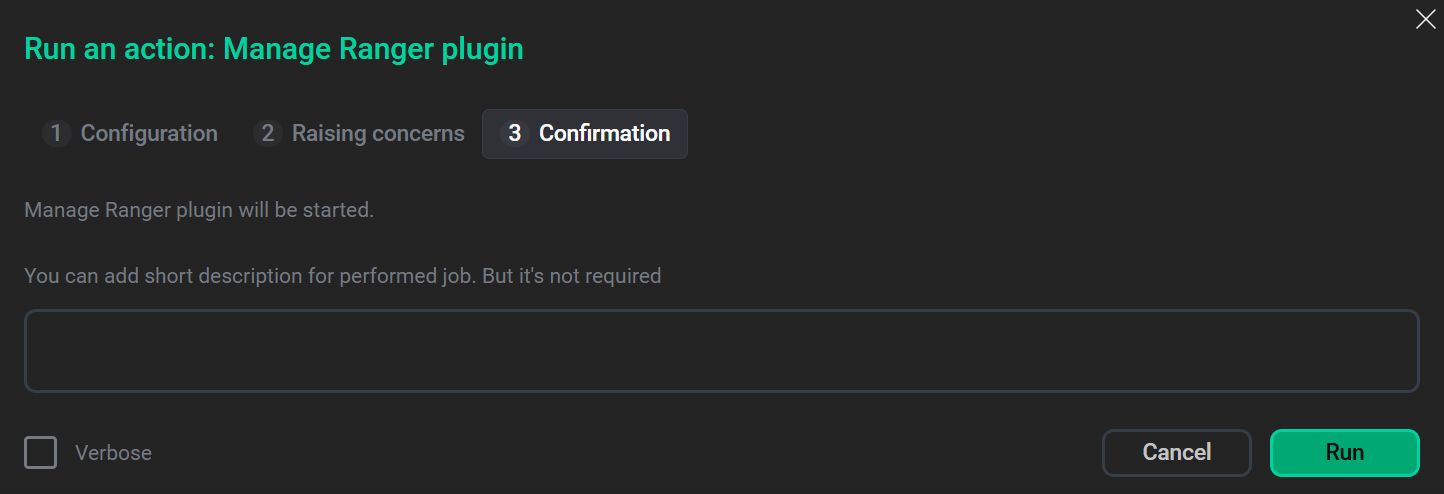 Action confirmation
Add a new policy in Ranger
To add a new policy to an existing StarRocks service, you should perform the following actions:
-
On the Service Manager page, click an existing StarRocks service in the StarRocks pane.
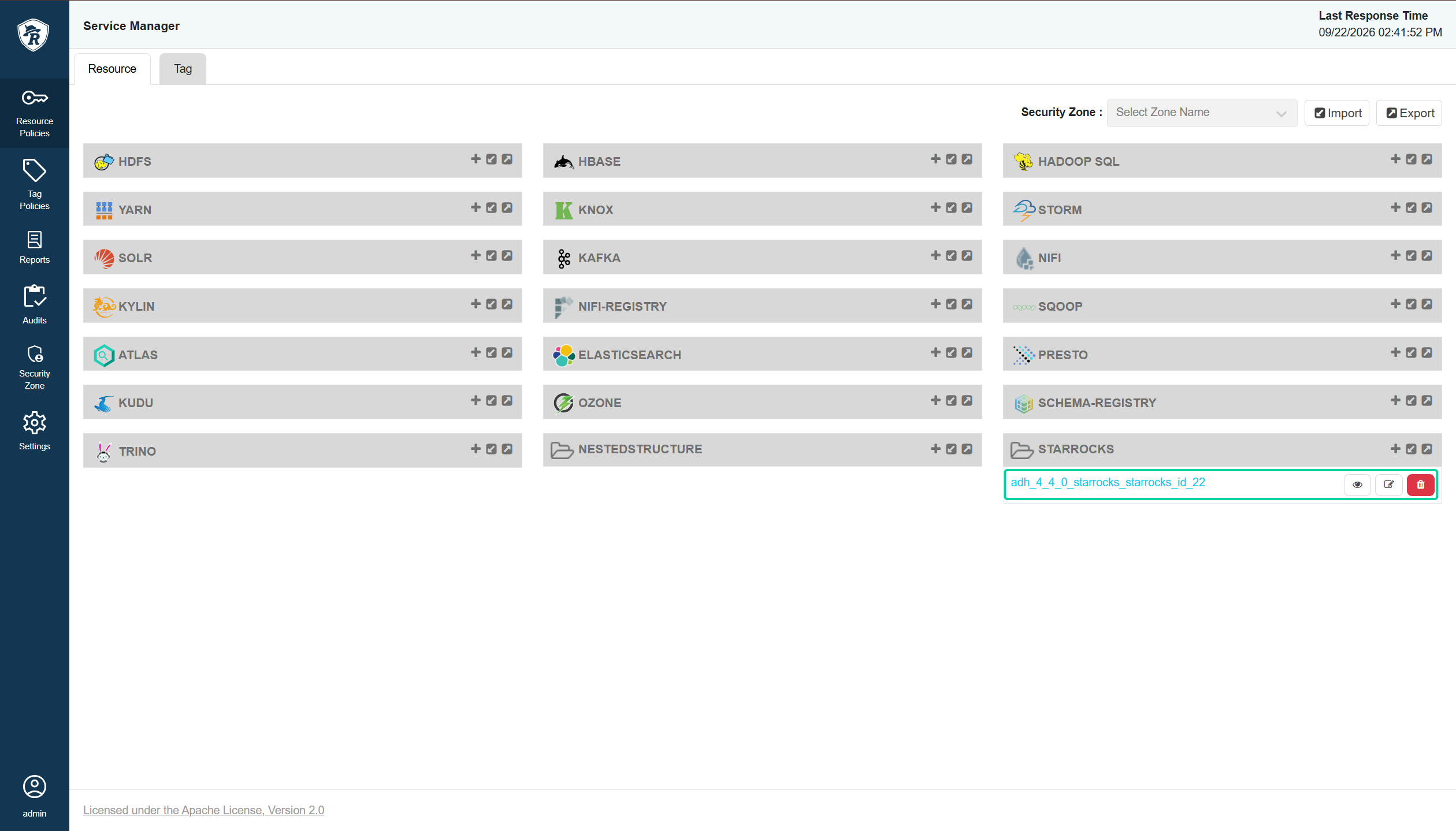 Service Manager
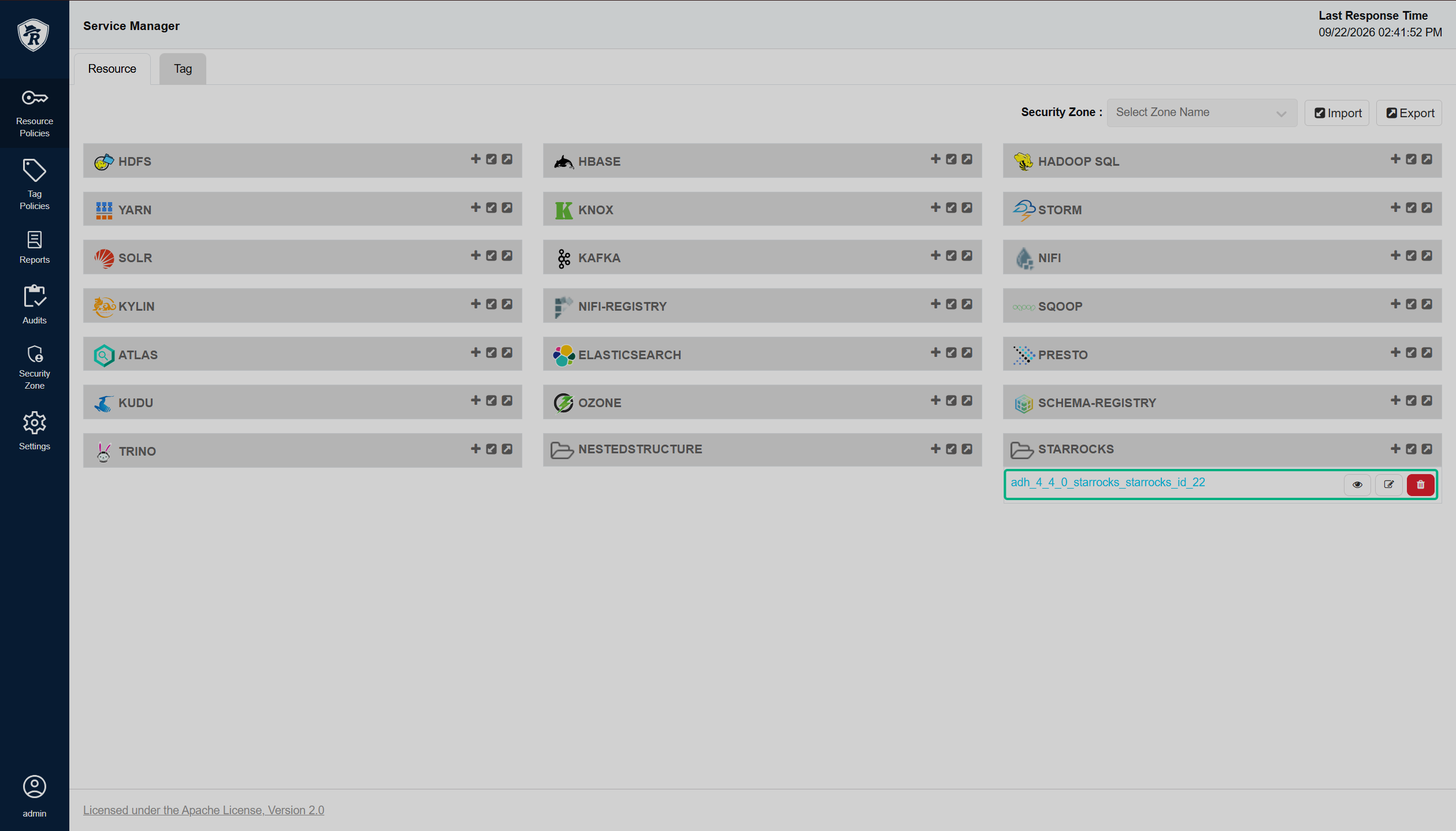 Service Manager
 -
On the StarRocks policy page, click Add New Policy.
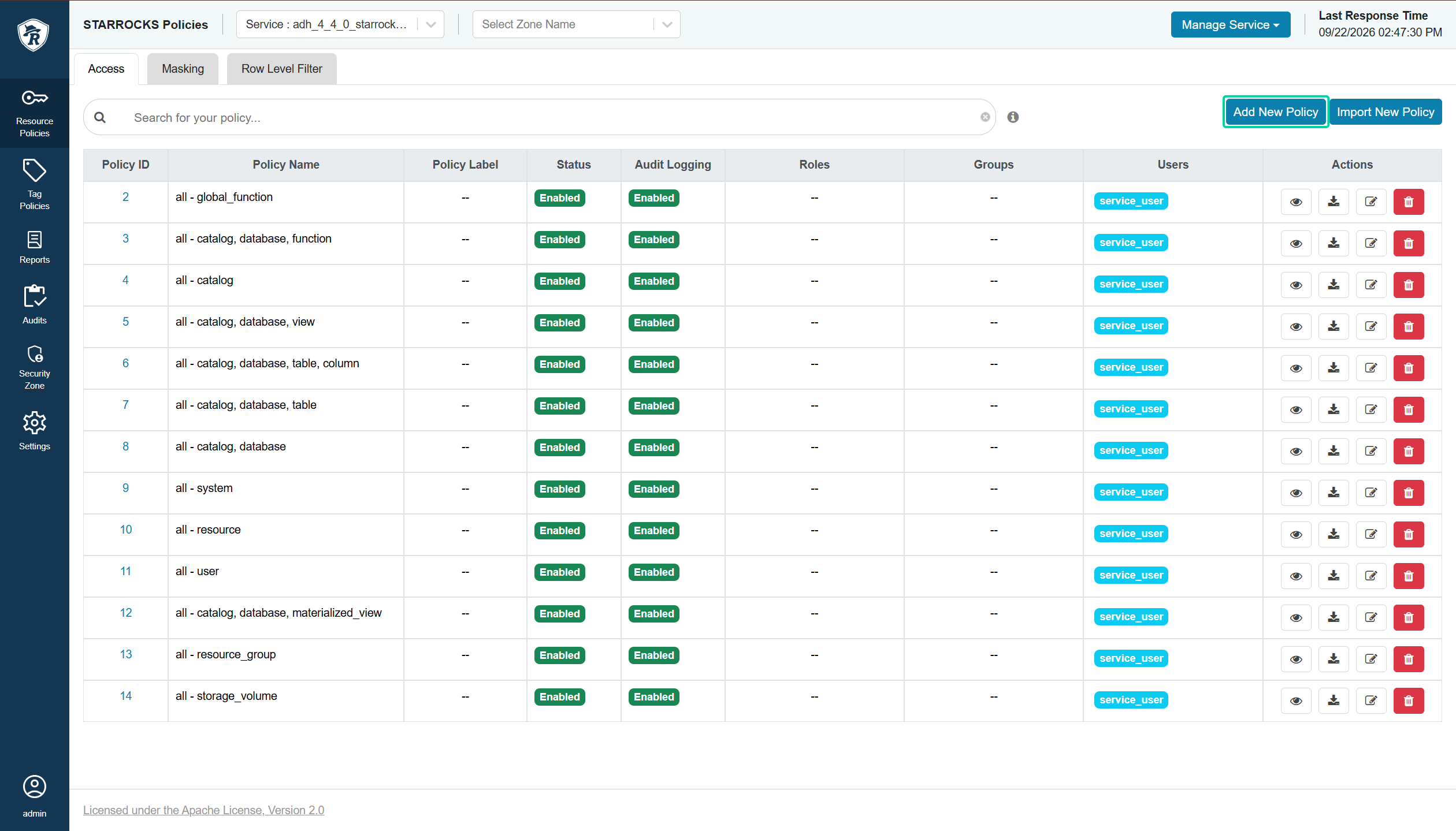 Add new policy
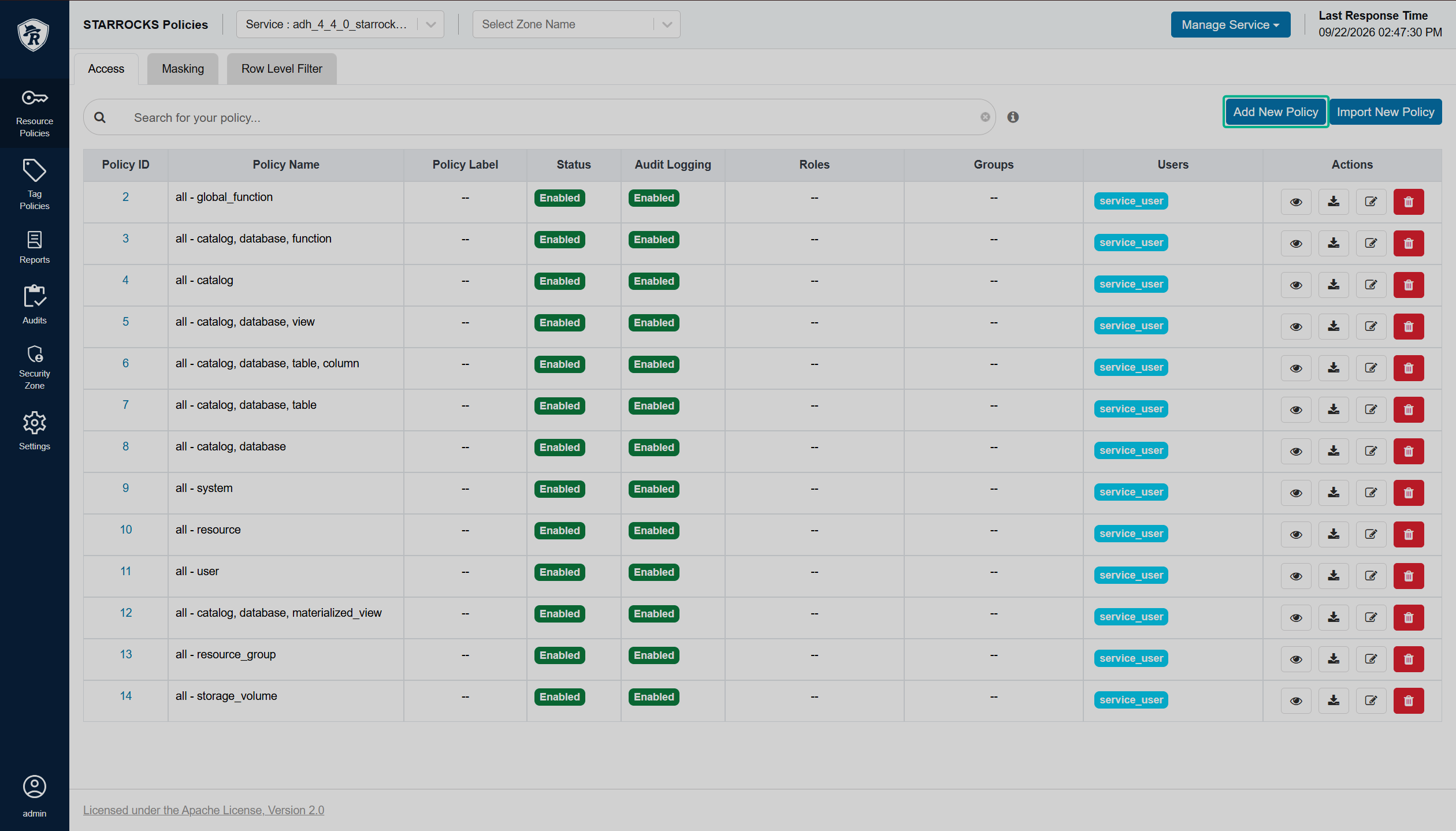 Add new policy
 -
On the opened Create Policy page, fill in the required policy details.
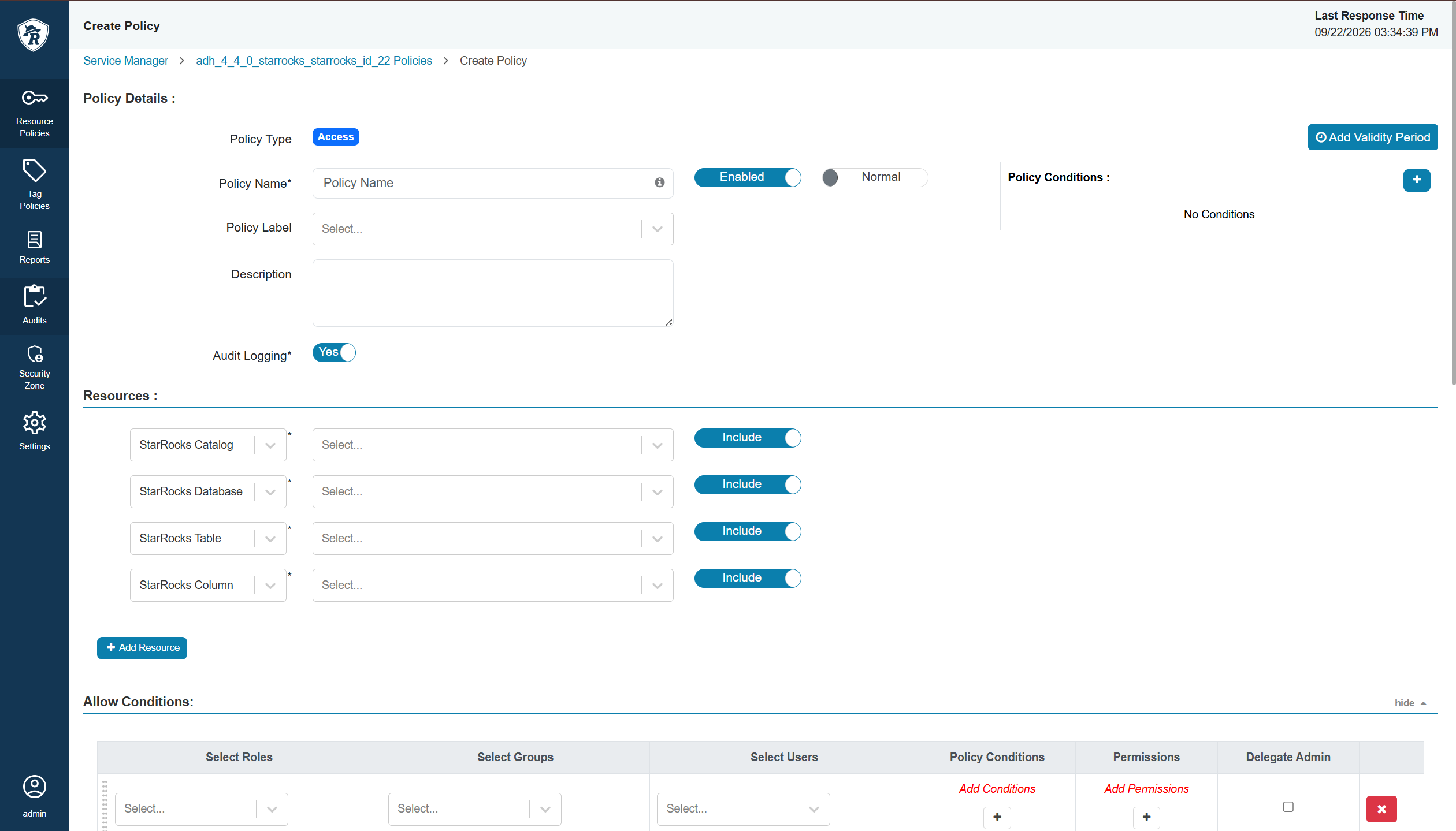 StarRocks policy details
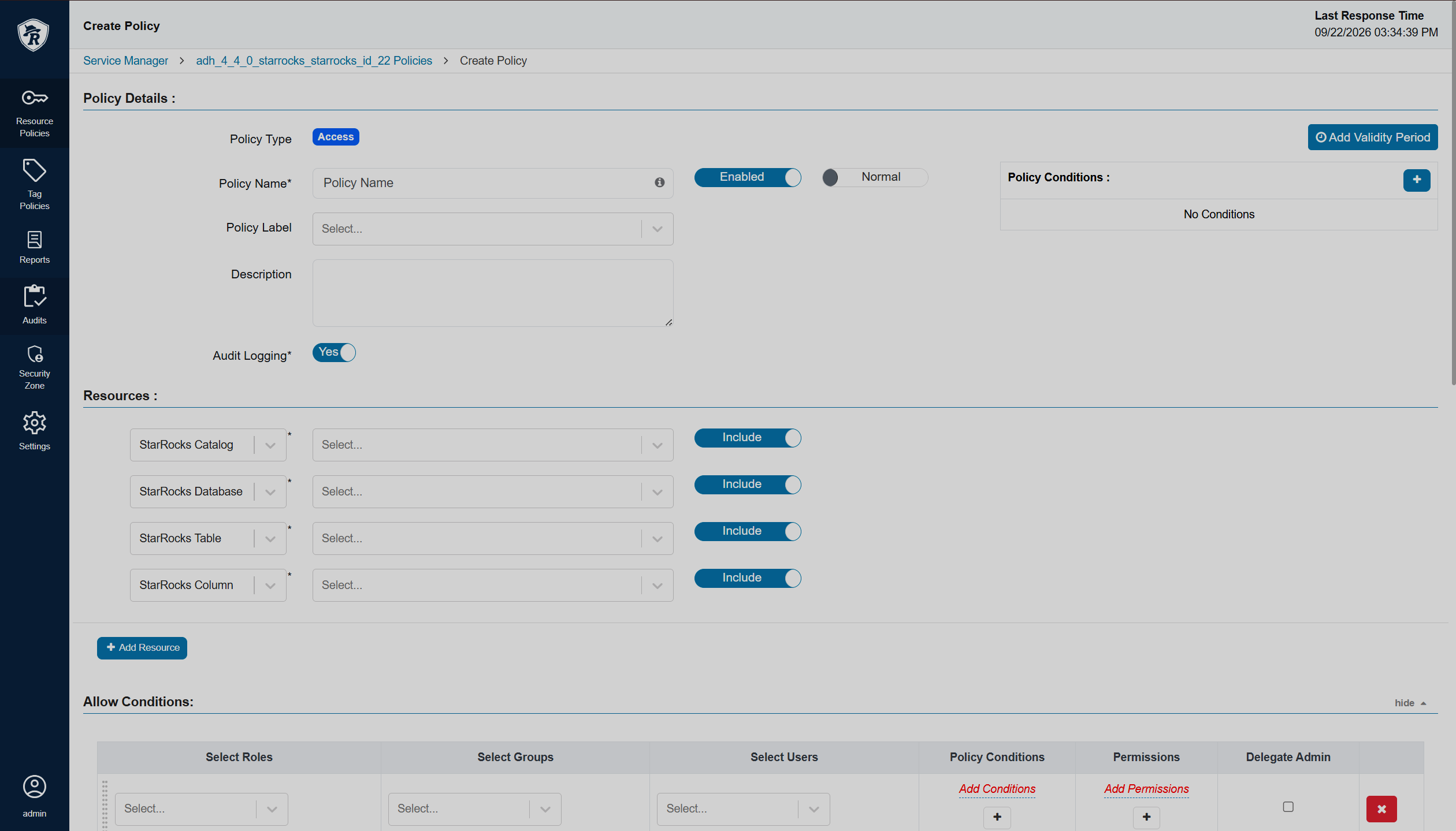 StarRocks policy details
Policy parameters Parameter Description Policy Name
The policy name. Must be unique across the system
Enabled
Indicates whether to enable the policy after creation
Normal/Override
Allows you to specify an override policy. When override state is selected, the access permissions of the new policy override the access permissions in existing policies
Policy Conditions
Additional criteria that determine when a Ranger policy applies. Conditions can use request context, such as the client IP address or boolean expressions
Policy Label
Allows grouping sets of policies with one or more labels and searching for policies by label names. You can use search on the Policy listing and Reports pages. Also helps to export/import policies. If a user has to export some specific set of policies, then they can search for a policy label and export the specific set of policies
Description
Describes the purpose of the policy
Audit Logging
Enables audit for the policy
Add Validity Period
Allows you to set the lifetime for the policy
-
Define the StarRocks resources to which the policy applies. Depending on the selected resource, you can specify a catalog, database, table, column, view, materialized view, function, global function, resource, or resource group. For hierarchical resources, such as catalog, database, table, and column, you can use
*to match all objects at the corresponding level.Resource parameters Parameter Description StarRocks Catalog
The StarRocks catalog to which the policy applies. Use
*to apply the policy to all catalogsStarRocks Database
A database within the selected catalog. Use
*to apply the policy to all databasesStarRocks Table
A table within the selected database. Use
*to apply the policy to all tablesStarRocks Column
A column within the selected table. Use
*to apply the policy to all columnsStarRocks View
A view within the selected database
StarRocks Materialized View
A materialized view within the selected database
StarRocks Function
A function within the selected database
StarRocks Global Function
A global function that is not associated with a specific database
StarRocks Resource
A StarRocks resource, such as a resource used by the cluster resource management functionality
StarRocks Resource Group
A StarRocks resource group
StarRocks Storage Volume
A StarRocks storage volume
StarRocks Storage
A StarRocks storage resource
StarRocks System
The StarRocks system
-
Configure allow/deny conditions.
The Allow Conditions section lets you grant access to specific roles, groups, or users. Use this section when you want to allow access to specific roles, groups, or users and deny access to everyone else.
The Exclude from Allow Conditions section creates an exception to an allowed condition.
The Deny Conditions section uses the opposite logic: use it to deny access to specific roles, groups, or users while allowing access to everyone else.
The Exclude from Deny Conditions section creates an exception to a deny condition. You can also combine rules from all these sections.
To add more conditions, click
 . Conditions are evaluated in the order in which they are listed in the policy: the condition at the top of the list is applied first, followed by the second, third, and subsequent conditions.
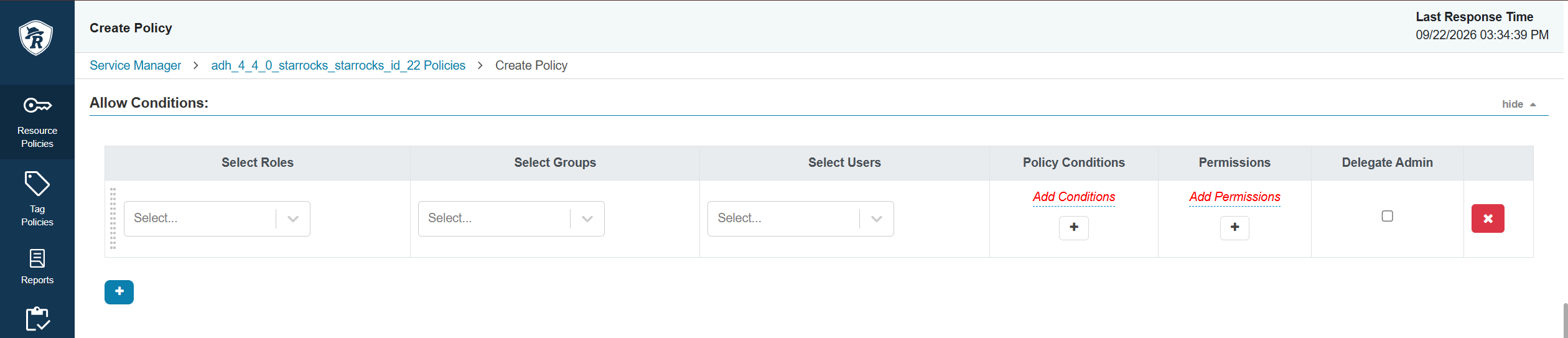 Parameters of StarRocks allow conditions
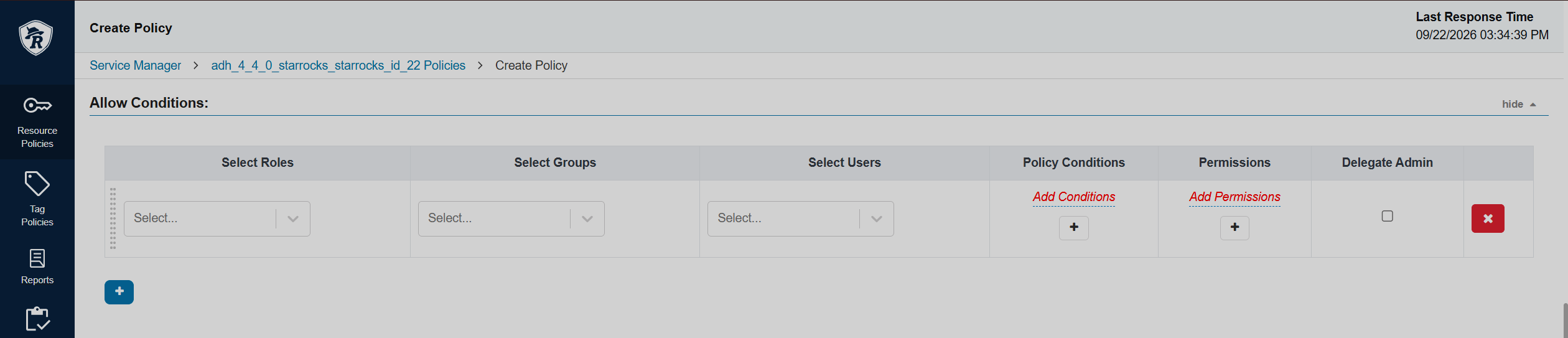 Parameters of StarRocks allow conditionsAllow Conditions parameters
Parameter Description Select Role
Specifies the roles to which this policy applies
Select Group
Specifies the groups to which this policy applies. The public group contains all users, so granting access to the public group grants access to all users
Select User
Specifies a user to which this policy applies (outside an already-specified group) or makes the user an Administrator for this policy
Permissions
Allows you to add or edit permissions
Delegate Admin
Grants administrator privileges to the users or groups specified in the policy. Administrators can edit or delete policies and create child policies based on the existing ones
Deny Conditions parametersParameter Description Select Role
Specifies the roles to which this policy does not apply
Select Group
Specifies the groups to which this policy does not apply. The public group contains all users, so denying access to the public group denies access to all users
Select User
Specifies a user to which this policy does not apply (outside an already-specified group) or makes the user an Administrator for this policy
Permissions
Allows you to add or edit permissions
Delegate Admin
Grants administrator privileges to the users or groups specified in the policy. Administrators can edit or delete policies and create child policies based on the existing ones
-
Click Add at the bottom of the page.