

External catalogs in StarRocks
- Overview
- Limitations and requirements
- Example of use
- Example data model
- Demonstration sequence
- Required connections
- Step 1. Create a native StarRocks table
- Step 2. Create a Hive table
- Step 3. Create an Iceberg table
- Step 4. Add the Hive table to StarRocks
- Step 5. Add the Iceberg table to StarRocks
- Step 6. Join data from all three tables
Overview
StarRocks catalogs provide a mechanism for accessing data stored in StarRocks and external data sources.
An internal catalog manages data stored in StarRocks. Every StarRocks cluster has a single internal catalog named default_catalog. Tables created directly in StarRocks belong to this catalog.
External catalogs allow StarRocks to read data directly from external systems without first loading or migrating that data into StarRocks. StarRocks supports external catalogs for Apache Hive, Apache Iceberg, Apache Hudi, Delta Lake, JDBC-compatible data sources, and other systems. A single external catalog can provide access to several data lake table formats.
This approach allows a user to run queries from a single StarRocks entry point to different storage systems and to aggregate data from different external sources with native StarRocks data.
Limitations and requirements
When StarRocks writes data to an external Hive table, the files are first written to the default staging directory /tmp/starrocks and then moved to the table location under /apps/hive/warehouse/*. To enable writes to external Hive tables, set the following session variable:
SET GLOBAL ENABLE_WRITE_HIVE_EXTERNAL_TABLE = true;Ozone limitation when writing to external Hive tables
When using Ozone, writing to external tables fails if the staging and Hive warehouse directories are located in different buckets. For example, ofs://adho/tmp/starrocks and ofs://adho/apps/hive/warehouse belong to different Ozone buckets, resulting in the Cannot rename a key to a different bucket error.
Set the staging directory for the session to a path within the same Ozone bucket, for example ofs://adho/apps/hive/tmp/starrocks. This allows StarRocks to move the files within the same Ozone bucket.
Example of use
The example below demonstrates a query which joins:
-
a native StarRocks table stored in the StarRocks shared-data layer;
-
a Hive table whose metadata is managed by Hive Metastore;
-
an Iceberg table whose metadata is managed by an Iceberg catalog.
The example assumes a three-host ADH cluster with the following services deployed.
| Host | Service | Component |
|---|---|---|
Host 1 |
Core configuration |
Configuration server |
HDFS |
HDFS Client HDFS DataNode HDFS JournalNode HDFS NameNode HDFS ZKFC |
|
Hive |
Hive Client Hive Metastore Hive Tez |
|
Spark3 |
Spark3 Client Spark3 History Server |
|
StarRocks |
StarRocks FE StarRocks CN |
|
YARN |
MapReduce History Server YARN Client YARN NodeManager |
|
Zookeeper |
Zookeeper Server |
|
Host 2 |
HDFS |
HDFS Client HDFS DataNode HDFS HttpFS server HDFS JournalNode |
Hive |
Hive Client Hive HiveServer2 Hive Metastore Hive Tez Hive Tez UI |
|
Spark3 |
Spark3 Client Spark3 Livy Server |
|
StarRocks |
StarRocks FE StarRocks CN |
|
YARN |
YARN Client YARN NodeManager YARN ResourceManager |
|
Zookeeper |
Zookeeper Server |
|
Host 3 |
ADPG |
Arenadata PostgreSQL |
HDFS |
HDFS Client HDFS DataNode HDFS JournalNode HDFS NameNode HDFS ZKFC |
|
Hive |
Hive Client Hive Metastore Hive Tez |
|
Spark3 |
Spark3 Client Spark3 Connect |
|
StarRocks |
StarRocks FE StarRocks CN |
|
YARN |
YARN Client YARN NodeManager YARN Timeline Server |
|
Zookeeper |
Zookeeper Server |
The following assumptions are true for an ADH installation out of the box:
-
If installed, HDFS is used as the shared-data storage for StarRocks.
-
Hive Metastore is configured to be available to StarRocks. StarRocks Frontend (FE) and Compute Nodes (CN) can access the HDFS paths returned by Hive Metastore.
-
The default Spark catalog,
spark_catalog, is configured to support Iceberg tables.
In this demonstration, DBeaver is used to connect to database systems.
Example data model
This example uses three tables representing a simple sales dataset.
| Table | Type | Purpose |
|---|---|---|
orders |
StarRocks |
Contains orders and references a customer and a product |
customers |
Hive |
Contains customer information |
products |
Iceberg |
Contains product information |
The tables are related as follows:
-
orders.customer_id→customers.customer_id -
orders.product_id→products.product_id
The final query joins the three tables and returns order, customer, and product information.
Demonstration sequence
The demonstration consists of the following steps:
-
Create a native StarRocks
orderstable using DBeaver. -
Create a Hive
customerstable using DBeaver. -
Create an Iceberg
productstable using Spark3 and the preconfiguredspark_catalog. -
Add the Hive catalog as external in StarRocks.
-
Add the Iceberg catalog as external in StarRocks.
-
Query and join all three tables from DBeaver through StarRocks.
Required connections
Before starting the demonstration, verify that you have the required connections.
-
StarRocks FE. To connect, you can take the JDBC string in ADCM under the Services → StarRocks → Info tab.
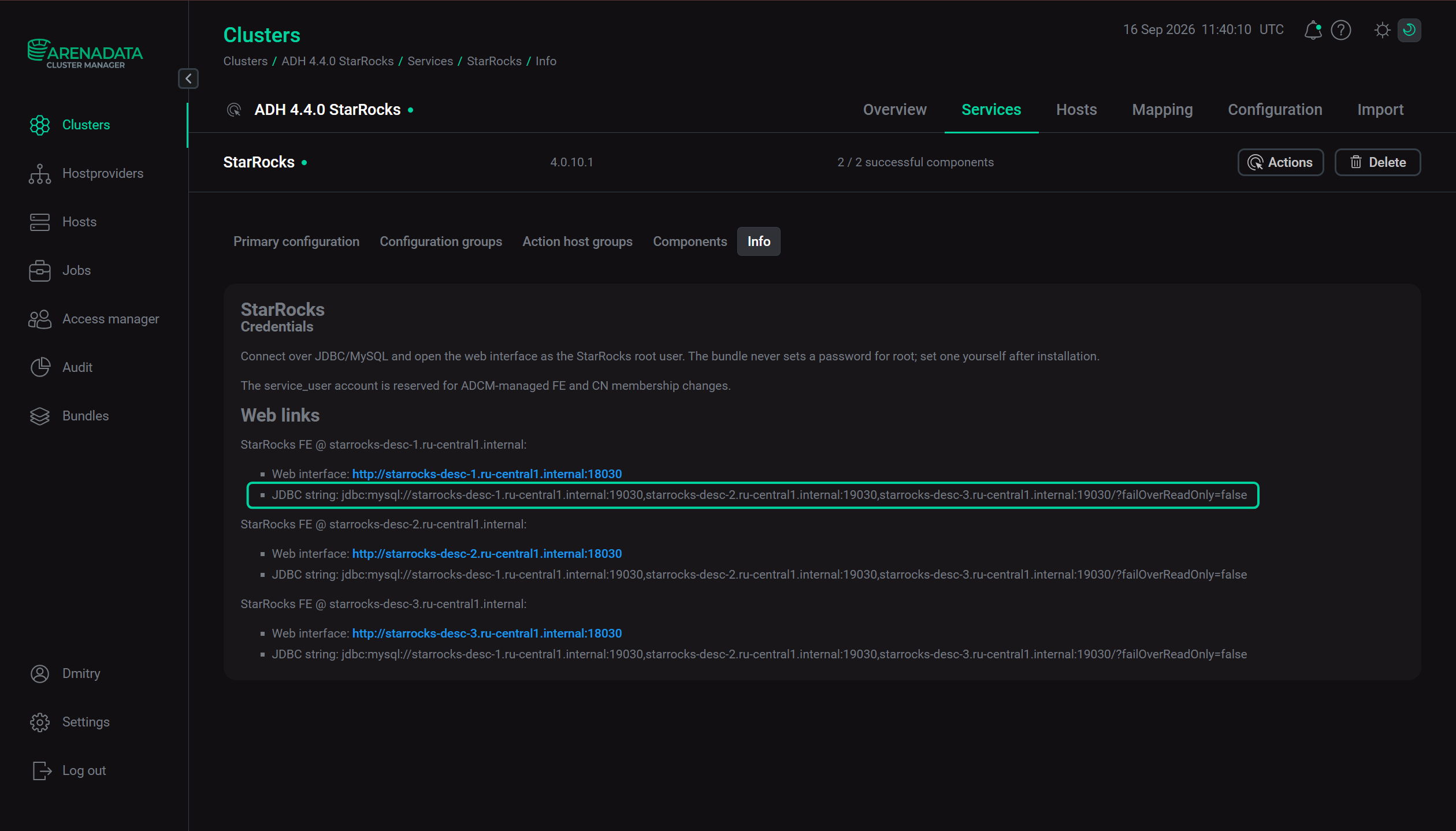 StarRocks info tab
StarRocks info tab
StarRocks info tabUse it to connect to StarRocks in DBeaver.
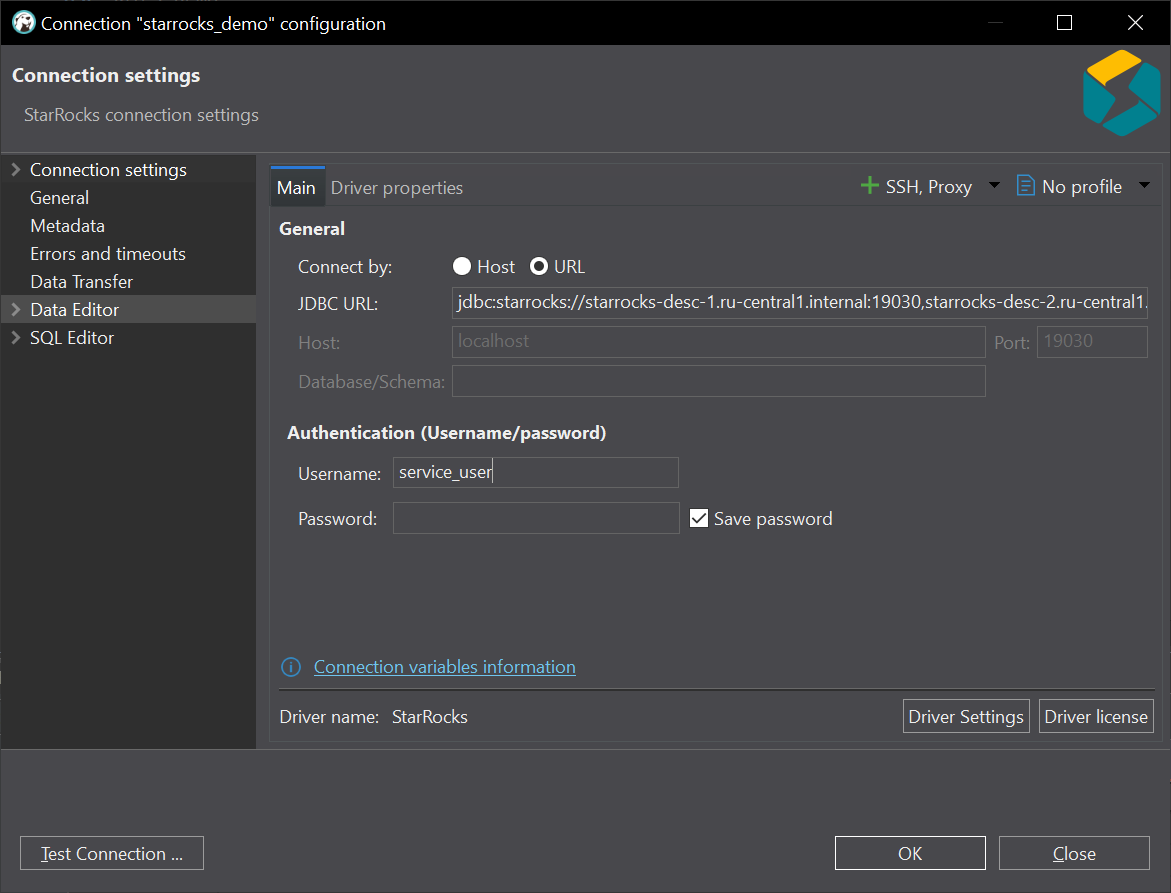 StarRocks connection in DBeaver
StarRocks connection in DBeaver
StarRocks connection in DBeaver -
HiveServer2 connection. To connect, you can take the JDBC string in ADCM under the Services → Hive → Info tab.
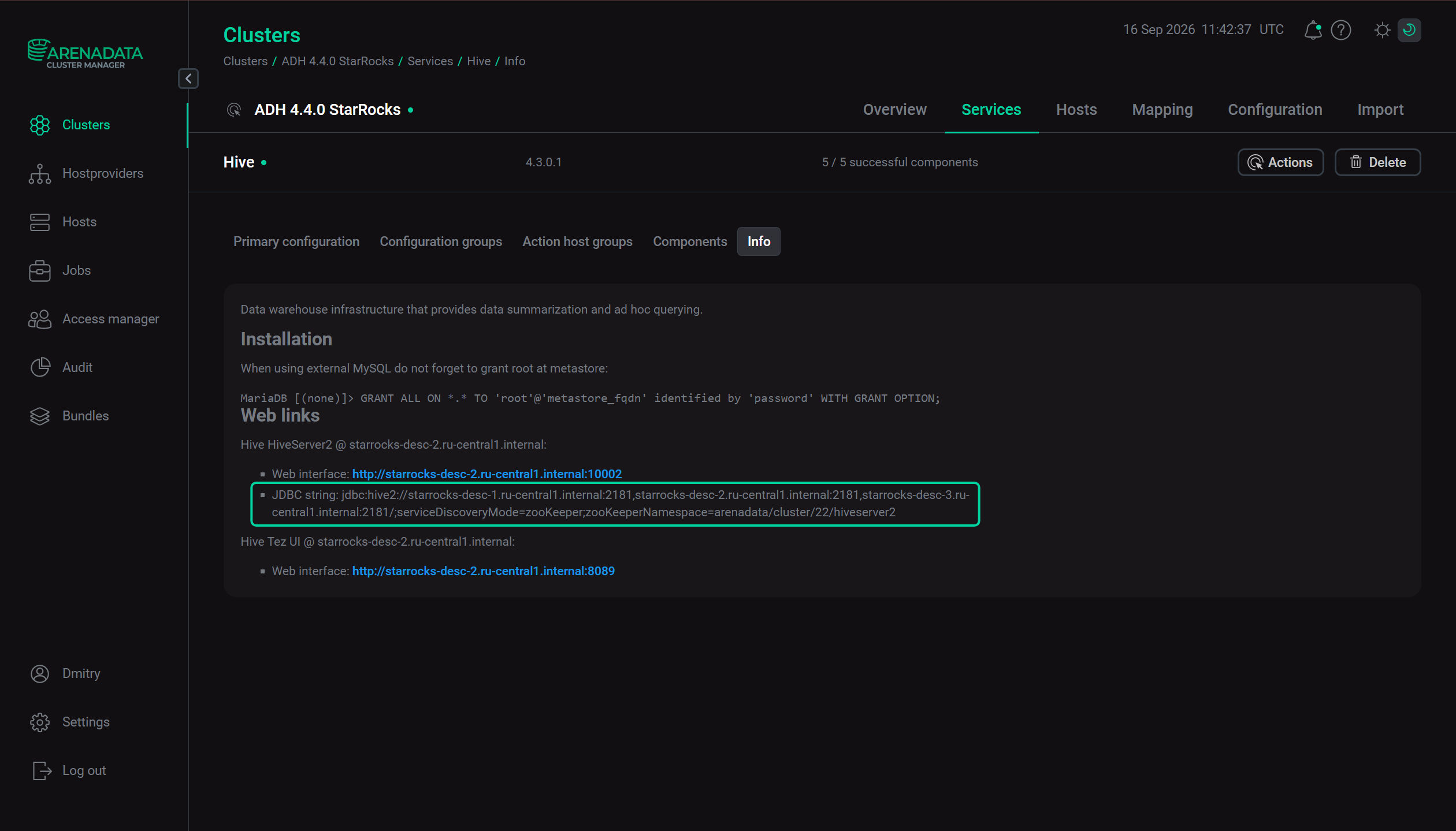 Hive info tab
Hive info tab
Hive info tabUse it to connect to Hive in DBeaver.
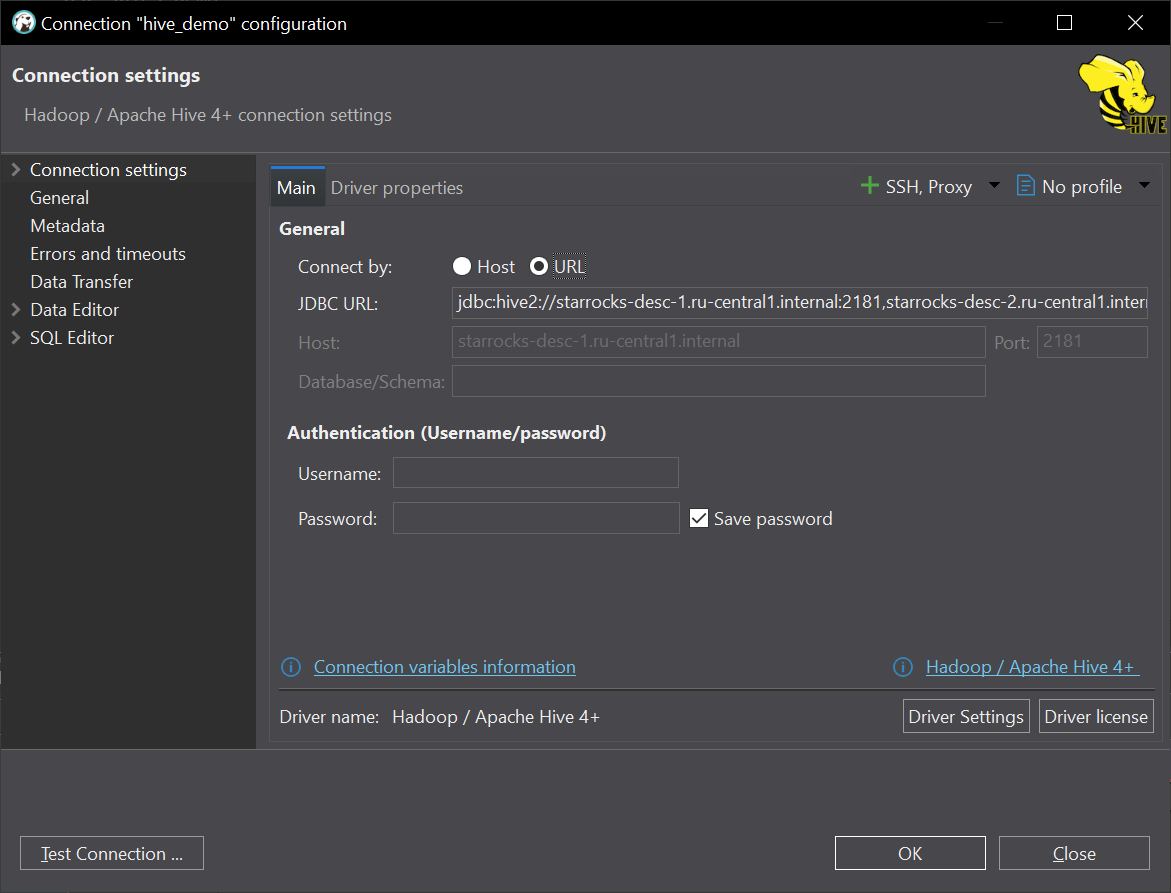 Hive connection in DBeaver
Hive connection in DBeaver
Hive connection in DBeaver -
Hive Metastore connection via Spark client. Spark is used only to create and populate the Iceberg table.
Step 1. Create a native StarRocks table
Use DBeaver to connect to StarRocks.
-
First, create a database in the internal catalog:
CREATE DATABASE IF NOT EXISTS starrocks_sales; -
Switch to the database:
USE starrocks_sales; -
Create the
orderstable:CREATE TABLE orders ( order_id BIGINT, customer_id BIGINT, product_id BIGINT, order_date DATE, quantity INT ) PRIMARY KEY (order_id) DISTRIBUTED BY HASH (order_id) PROPERTIES ( "replication_num" = "3" ); -
Insert sample data:
INSERT INTO orders ( order_id, customer_id, product_id, order_date, quantity ) VALUES (1001, 1, 101, '2026-09-01', 2), (1002, 2, 102, '2026-09-02', 1), (1003, 1, 103, '2026-09-03', 5), (1004, 3, 101, '2026-09-04', 3); -
Verify the table:
SELECT *
FROM starrocks_sales.orders
ORDER BY order_id;
The table is stored and managed by StarRocks and therefore belongs to the internal
default_catalog.You can verify the table definition:
SHOW CREATE TABLE starrocks_sales.orders;
Step 2. Create a Hive table
A Hive table is created separately from StarRocks.
Use DBeaver to connect to HiveServer2. Do not use StarRocks connection or Spark to create a Hive table.
-
Create a Hive database:
CREATE DATABASE IF NOT EXISTS hive_sales; -
Switch to the database:
USE hive_sales; -
Create the
customerstable:CREATE TABLE customers ( customer_id BIGINT, customer_name STRING, city STRING ) STORED AS PARQUET; -
Insert sample data:
INSERT INTO customers (customer_id, customer_name, city) VALUES (1, 'Alice Brown', 'Moscow'), (2, 'Bob Smith', 'Saint Petersburg'), (3, 'Carol White', 'Kazan'); -
Verify the table from the Hive connection in DBeaver:
SELECT *
FROM customers
ORDER BY customer_id;
Step 3. Create an Iceberg table
An Iceberg table is created using Spark3.
-
Start a Spark3 SQL session on one of the cluster hosts with Spark3 client installed:
$ spark3-sql -
Create the
iceberg_salesnamespace:CREATE NAMESPACE IF NOT EXISTS iceberg_sales; -
Verify the namespace:
SHOW NAMESPACES; -
Create the
productsIceberg table:CREATE TABLE iceberg_sales.products ( product_id BIGINT, product_name STRING, category STRING, price DECIMAL(10, 2) ) USING iceberg; -
Insert sample data:
INSERT INTO iceberg_sales.products (product_id, product_name, category, price) VALUES (101, 'Laptop', 'Electronics', 1200.00), (102, 'Keyboard', 'Electronics', 80.00), (103, 'Office Chair', 'Furniture', 250.00); -
Verify the table:
SELECT *
FROM iceberg_sales.products
ORDER BY product_id;
You can also inspect the table metadata from Spark:
DESCRIBE TABLE iceberg_sales.products;
At this point, the environment contains three independent tables:
-
starrocks_sales.orders; -
hive_sales.customers; -
iceberg_sales.products.
Step 4. Add the Hive table to StarRocks
The next step is to make the Hive table available to StarRocks through an external catalog.
-
Connect to StarRocks in DBeaver and execute the following statement:
CREATE EXTERNAL CATALOG hive_catalog PROPERTIES (
        "type" = "hive", (1)
        "hive.metastore.type" = "hive", (2)
        "hive.metastore.uris" = "thrift://<hive-metastore-host>:<hive-metastore-thrift-port>" (3)
);
1 The typeproperty identifies the external data source as Hive.2 The hive.metastore.typeproperty specifies that the metadata service is Hive Metastore.3 The hive.metastore.urisproperty specifies the Hive Metastore endpoint. StarRocks uses this endpoint to obtain database, table, schema, and storage-location metadata.In this demonstration, the cluster has three Hive Metastore endpoints deployed. All three are populated in
hive.metastore.uris:CREATE EXTERNAL CATALOG hive_catalog COMMENT "Hive external catalog" PROPERTIES ( "type" = "hive", "hive.metastore.type" = "hive", "hive.metastore.uris" = "thrift://starrocks-desc-1.ru-central1.internal:9083,thrift://starrocks-desc-2.ru-central1.internal:9083,thrift://starrocks-desc-3.ru-central1.internal:9083" );
Verify the Hive catalog
-
List the catalogs:
SHOW CATALOGS;The result should contain the internal catalog and the newly created Hive catalog.
SHOW CATALOGSreportsdefault_catalogasInternaland external catalogs according to their configured type. -
Check the catalog configuration:
SHOW CREATE CATALOG hive_catalog;SHOW CREATE CATALOGdisplays the statement used to create the catalog.
Verify the Hive database and table
-
List the databases available through the Hive catalog:
SHOW DATABASES FROM hive_catalog;The
hive_salesdatabase should be present. -
List its tables:
SHOW TABLES FROM hive_catalog.hive_sales;The result should contain the
customerstable. -
You can inspect its schema:
DESCRIBE hive_catalog.hive_sales.customers; -
You can also query the table directly.
SELECT *
FROM hive_catalog.hive_sales.customers
ORDER BY customer_id;
Step 5. Add the Iceberg table to StarRocks
The Iceberg table is accessed through a separate StarRocks Iceberg catalog.
Because the Iceberg table in this example uses Hive Metastore for catalog metadata, configure the StarRocks catalog to use the Hive catalog implementation.
-
Execute the following statement from the StarRocks connection in DBeaver:
CREATE EXTERNAL CATALOG iceberg_catalog PROPERTIES (
        "type" = "iceberg", (1)
        "iceberg.catalog.type" = "hive", (2)
        "iceberg.catalog.hive.metastore.uris" = "thrift://<hive-metastore-host>:<hive-metastore-thrift-port>" (3)
);
1 The typeproperty specifies Iceberg as the external data source.2 The iceberg.catalog.typeproperty specifies the Iceberg catalog implementation. In this example, it ishive.3 The iceberg.catalog.hive.metastore.urisproperty specifies the Hive Metastore endpoint used to retrieve Iceberg metadata. StarRocks supports Iceberg catalogs backed by Hive Metastore.In this demonstration, the cluster has three Hive Metastore endpoints deployed. All three are populated in
iceberg.catalog.hive.metastore.urisin the SQL:CREATE EXTERNAL CATALOG iceberg_catalog COMMENT "Iceberg external catalog" PROPERTIES ( "type" = "iceberg", "iceberg.catalog.type" = "hive", "iceberg.catalog.hive.metastore.uris" = "thrift://starrocks-desc-1.ru-central1.internal:9083,thrift://starrocks-desc-2.ru-central1.internal:9083,thrift://starrocks-desc-3.ru-central1.internal:9083" );
|
NOTE
The fact that Spark uses default |
Verify the Iceberg catalog and namespace
-
Verify the Iceberg catalog definition:
SHOW CREATE CATALOG iceberg_catalog; -
List the databases available in the Iceberg catalog:
SHOW DATABASES FROM iceberg_catalog;Result should include the
iceberg_salesdatabase. -
Inspect the table:
DESCRIBE iceberg_catalog.iceberg_sales.products; -
Query the Iceberg table directly:
SELECT * FROM iceberg_catalog.iceberg_sales.products ORDER BY product_id; -
Now you can list all catalogs in StarRocks:
SHOW CATALOGS;The result should include external catalogs:
default_catalog
hive_catalog
iceberg_catalog
Created catalogs can also be found in the System → catalogs section of StarRocks web UI.
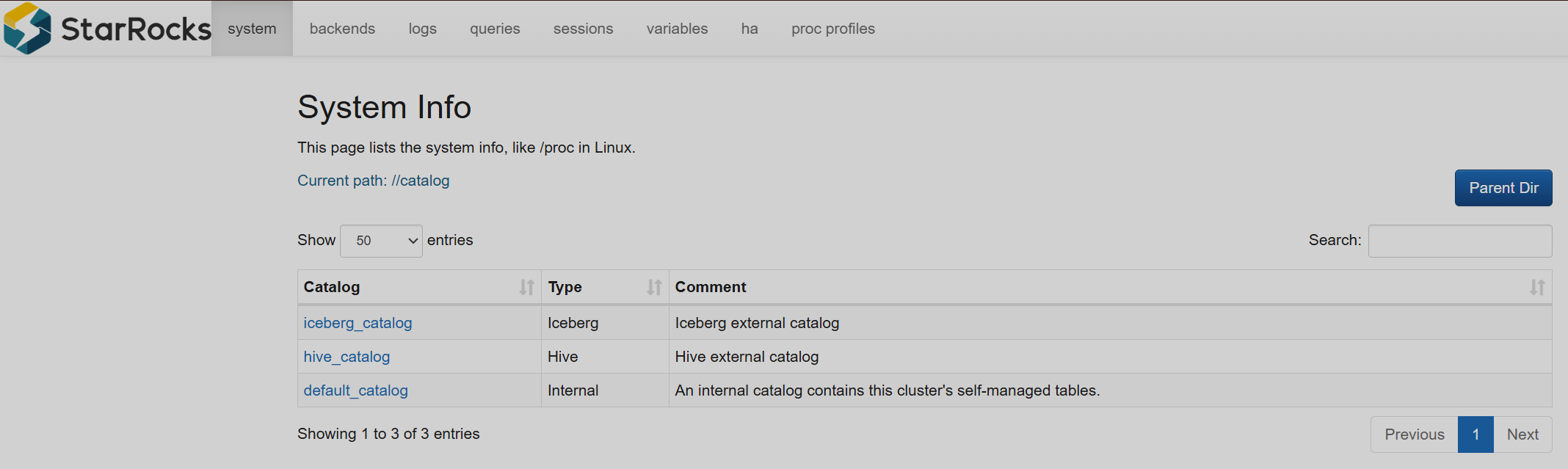 List of catalogs in web UI
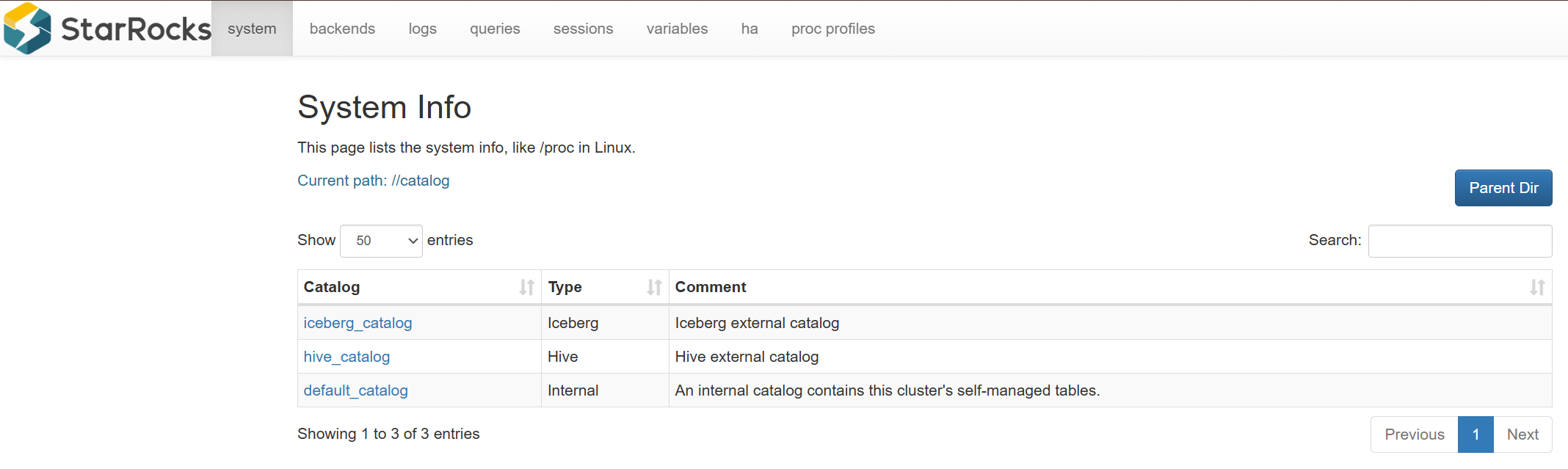 List of catalogs in web UI
Step 6. Join data from all three tables
The three tables can be combined in a single query. In this example, the orders native StarRocks table provides the order data, while the customers Hive table and products Iceberg table provide customer and product attributes.
| Catalog | Catalog type | Table |
|---|---|---|
default_catalog |
Internal StarRocks |
starrocks_sales.orders |
hive_catalog |
External Hive |
hive_sales.customers |
iceberg_catalog |
External Iceberg |
iceberg_sales.products |
Execute the following query from the StarRocks connection in DBeaver:
SELECT
        c.customer_id,
        c.customer_name,
        c.city,
        p.category,
        COUNT(DISTINCT o.order_id) AS order_count,
        SUM(o.quantity) AS total_quantity,
        SUM(o.quantity * p.price) AS total_amount,
        AVG(o.quantity * p.price) AS average_order_amount
FROM
        default_catalog.starrocks_sales.orders AS o
        JOIN hive_catalog.hive_sales.customers AS c ON o.customer_id = c.customer_id
        JOIN iceberg_catalog.iceberg_sales.products AS p ON o.product_id = p.product_id
GROUP BY
        c.customer_id,
        c.customer_name,
        c.city,
        p.category
ORDER BY
        total_amount DESC;
For the sample data, the result is similar to the following.
┌─Customer──────┬─City──────────────┬─Category────┬─Orders─┬─Quantity─┬─Total amount─┬─Average order──┐
│ Alice Brown   │ Moscow            │ Electronics │      1 │        2 │      2400.00 │        2400.00 │
│ Alice Brown   │ Moscow            │ Furniture   │      1 │        5 │      1250.00 │        1250.00 │
│ Bob Smith     │ Saint Petersburg  │ Electronics │      1 │        1 │        80.00 │          80.00 │
│ Carol White   │ Kazan             │ Electronics │      1 │        3 │      3600.00 │        3600.00 │
└───────────────┴───────────────────┴─────────────┴────────┴──────────┴──────────────┴────────────────┘
|
IMPORTANT
In this example, the same HDFS cluster is used by all three catalogs. But external catalogs do not have a limitation to reside in the same cluster, you can plug in systems deployed on other clusters as external catalogs as long as StarRocks can access them. |