

LDAP authentication in StarRocks
StarRocks supports authentication through an external LDAP service. It can be configured for Frontend (FE) nodes and used by StarRocks clients that connect through the MySQL protocol.
The procedure uses the following authentication flow:
-
The client sends the StarRocks username and password to the FE.
-
StarRocks searches the LDAP directory for the user using the configured user search attribute.
-
StarRocks obtains the user’s DN and binds to LDAP using this DN and the password supplied by the user.
-
If LDAP authentication succeeds, StarRocks authenticates the user and applies the privileges assigned to the corresponding StarRocks user.
Enable LDAP
To enable LDAP authentication, follow the steps below in ADCM:
-
On the Clusters page, select your ADH cluster and proceed to the Services tab in the cluster menu.
-
Select the StarRocks service and activate the Enable LDAP parameter group.
-
Fill in the LDAP parameters for Active Directory and restart StarRocks.
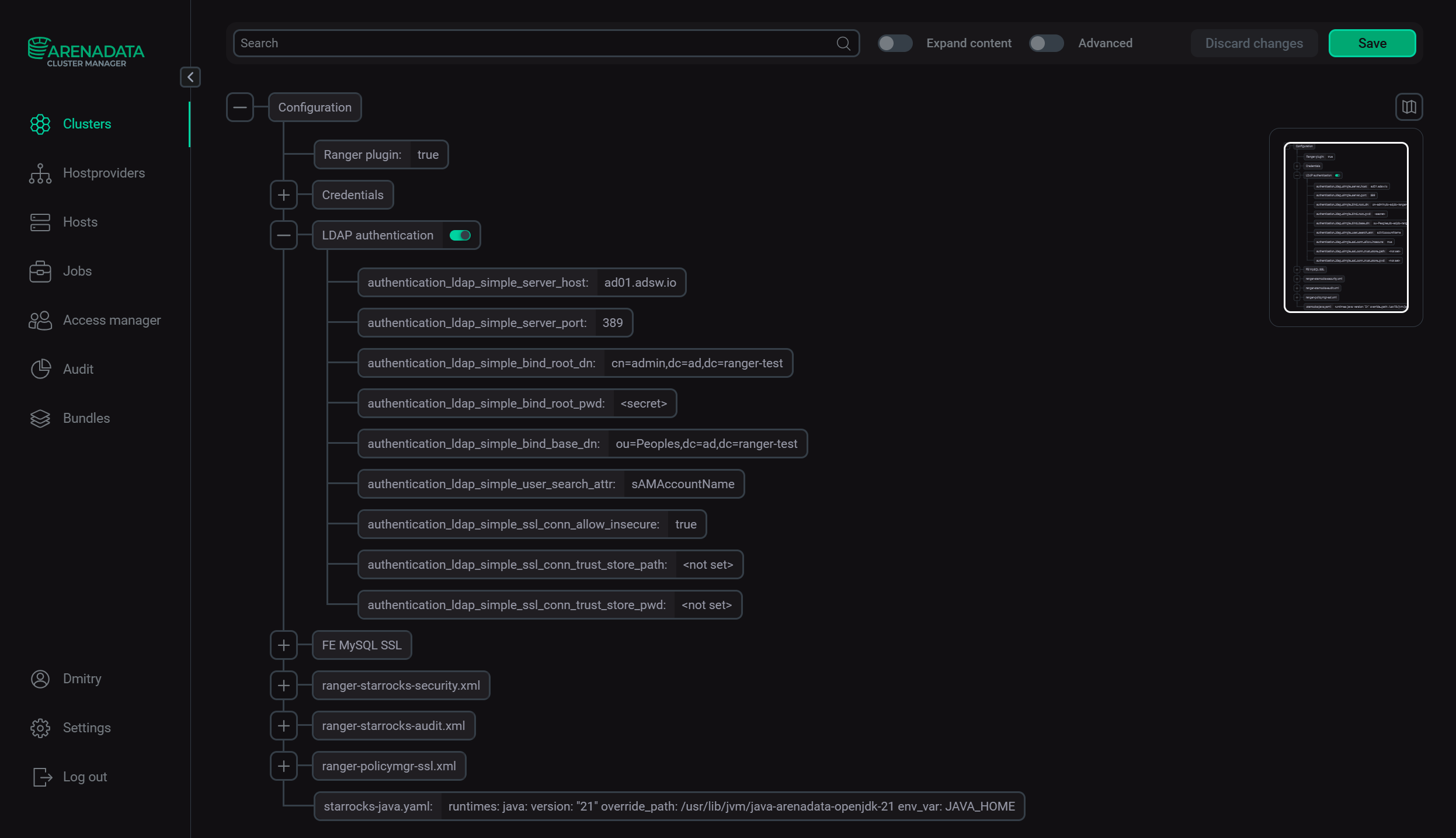
For the configuration described in this example, the following values are used:
| Parameter | Description | Value |
|---|---|---|
authentication_ldap_simple_server_host |
Hostname of the Active Directory LDAP server. In this example, the server contains the |
ad01.adsw.io |
authentication_ldap_simple_server_port |
LDAP service port |
389 |
authentication_ldap_simple_ssl_conn_allow_insecure |
Allows an unencrypted LDAP connection |
true |
authentication_ldap_simple_bind_base_dn |
Base DN used to search for users |
ou=Peoples,dc=ad,dc=ranger-test |
authentication_ldap_simple_user_search_attr |
Active Directory attribute containing the user’s login name |
sAMAccountName |
authentication_ldap_simple_bind_root_dn |
DN of the account used by StarRocks to search for users |
cn=admin,dc=ad,dc=ranger-test |
authentication_ldap_simple_bind_root_pwd |
Password of the LDAP bind account |
<LDAP_bind_password> |
|
IMPORTANT
Do not specify |
|
CAUTION
This example uses |
Create a StarRocks user for LDAP authentication
LDAP authentication does not automatically create a StarRocks user when using the native-user authentication model.
-
Create the corresponding StarRocks user and specify
authentication_ldap_simpleas the authentication method.For example:
CREATE USER 'ffedorov' IDENTIFIED WITH authentication_ldap_simple;The
CREATE USERstatement creates a StarRocks user, while theauthentication_ldap_simpleauthentication method instructs StarRocks to authenticate this user through LDAP.The Active Directory password is not specified in this statement. The user provides this password when connecting to StarRocks, and StarRocks uses it to authenticate the user against LDAP.
The StarRocks username must correspond to the value of the configured LDAP user search attribute.
For Active Directory, the example uses
sAMAccountName=ffedorov. -
After creating the LDAP-authenticated StarRocks user, grant the required StarRocks privileges.
For example, to allow
ffedorovto query all tables in thestarrocks_demodatabase in StarRocks:GRANT SELECT ON ALL TABLES IN DATABASE starrocks_demo TO USER 'ffedorov';
Check the LDAP configuration
First, check that the StarRocks user is configured to use LDAP authentication.
-
Connect to StarRocks using an administrative account and run:
SHOW AUTHENTICATION;The output contains authentication information for StarRocks users. For an LDAP-authenticated user, the
AuthPlugincolumn containsAUTHENTICATION_LDAP_SIMPLE.For example:
┌────────────────┬──────────┬────────────────────────────┬───────────────────┐
│ UserIdentity   │ Password │ AuthPlugin                 │ UserForAuthPlugin │
├────────────────┼──────────┼────────────────────────────┼───────────────────┤
│ 'ffedorov'@'%' │ No       │ AUTHENTICATION_LDAP_SIMPLE │ NULL              │
└────────────────┴──────────┴────────────────────────────┴───────────────────┘
-
Check LDAP authentication using the MySQL client.
StarRocks LDAP authentication requires the client to provide the password using the
mysql_clear_passwordauthentication plugin. When using the MySQL client, enable this plugin as follows:$ mysql -h <host name> -P <mysql port> -u <LDAP user name> -p --default-auth mysql_clear_password --enable-cleartext-pluginFor example:
$ mysql -h starrocks-desc-1.ru-central1.internal -P 19030 -u ffedorov -p --default-auth mysql_clear_password --enable-cleartext-pluginEnter the Active Directory password for
ffedorovwhen prompted.If authentication succeeds, the MySQL client opens a StarRocks session.
-
Verify the authenticated user:
SELECT CURRENT_USER();Verify that the user can access the database for which privileges were granted:
USE starrocks_demo;
SHOW TABLES;
Security integrations
The procedure in this article uses a StarRocks user explicitly created with authentication_ldap_simple. StarRocks also supports LDAP security integrations, which can authenticate external users without creating each user as a persistent StarRocks user. The security integration approach is configured separately and is intended for a different user management model.