

Monitoring service
The Monitoring service deploys the Prometheus server inside ADH to collect and store cluster monitoring metrics, and also supports the ability to use the Grafana web application for visualization and analysis of information. This article describes steps required to add this service to an ADH cluster.
Overview
When adding the Monitoring service to ADH, you can install the Node Exporter on all or selected hosts of your cluster. It is a monitoring agent that reads host system metrics that Prometheus collects. Prometheus can also collect metrics from ADH services. These metrics will be available in the Prometheus format on the ports and endpoints specified in the service configurations. You can also use the Prometheus and Grafana web interfaces to view and analyze data that the monitoring service collects.
|
NOTE
|
Step 1. Add the service
-
In the ADCM interface, open the Clusters page and click your ADH cluster name. On the cluster page that opens, switch to the Services tab and click Add services.
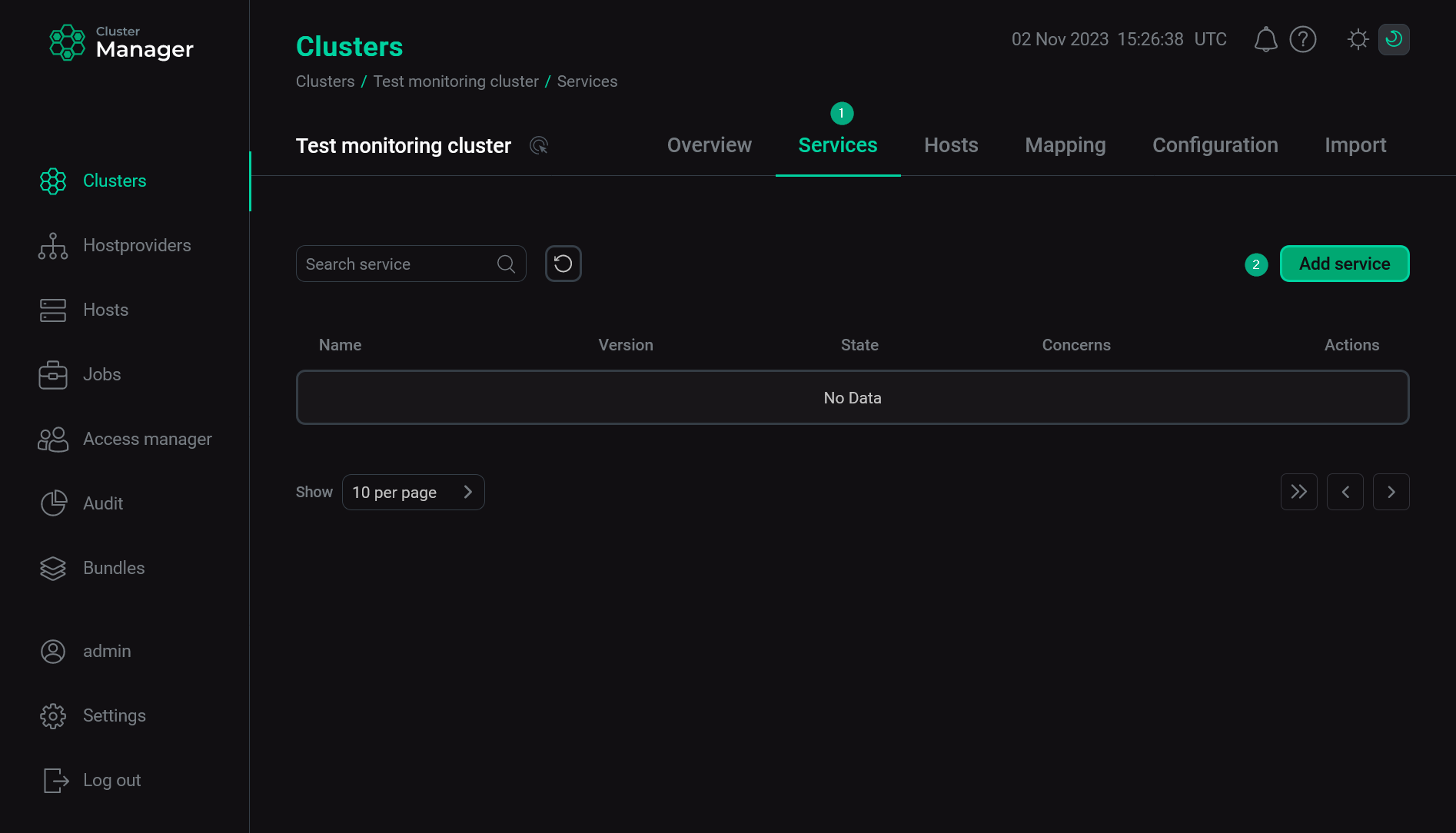 Switch to adding services
 -
In the opened dialog, select the Monitoring service and click Add.
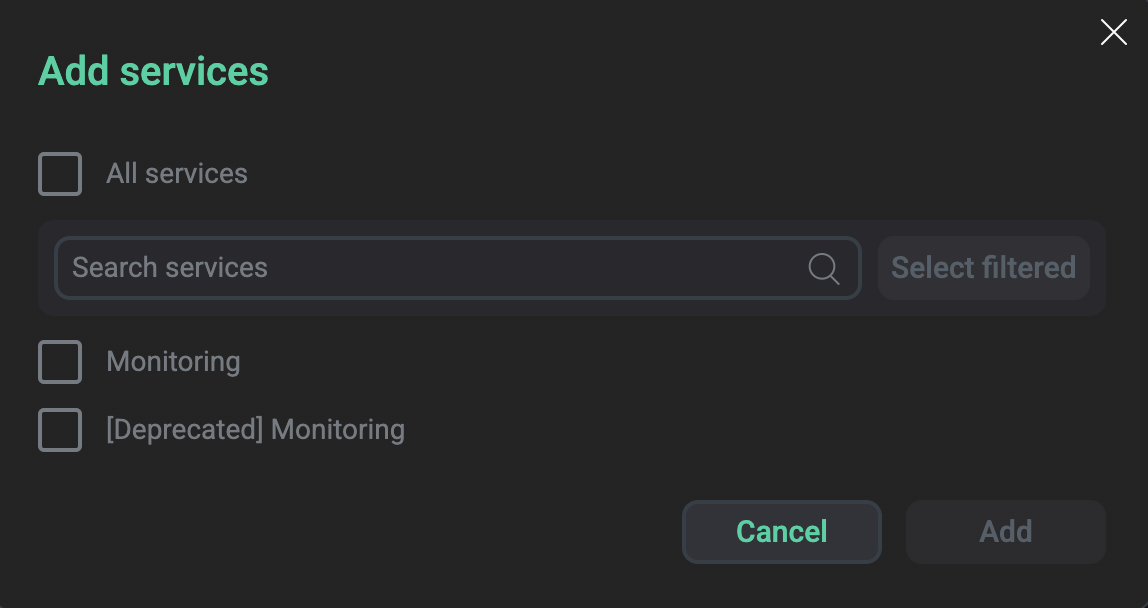 Select the service
As a result, the added service is displayed on the Services tab.
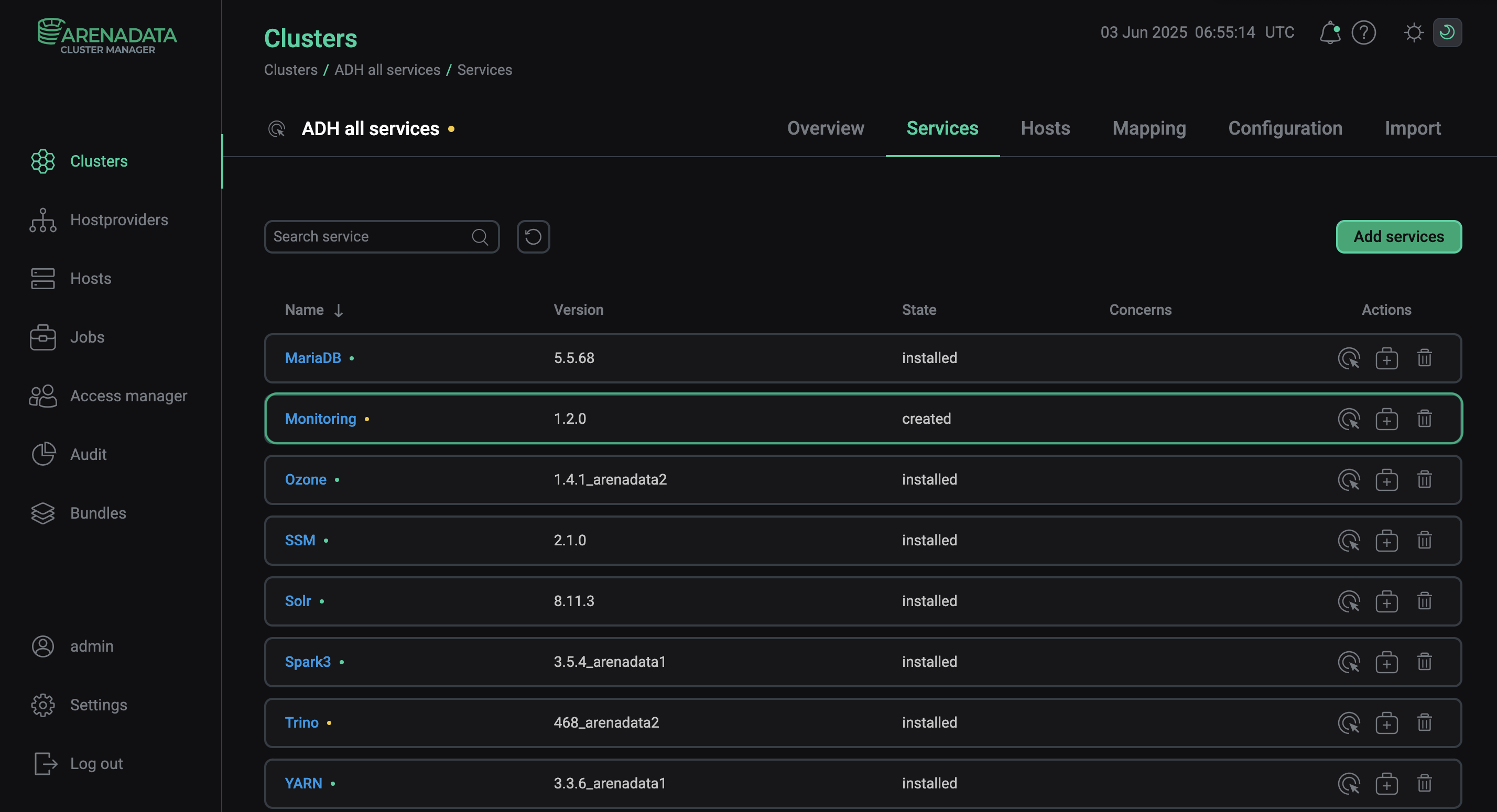 The result of successful adding the service to the cluster
Step 2. Add components
-
On the cluster page, open the Mapping tab to proceed to mapping service components to cluster hosts.
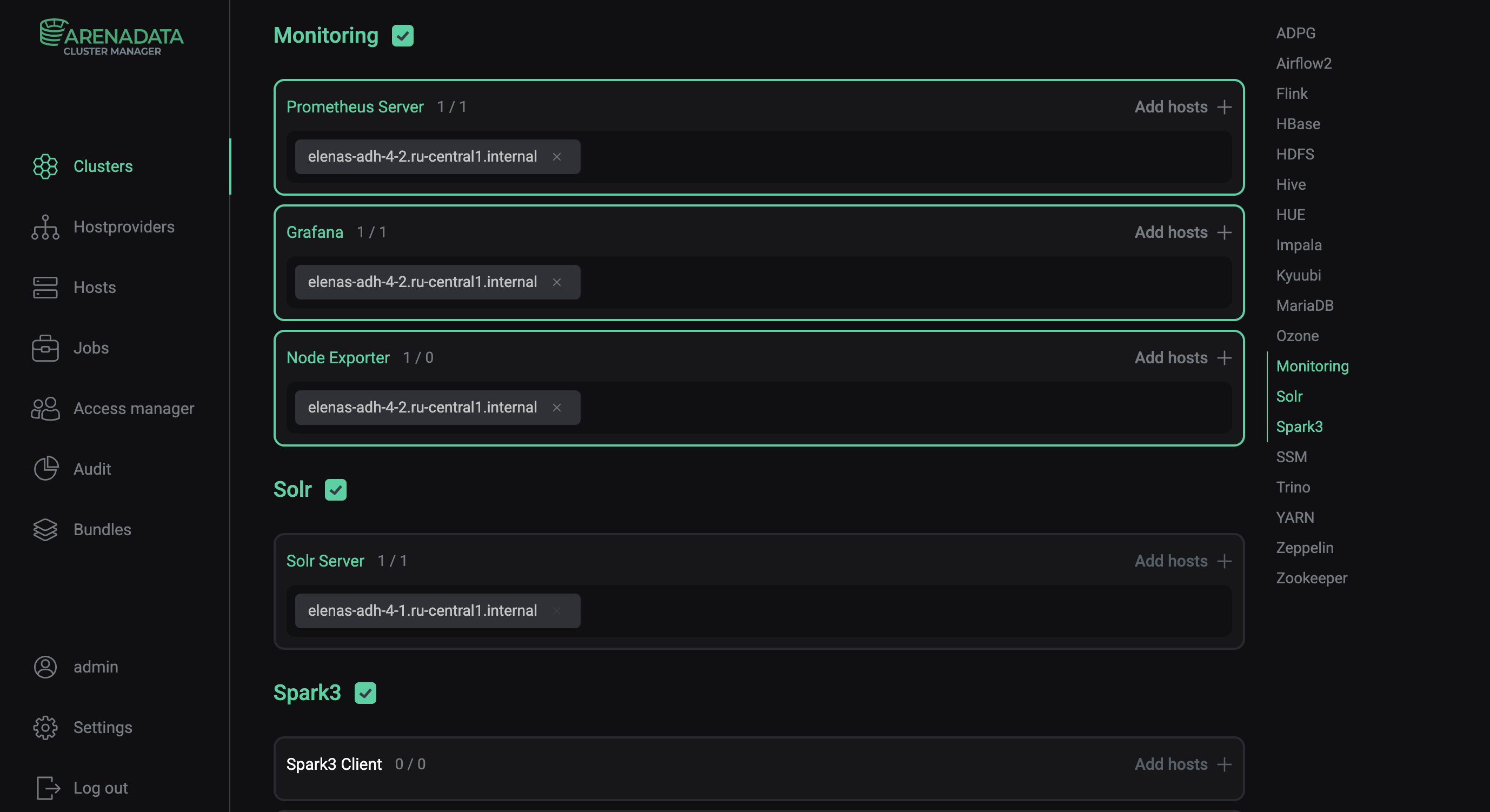 Switch to mapping service components
Monitoring service components Component Description Prometheus Server
Stores system metrics generated by an ADH cluster and allows Grafana to request them
Grafana
Visualizes ADH metrics as graphs and charts organized into dashboards
Node Exporter
Collects system metrics and sends them to Prometheus
-
Assign hosts to components of the Monitoring service — click Add hosts and select the desired hosts in the pop-up window.
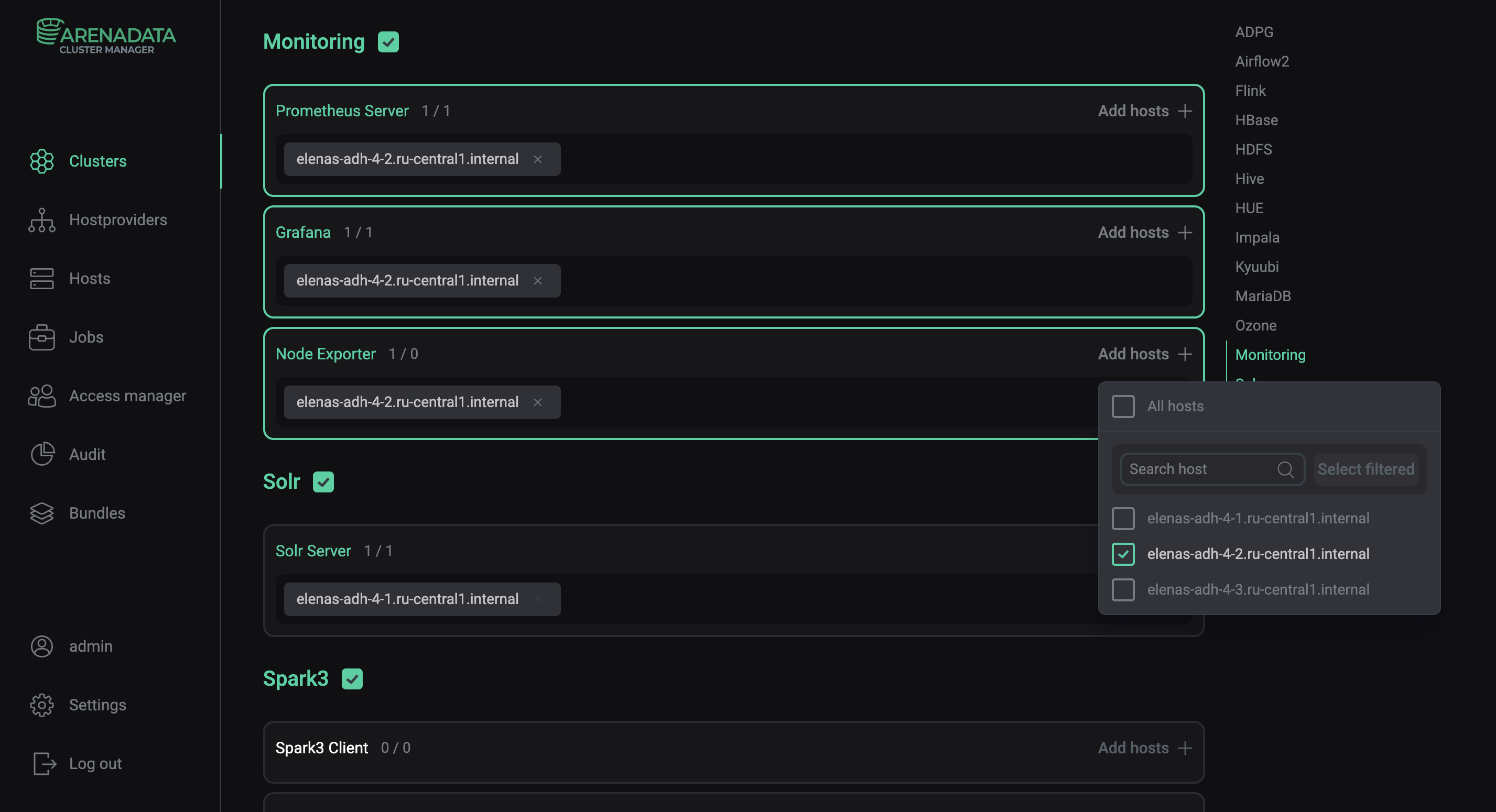 Select a host for a componentCAUTIONIt is not recommended to install the Prometheus Server on hosts with ADH components — use separate hosts for it. Otherwise, if an ADH host fails and/or the load on it is critically high, information about the corresponding problems will not be saved.
 -
After the distribution of components is completed, click Save.
|
NOTE
When changing the topology of services/configurations related to monitoring, it is necessary to restart the Prometheus component in the Monitoring service. |
Step 3. Configure the service
-
Open the Services tab on the cluster page and click the Monitoring service name in the Name column.
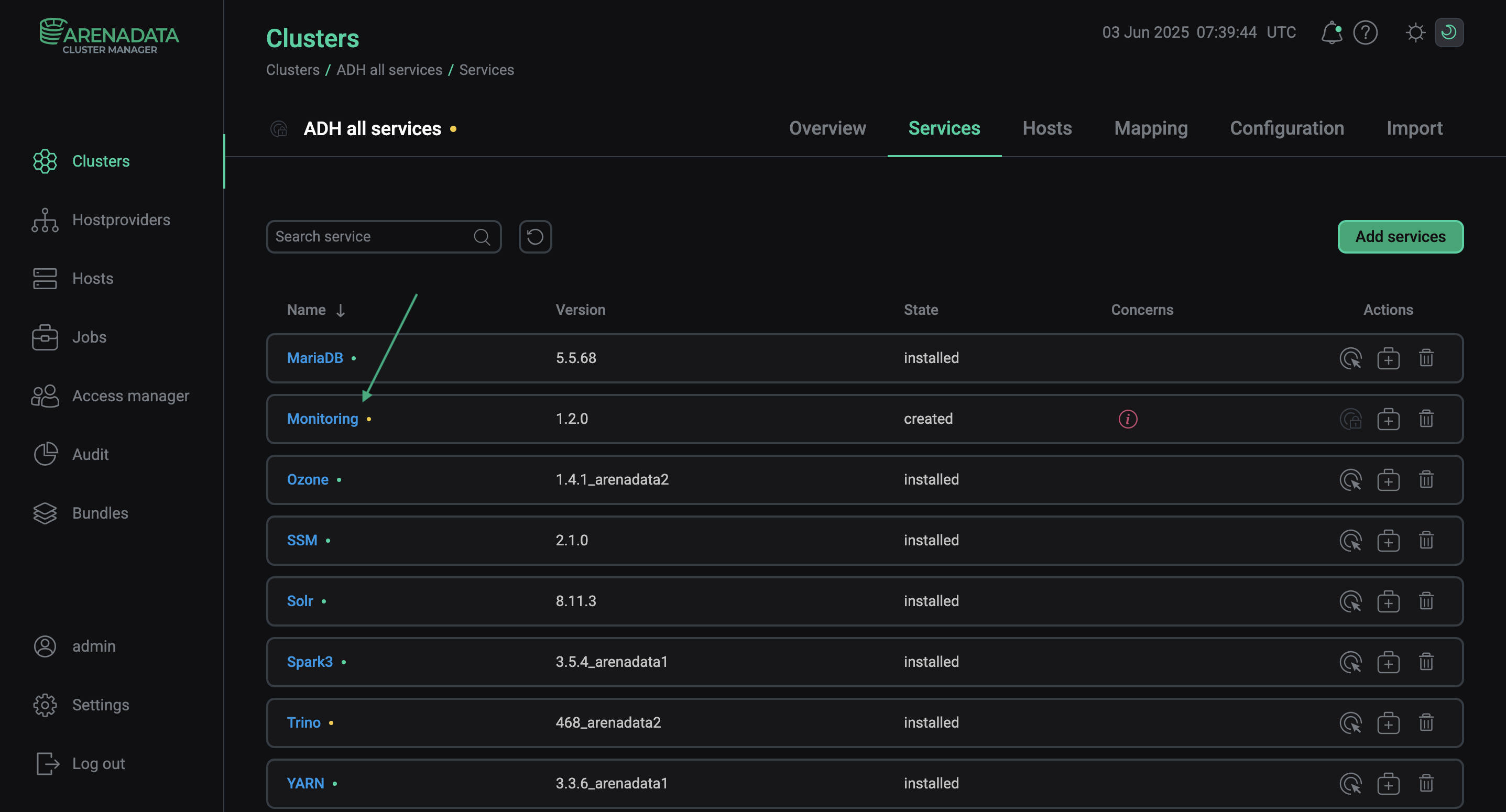 Switch to the service configuration
 -
On the page that opens, fill in the service’s configuration parameters — see the Monitoring section for parameter descriptions. Fields highlighted in red are required.
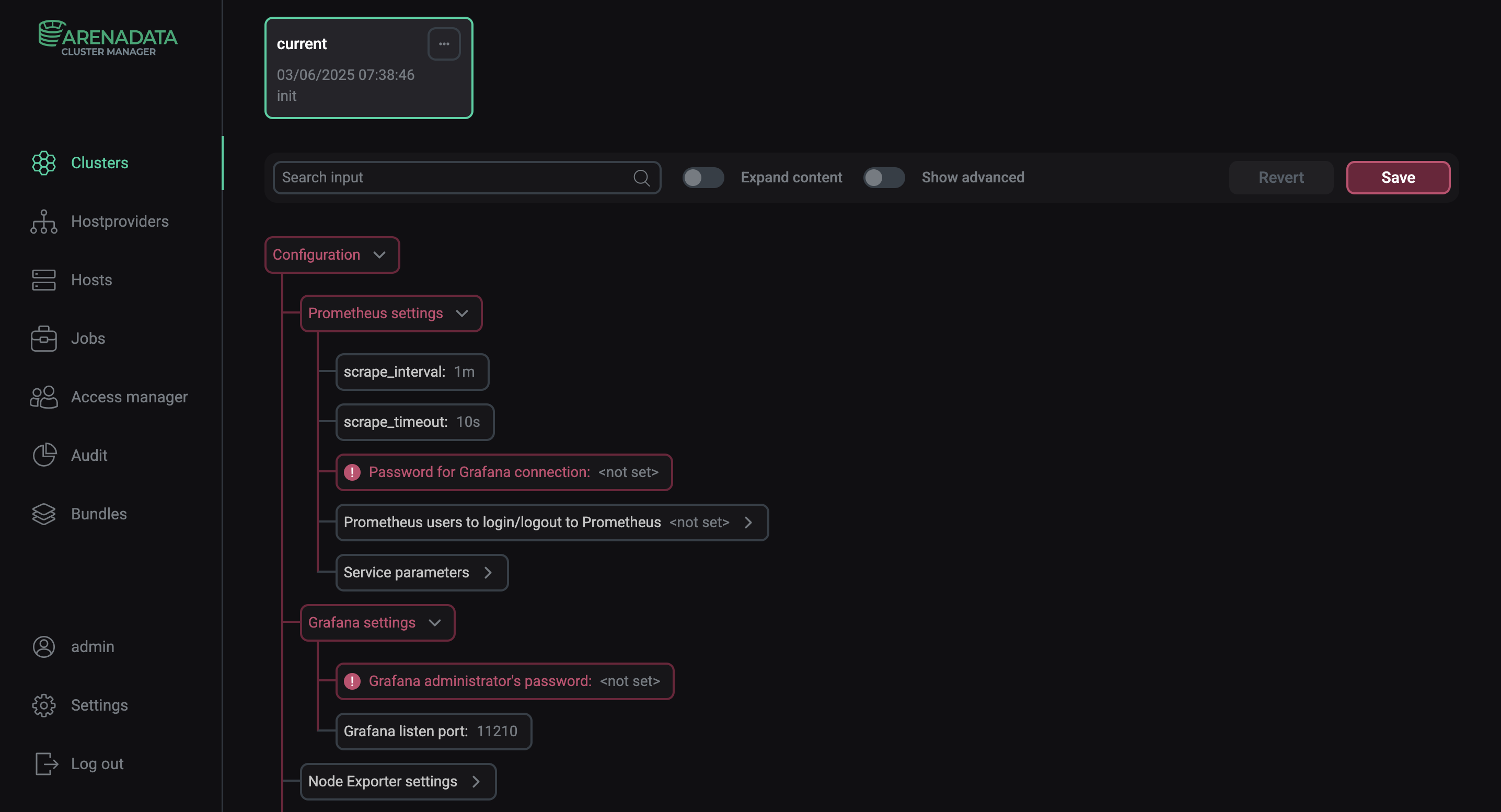 Configure the Monitoring service
After specifying all necessary parameters, click Save.
To enable basic authentication on the JMX exporter side, you need to do it in each service separately. This functionality is available for the following components (see the Monitoring authentication parameter group):
Step 4. Install the service
-
On the Services tab, click the icon

 for the Monitoring service in the Actions column and run the Install action.
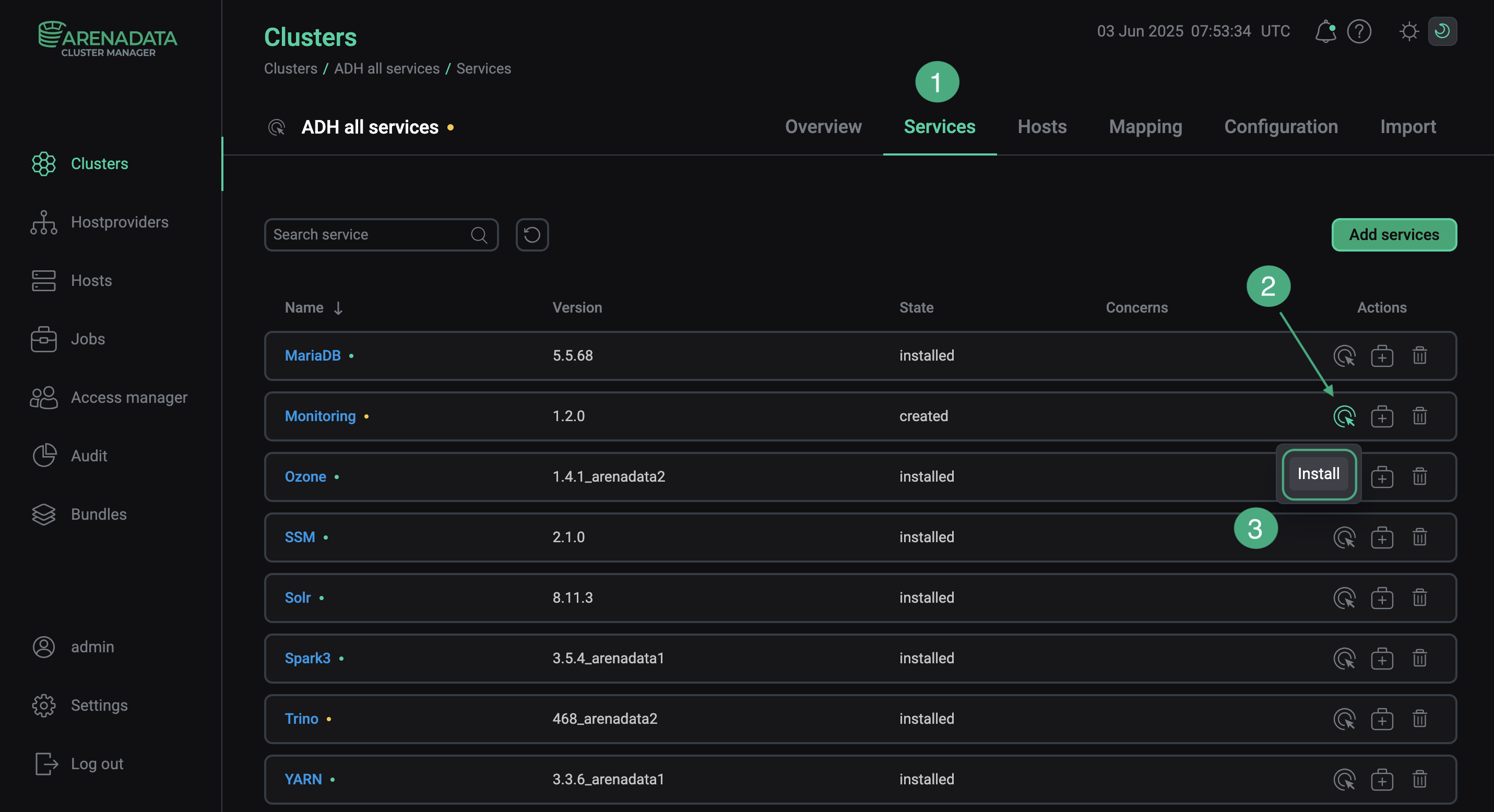 Switch to the service installation
 -
Confirm the action in the opened window.
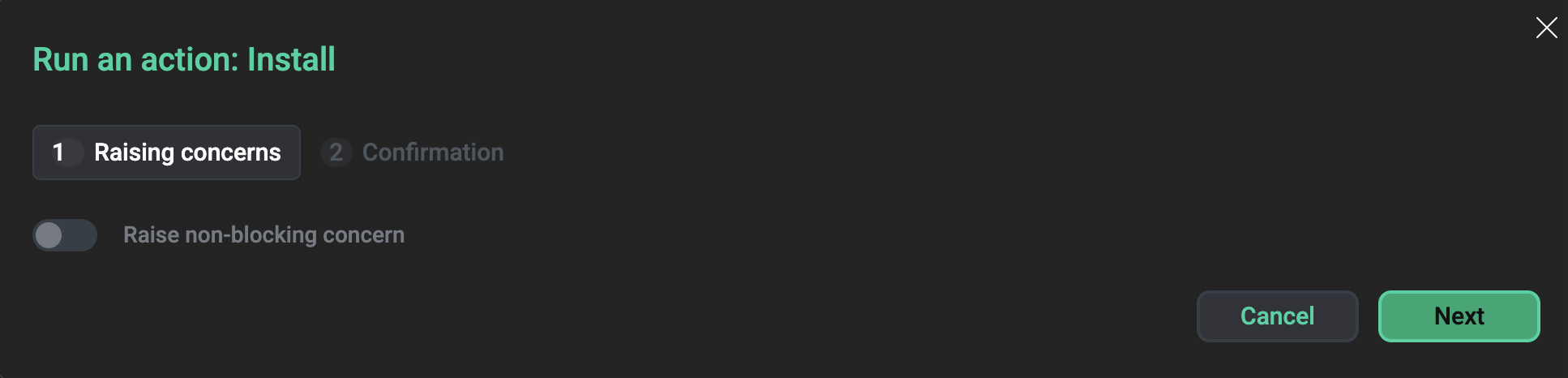 Confirm the action
 -
Wait until the installation is completed. Then check that the service state has changed from
createdtoinstalled.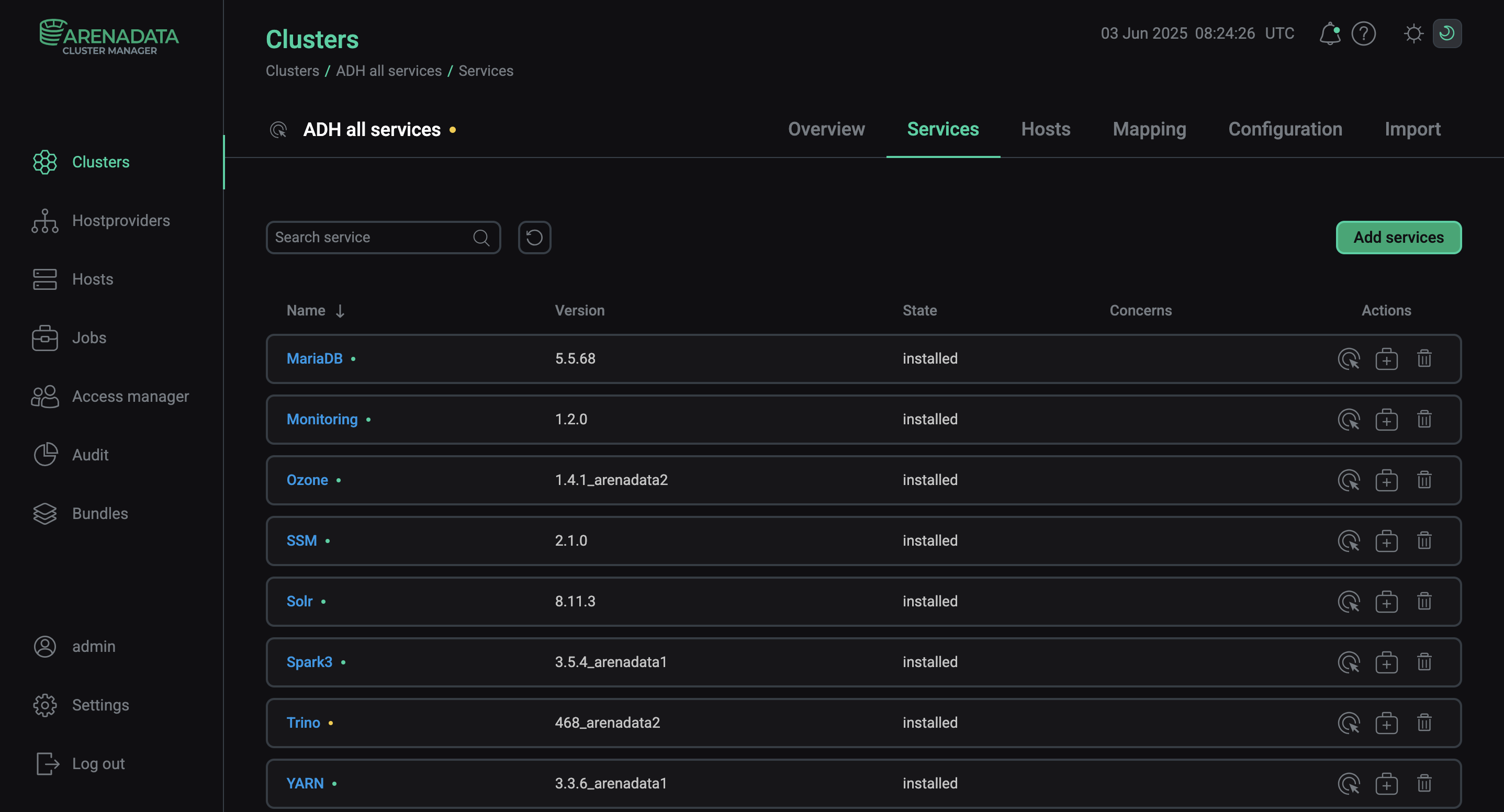 Installation is complete
To view the service installation process and analyze errors if they occur, select Jobs in the left navigation menu and click the Install job name in the Jobs list.
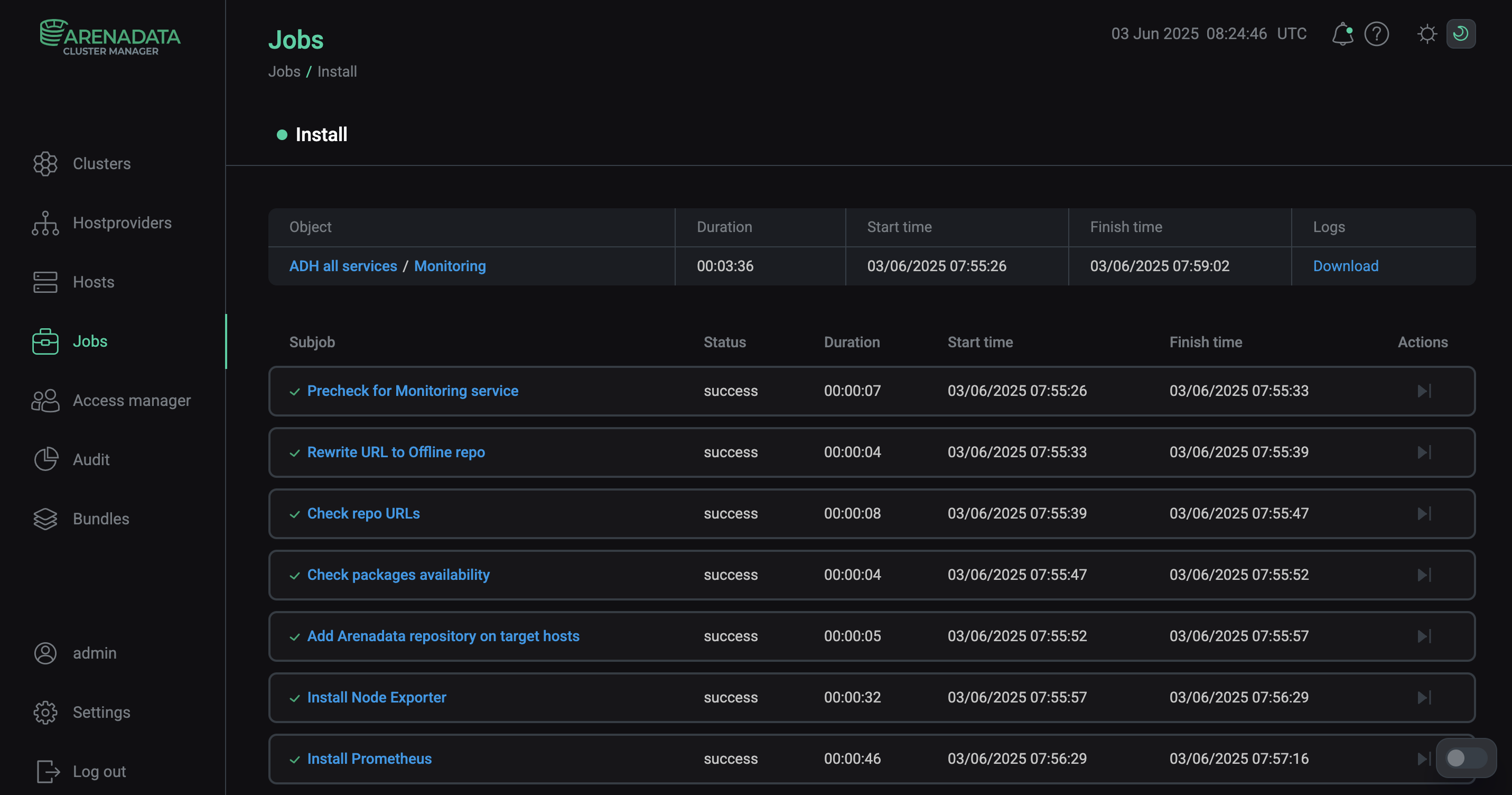 Install service job page
Step 5. View results
The Monitoring service starts automatically after the installation. To ensure that monitoring works correctly, check that both system and ADH service metrics are collected from the cluster hosts. To do this, view metrics in the Prometheus format in the browser or use the Prometheus or Grafana web interface.
Metrics in the Prometheus format
-
In the address bar of your browser, enter an address of an ADH host with the specified port and endpoint to listen for service or system metrics. Port numbers and endpoints are defined by the parameters located in:
-
the configuration pages of the ADH services — settings for accessing monitoring metrics of these services;
-
the Node Exporter settings section on the configuration page of the Monitoring service — settings for accessing system metrics of the ADH cluster hosts.
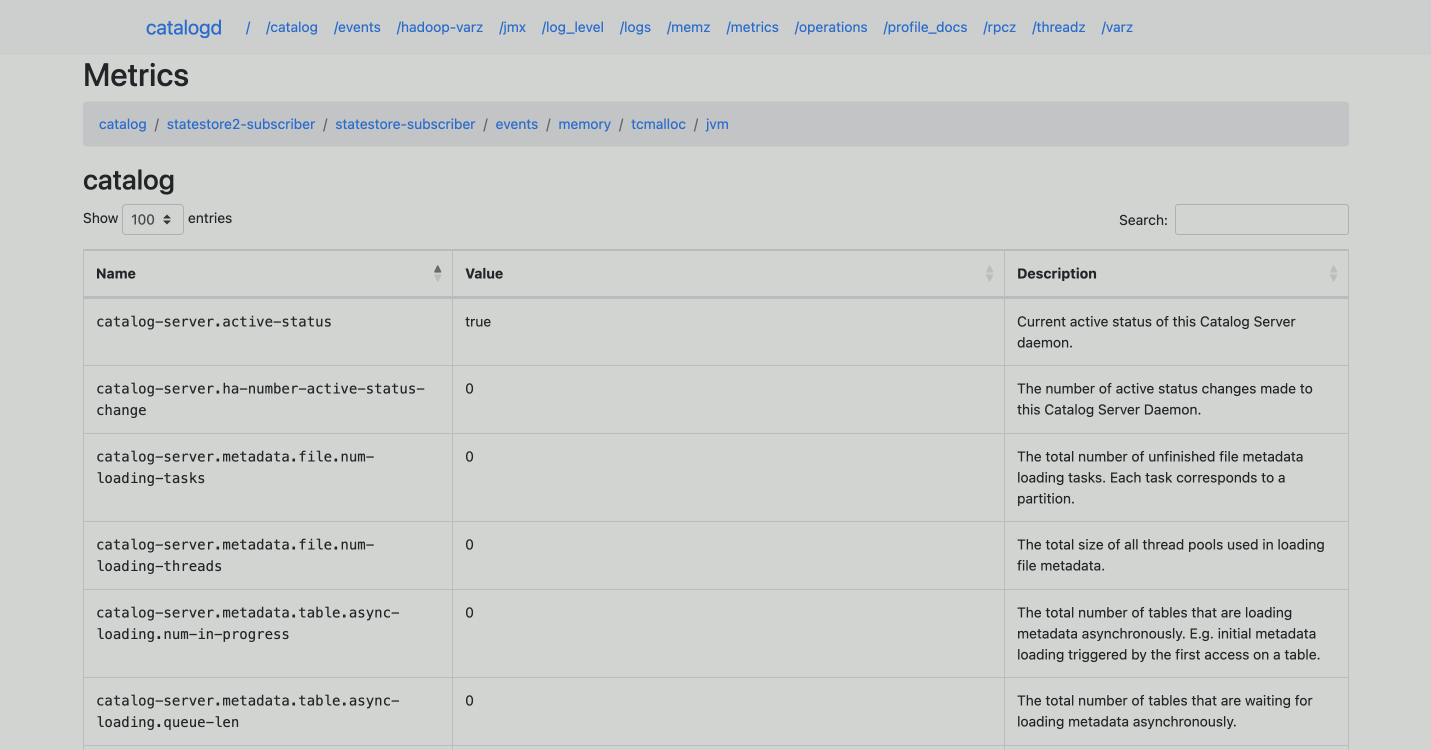
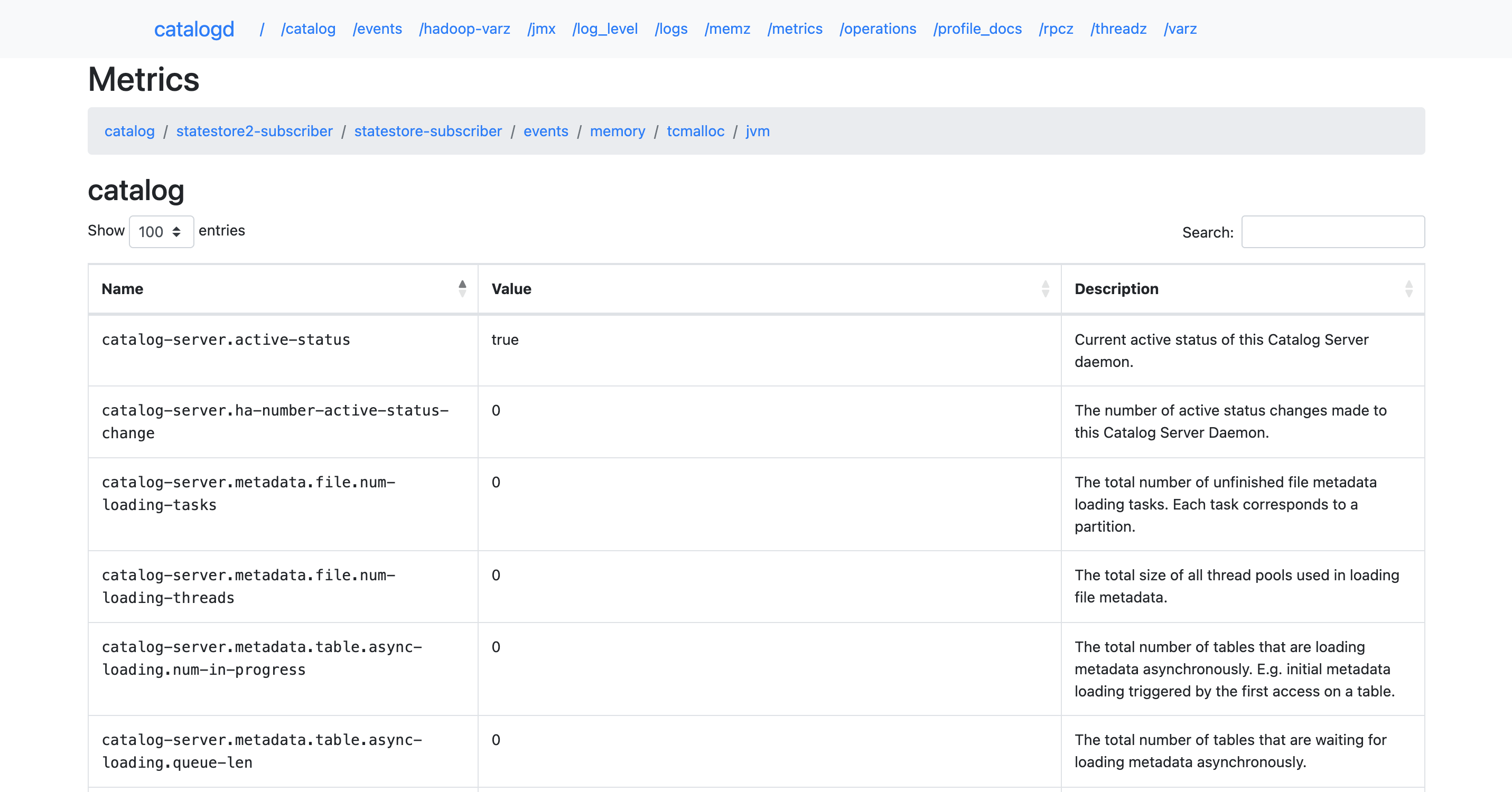
For example, http://10.92.42.57:25020/metrics is an address to view metrics of the Impala server on a host with IP
10.92.42.57. -
-
The page that opens will display monitoring metrics from the specified host of the ADH cluster in the Prometheus format.
Prometheus web interface
-
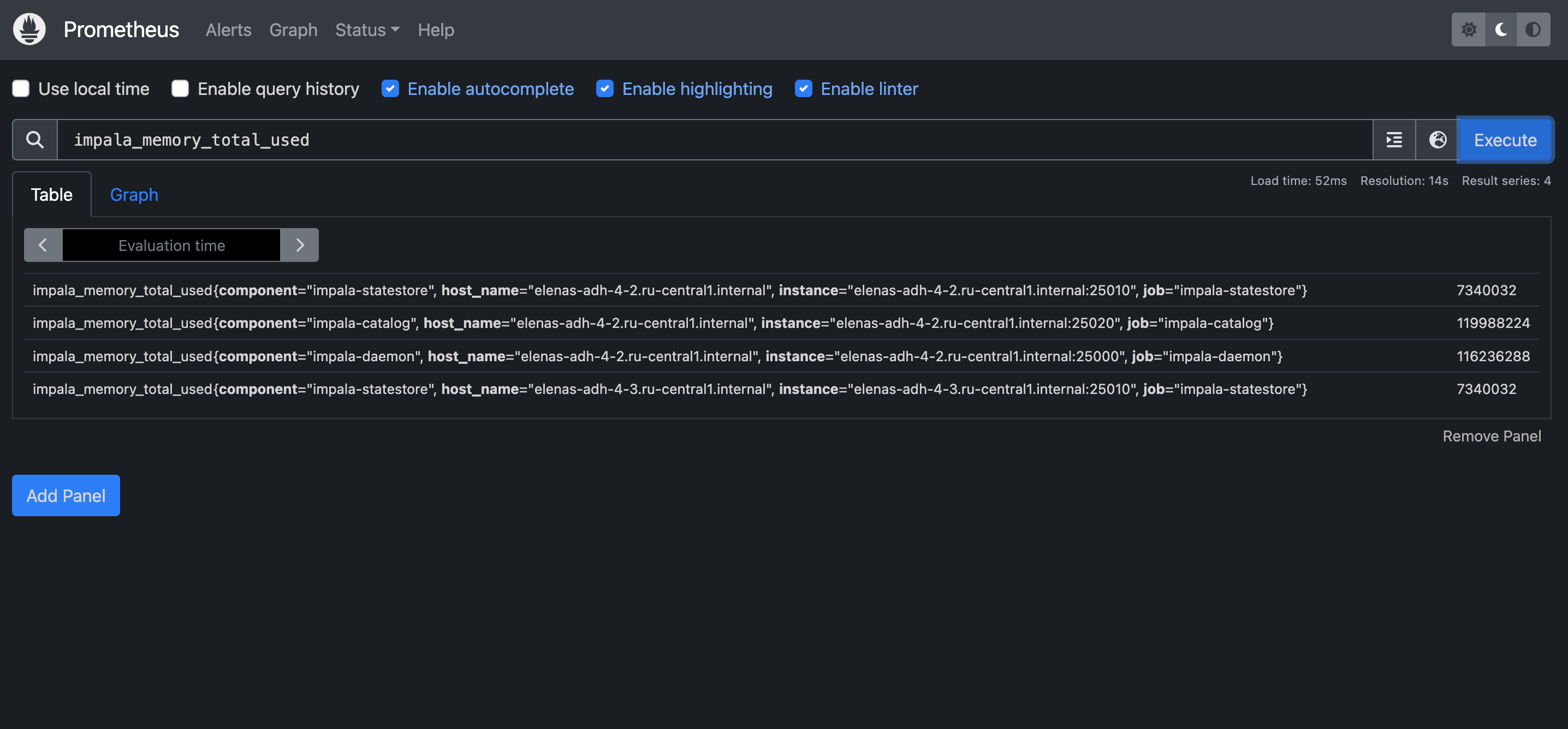
In the address bar of your browser, enter an IP address of a host where the Prometheus Server component is installed. Specify also a port number from the web.listen-address parameter in the Service parameters group within the Prometheus settings section of the Monitoring service configuration (the default port is
11200). For example: http://10.92.40.107:11200. To log into the Prometheus interface, use a username and password that are also specified in the Prometheus settings section — the Prometheus users to login/logout to Prometheus setting. -
In the Expression field, you can enter a metric and click Execute — values of this metric on all hosts of the ADH cluster will be shown in the interface.
Grafana web interface
-
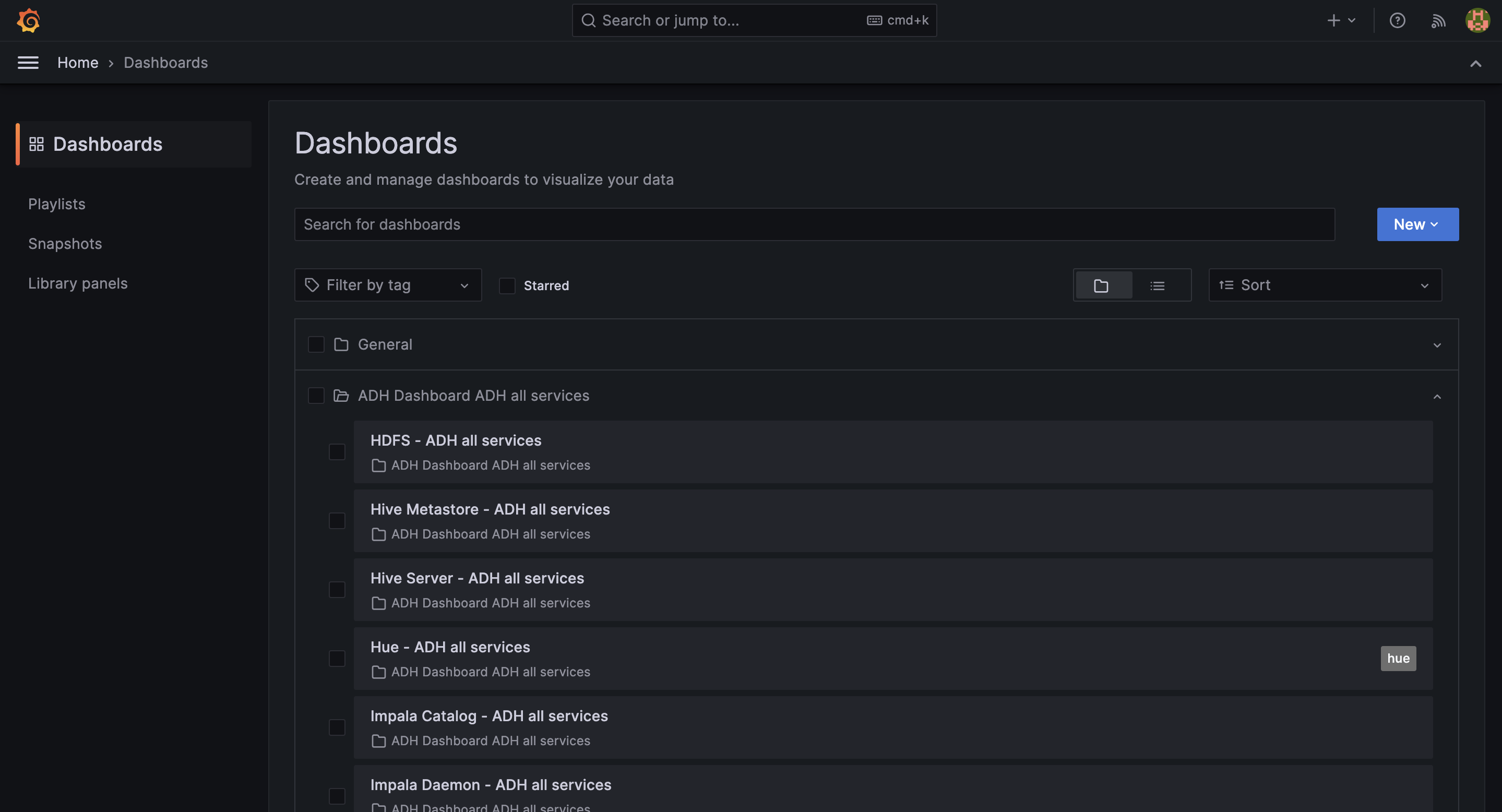
In the address bar of your browser, enter an address of a host on which Grafana is deployed and add a port number — a value of the Grafana listen port parameter located in the Grafana settings section of the Monitoring service configuration (the default value is
11210). For example, http://10.92.40.107:11210. To log in, useadminas a username, and the Grafana administrator’s password parameter value (also found in the Grafana settings section of service configuration parameters) as a password. -
In the window that opens, navigate to Home → Dashboards and expand the ADH Dashboard <ADH_cluster_name> section. In this section, you can select one of available dashboards to view service or system metrics coming from your ADH cluster.
Step 6. Configure SSL
To secure the communication between Monitoring components and metric endpoints, you can enable SSL/TLS, including mutual TLS (mTLS), for Prometheus and JMX exporters.
|
IMPORTANT
|
Before configuring SSL in ADCM, prepare the hosts by performing the following steps:
-
Place the CA certificate into the system truststore:
-
for RHEL-based systems: /etc/pki/ca-trust/source/anchors/certname.crt;
-
for Debian-based systems: /usr/local/share/ca-certificates/certname.crt.
-
-
Update the truststore by running:
To configure SSL via ADCM:
-
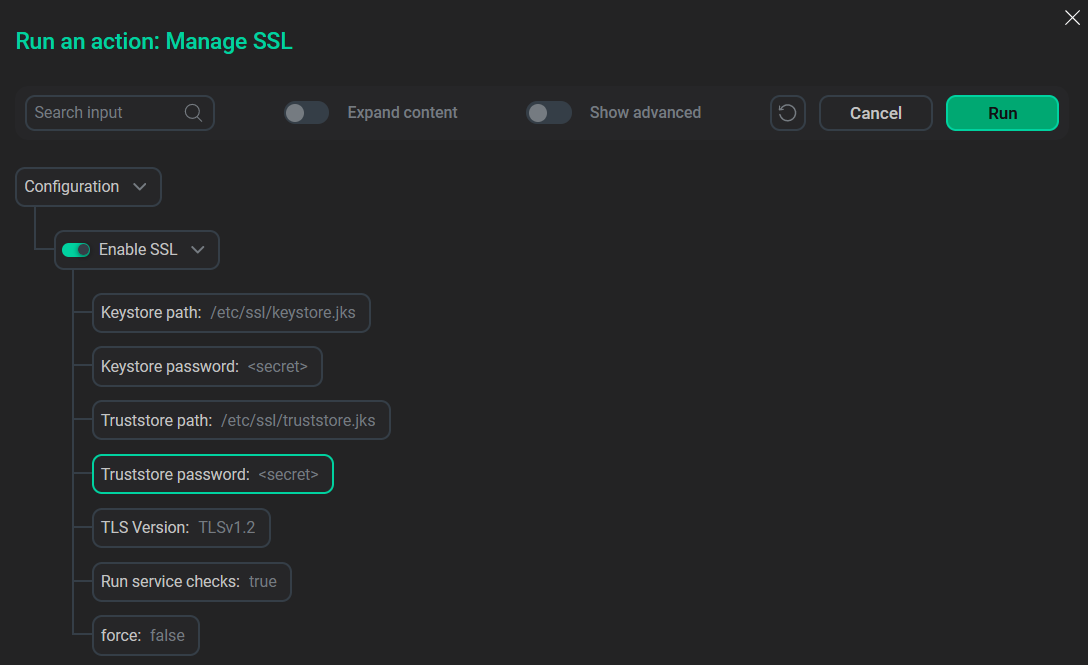
On the Clusters page, select the Manage SSL action for the desired cluster.
-
In the Manage SSL dialog, specify the following parameters:
-
TLS certificate file — path to the host certificate;
-
TLS private key — path to the private key;
-
CA authority file — path to the CA certificate (system truststore path or its alias).
-
-
Select other options if necessary and click Run.
To enable mutual TLS (mTLS) for JMX exporters, ensure that TLS certificate and TLS private key fields are filled in the SSL configuration for Prometheus. These values are automatically populated from the Manage SSL action settings.
To check if the TLS configured correctly:
-
On the Clusters page, select the desired cluster.
-
Go to the Services tab and click on Monitoring.
-
Open the SSL configuration section.
-
Check that the parameters for SSL connection for Prometheus are correct and make changes if necessary.
-
Confirm changes by clicking Save.
-
In the Actions drop-down menu, select Restart, make sure the Apply configs from ADCM option is set to
true, and click Run.
Check that mutual TLS is working, for example, by requesting metrics for Hive over HTTPS:
$ curl -v --cert /etc/ssl/certs/host.crt \
     --key /etc/ssl/private/host.key \
     --cacert /etc/ssl/certs/ca-certificates.crt \
     https://<host>:<port>/metrics
Here --cert and --key are certificate files, and --cacert is a system truststore.
|
NOTE
Using server certificates as client certificates is not recommended, but it is acceptable for testing purposes.
|
To access HTTPS endpoints via a browser, install the CA certificate into your browser’s truststore.
After upgrading the cluster, restart the following services manually to switch endpoints to HTTPS:
-
HDFS
-
YARN
-
Monitoring