

HDFS Router-based federation
Overview
HDFS federation is an architectural solution designed to scale an HDFS storage by combining multiple HDFS clusters into a single logical file system with a unified namespace. Such an architecture allows running several smaller HDFS clusters rather than maintaining a huge one. This reduces per-NameNode metadata overhead, provides better performance and easier maintenance.
The type of HDFS federation used in ADH is called Router-based federation (RBF) due to its core component — HDFS Router, which routes HDFS requests to the appropriate subcluster within a federation. This article describes the major RBF components, its workflow, and concepts.
|
NOTE
HDFS and YARN federation are used together for building a full-fledged ADH federation.
|
HDFS federation benefits
A federated HDFS architecture provides the following benefits:
-
Better NameNode load balancing. In HDFS, NameNodes are known to have scalability limits. In large HDFS clusters (100+ hosts), NameNodes become a performance bottleneck due to excessive metadata overhead, a huge number of inodes, file blocks, DataNode heartbeats, RPC calls, and so on. HDFS RBF allows you to run multiple smaller ADH clusters instead of one large cluster, distributing the load more evenly.
-
Seamless scalability. With RBF, an HDFS storage can be scaled horizontally without downtime. Adding a new subcluster to the federation is similar to mounting an additional volume to a storage system.
-
A unified entry point (global namespace) that provides a single logical view of all data.
-
Error isolation. Issues in one cluster do not affect other clusters within the federation (see Features and limitations).
HDFS federation components
A high-level HDFS RBF diagram is presented below.
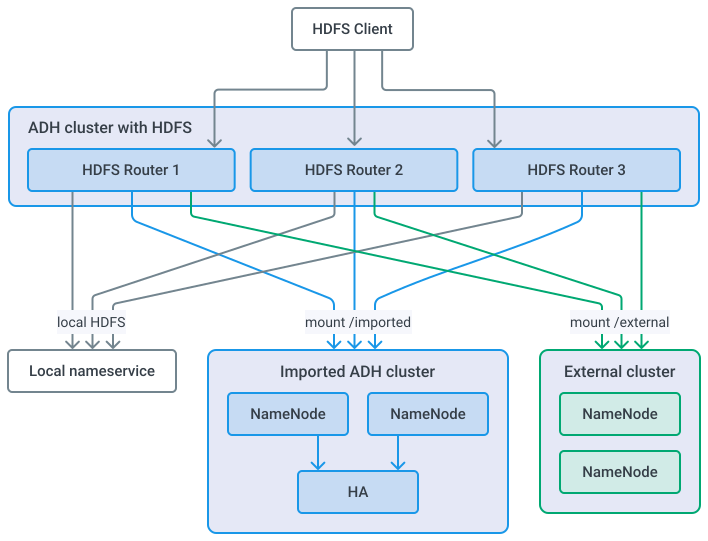
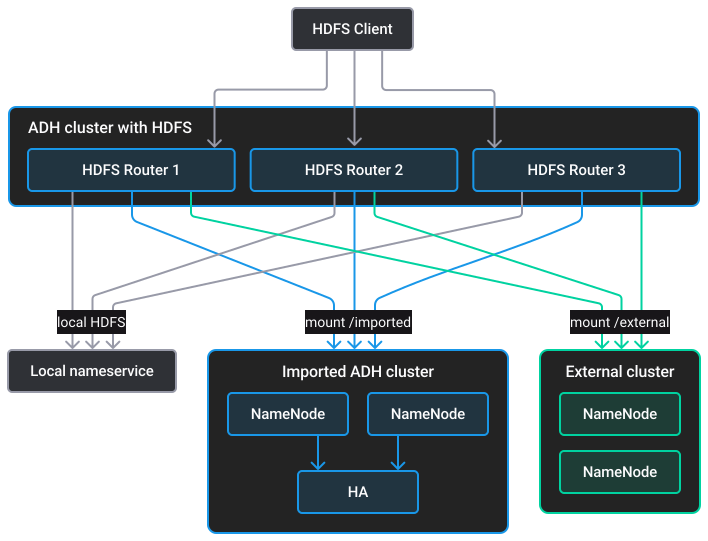
The major HDFS RBF components are described below.
HDFS subclusters
A federated HDFS storage consists of two or more HDFS subclusters. These are regular HDFS clusters, configured to work together as a single HDFS storage. In an HDFS federation, each subcluster maintains its own independent namespace. However, the access to the subclusters is provided through a global namespace exposed by HDFS Router, which resolves paths and forwards requests to the appropriate subcluster. Joining subclusters into a federation is done via ADCM UI.
HDFS Router
This component acts as a proxy that forwards calls from HDFS clients to the appropriate NameNode within an HDFS federation.
The following diagram shows the HDFS Router workflow.
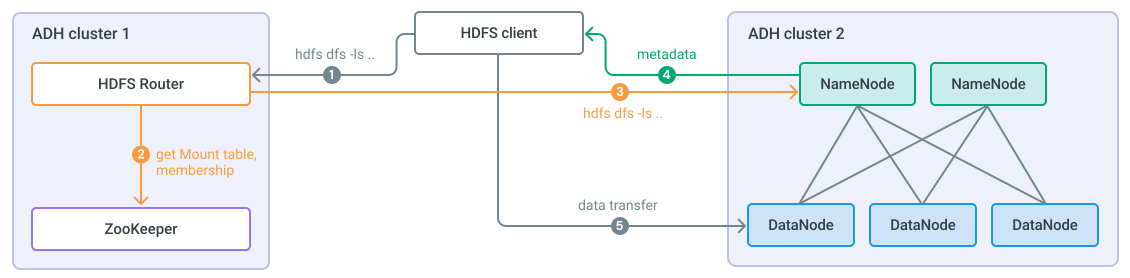
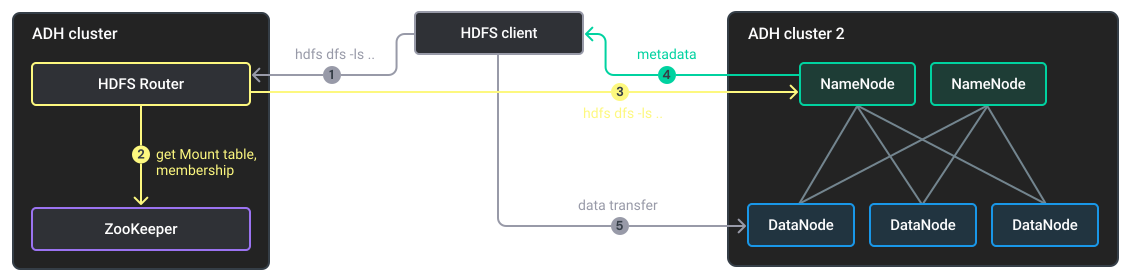
The major interaction steps in the diagram are as follows:
-
An HDFS client sends a command like
hdfs dfs -ls /foo/barto HDFS Router. -
HDFS Router requests metadata from the State store to identify the subcluster (namespace) and the active NameNode that owns the requested path.
-
HDFS Router forwards the request to the corresponding NameNode.
-
The metadata about the requested file is returned to the HDFS client.
-
The HDFS client transfers data by directly accessing the required DataNodes.
|
TIP
HDFS Router components can run in high availability mode.
It is recommended to install two or more HDFS Routers in an ADH cluster.
|
The component provides a web UI with detailed information about the federation state and activity. The default URL is http://<hdfs-router-host>:50071.
State store
A distributed storage that stores federation metadata, required for proper operation of the entire federated HDFS cluster, namely:
-
Mount table. Contains a mapping of global HDFS paths to HDFS subcluster namespaces. HDFS Routers consult a mount table to determine, which subcluster should handle the given file system operation.
-
Membership table. Stores information about all NameNodes registered in a federation. Tells HDFS Routers which NameNode should handle the given request.
The State store supports a pluggable backend. In ADH, ZooKeeper is used as the default backend system for the State store data.
Enable HDFS federation
The configuration of HDFS RBF is performed via ADCM. The procedure involves two steps:
-
In ADCM, open your root HDFS cluster.
-
Go to Services → HDFS → Primary configuration and enable the Federation section.
-
Save the cluster configuration.
-
Restart the HDFS service in your root cluster.
-
In ADCM, open your root HDFS cluster.
-
Go to the Import page and select ADH clusters to import as shown in the image.
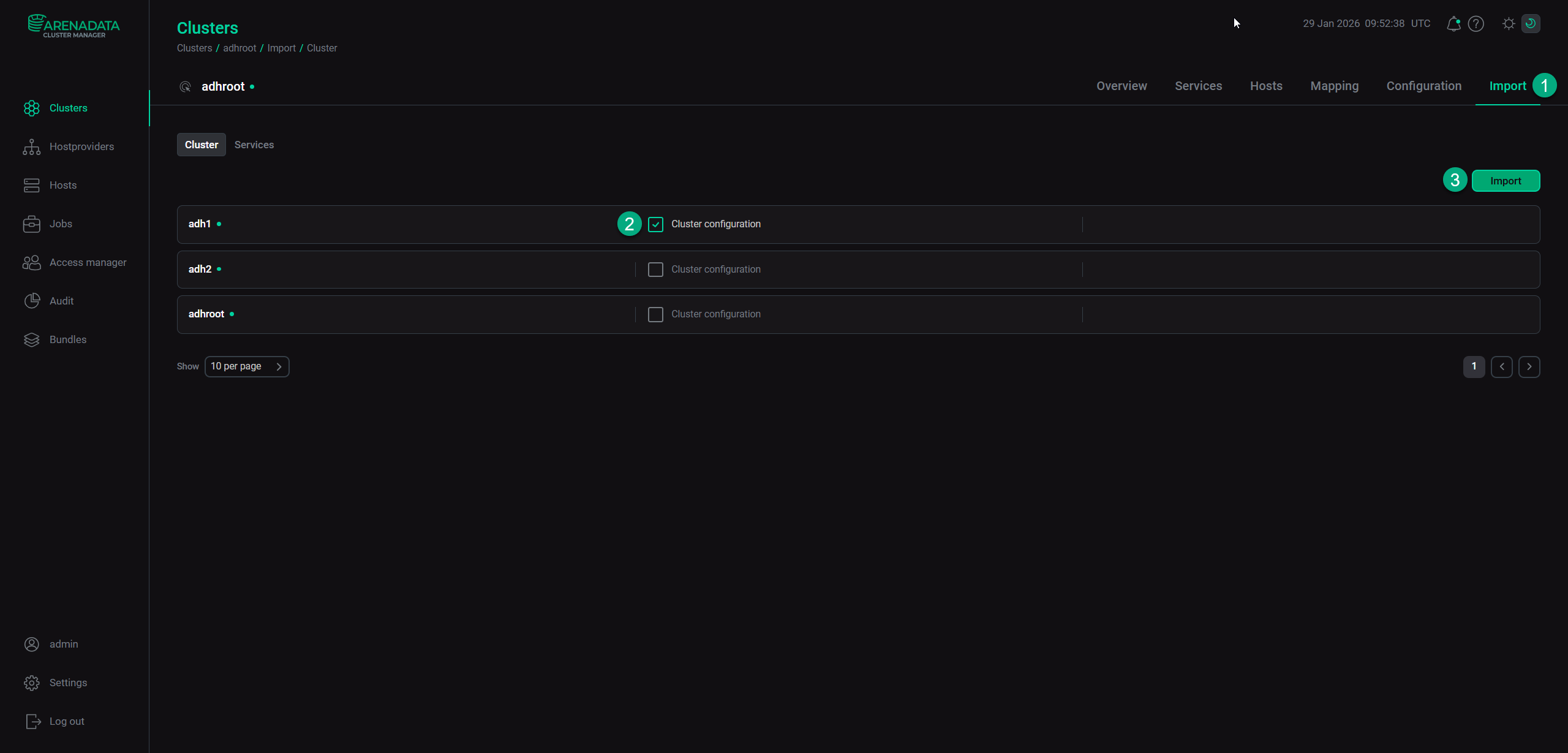 Cluster import
 -
Save the configuration and restart the HDFS service.
-
Verify the import. For this, open your root cluster, go to Primary configuration → Federation, and verify the Import configuration and Federation configuration sections. These sections should be populated with values from the imported cluster.
|
NOTE
To import HDFS clusters that are not managed by ADCM or are managed by a different ADCM instance (ADCM’s Import is unavailable), use manual import.
|
Root and imported clusters
A federated HDFS storage consists of subclusters of two types:
-
Root subcluster. The primary HDFS subcluster with HDFS Router components. HDFS Router receives requests from HDFS clients and forwards them to other subclusters. It is the root cluster where the Federation option should be enabled in ADCM. In addition to routing client requests to subclusters, the root subcluster can also store data just like a regular HDFS cluster. An HDFS federation includes one root subcluster.
-
Imported subclusters. One or more HDFS subclusters, which are imported into the root cluster and receive calls from HDFS Routers. After configuring a mount table, an imported subcluster’s content is visible to HDFS clients as a regular directory, mounted to the root cluster.
Given these two subcluster types, the process of creating an HDFS federation assumes importing HDFS subclusters to the root one.
Automatic and manual cluster import
There are two ways of importing subcluster configurations:
-
Automatic. You can import ADH clusters using the import feature in ADCM. This option is available when both root and imported clusters are managed by the same ADCM instance.
-
Manual. You can specify connectivity parameters of an imported subcluster (NameNode addresses, namespace, RPC endpoints, and so on) manually. This allows adding clusters managed by other ADCM instances.
Federation quotas
HDFS RBF supports quotas to limit the storage and the number of namespace objects that HDFS clients can consume in a federation. Quotas are set on mount table entries and are enforced across the corresponding HDFS subclusters. Using quotas, RBF allows administrators to control resource consumption across multiple HDFS subclusters through a single global namespace.
HDFS Router periodically collects quota usage statistics from the corresponding subclusters and compares them against the configured quota limits. If a write operation violates a quota, HDFS Router rejects the operation before forwarding it to the target NameNode.
Features and limitations
-
In a federated environment, every HDFS file, including all its block replicas, resides in a single subcluster (within the subcluster’s block pool). If such a subcluster fails, the files belonging to the subcluster become unavailable to the entire federation.
-
If a subcluster fails, the corresponding part of the global namespace becomes unavailable. When using multi-destination mounts and the RANDOM policy (files are distributed randomly across subclusters), all relevant files distributed across the federation get affected.
-
HDFS Federation does not provide data locality. The location of new files is determined by the HDFS Router component regardless of the writer’s location.
-
HDFS Router does not create directories. The required directories must be created manually.
For more information about HDFS federation, see HDFS Router-based Federation.