

Configure access to HUE editors and interpreters
Overview
This article describes how to manage user access to HUE editors and interpreters by granting permissions to HUE groups.
In HUE, access permissions are assigned to groups. A user receives access to an editor and interpreter if the user belongs to at least one group that has the required permission.
HUE provides editors such as Hive, Impala, PySpark, and Kyuubi[Spark3]. An editor is the UI page where a user writes and runs a query or code, while the underlying interpreter processes the submitted request. For example, the Hive editor submits queries to Hive, and the Kyuubi[Spark3] editor submits requests through Kyuubi to the Spark 3 engine.
The exact list of editors available in the HUE interface depends on the services installed and enabled in the cluster.
The general configuration workflow is as follows:
-
Create or select a HUE group.
-
Add users to the group.
-
Grant the required permissions to the group.
You can manage these settings in the HUE UI under Administer Users.
Open group settings
To configure access to HUE editors and interpreters, complete the following steps:
-
Log in to HUE as a user that has access to the Administer Users section.
-
In the bottom-left menu, open Administer Users.
-
Go to the Groups tab.
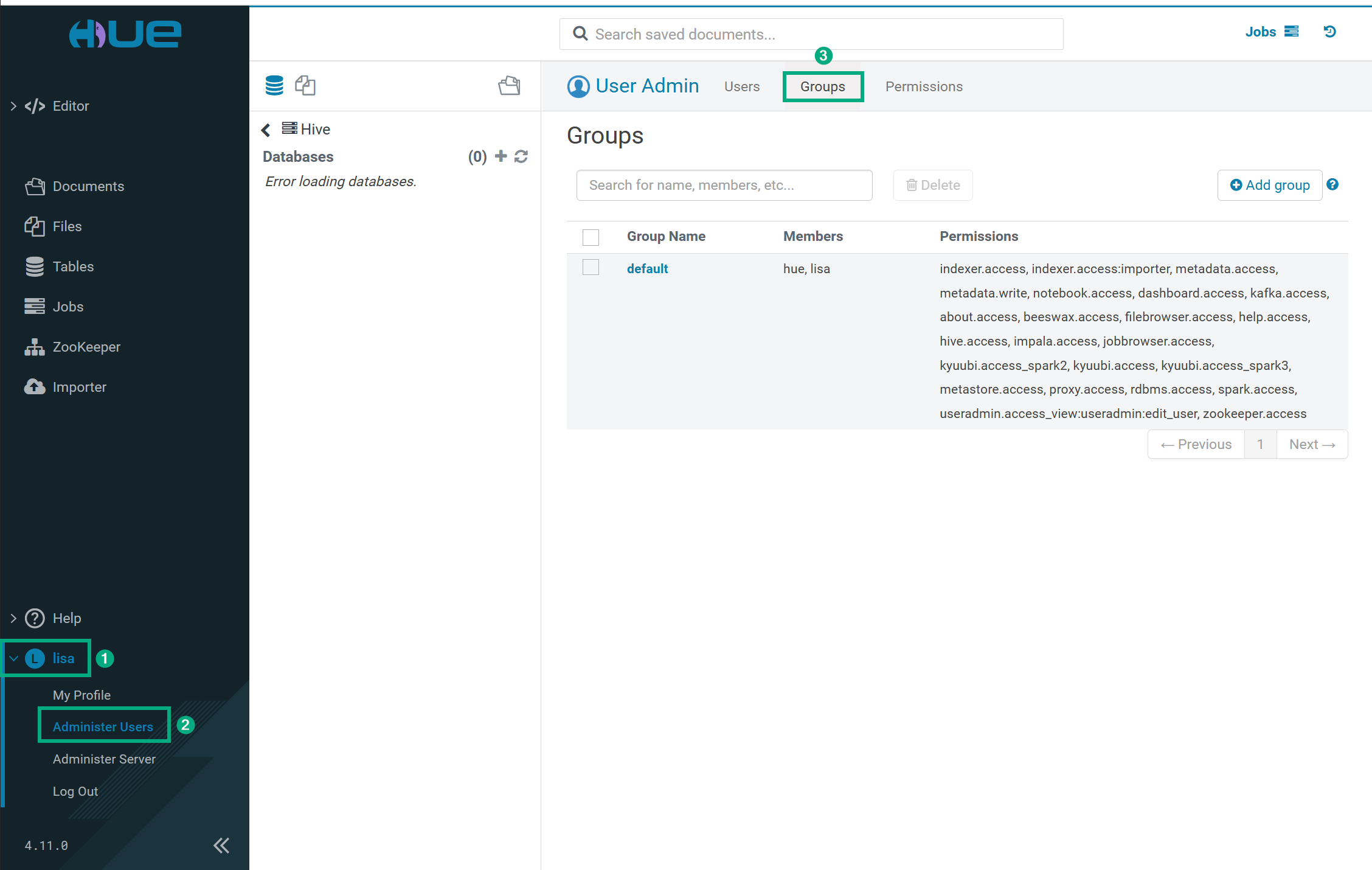 Group settings in HUE
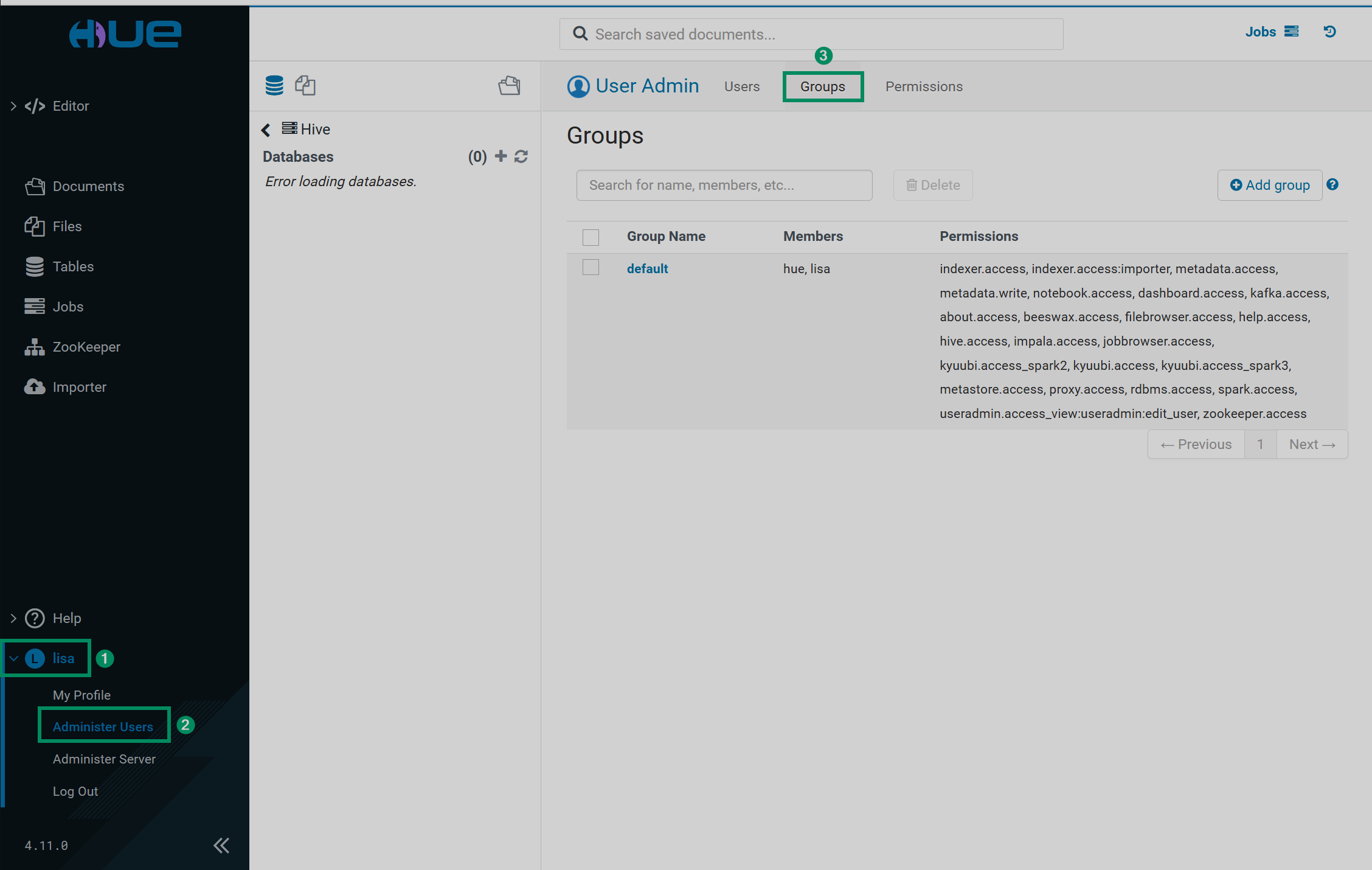 Group settings in HUE
Create a group
To create a group:
-
Open the Administer Users → Groups tab as described in Open group settings.
-
Click Add group.
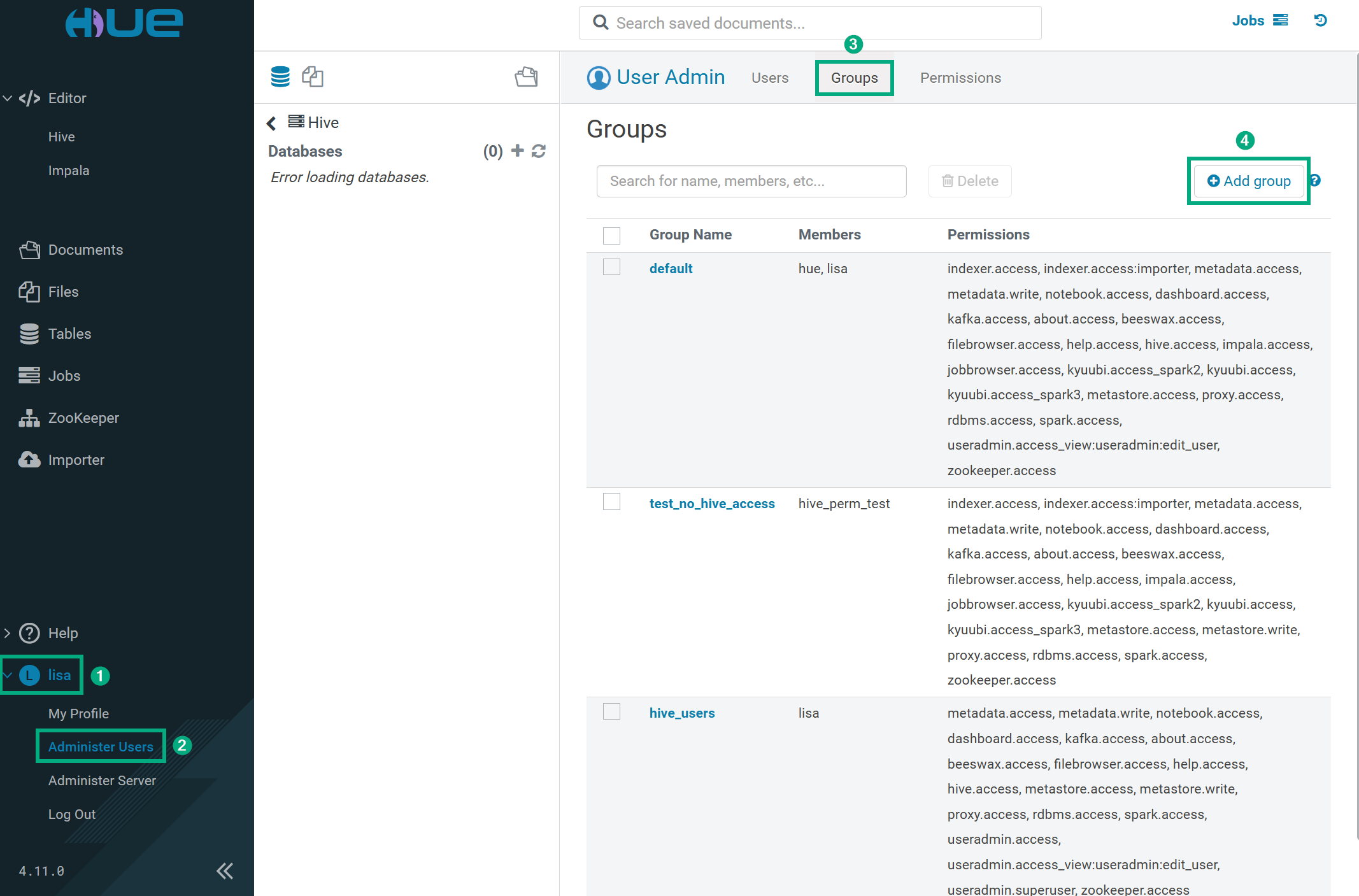 Add a group in HUE
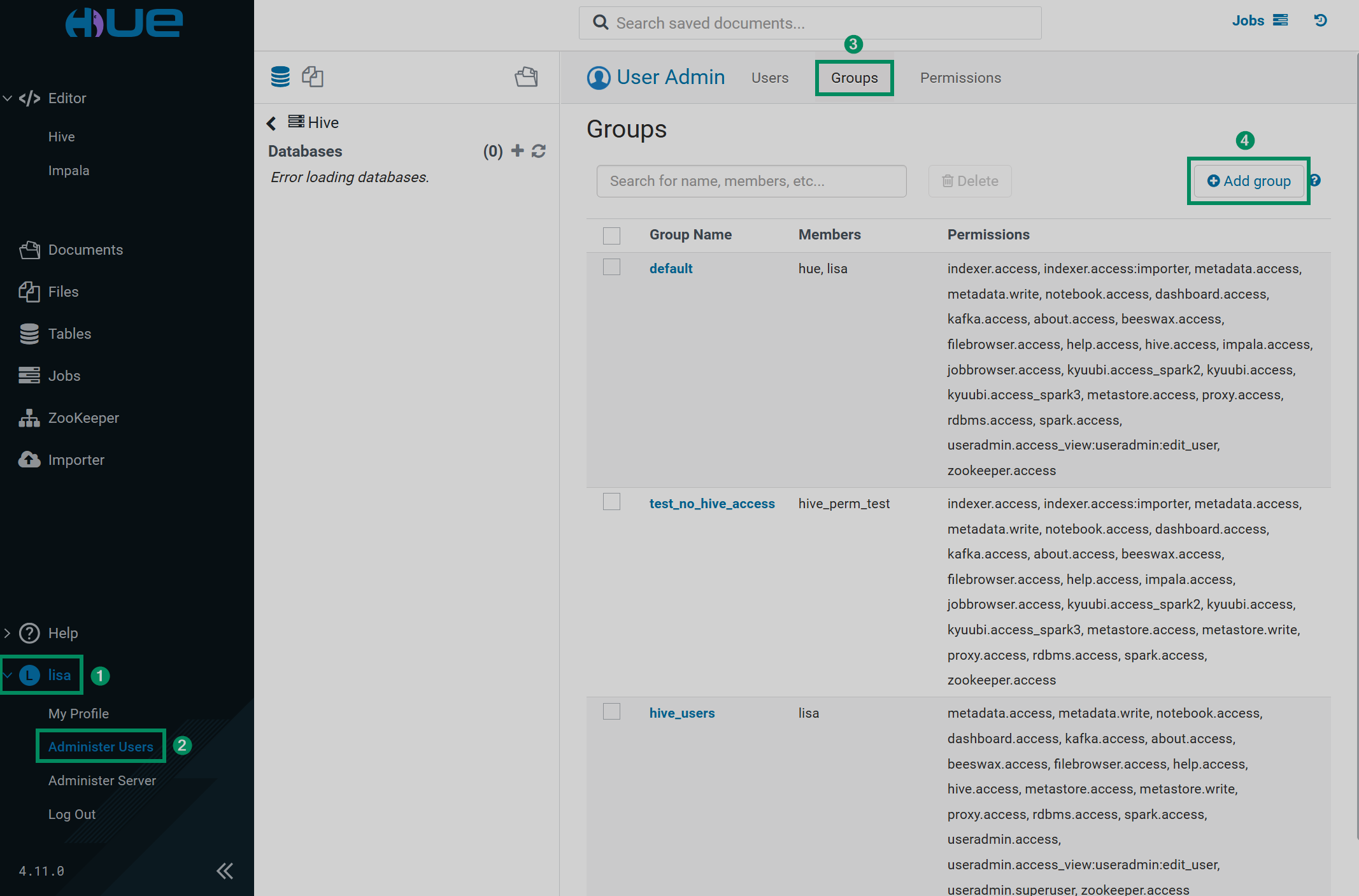 Add a group in HUE
-
In the Name field, enter a group name. For examples of group names for different user roles, see Examples of access groups.
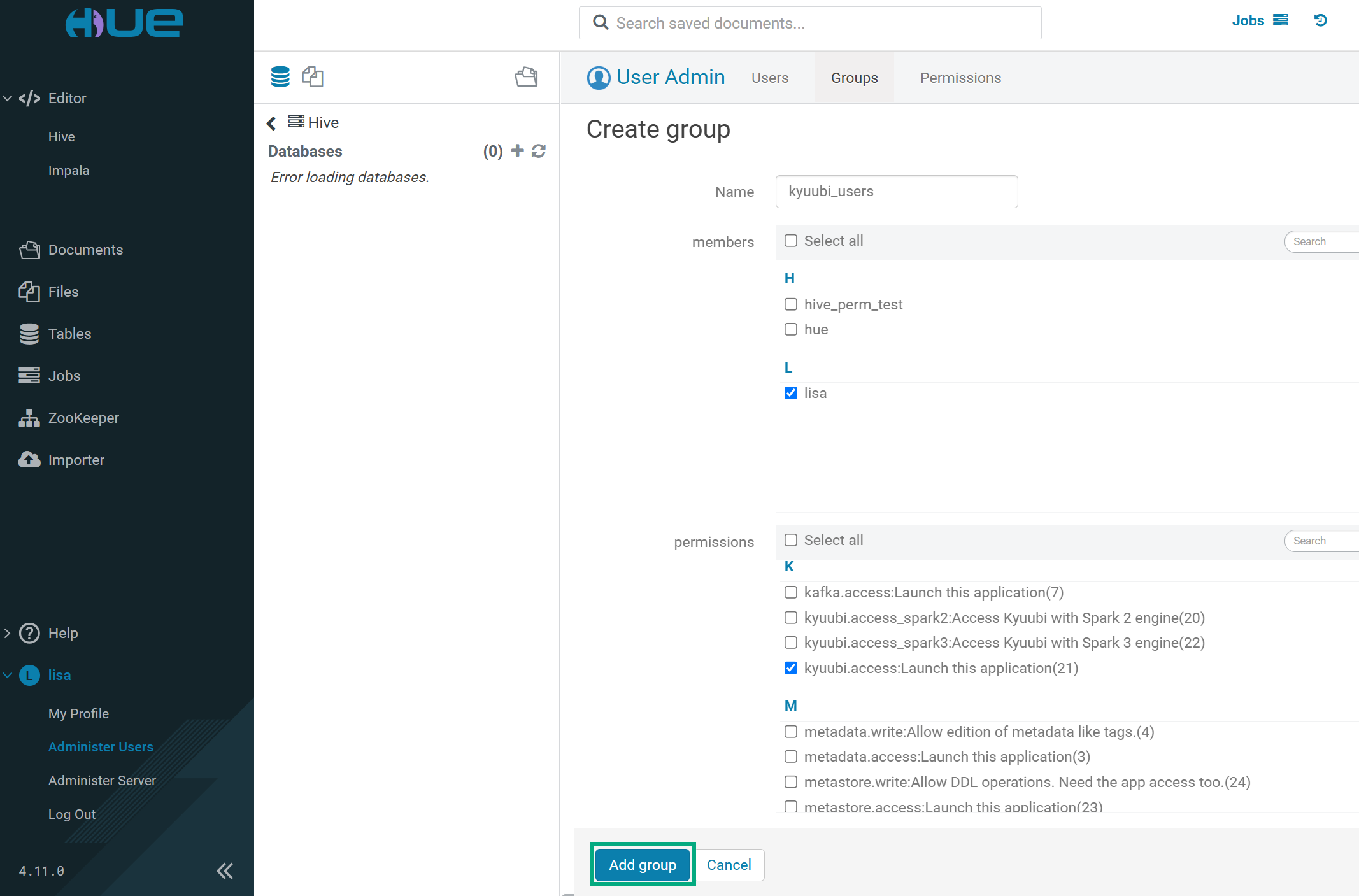 Create a group in HUE
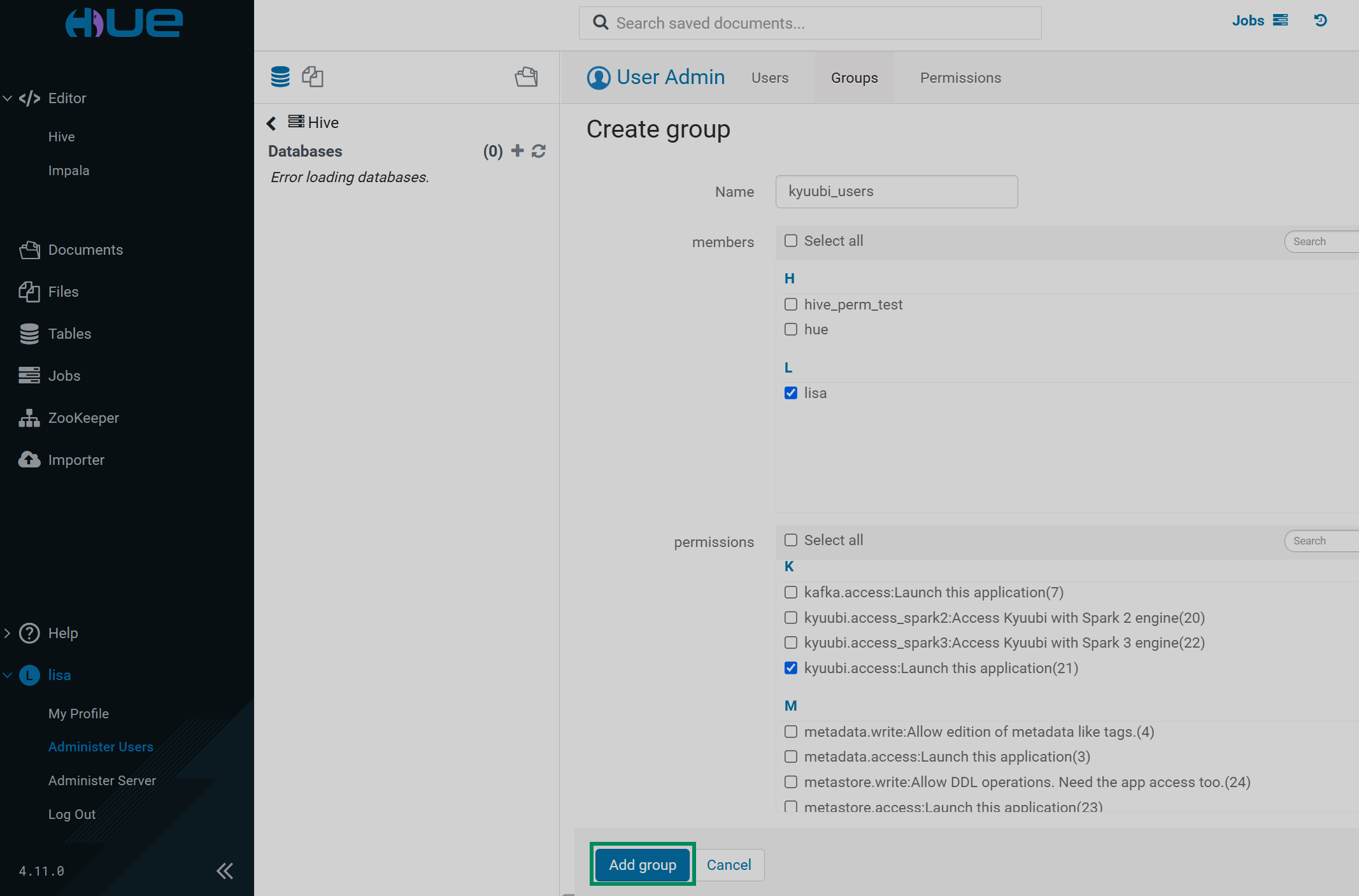 Create a group in HUE
-
In the permissions section, select the permissions that should be granted to the group. For details, see Grant access to editors and interpreters.
-
Click Add group.
After the group is created, it appears in the list on the Groups tab. To change group membership or permissions later, open the group from this list.
Add users to a group
To add users to an existing group:
-
Open the Administer Users → Groups tab as described in Open group settings.
-
Open the required group.
-
In the members section, select the users to add. Use the search field if the user list is long.
-
Click Save.
Grant access to editors and interpreters
HUE shows or hides editor UI items according to the current user’s permissions. For example, the Hive editor is displayed in the list of available editors only if the user has the required permission: hive.access:Launch this application.
To manage access:
-
Open the Administer Users → Groups tab as described in Open group settings.
-
Open the required group.
-
In the permissions section, find the required permission. For example,
hive.access:Launch this applicationpermits access to the Hive editor. -
Select the corresponding checkbox to grant access, or clear it to revoke access.
-
Click Save.
HUE displays permissions in the following format:
<application>.<permission_codename>:<permission description>
where:
-
<application>is the HUE application that provides the permission. -
<permission_codename>is the internal permission identifier within that application. -
<permission description>is the human-readable description of the permission.
For example:
impala.access:Launch this application
kyuubi.access_spark3:Access Kyuubi with Spark 3 engine
Example of configuring access for Kyuubi with Spark 3
This example shows how to allow only selected users to access the Kyuubi editor and use the Spark 3 engine.
Before you start, make sure that Kyuubi permissions are not granted to other groups whose members should not have access to Kyuubi, for example the default group.
-
Open the Administer Users → Groups tab as described in Open group settings.
-
Create a group named
kyuubi_spark3_usersor open an existing group. -
In the members section, add users who should be allowed to use Kyuubi[Spark3].
-
In the permissions section, select the following permissions:
kyuubi.access:Launch this application
kyuubi.access_spark3:Access Kyuubi with Spark 3 engine
NOTEThe
kyuubi.access_spark3permission grants Spark 3 engine access only whenkyuubi.accessis also granted. -
Click Save.
As a result, only users from the kyuubi_spark3_users group can open the Kyuubi editor and use the Spark 3 engine.
Examples of access groups
You can create several groups to separate user access to different HUE editors and interpreters. The following table shows example groups.
| Group | Members | Permissions |
|---|---|---|
hive_users |
Analysts who run Hive queries |
hive.access:Launch this application |
spark_users |
Users who work in the PySpark editor |
spark.access:Launch this application |
kyuubi_users |
Users who work in the Kyuubi[Spark3] editor |
kyuubi.access:Launch this application kyuubi.access_spark3:Access Kyuubi with Spark 3 engine |
hue_admins |
HUE administrators |
useradmin.access:Launch this application useradmin.superuser:Give superuser access to members of group useradmin.profile:Access to profile page on User Admin about.access:Launch this application help.access:Launch this application jobbrowser.access:Launch this application |