

Custom Java settings
This article describes the installation and configuration of a custom version of Java for the ADS cluster.
Install Java
Below is an example of installing Java 21.
-
Download the Java version you need on all hosts:
$ wget https://download.oracle.com/java/21/archive/jdk-21.0.2_linux-x64_bin.tar.gz -
Create a directory for custom Java on all hosts:
$ mkdir -p /tmp/jvm-example -
Unpack the package in the created directory on all hosts:
$ sudo tar -xzf jdk-21.0.2_linux-x64_bin.tar.gz -C /tmp/jvm-example -
Set permissions for the directory:
$ sudo chmod 755 /tmp/jvm-example/jdk-21.0.2 -
Check Java installation by running the command below to determine that the required Java version is used:
$ /tmp/jvm-example/jdk-21.0.2/bin/java --versionThe output:
java 21.0.2 2024-01-16 LTS
Java(TM) SE Runtime Environment (build 21.0.2+13-LTS-58)
Java HotSpot(TM) 64-Bit Server VM (build 21.0.2+13-LTS-58, mixed mode, sharing)
Use custom Java
When using custom Java, before running the Install or Update cluster actions in ADS after loading the new bundle, perform the following steps:
-
On the Clusters page, select the desired cluster.
-
Go to the cluster confgiuration page.
-
Expand the group with repositories for the selected operating system (for example, Ubuntu 22 repositories), select the arenadata_java repository, and expand its settings. Set the enabled parameter to
false.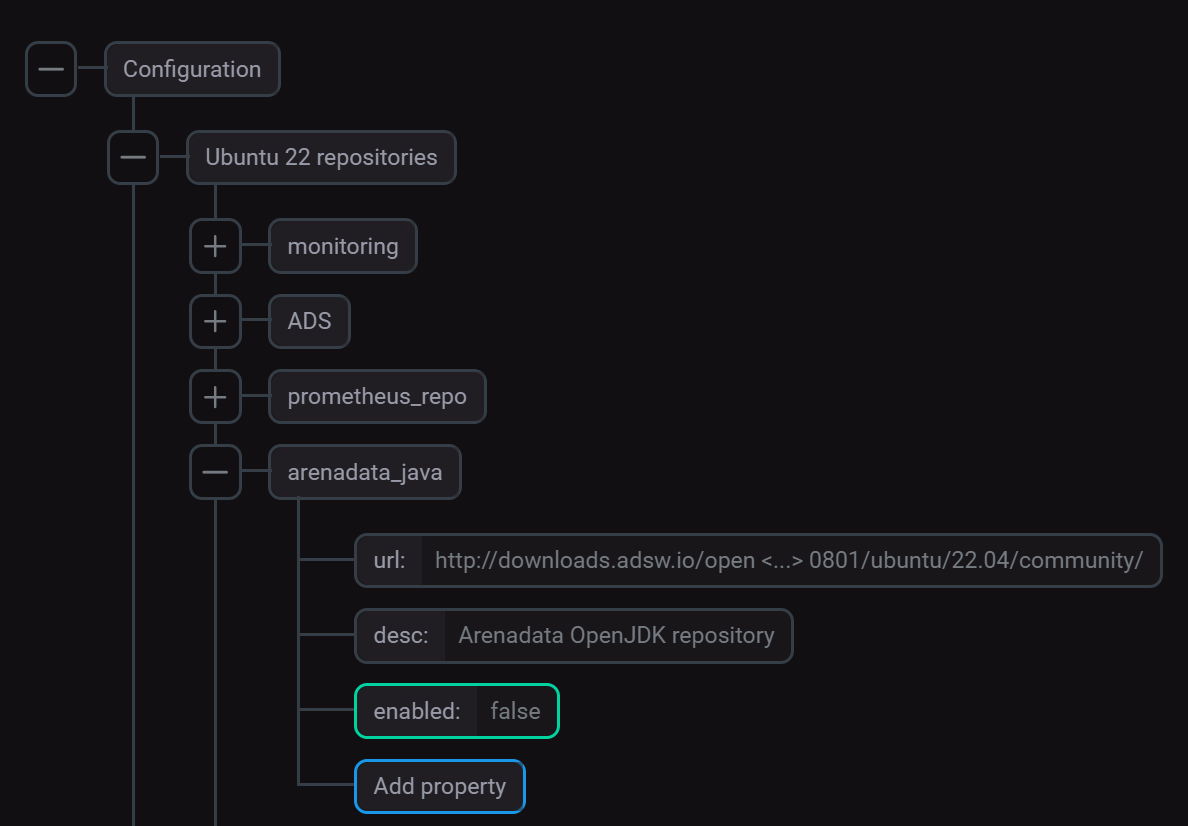 Disabling the Arenadata Java repository
 -
Check the Advanced flag and expand the Custom Java config group.
 Custom Java config
 -
Open AD runtime utils config template and edit it by adding the path to
JAVA_HOMEin thepathslist for the required Java version (only part of the template is provided, including Java 21, installed in the example above):default: runtimes: java: version: "{{ java_default_version }}" env_var: JAVA_HOME autodetect: runtimes: ... "21": env_var: JAVA21_HOME paths: - /tmp/jvm-example/jdk-21.0.2 ...Java files must be located in the directory set above. The permissions for this path and for all the parent directories should be set to
755. The crucial part is to allow execution.The order of the directory list matters — the first directory where Java is found will be used as
JAVA_HOME. -
Click Apply and confirm the changes to the cluster configuration by clicking Save.
When launching the Install or Update cluster action, in the window that opens, in the list of required installation parameters, set the Install OpenJDK parameter to false.