
Manage cells
Create a cell
You can add a new cell in one of the following ways:
-
Click Add SQL Cell in a notebook workspace — a new SQL cell will be created. You can also select a cell type from the context menu.
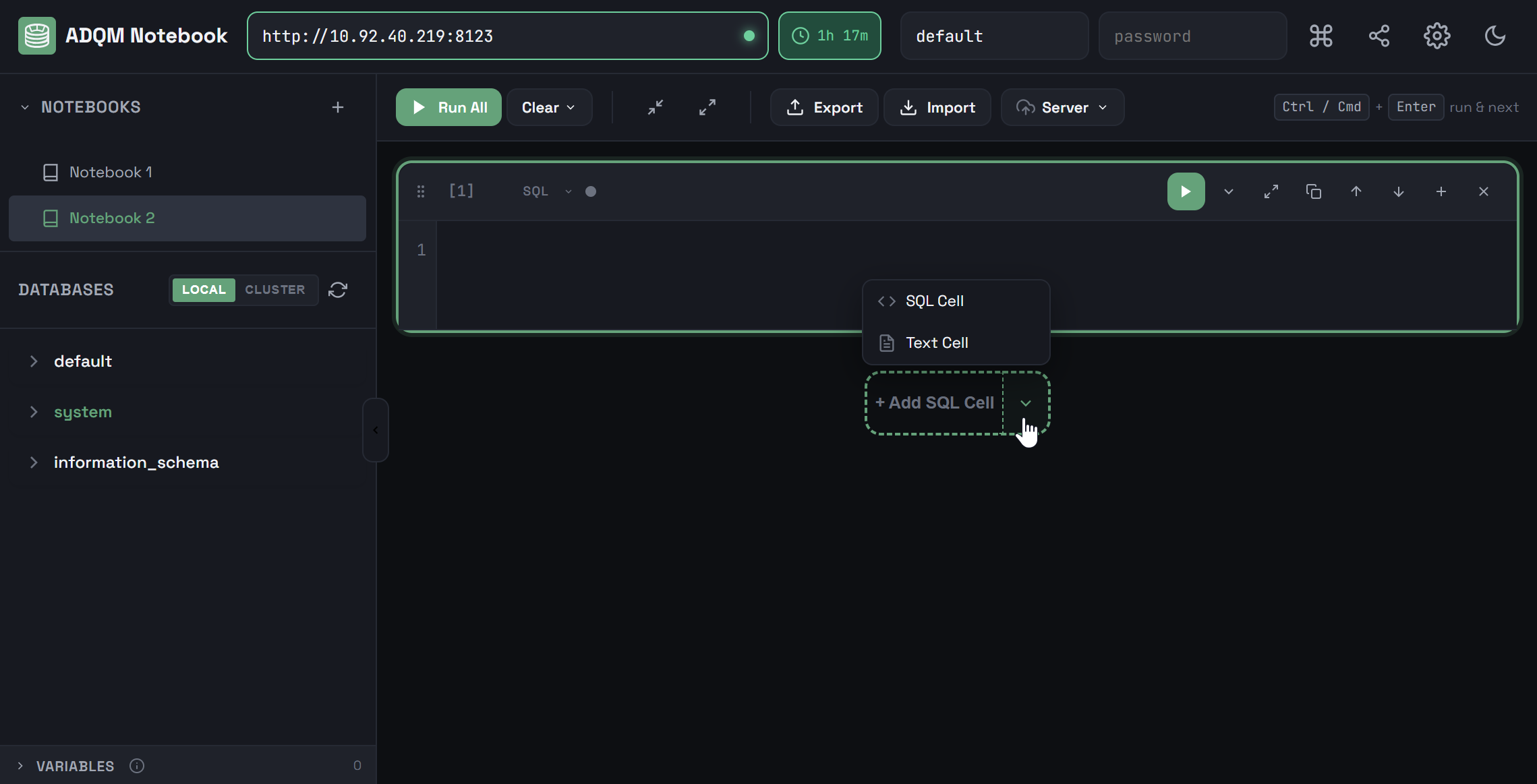 Add a new cell to a notebook
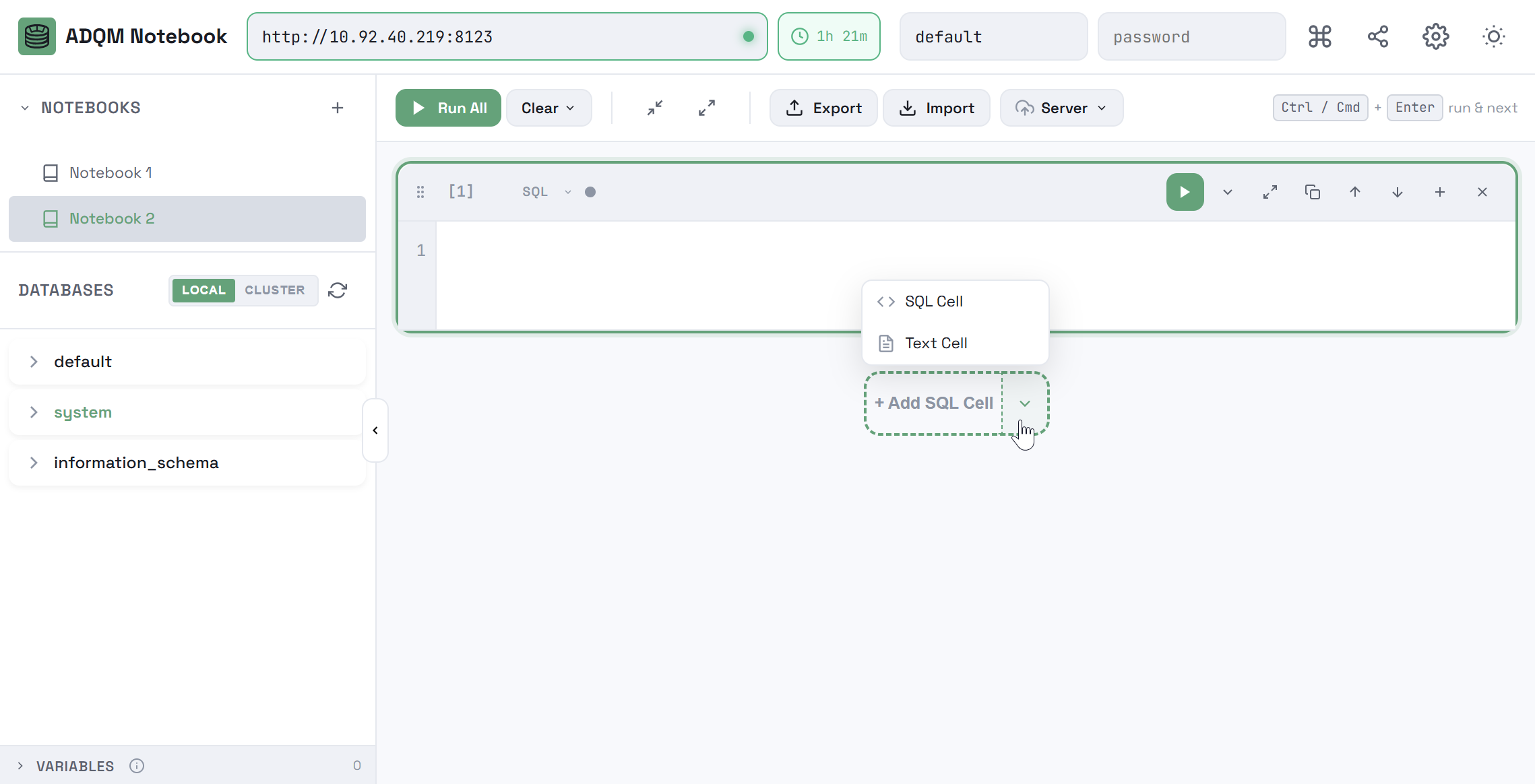 Add a new cell to a notebook
 -
Click the

 Add cell below icon in the control panel of an existing cell — a new cell of the same type will be added below this cell.
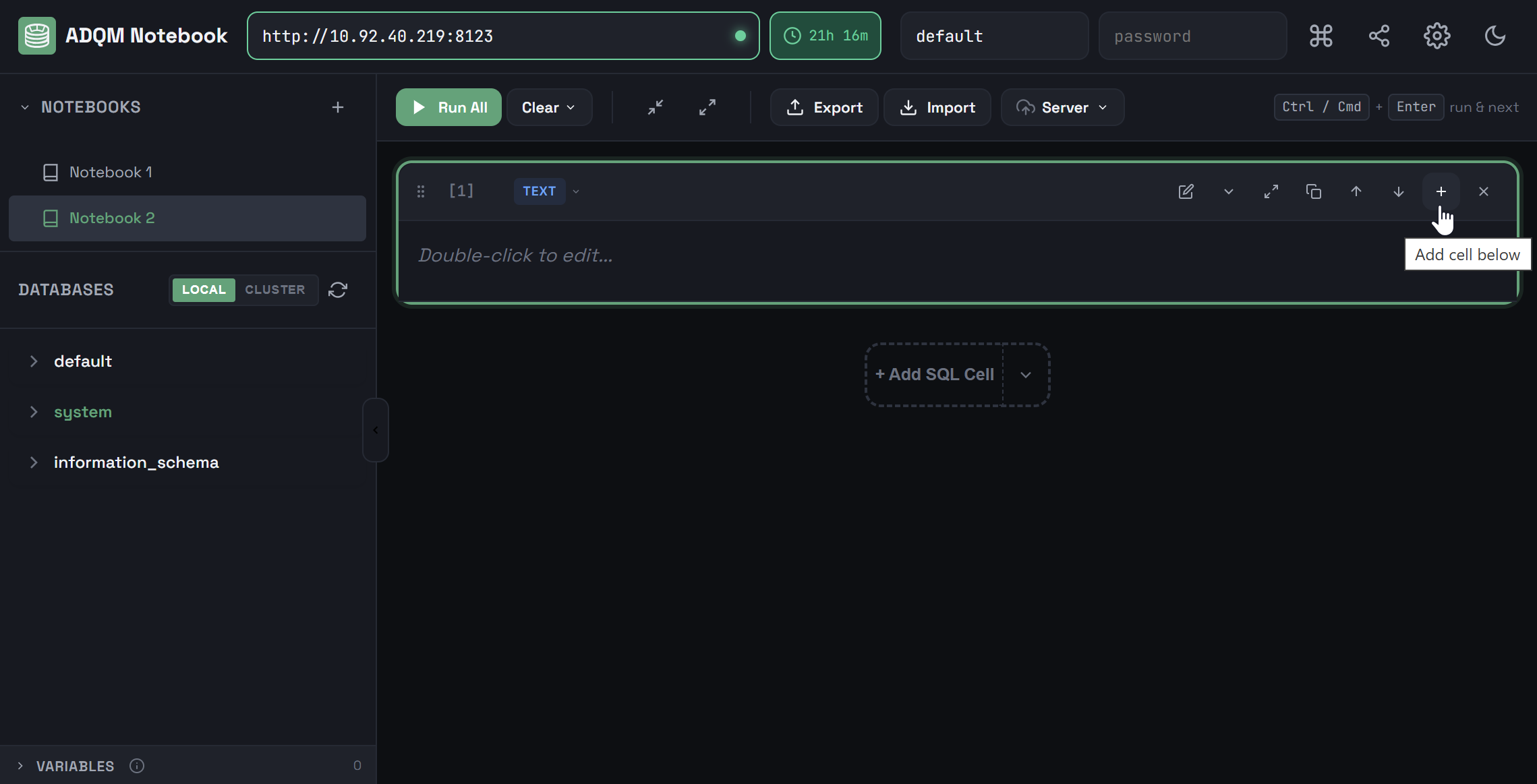 Create a new cell from an existing one
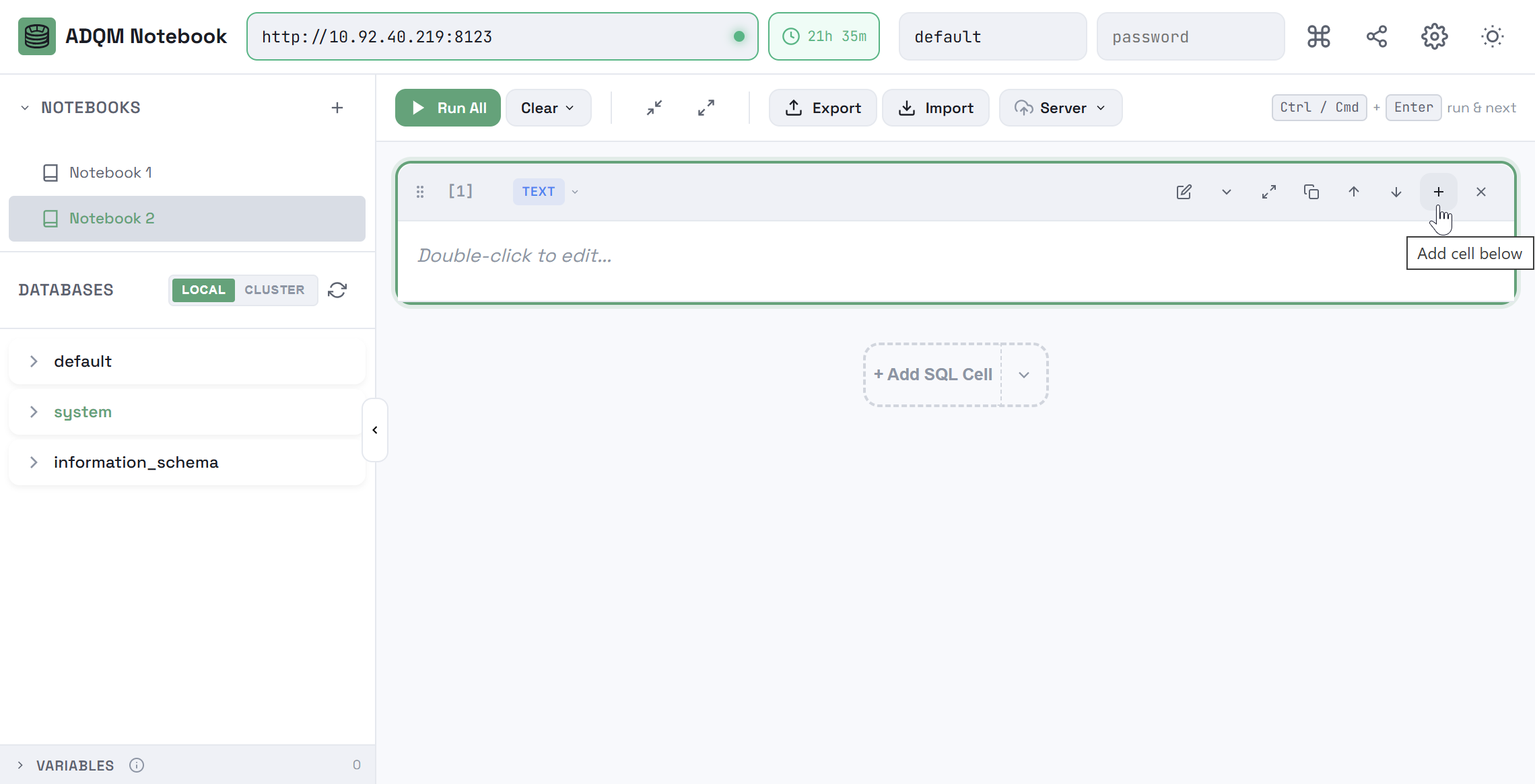 Create a new cell from an existing one
Copy a cell
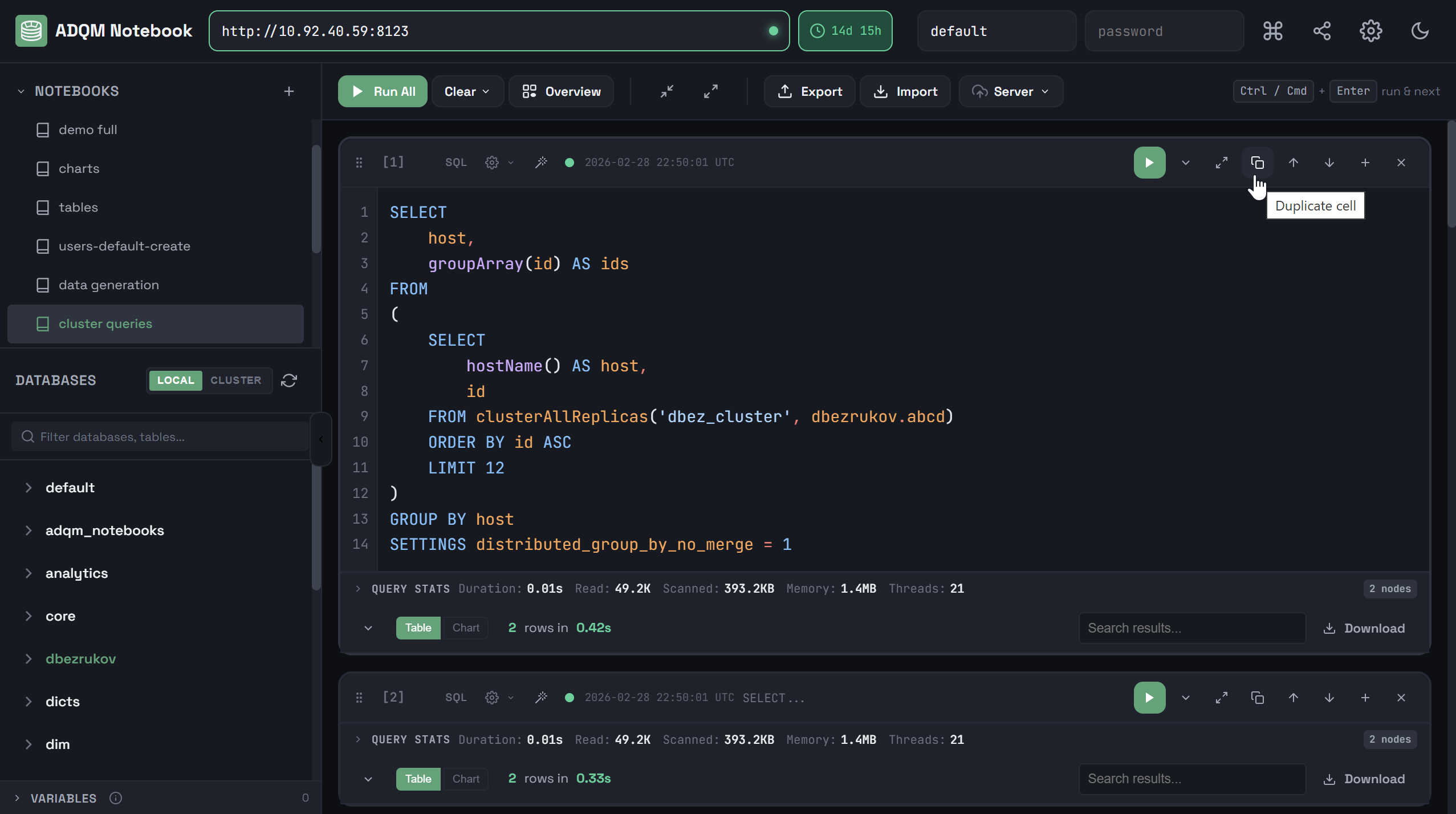
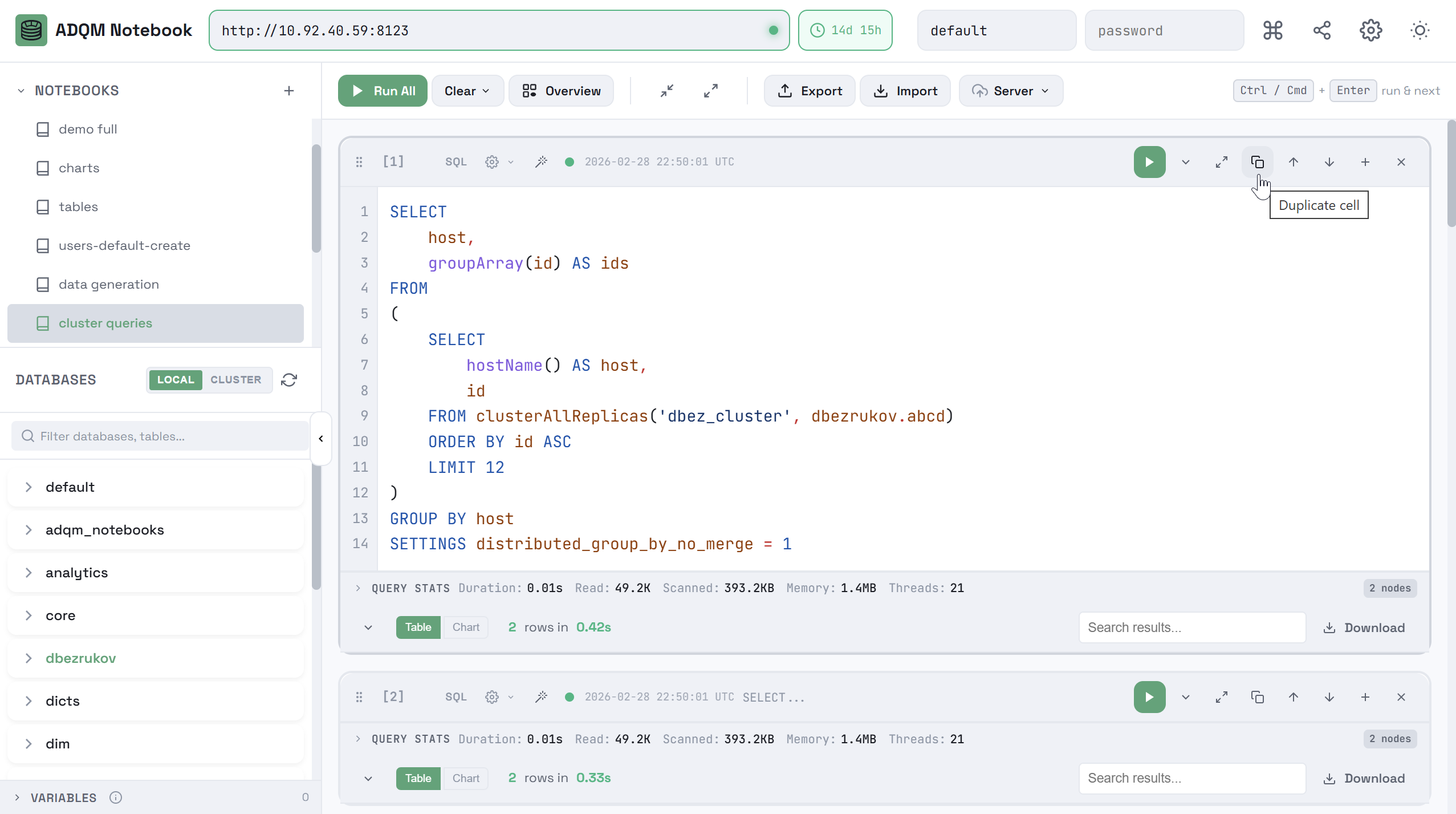
To copy a text or SQL cell, click the 
 Duplicate cell icon in the control panel of a cell — a new cell of the same type will be added below, containing text with the applied markdown or an SQL query from the source cell.
Change a cell type
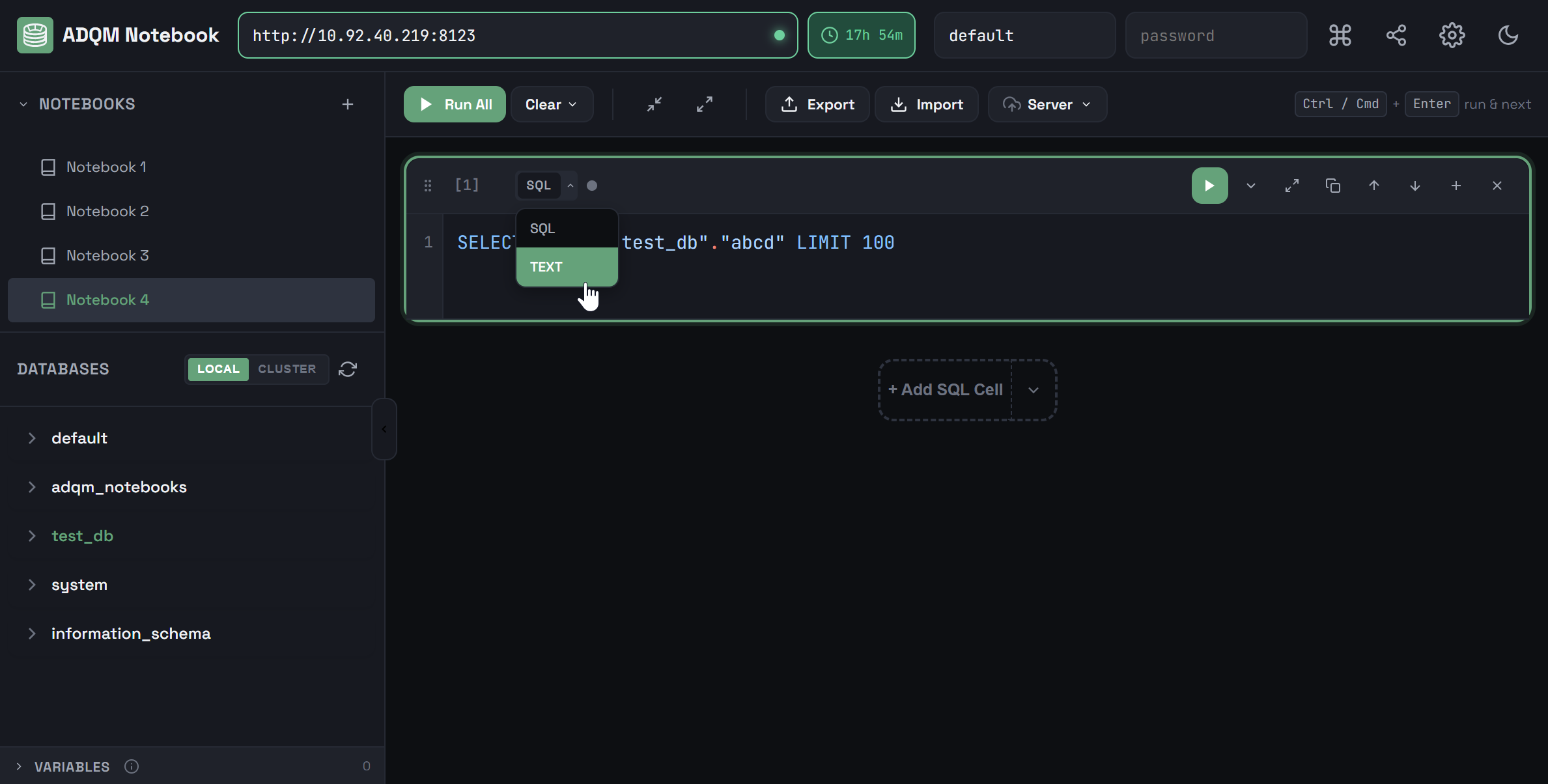
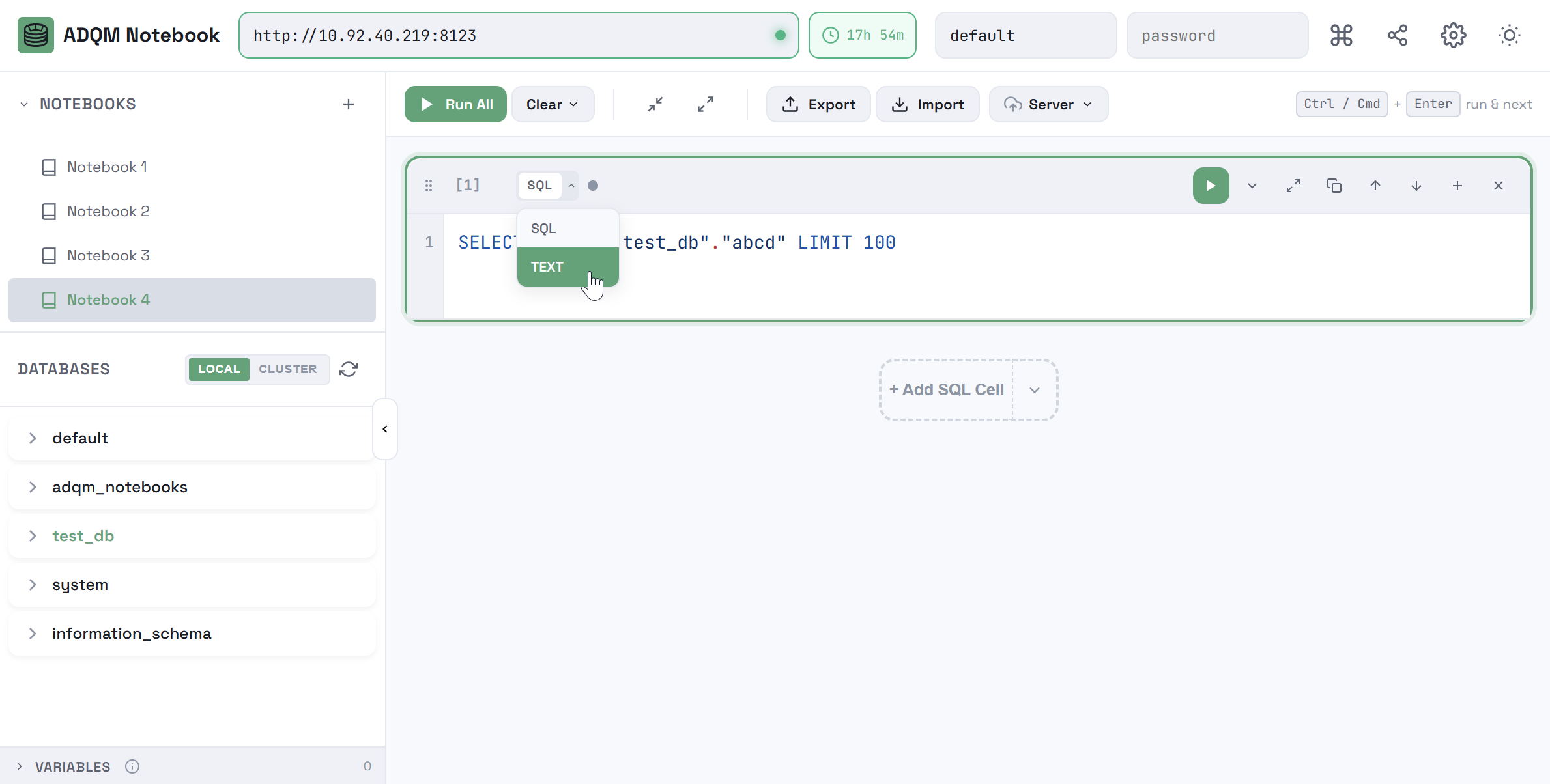
Each cell has a drop-down that allows converting between its types in-place:
-
SQL → Text: query code moves to text content;
-
Text → SQL: text content moves to query code, syntax highlighting is initialized.
Move a cell
You can move a cell in the following ways:
-
Use the

 Move up and
 Move down icons in the cell control panel.
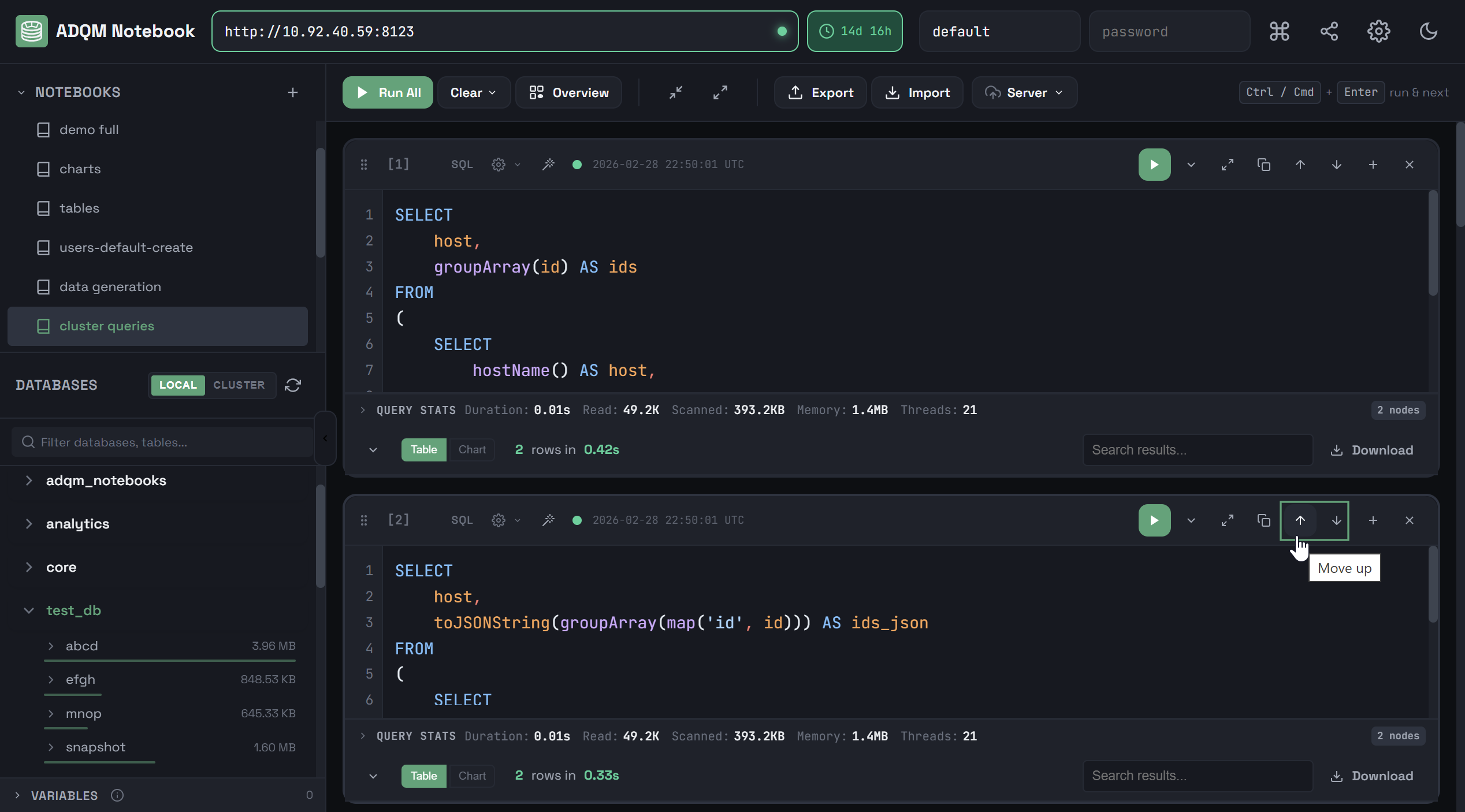 Icons for moving a cell up/down
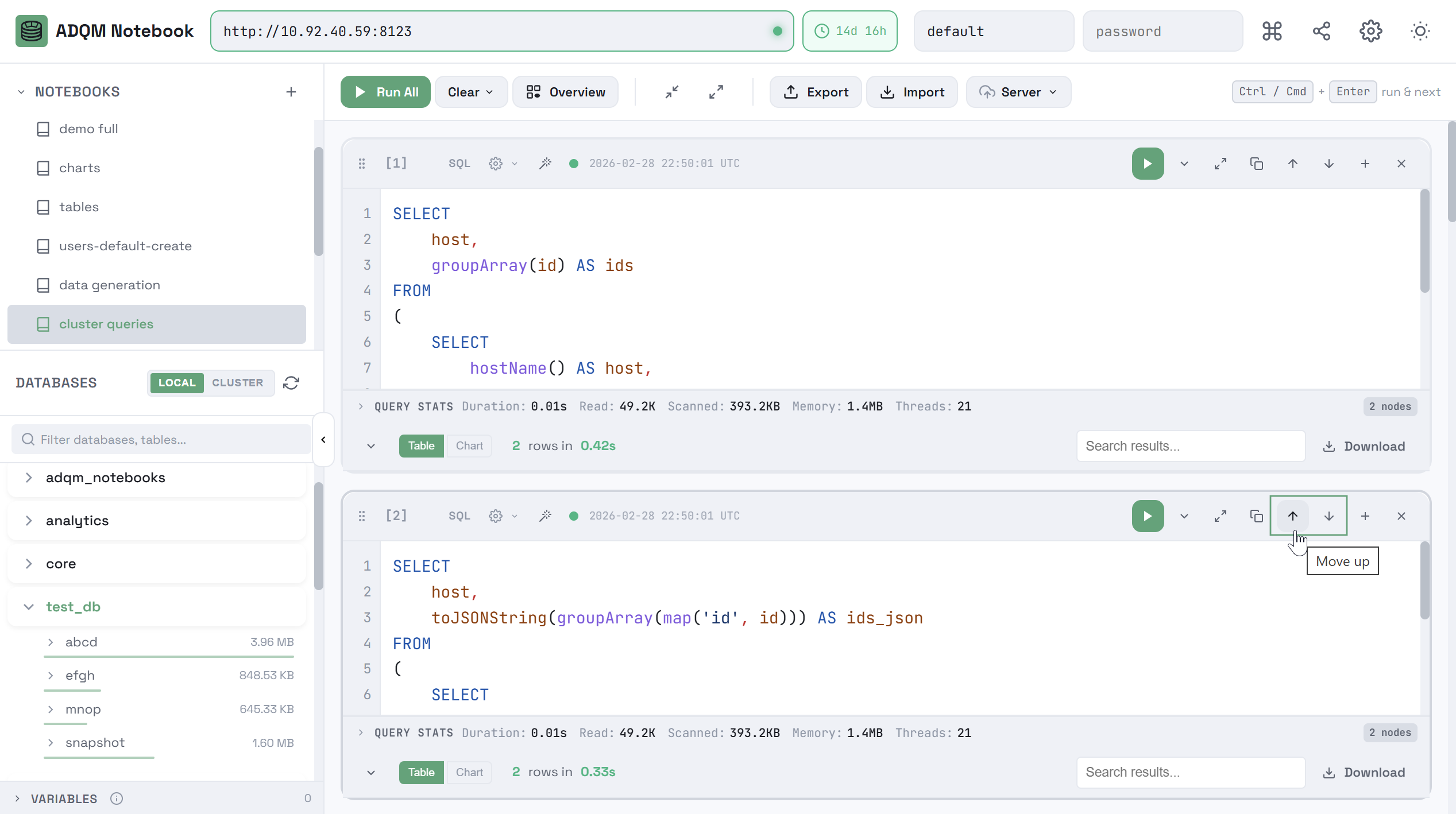 Icons for moving a cell up/down
 -
Click the

 Drag to reorder icon and move a cell to a new location using the drag-and-drop mechanism.
 Drag and drop a cell
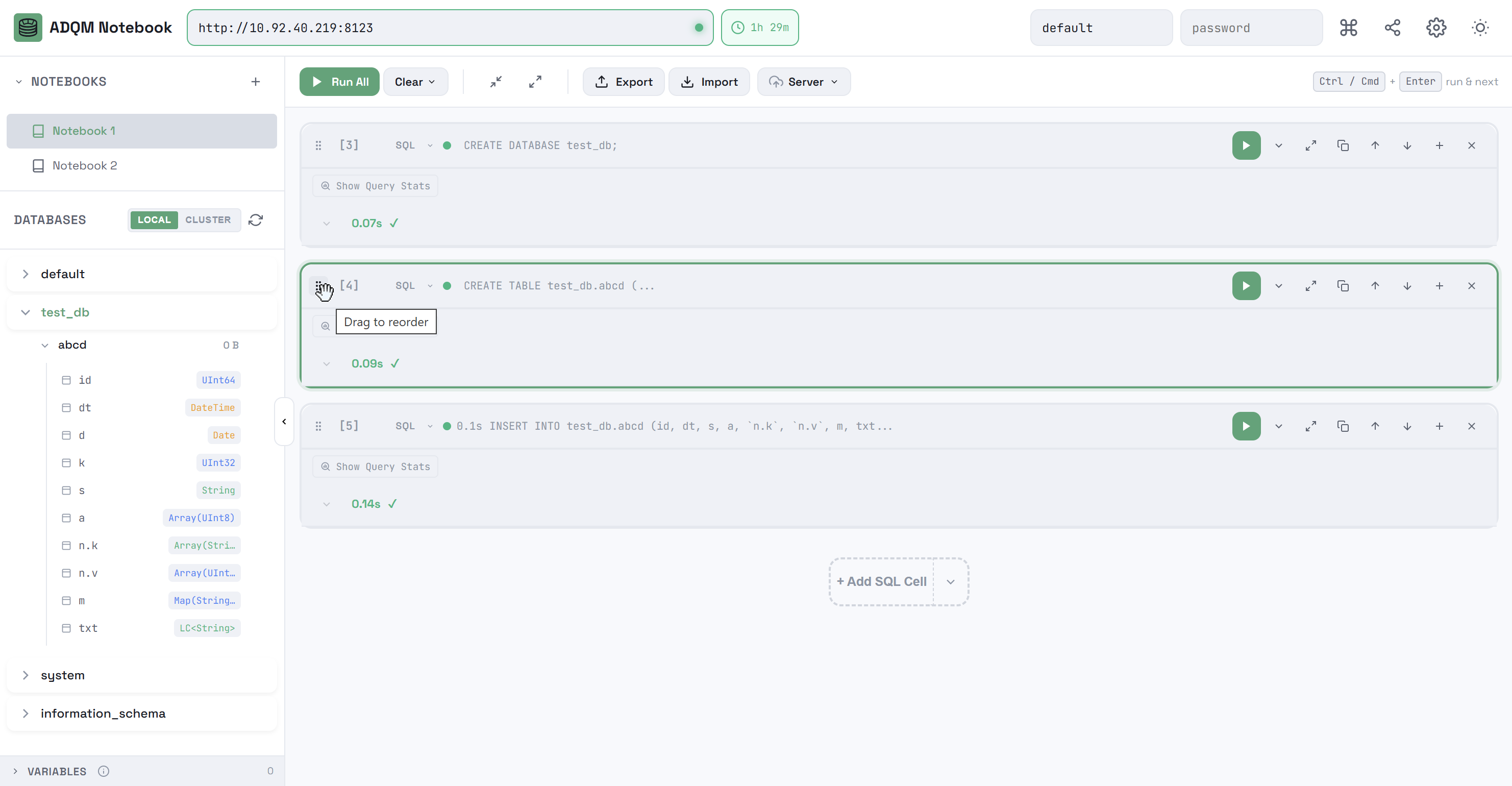 Drag and drop a cell
Delete a cell
To delete a text or SQL cell, click the 
 Delete cell icon in the cell control panel.

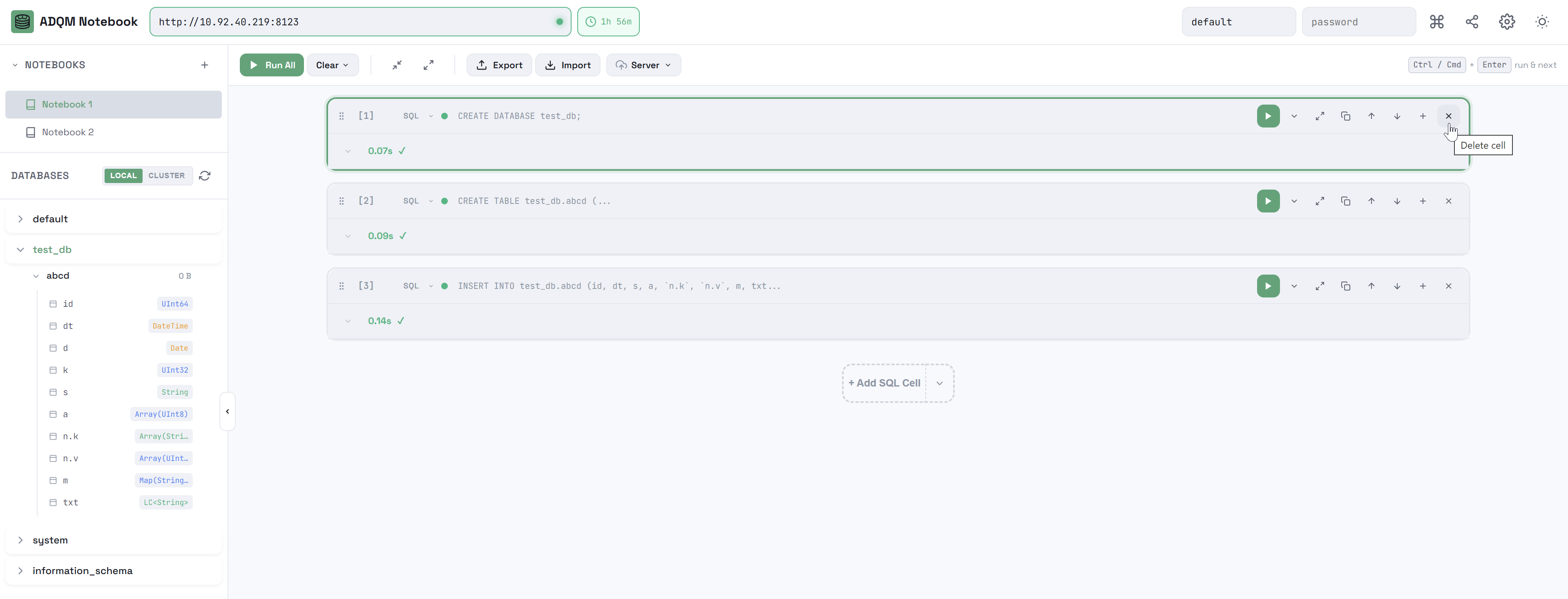
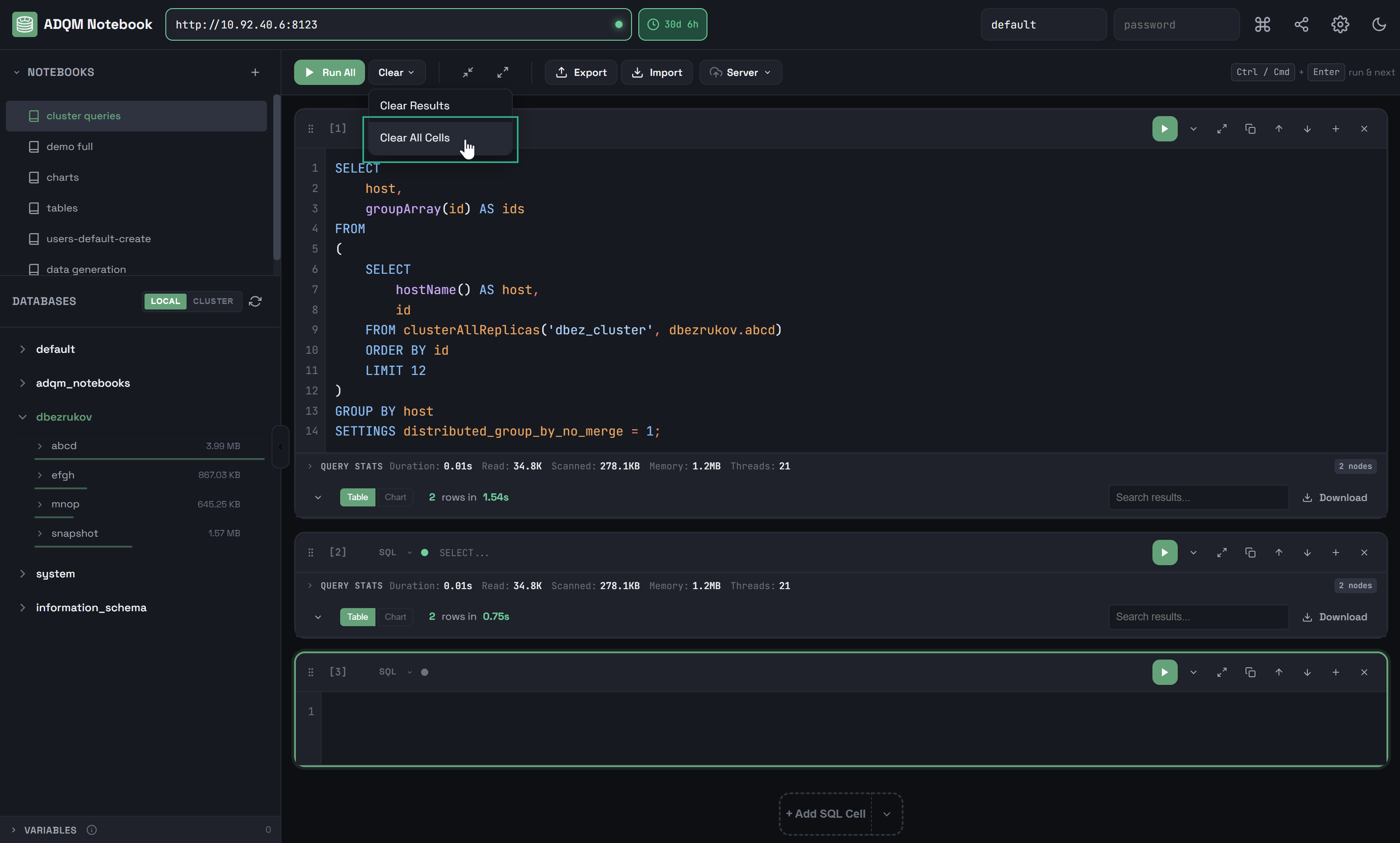
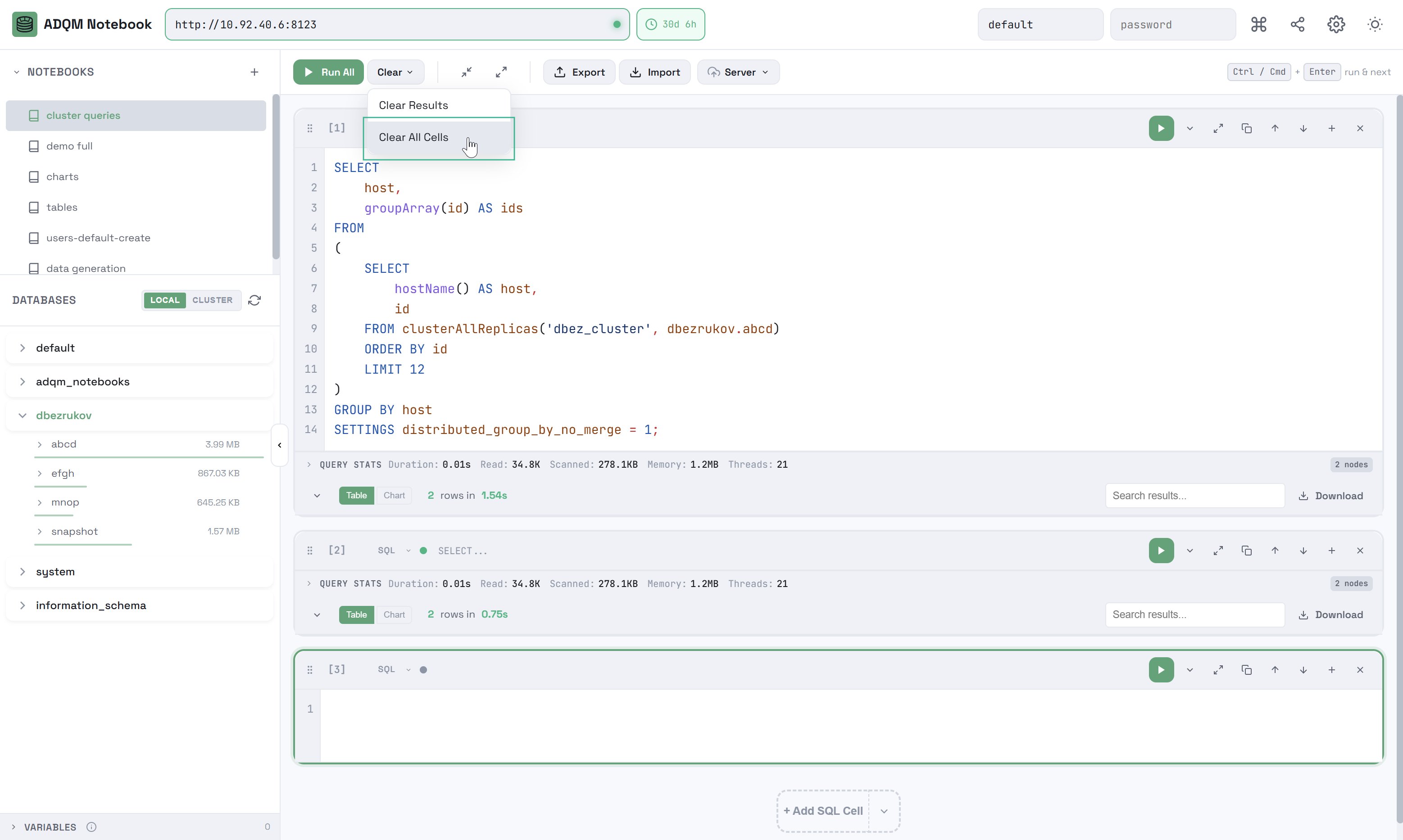
Selecting Clear All Cells from the Clear context menu in notebook control panel deletes all cells within the notebook, leaving only one empty SQL cell.
Keyboard shortcuts
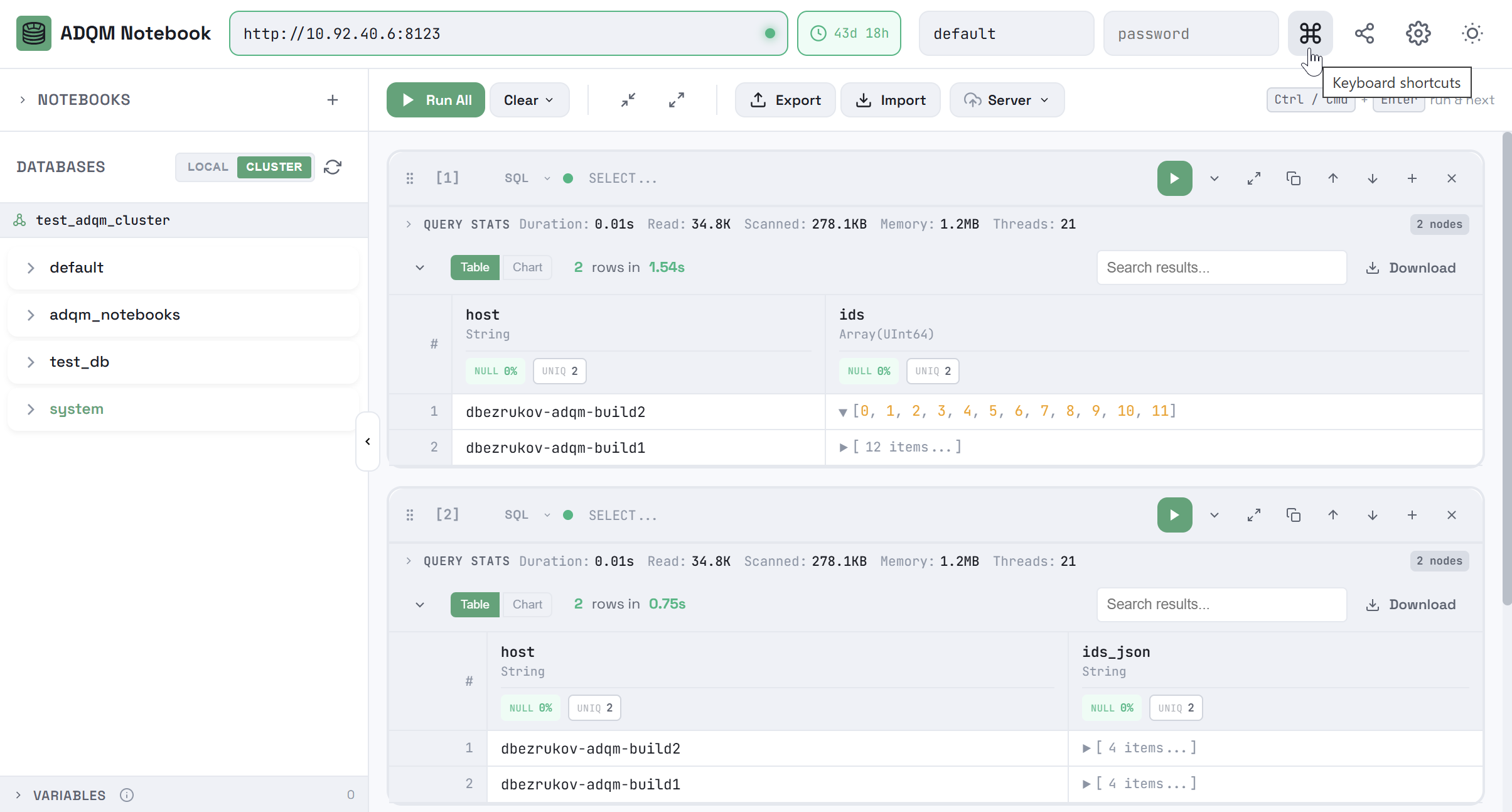
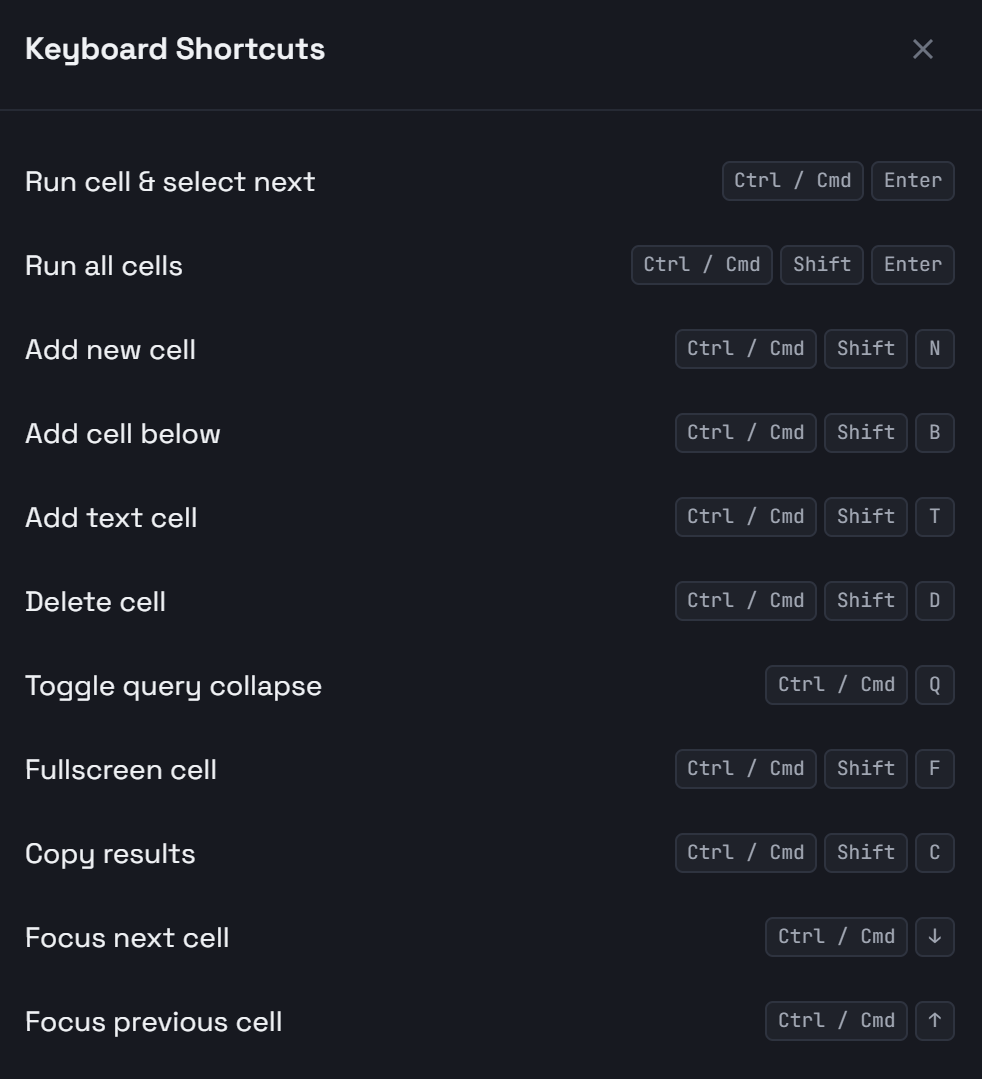
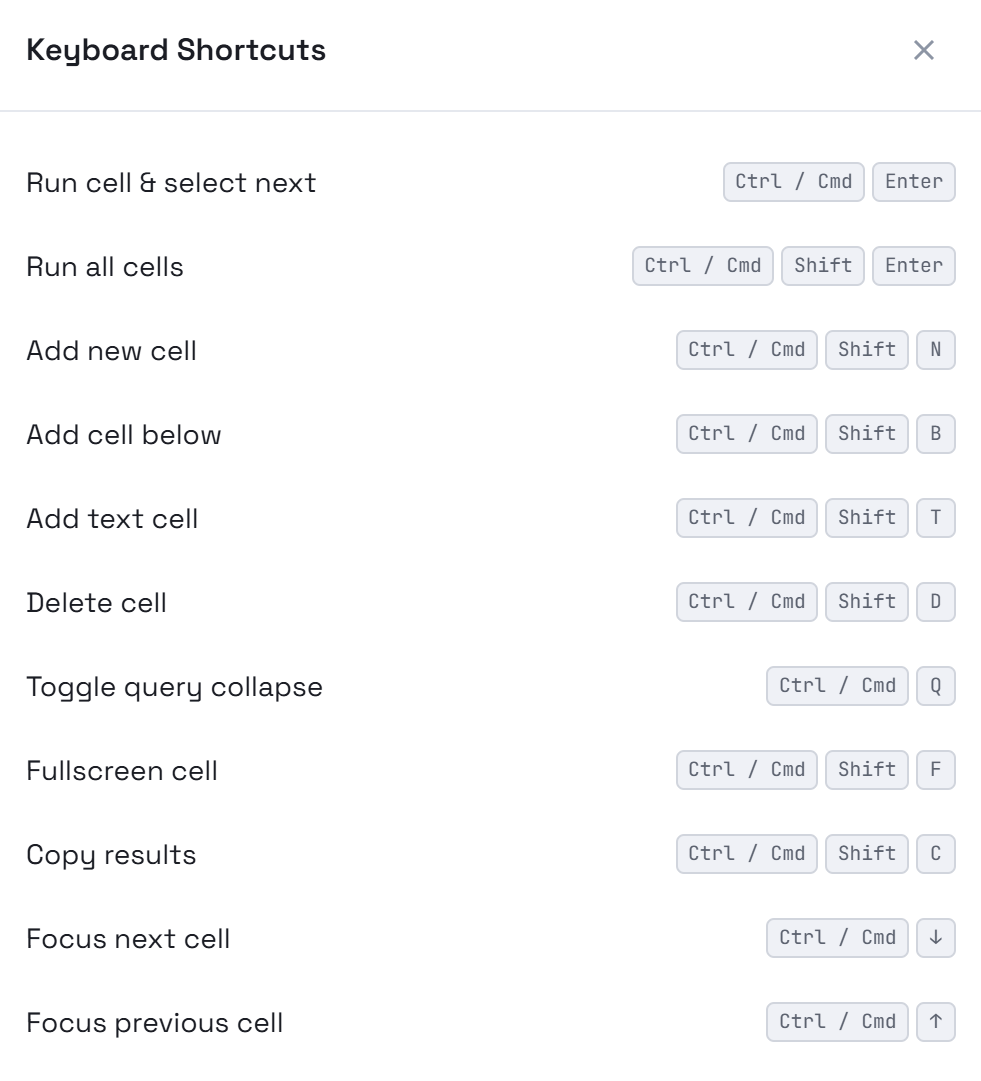
The ADQM Notebook interface also provides a set of keyboard shortcuts for managing cells in a notebook. To view them, click the 
 Keyboard shortcuts icon in the upper right corner of the interface.