
Monitoring cluster based on VictoriaMetrics
Overview
The Enterprise edition of ADQM supports monitoring based on VictoriaMetrics starting with 26.8.2.7.1.b1.
To set up monitoring, use:
-
An ADM cluster (version 5.0.0 or higher). An external VictoriaMetrics server can also be used.
-
The VMAgent component of an ADQM cluster’s Monitoring service — available starting with the ADQM version 26.8.2.7.1.b1.
VMAgent collects metrics from an ADQM cluster and sends them to an ADM cluster. If the Grafana service is enabled in ADM, dashboards with ADQM service and host metrics will be available in the Grafana web interface once monitoring is set up.
The following steps describe how to install the VMAgent component and set up monitoring.
|
NOTE
This article describes installation for ADQM clusters where the Monitoring service has not been previously installed. If the Monitoring service is already installed, follow these steps:
|
Step 1. Install ADM
Install an ADM cluster (see the Installation guide) to be used as the base for import of the VictoriaMetrics server configuration.
The ADM cluster can be installed either before or after an ADQM cluster, but before installing the VMAgent component of the Monitoring service.
Step 2. Add the Monitoring service
-
In the ADCM interface, open the Clusters page and click your ADQM cluster name. On the cluster page that opens, switch to the Services tab and click Add services.
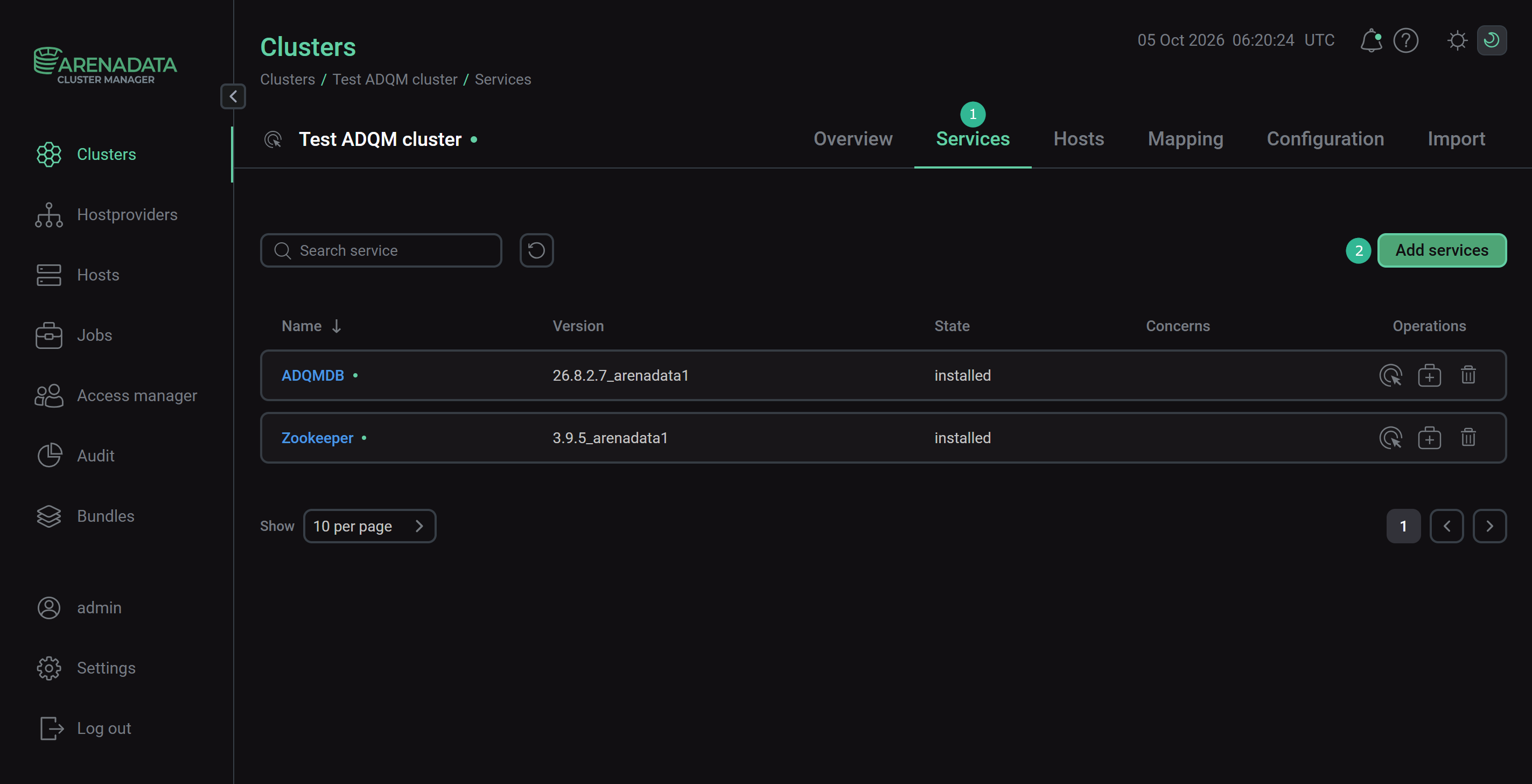 Switch to adding services
 -
In the opened dialog, select the Monitoring service and click Add.
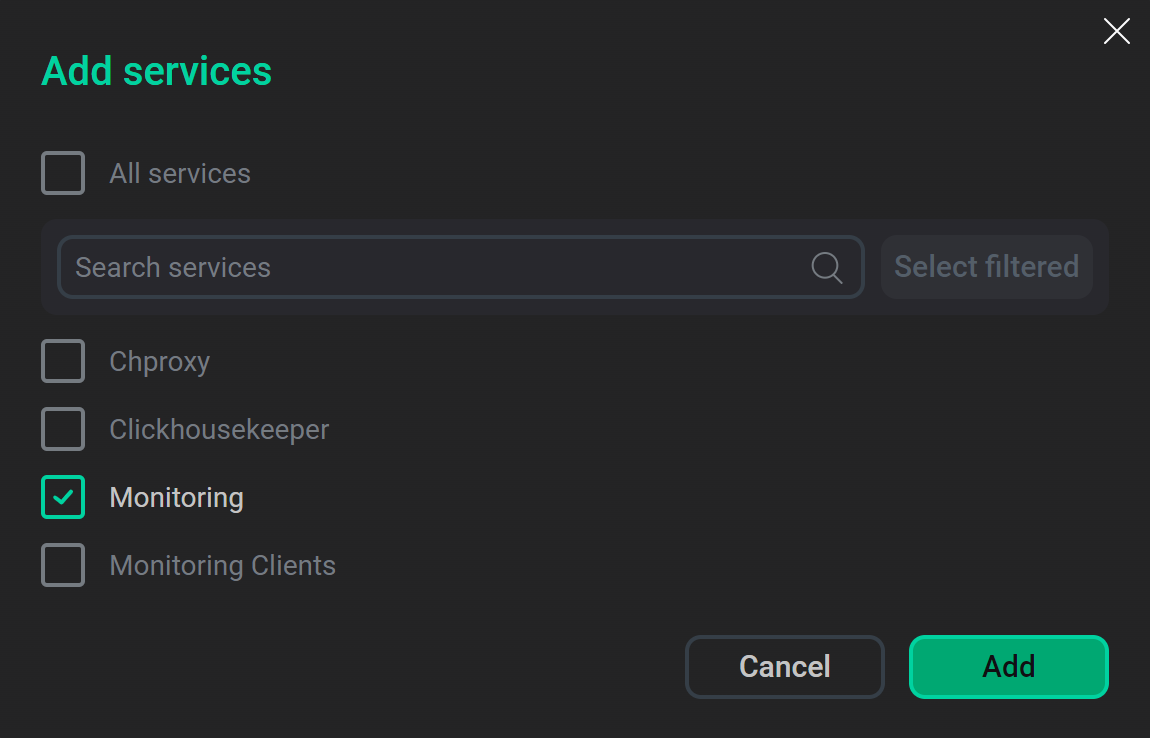 Select the service
As a result, the added service is displayed on the Services tab.
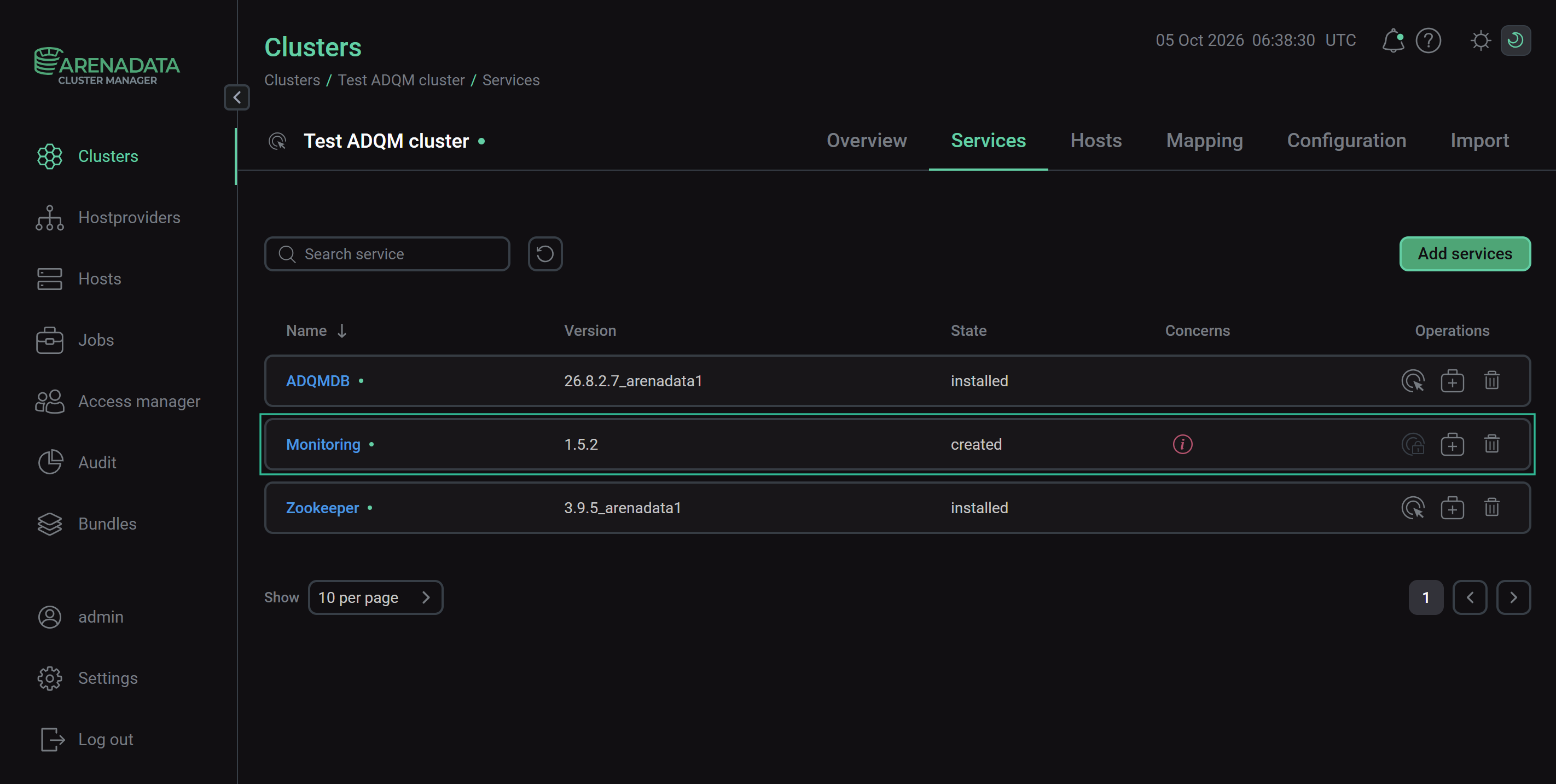 Result of successful adding the service to the cluster
Step 3. Add the VMAgent component
-
On the cluster page, open the Mapping tab to proceed to mapping instances of the VMAgent component to cluster hosts.
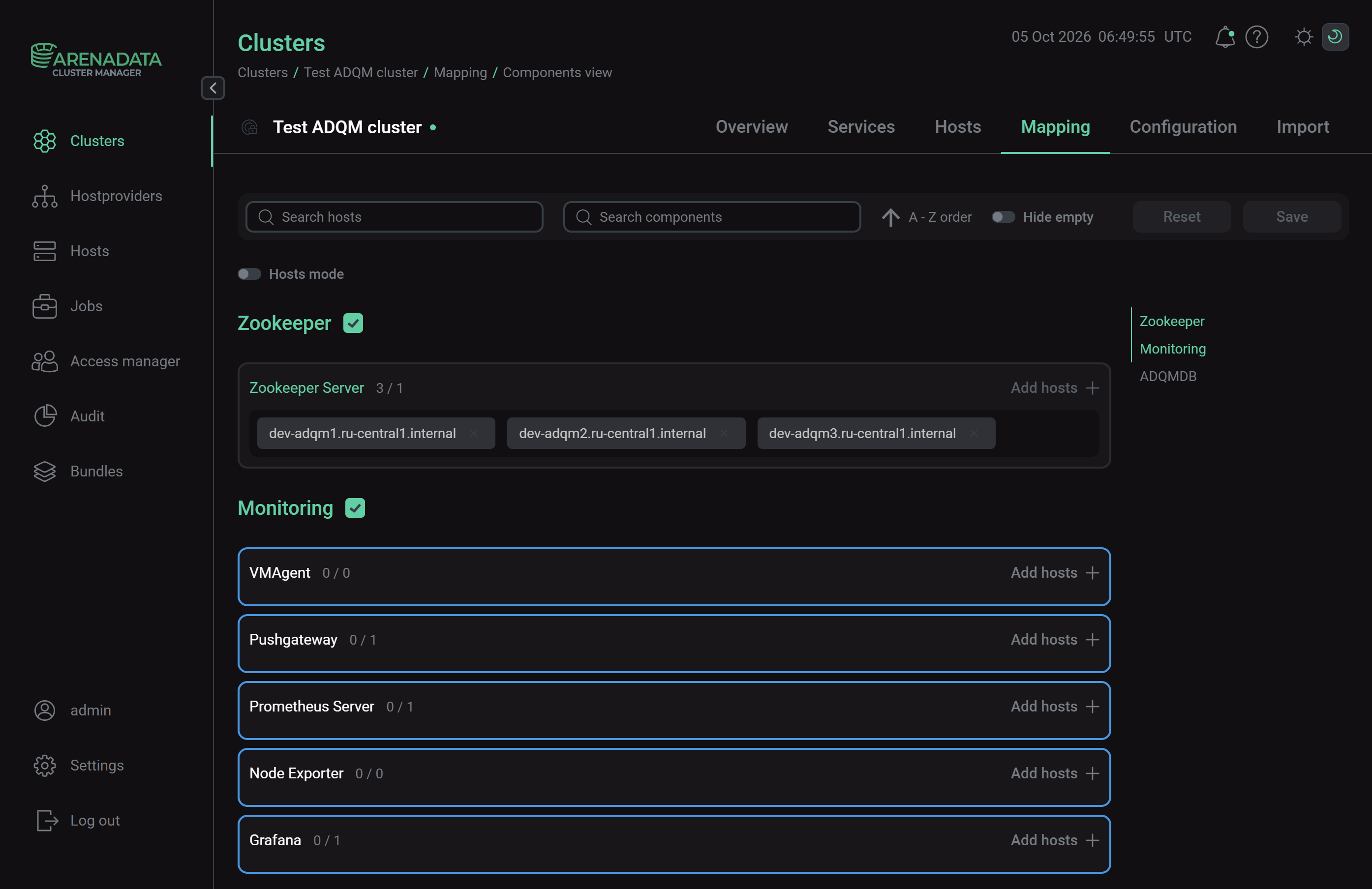 Switch to mapping service components
 -
Assign a host to the VMAgent component of the Monitoring service — click Add hosts and select the desired host in the pop-up window.
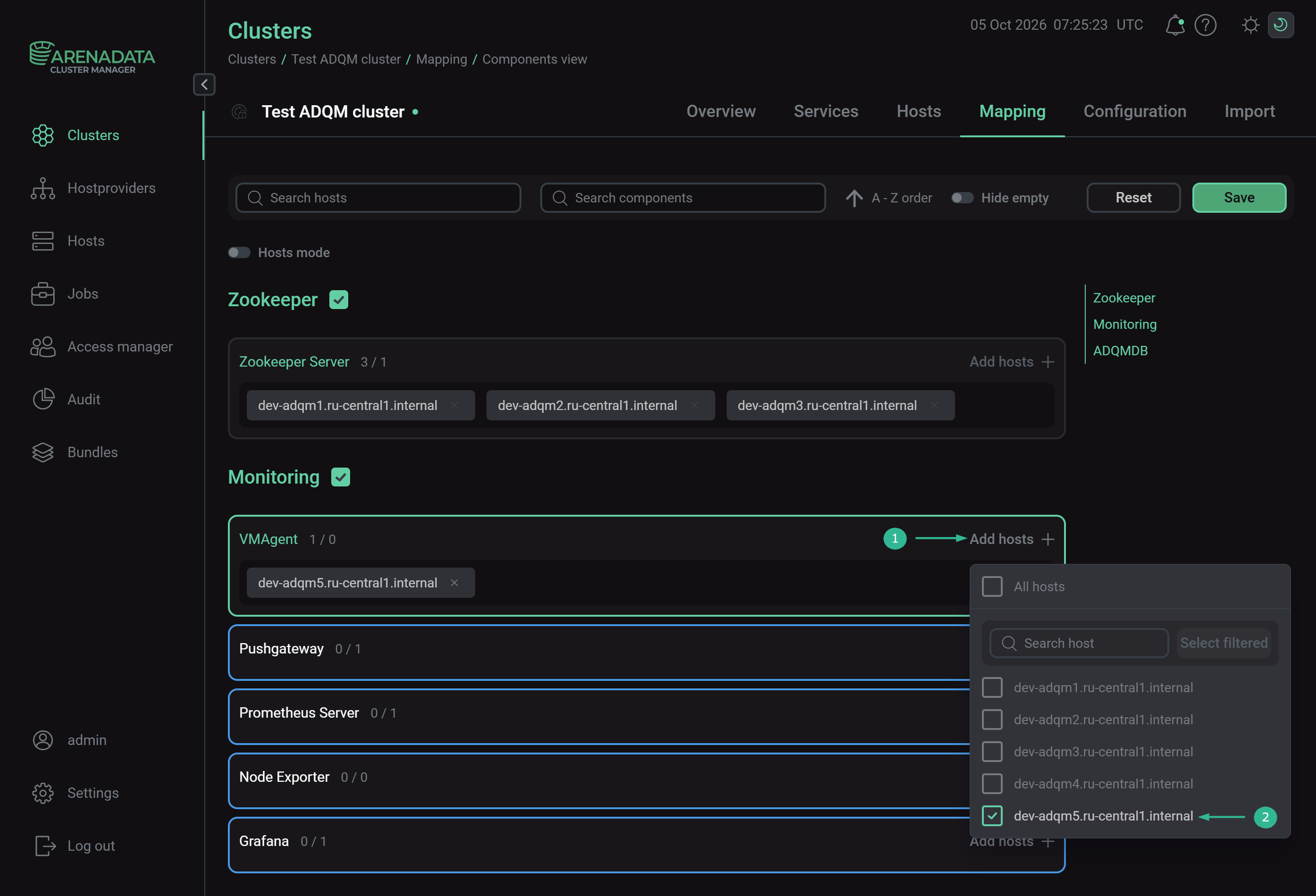 Select a host for a componentCAUTIONIt is not recommended to install the VMAgent component on a host with ADQM — use a separate host for it. Otherwise, if an ADQM host fails and/or experiences critically high load, information about the corresponding problems will not be saved.
 -
After the distribution of components is completed, click Save.
Step 4. Configure VMAgent
-
Open the Services tab on the cluster page and click the Monitoring service name in the Name column.
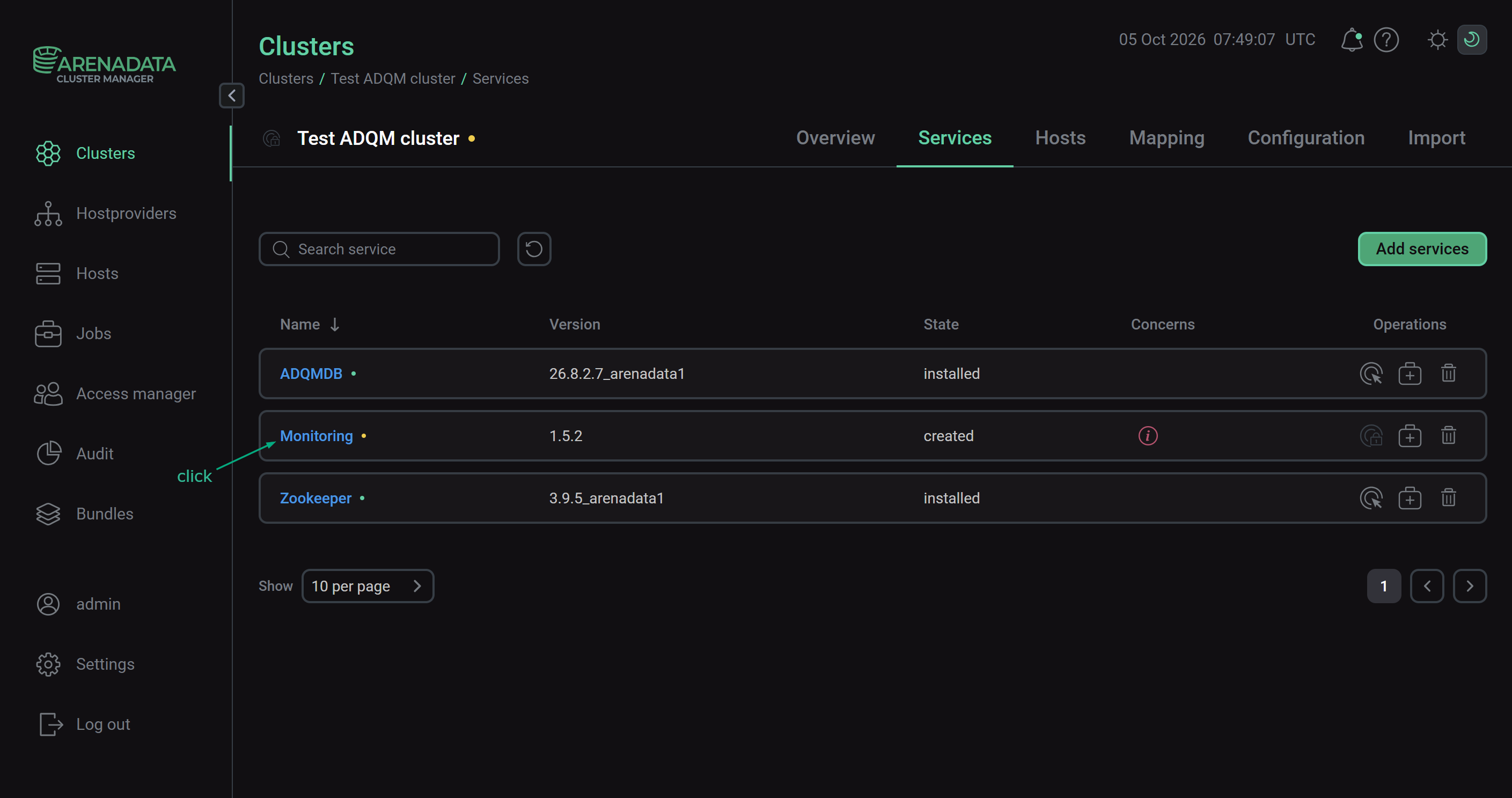 Switch to the service configuration
 -
On the page that opens, fill in or change the service configuration parameter values in the VMAgent section as needed — see parameter descriptions in the Configuration parameters article. Also, fill in the fields highlighted in red, as they are mandatory, even if the corresponding components (Prometheus Server, Grafana) are not added to the service.
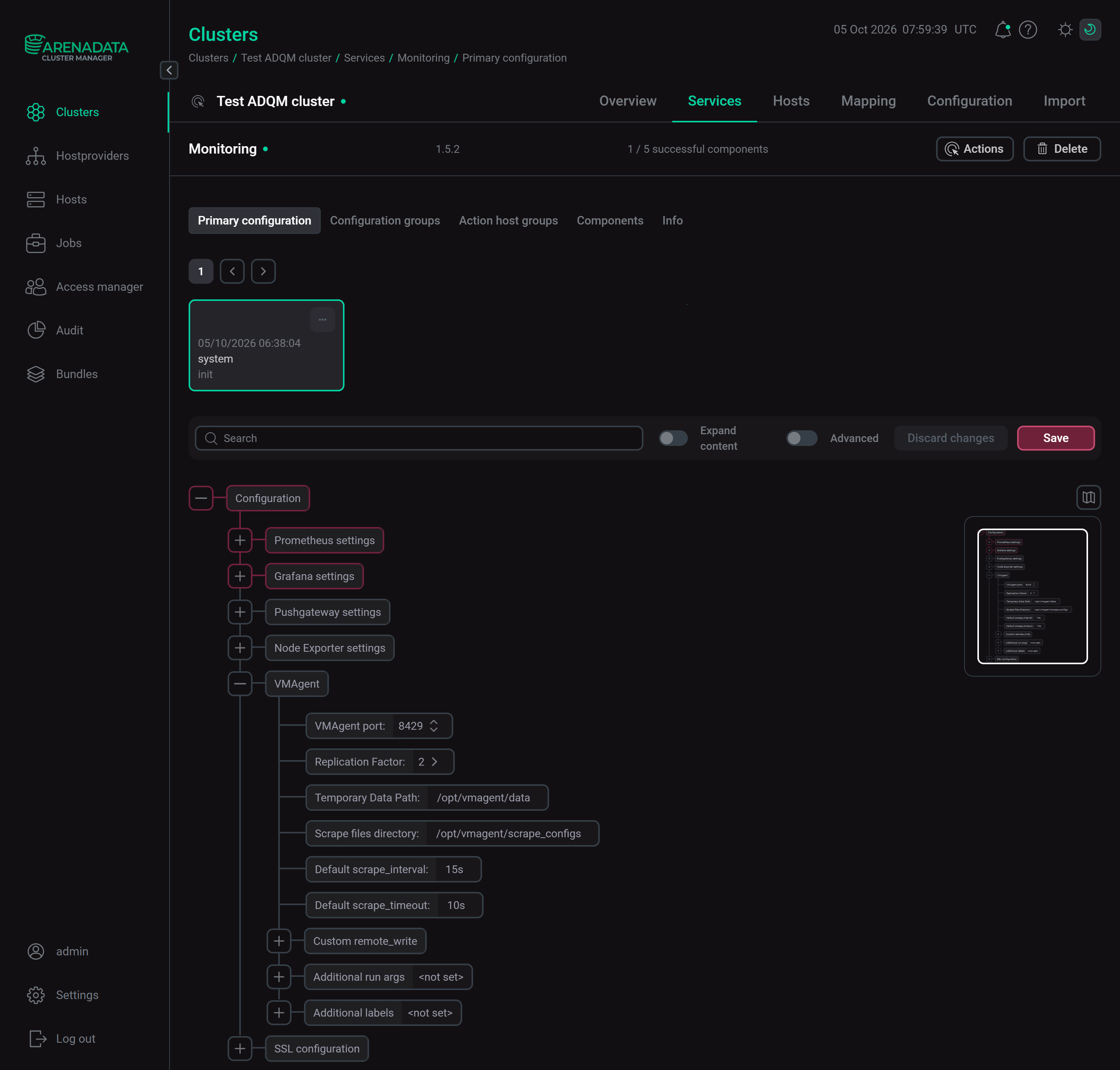 Configure the Monitoring service
 -
After specifying all necessary parameters, click Save.
Step 5. Import
Import ADM configuration
-
Open the Import tab on the ADQM cluster page.
-
Enable the Cluster configuration option in a row with the ADM cluster.
-
Click Import.
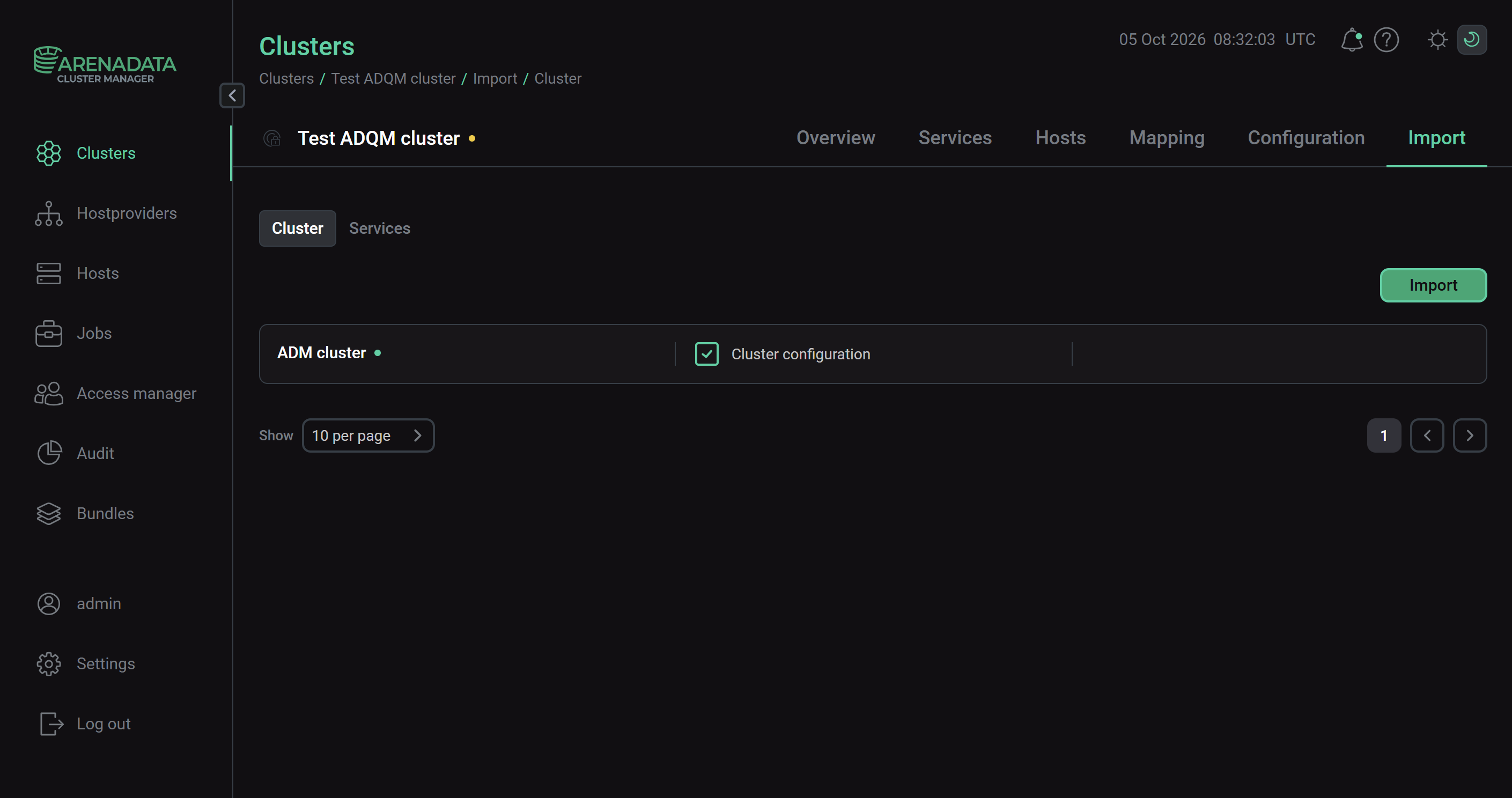
Import external VictoriaMetrics server configuration
When using an external VictoriaMetrics server, import its configuration into ADQM. To do this, go to the Monitoring service settings and in the VMAgent section for the Custom remote_write parameter, use the Add property field to set the value url: "http://<vm-central>:8428/api/v1/write", where <vm-central> is the IP address of the external VictoriaMetrics server.
Step 6. Install the Monitoring service
-
On the Services tab, click the icon

 for the Monitoring service in the Actions column and run the Install action.
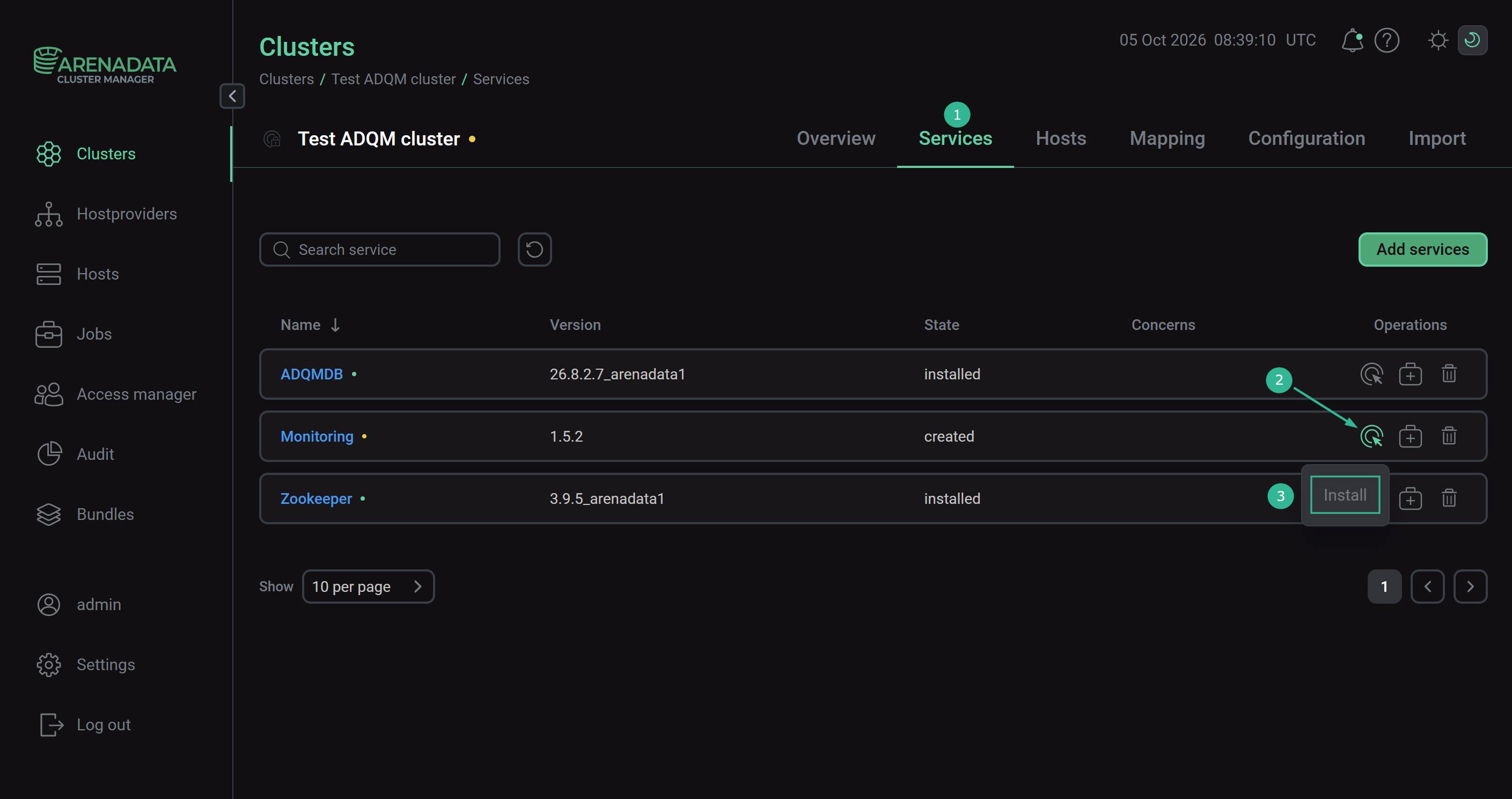 Switch to the service installation
 -
Confirm the action in the opened window.
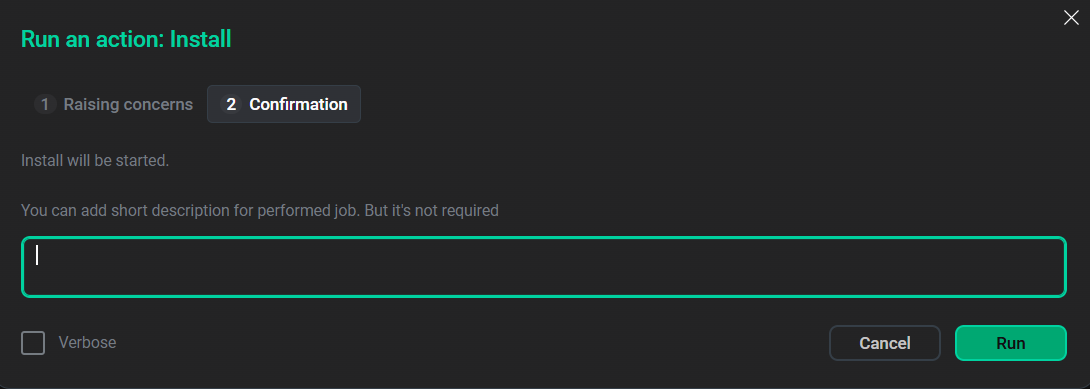 Confirm the action
 -
Wait until the installation is completed. Then check that the service state has changed from
createdtoinstalled.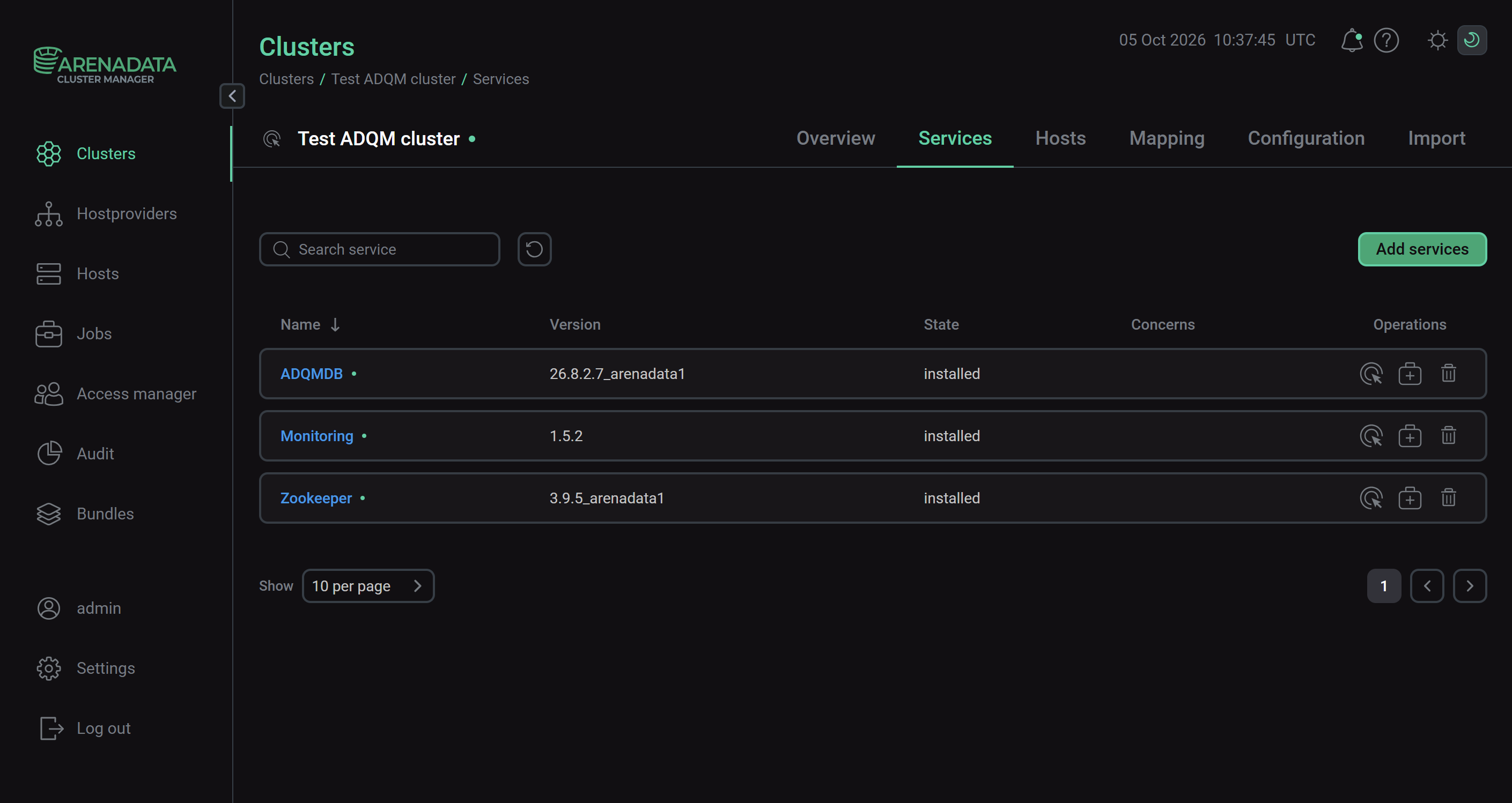 Installation is complete
To view the service installation process and analyze errors if they occur, select Jobs in the left navigation menu and click the Install job name in the Jobs list.
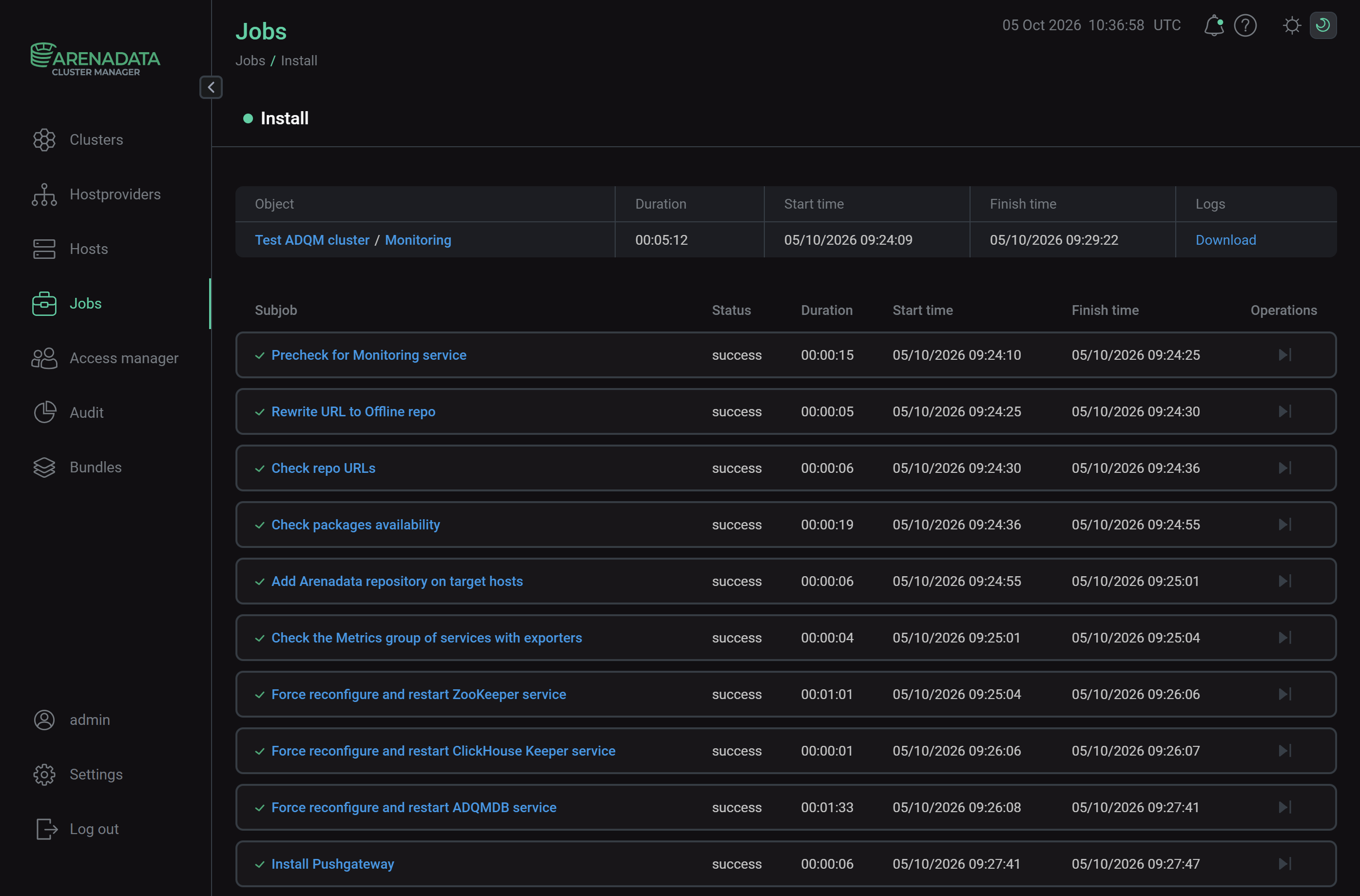 Install service job page
Step 7. Check the results
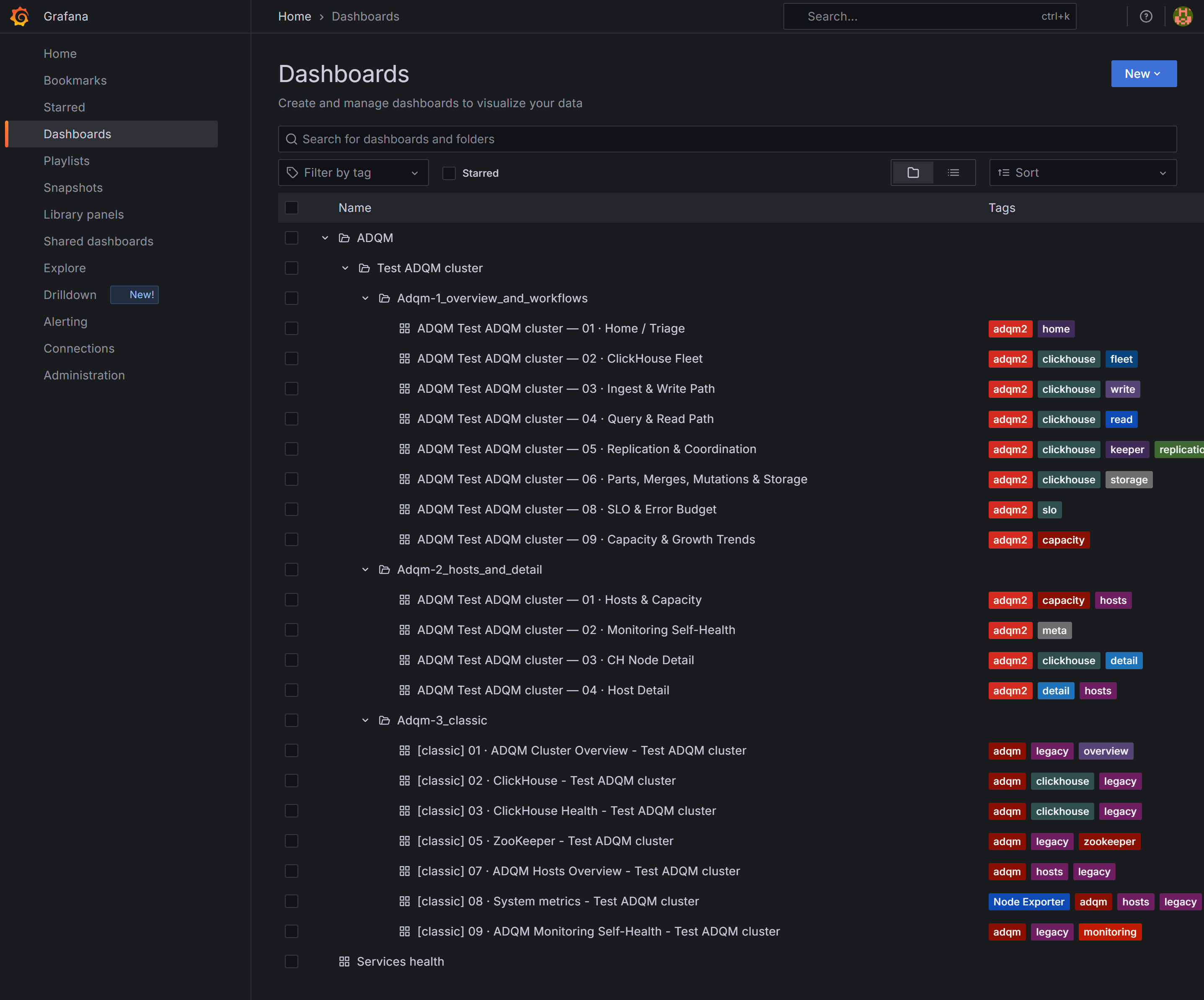
After monitoring is configured, ADQM cluster metrics will be displayed in the VictoriaMetrics web interfaces. If the Grafana service is enabled in the ADM cluster, the Grafana web interface will contain dashboards with ADQM metrics (expand the ADQM → <your_ADQM_cluster> section on the Home → Dashboards page). Dashboards supported for ADQM versions earlier than 26.8.2.7 are marked with the legacy tag.