
Databases panel
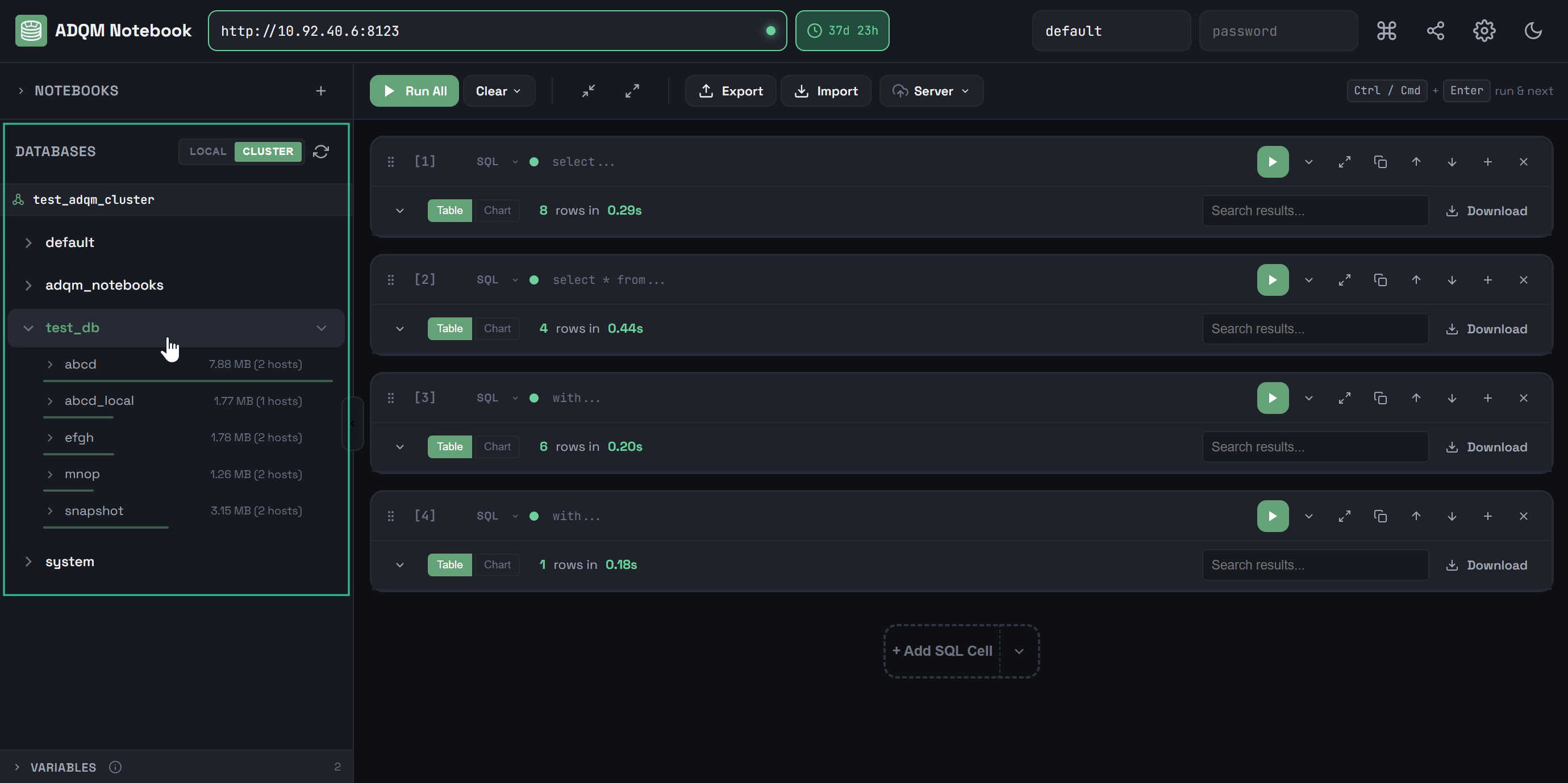
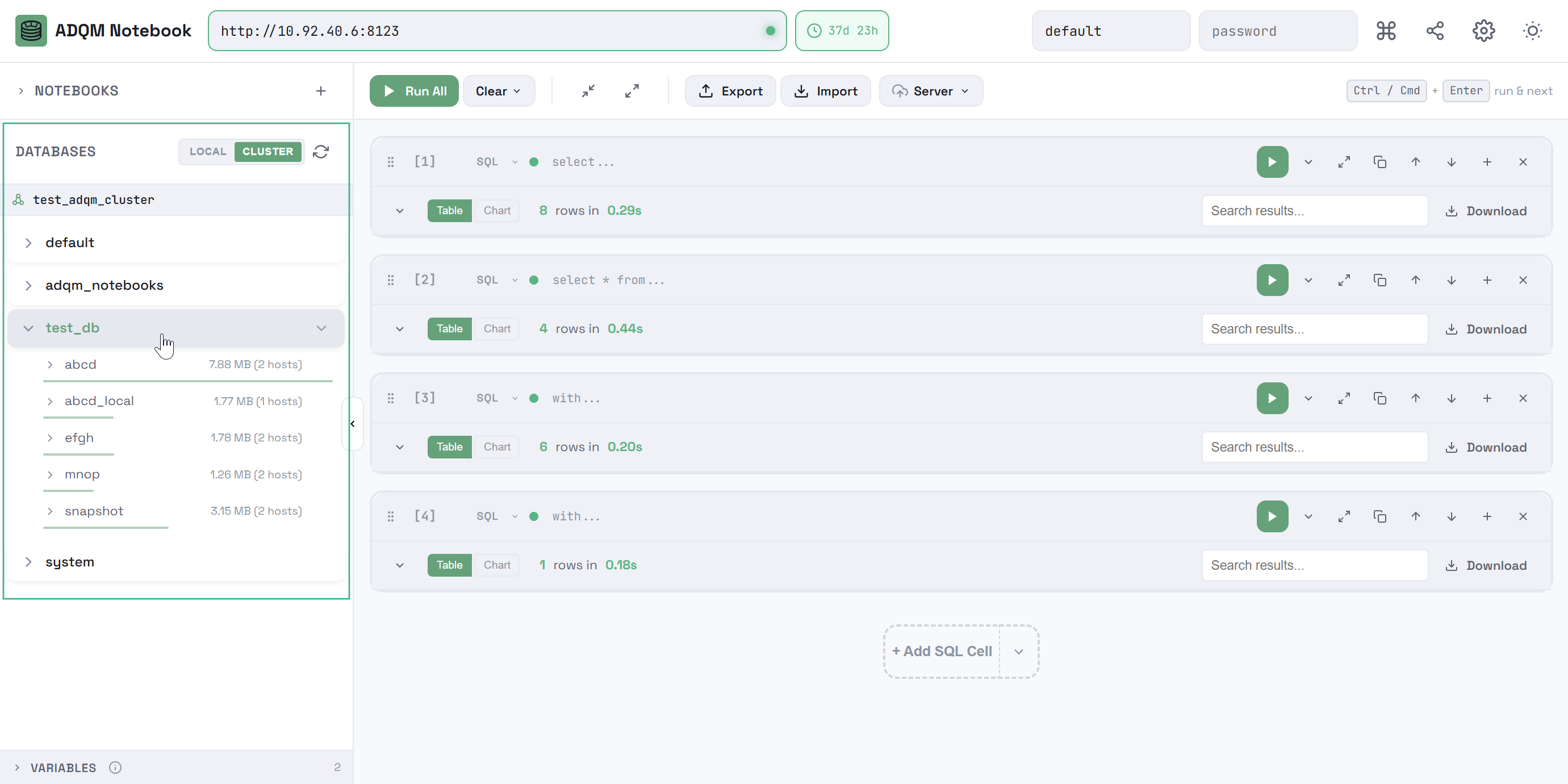
The DATABASES panel interactively displays information about ADQM databases and tables. If no logical cluster is defined in the ADQM configuration, the panel displays databases located on the current ADQM host.
If the configuration contains a definition of one or more clusters, the panel contains two tabs:
-
LOCAL — displays databases on the current ADQM host (the
information_schemadatabase is hidden); -
CLUSTER — displays a hierarchical tree of the cluster’s databases and tables (also without
information_schema). If the configuration defines a single cluster, it will be displayed on the tab by default. If multiple ADQM clusters are configured, the cluster to display in the DATABASES panel can be selected from the drop-down list.
When ADQM Notebook works via Chproxy, the LOCAL/CLUSTER switch is missing — the panel always displays the tree of databases and tables for the selected cluster.
Clicking the 
 Refresh icon updates information on databases and tables.
Above the list of databases/tables/columns, there is a field for filtering data — when you enter any substring, filtering is performed at the all-objects levels simultaneously.
Tables
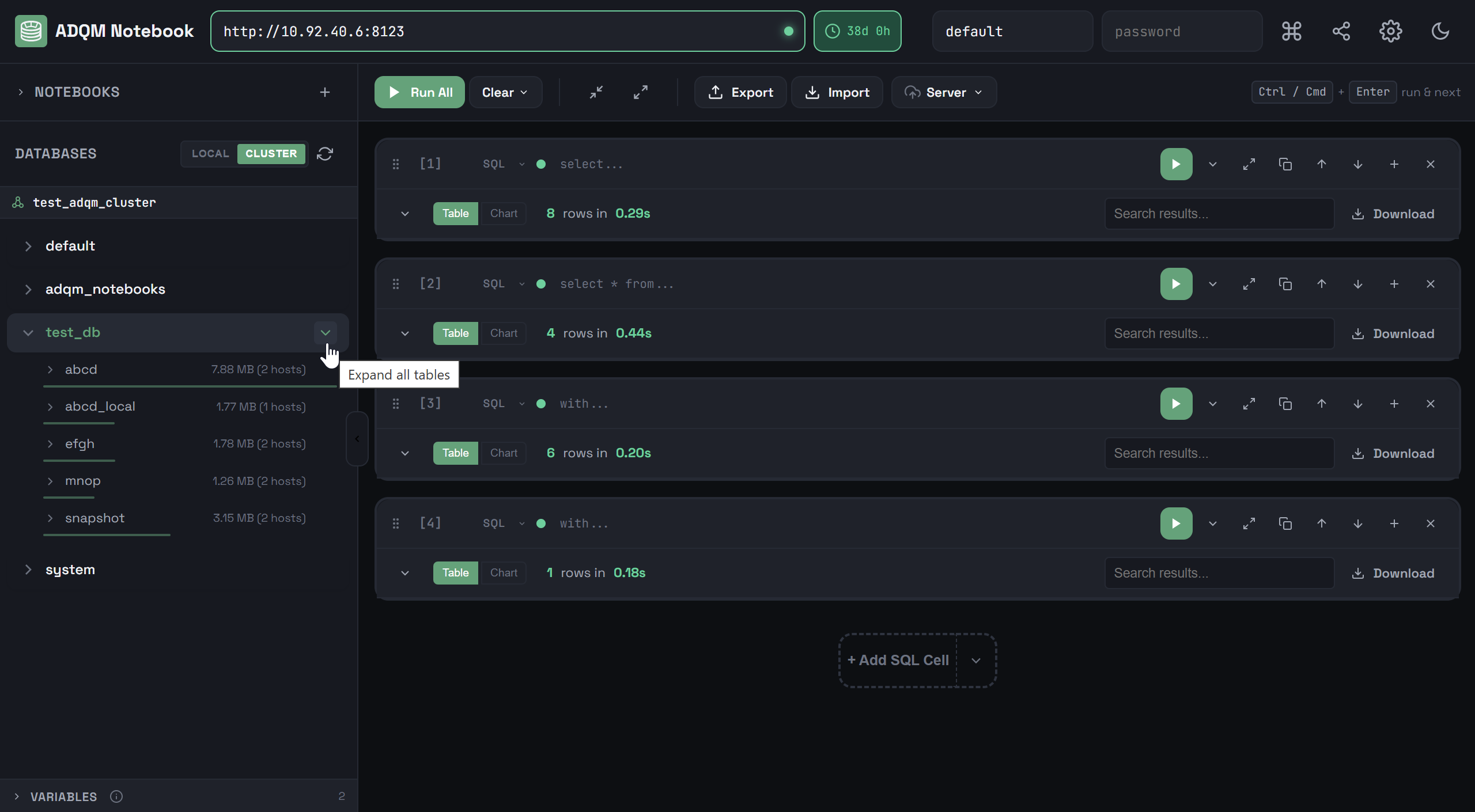
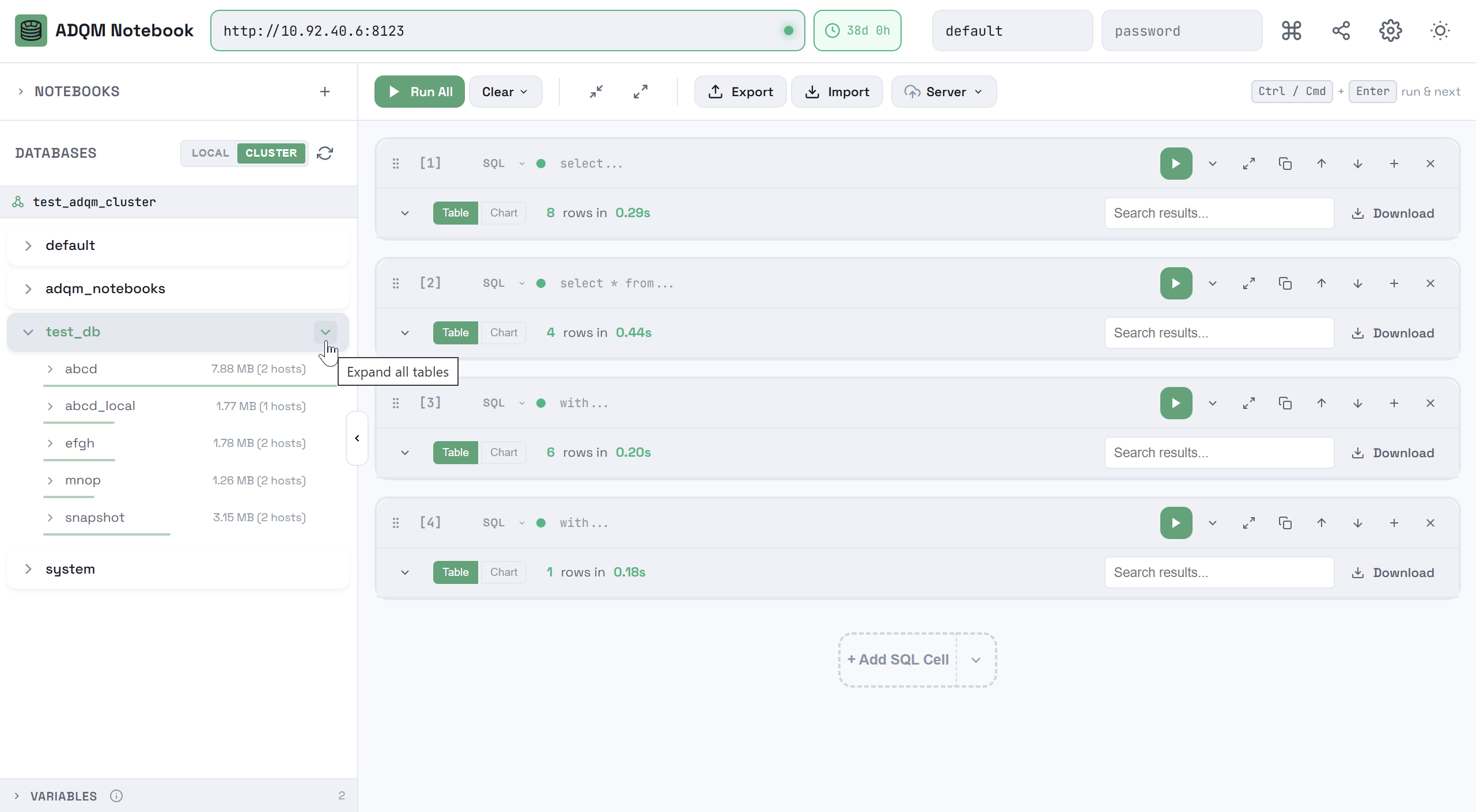
To expand a database and view the tables it contains, click a database row. Each table row displays the table size, and a color indicator allows you to visually compare the table size with the largest table in the database. On the CLUSTER tab, it also displays the number of shards and replicas where the table data is located.
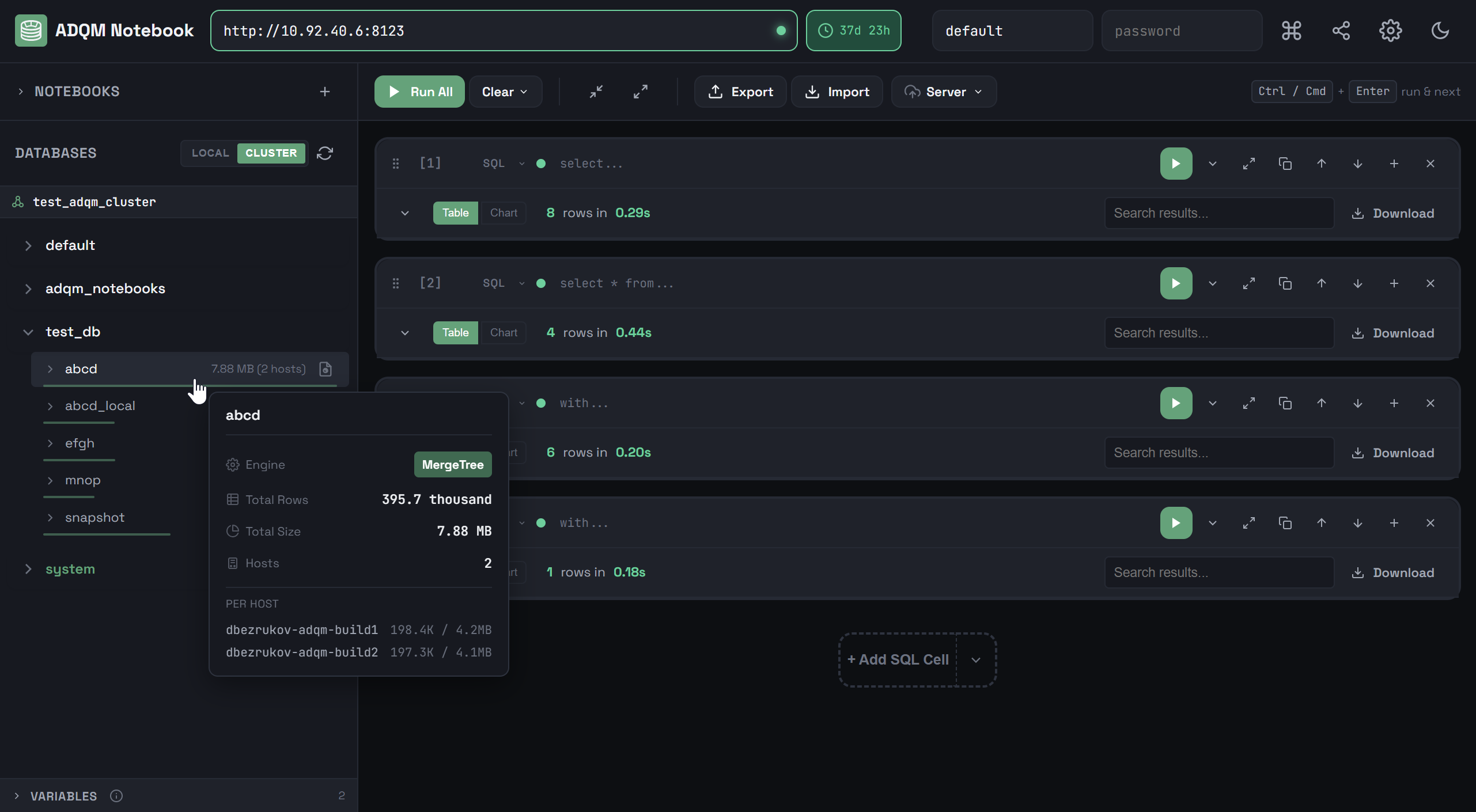
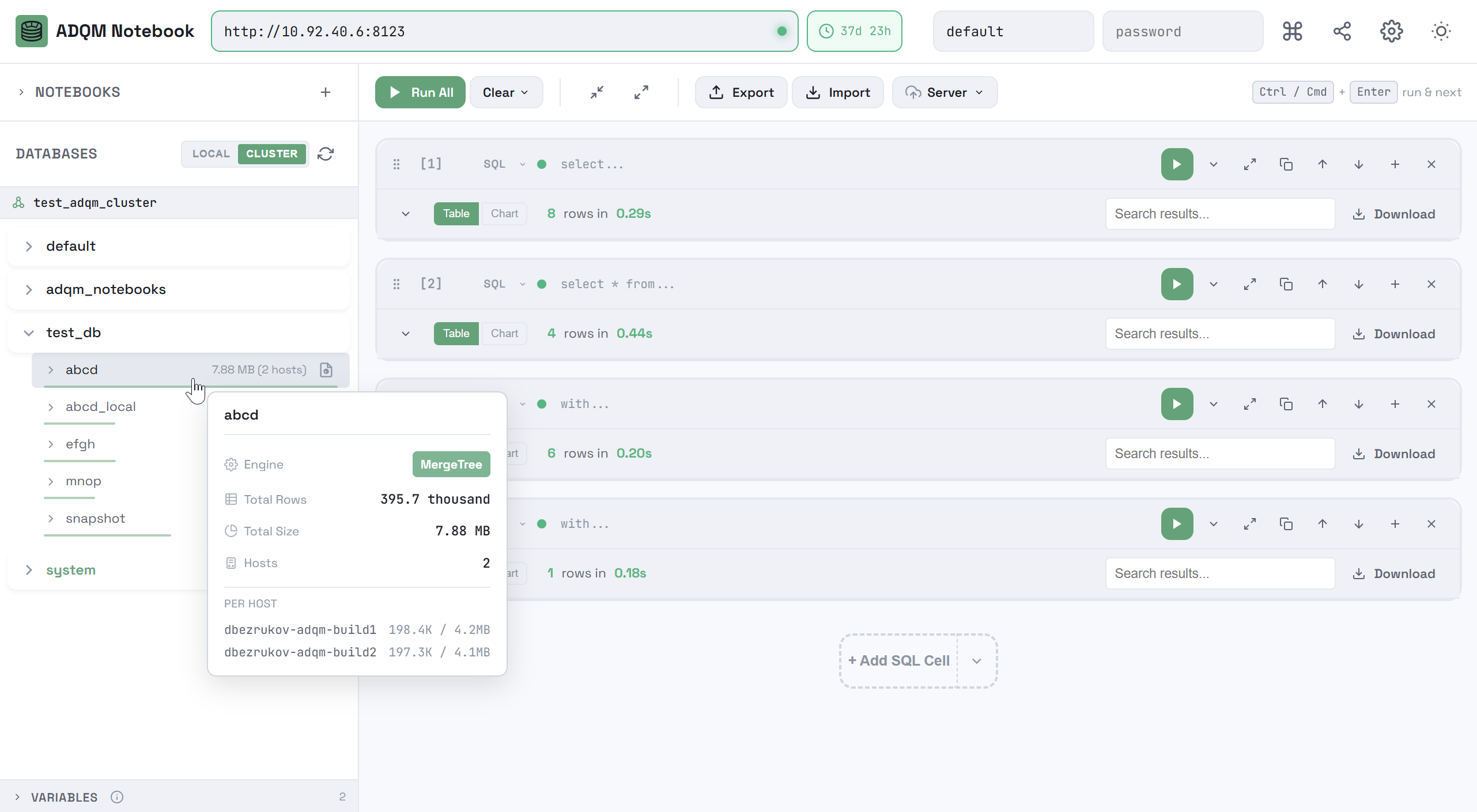
When hovering over a row that corresponds to a data table, you can view additional information about the table in a tooltip: table engine, total number of rows, total size, and data distribution across hosts (on the CLUSTER tab).
Right-clicking a table row opens a context menu that you can use to automatically insert a query accessing this table into the selected SQL cell (or into a new one if no cell is selected) for execution on a local host or cluster, depending on whether the LOCAL or CLUSTER tab is selected in the DATABASES panel.
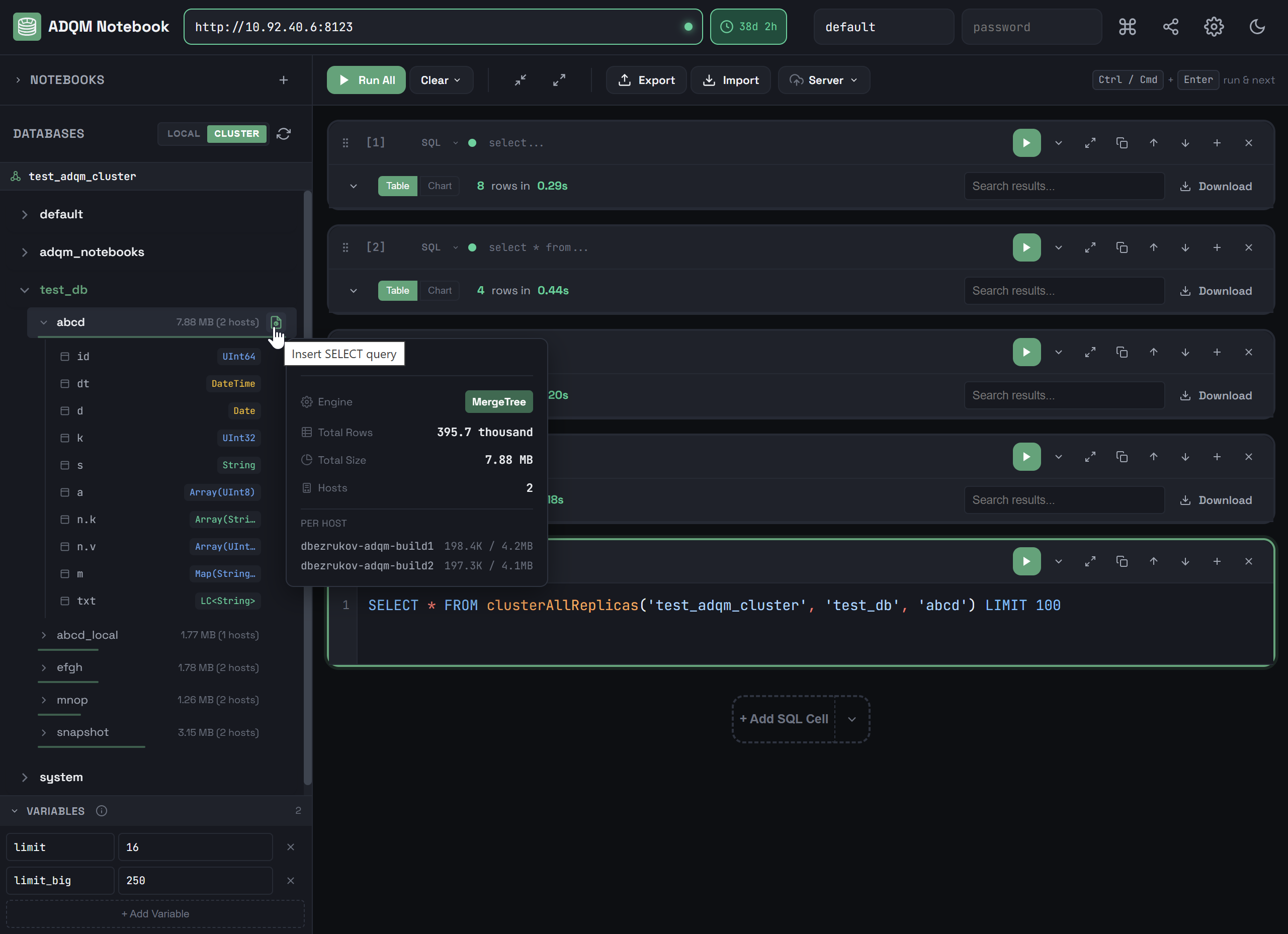
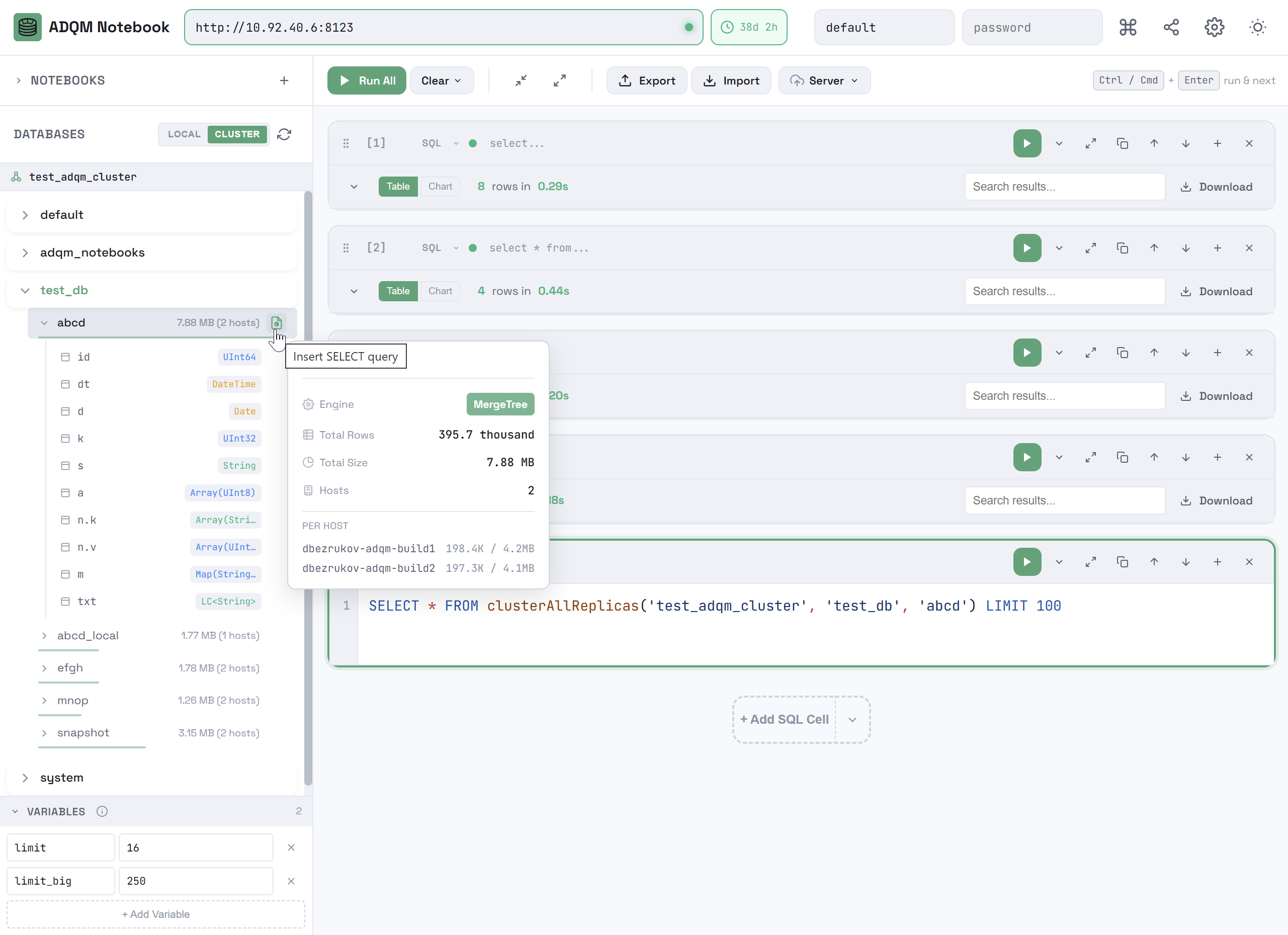
You can insert the following queries from the context menu:
-
SELECT * … LIMIT 100 — a query to read 100 rows from a table.
LOCALSELECT * FROM "<database_name>"."<table_name>" LIMIT 100CLUSTERSELECT * FROM clusterAllReplicas('<cluster_name>', '<database_name>', '<table_name>') LIMIT 100 -
SELECT count(*) — a query to get the total number of rows in a table.
LOCALSELECT count(*) FROM "<database_name>"."<table_name>"CLUSTERSELECT count(*) FROM clusterAllReplicas('<cluster_name>', '<database_name>', '<table_name>') -
DESCRIBE TABLE — a query to get detailed information about the table structure.
LOCAL and CLUSTERDESCRIBE TABLE "<database_name>"."<table_name>" -
SHOW CREATE TABLE — a query to get the command used to create a table.
LOCAL and CLUSTERSHOW CREATE TABLE "<database_name>"."<table_name>"
In each of the above query examples, the name of the table for which the context menu is called, as well as the name of the database and cluster, are referred as <table_name>, <database_name>, and <cluster_name>, respectively — when you paste the query into a cell, these placeholders will be automatically substituted with the actual names of the corresponding objects.
Table columns
To expand a table and view its columns, click a table row. For each column, its name and data type are displayed.
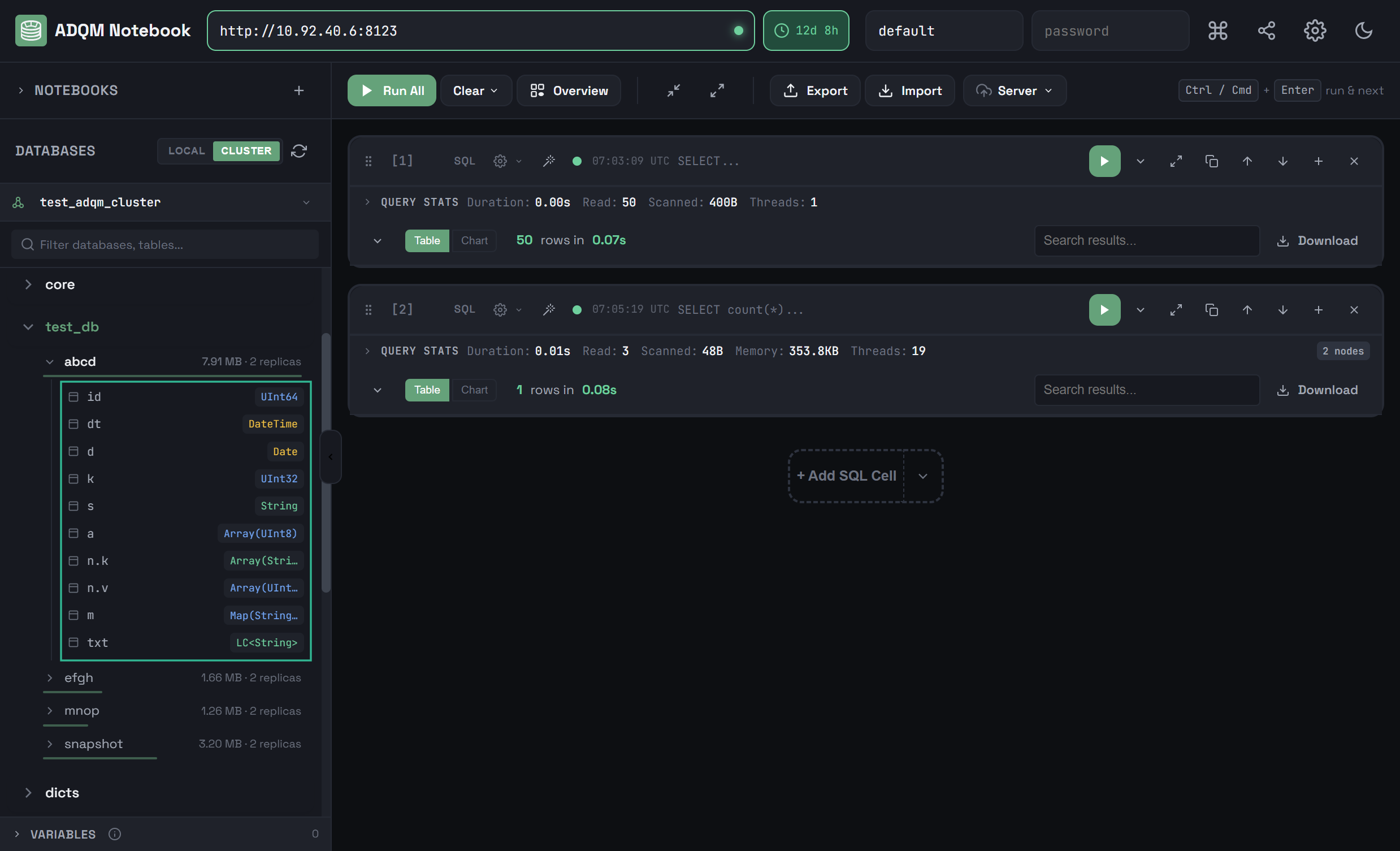
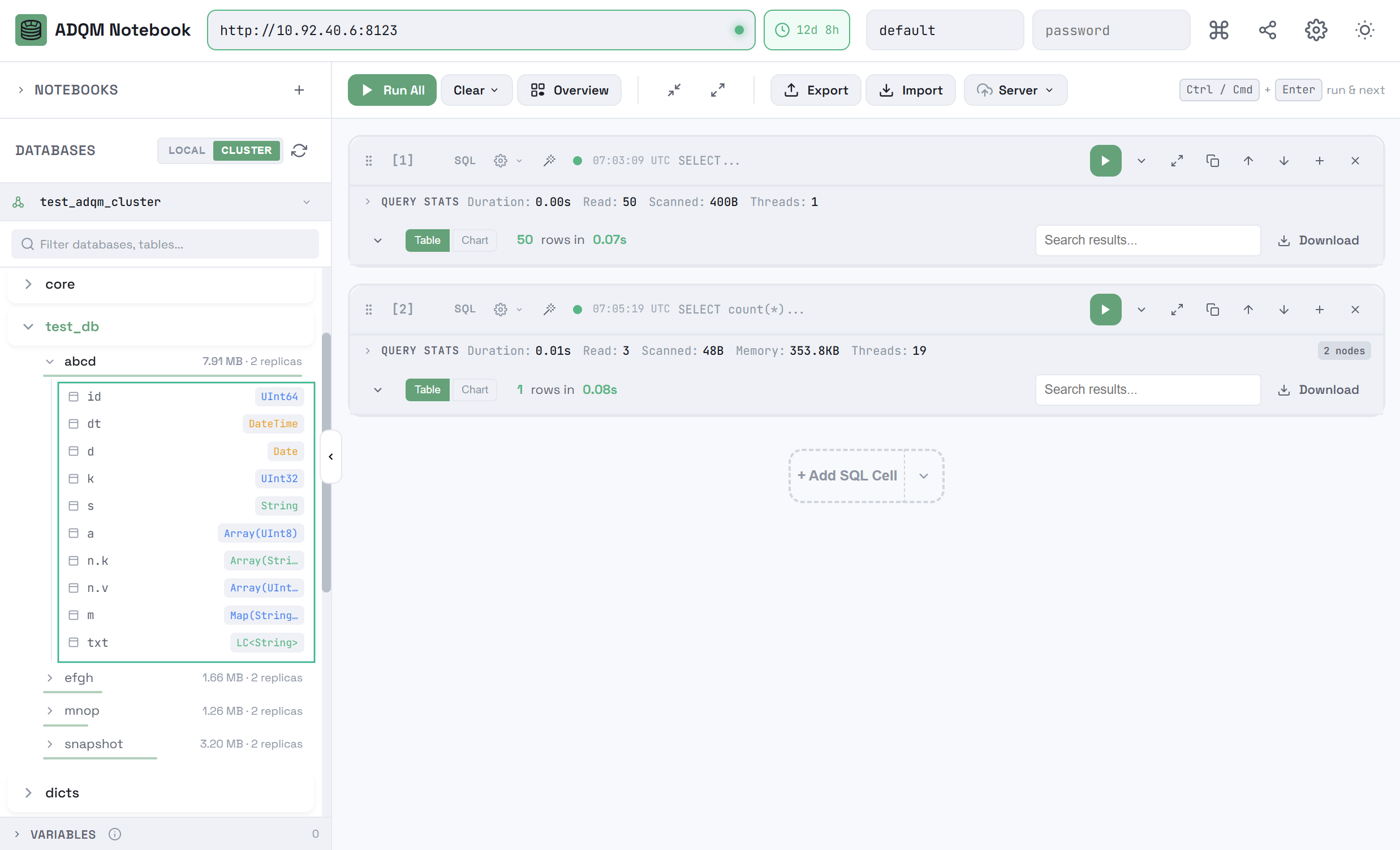
To expand the structure of all tables within a database, in the database row, click the 
 Expand all tables icon, which becomes visible when you hover the mouse cursor over the database in the DATABASES panel (if all tables are already expanded, the
 Collapse all tables icon in the database row allows collapsing them).
Context menu
Right-clicking a row corresponding to a table column opens a context menu that allows you to quickly insert the column name or one of the predefined queries referencing the column into the query editor of the selected SQL cell (or into a new cell if no one is selected) for execution on a local host or ADQM cluster, depending on the tab selected in the DATABASES panel (LOCAL or CLUSTER).
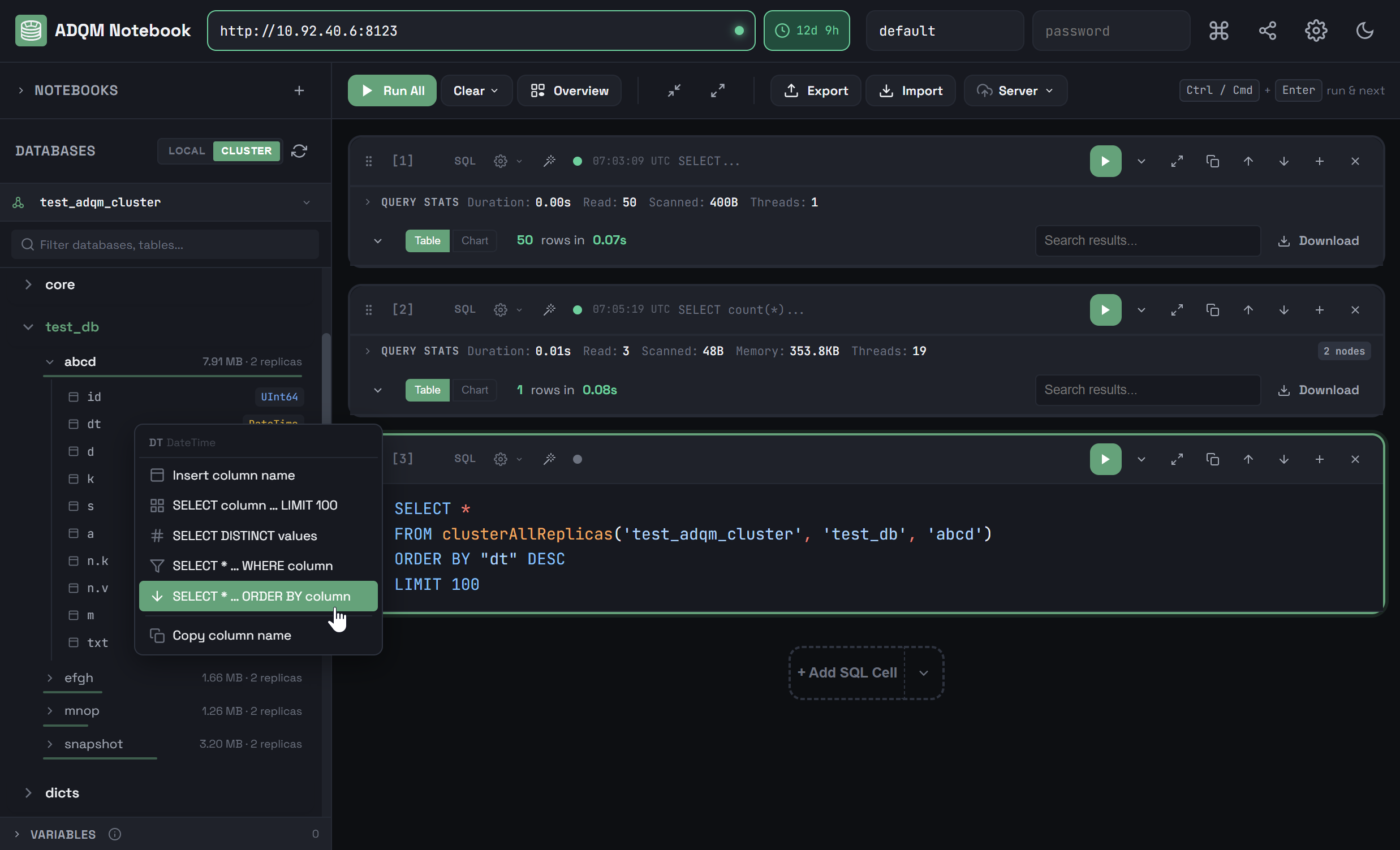
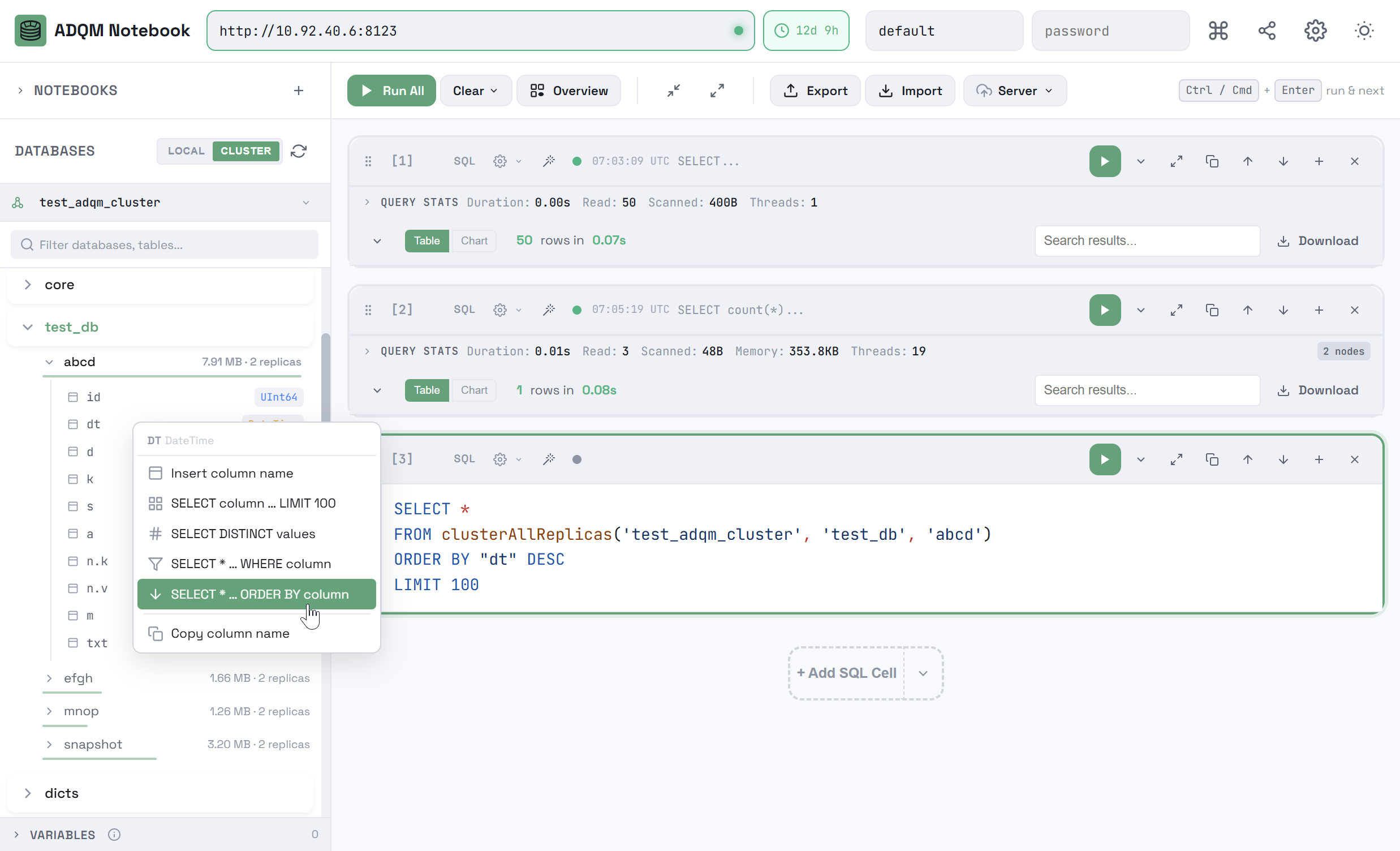
The following actions are available in the context menu:
-
Insert column name — insert a name of the table column. You can also do the same by clicking a row corresponding to the table column in the DATABASES panel.
-
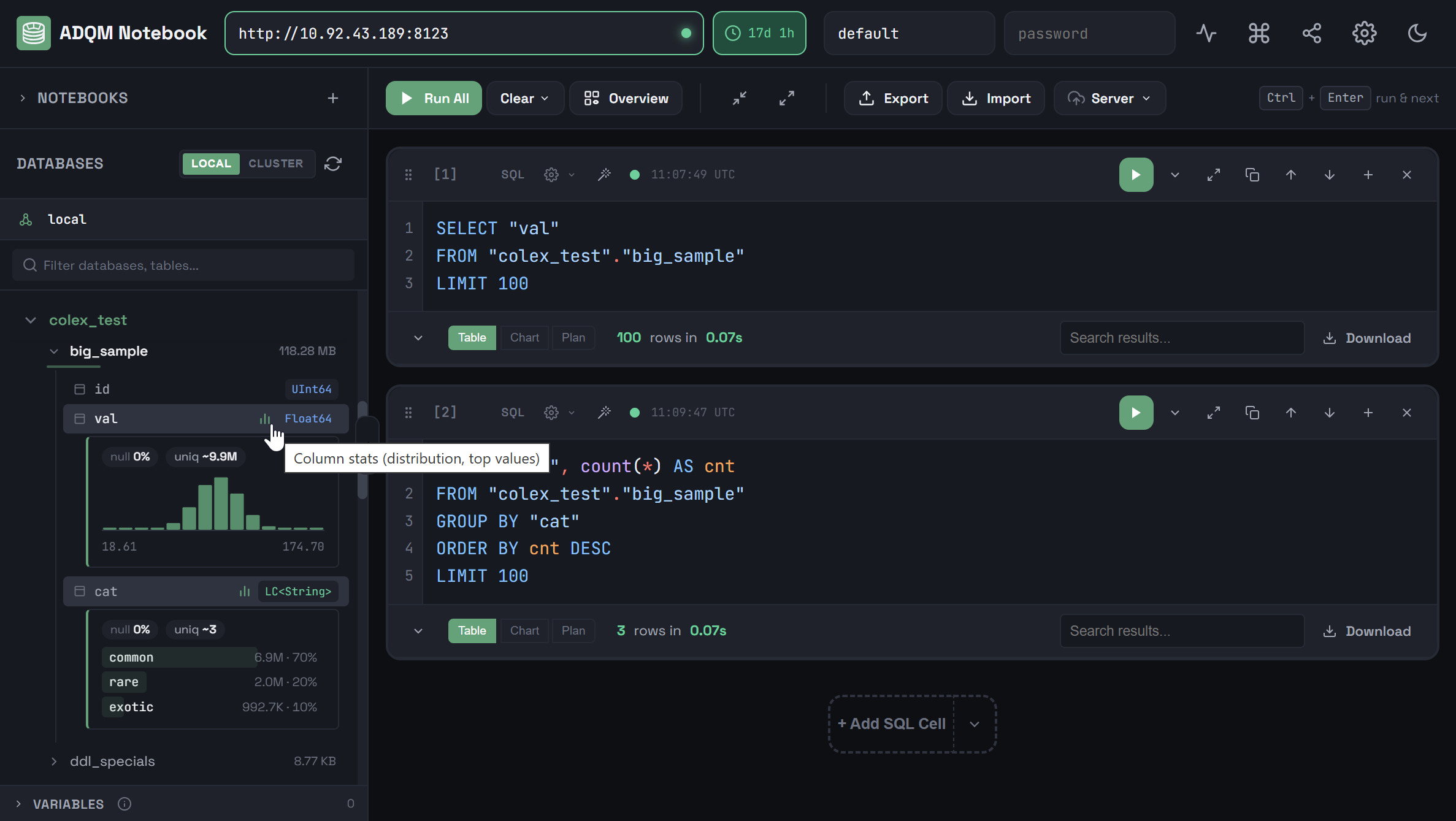
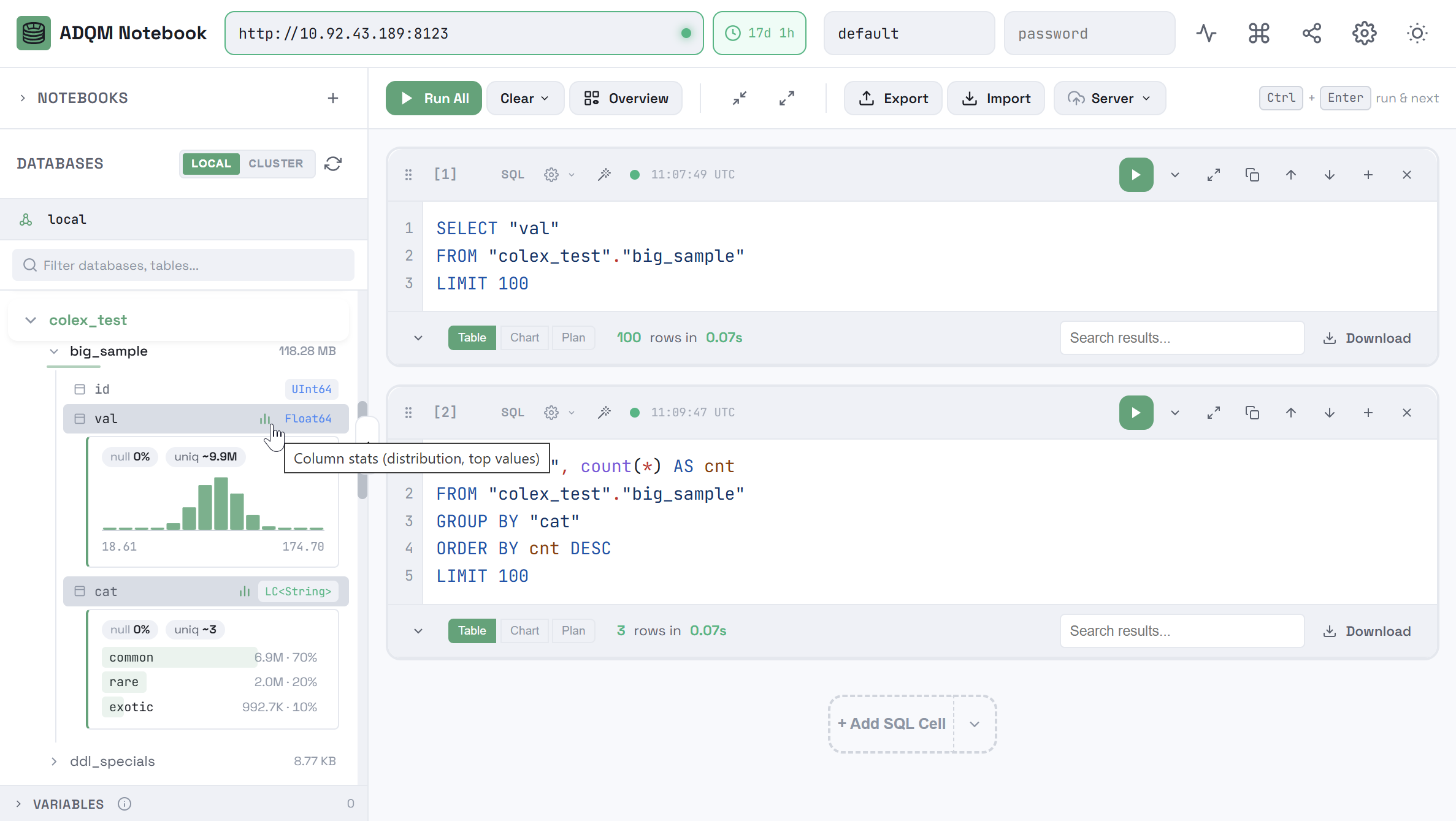
Column stats — expand statistics by column values. You can also do the same by clicking the icon

 that appears in a row corresponding to the table column when you hover the mouse cursor over it.
 -
SELECT column … LIMIT 100 — insert a query that reads values of the column from the first 100 rows of the table.
LOCALSELECT "<column_name>" FROM "<database_name>"."<table_name>" LIMIT 100CLUSTERSELECT "<column_name>" FROM clusterAllReplicas('<cluster_name>', '<database_name>', '<table_name>') LIMIT 100 -
SELECT DISTINCT values — insert a query that selects unique values (up to 100) from the table column and calculates their number.
LOCALSELECT "<column_name>", count(*) AS cnt FROM "<database_name>"."<table_name>" GROUP BY "<column_name>" ORDER BY cnt DESC LIMIT 100CLUSTERSELECT "<column_name>", count(*) AS cnt FROM clusterAllReplicas('<cluster_name>', '<database_name>', '<table_name>') GROUP BY "<column_name>" ORDER BY cnt DESC LIMIT 100 -
SELECT * … WHERE column — insert a query template for reading data from a table with a filter based on the column value, which you should add to the query text (after
=in theWHERE "<column_name>" =expression).LOCALSELECT * FROM "<database_name>"."<table_name>" WHERE "<column_name>" = LIMIT 100CLUSTERSELECT * FROM clusterAllReplicas('<cluster_name>', '<database_name>', '<table_name>') WHERE "<column_name>" = LIMIT 100 -
SELECT * … ORDER BY column — insert a query that selects data from a table sorting results by the column in descending order.
LOCALSELECT * FROM "<database_name>"."<table_name>" ORDER BY "<column_name>" DESC LIMIT 100CLUSTERSELECT * FROM clusterAllReplicas('<cluster_name>', '<database_name>', '<table_name>') ORDER BY "<column_name>" DESC LIMIT 100 -
Copy column name — copy the column name to the clipboard.
In each of the above queries, the name of the column for which the context menu is called, as well as the name of the table, database, and cluster, are referred as <column_name>, <table_name>, <database_name>, and <cluster_name>, respectively — when you paste a query into a cell, these placeholders will be automatically replaced with the actual names of the corresponding objects.
Statistics by values
In the DATABASES panel, clicking the Column stats icon, which appears for an ADQM table column when you hover over it, or selecting Column stats from the column’s context menu expands the statistics by that column values. The format of the statistics depends on the data type of a column. For example, for the following data types, statistics include:
-
Int | Float | Decimal | Time | Date | DateTime — the range of values with a histogram;
-
String | FixedString | Enum | Bool | LowCardinality(T) — the values that are the most in the column, with horizontal bars visualizing their shares;
-
JSON | Dynamic | Variant | Point/Polygon | Nested — the values that are the most in the column, converted into strings, with horizontal bars visualizing their shares.
The statistics also show the proportion of NULL values (null) and the approximate number of unique values (uniq) in the column.
Graph of object dependencies
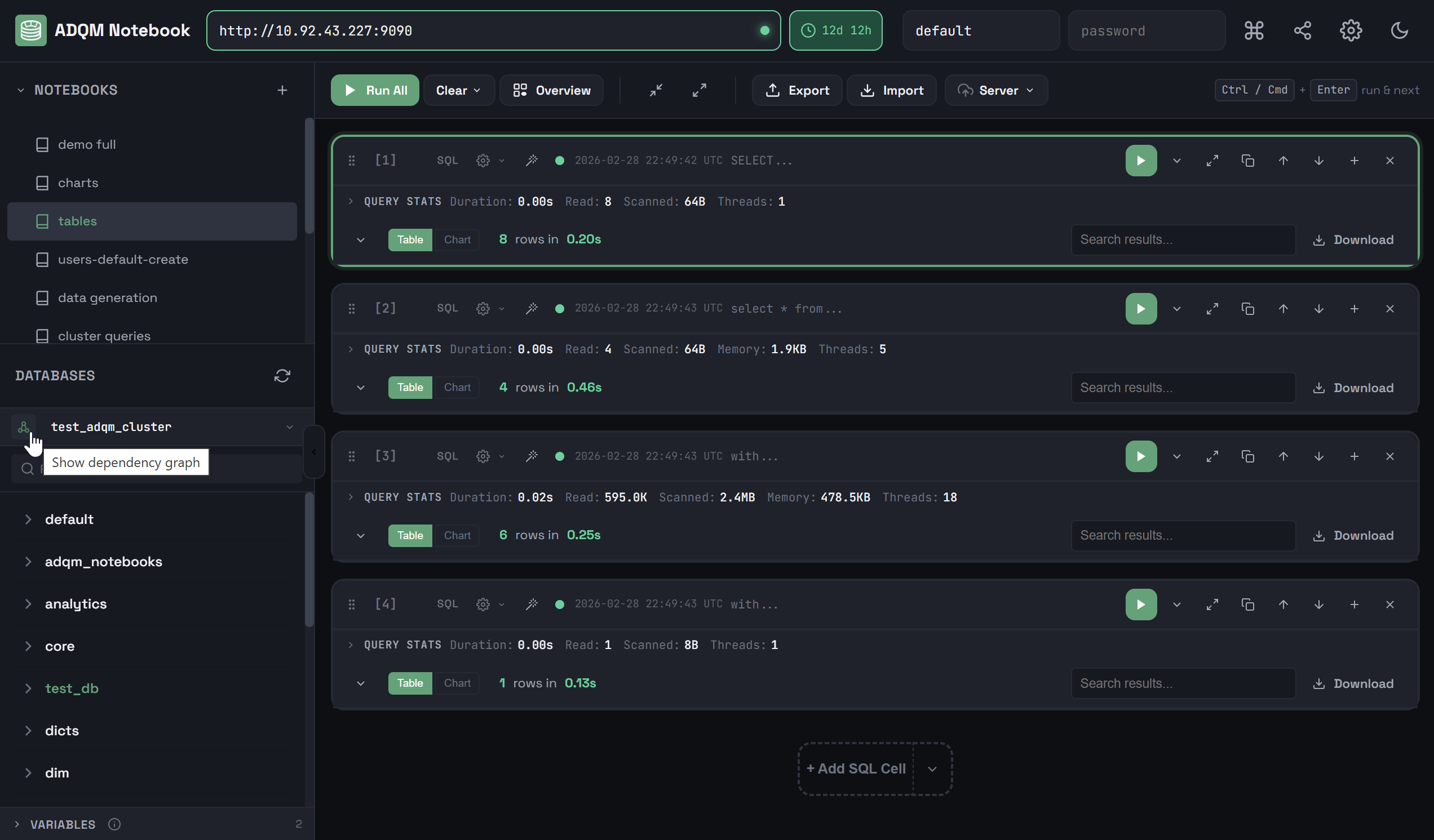
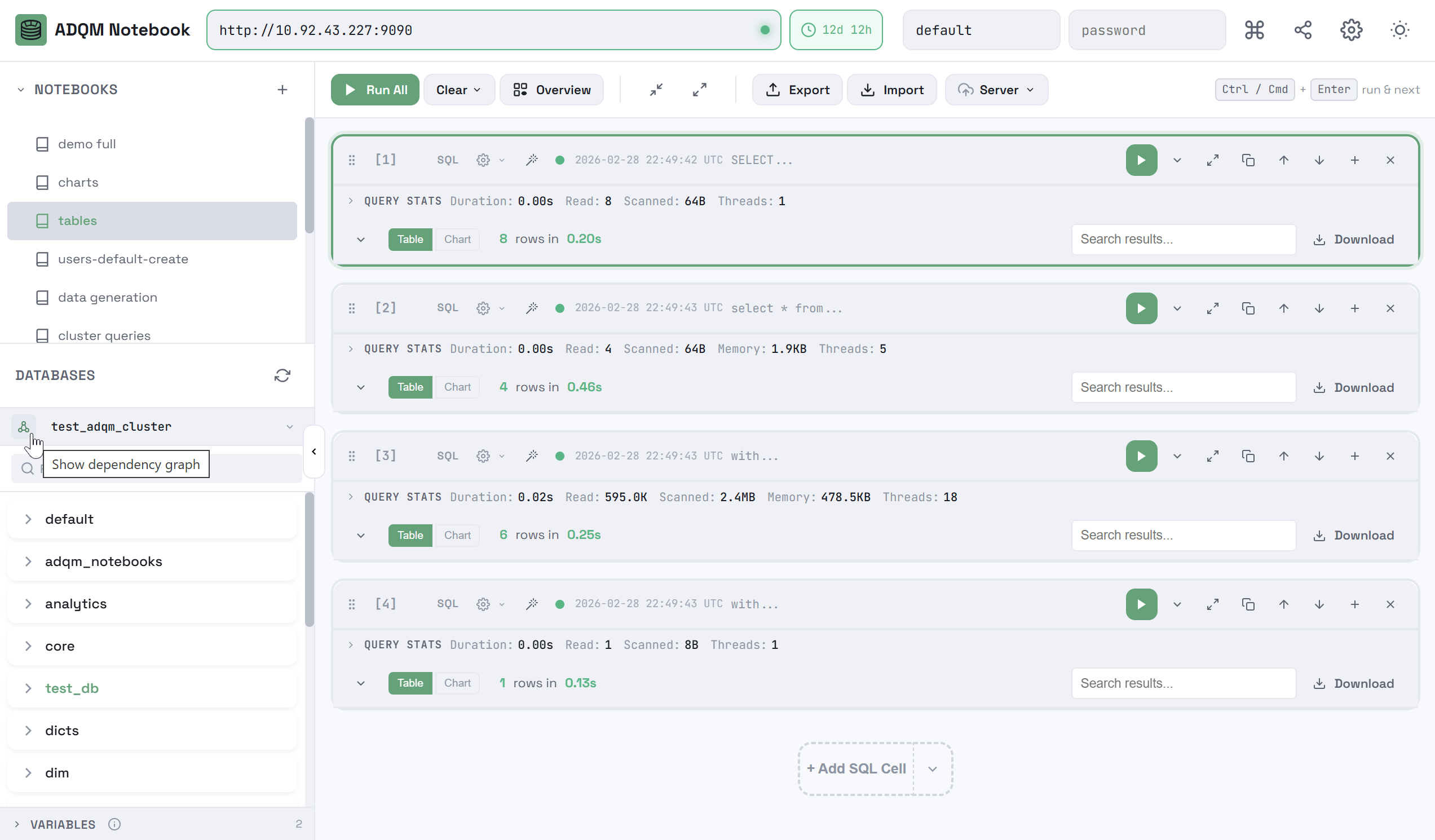
Click the  Show dependency graph icon in the DATABASES panel to view dependencies between ADQM database objects located in a cluster (
GRANT READ ON REMOTE and SELECT ON system.* privileges are required) or on a separate host (the graph will include objects for which the user has permissions). If Chproxy is used, this functionality is only available when working at the cluster level.
In the window that opens, select objects whose dependencies you want to view by clicking their names in the list on the left. Supported object types: tables, views, materialized views, dictionaries, projections. Each type of object is marked with its own icon.
The total number of dependencies for an object is displayed to the right of its name. To select all objects, click Add all below the list. The Clear button removes all objects from the graph.
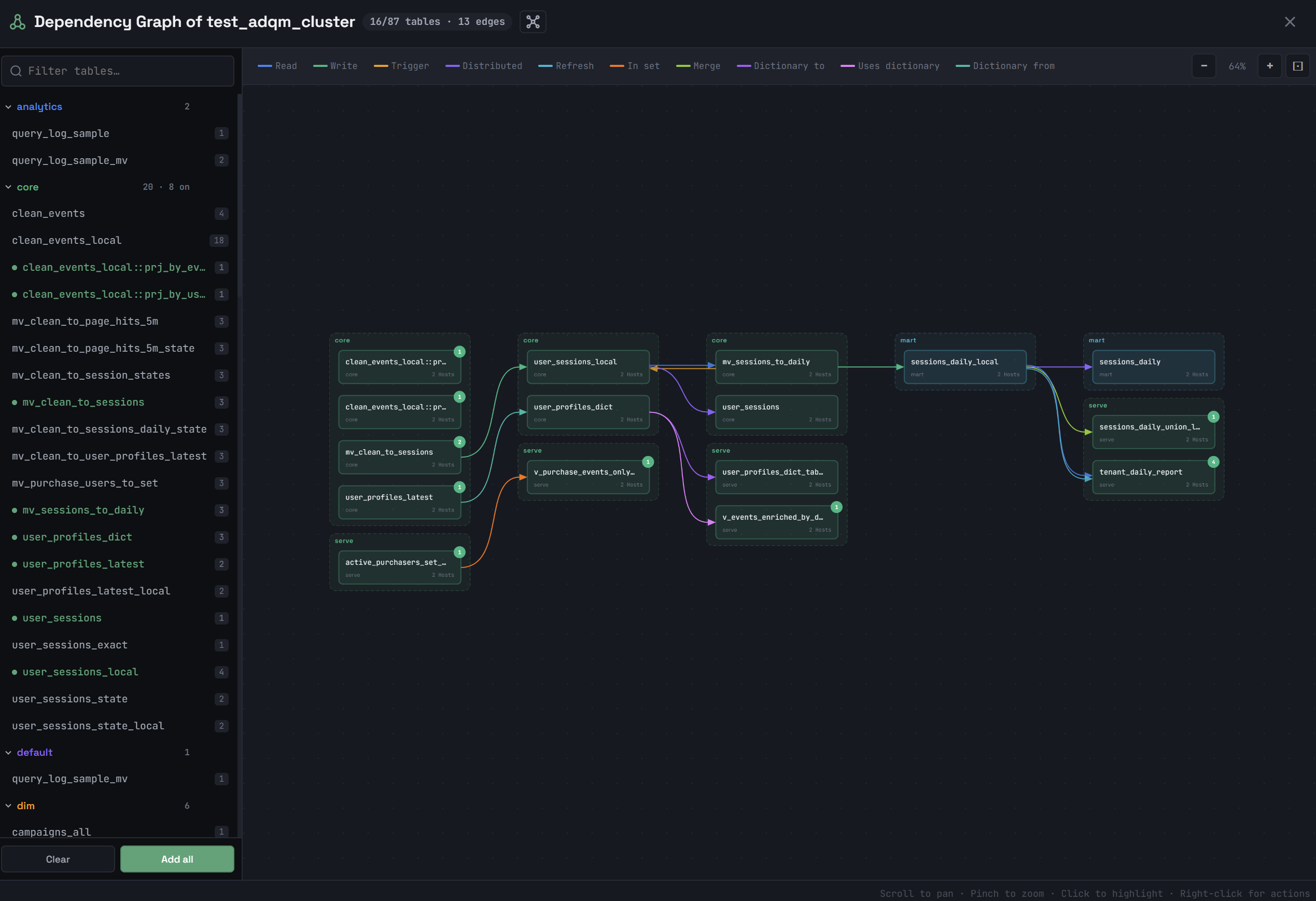
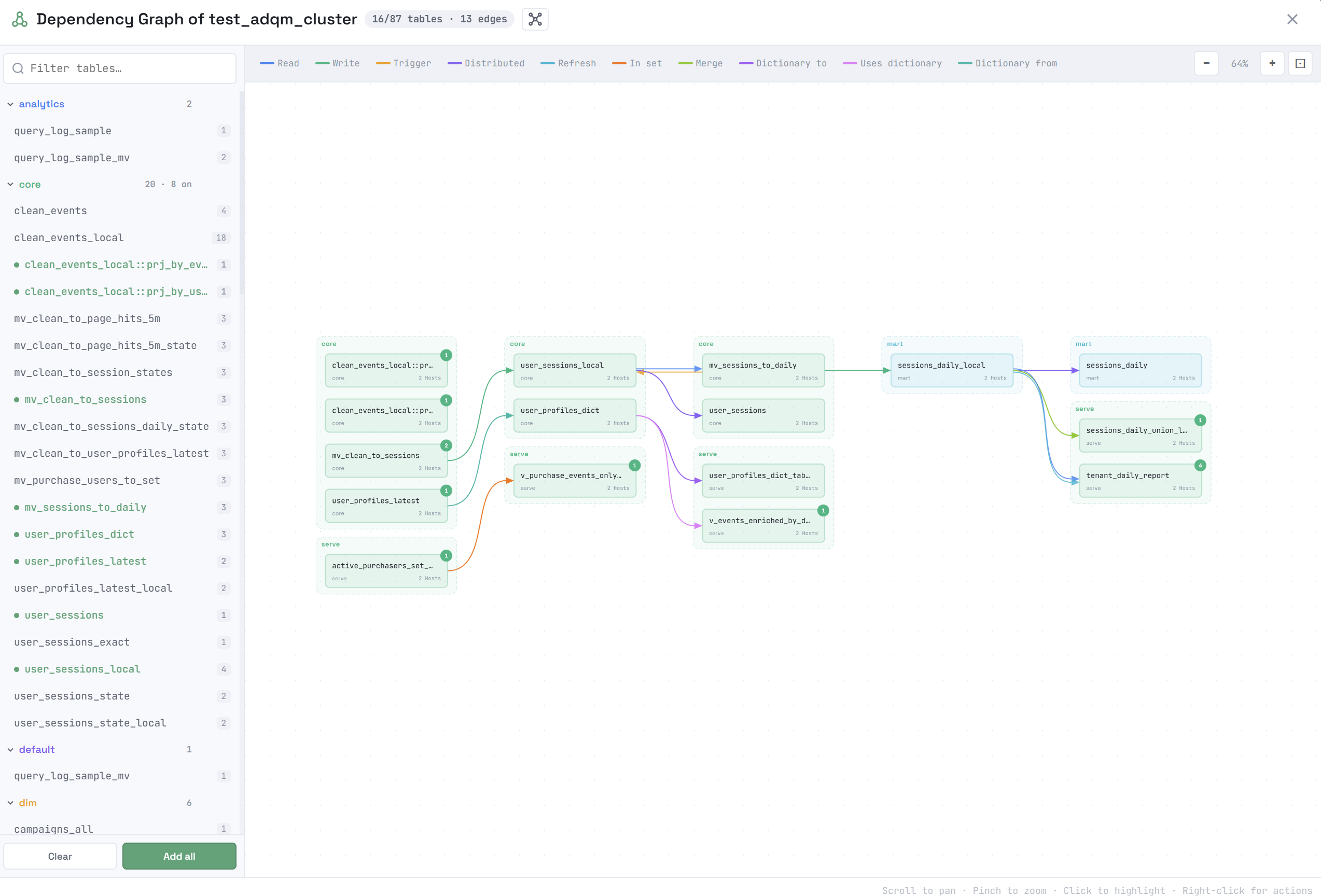
Selected objects will be drawn in the main area of the window and connected by arrows. An arrow color indicates the dependency type. The types of dependencies between objects in the graph and their corresponding colors are listed in the legend at the top of the window. Clicking a dependency type in the legend removes the corresponding links (arrows) between objects from the graph.
Possible types of dependencies:
-
Read — a table and object from which it reads data;
-
Write — a materialized view and target table into which the materialized view saves its results;
-
Trigger — a table and materialized view triggered when data is inserted into this table;
-
Distributed — a Distributed table and local table it references;
-
Projection — a projection and its source table;
-
Refresh — a refreshable materialized view and its explicit dependency (specified via
DEPENDS ON); -
In set — a table based on the Set engine and an object that uses it;
-
Merge — a table based on the Merge engine and a table from which it reads data;
-
Dictionary to — a table based on the Dictionary engine and its underlying dictionary;
-
Uses dictionary — a table using dictionary data via the
dictGetfunction, and a dictionary; -
Dictionary from — a dictionary and its data source;
-
Buffer flush — a Buffer table and the table it flushes data to;
-
Alias — an Alias table and its target table.
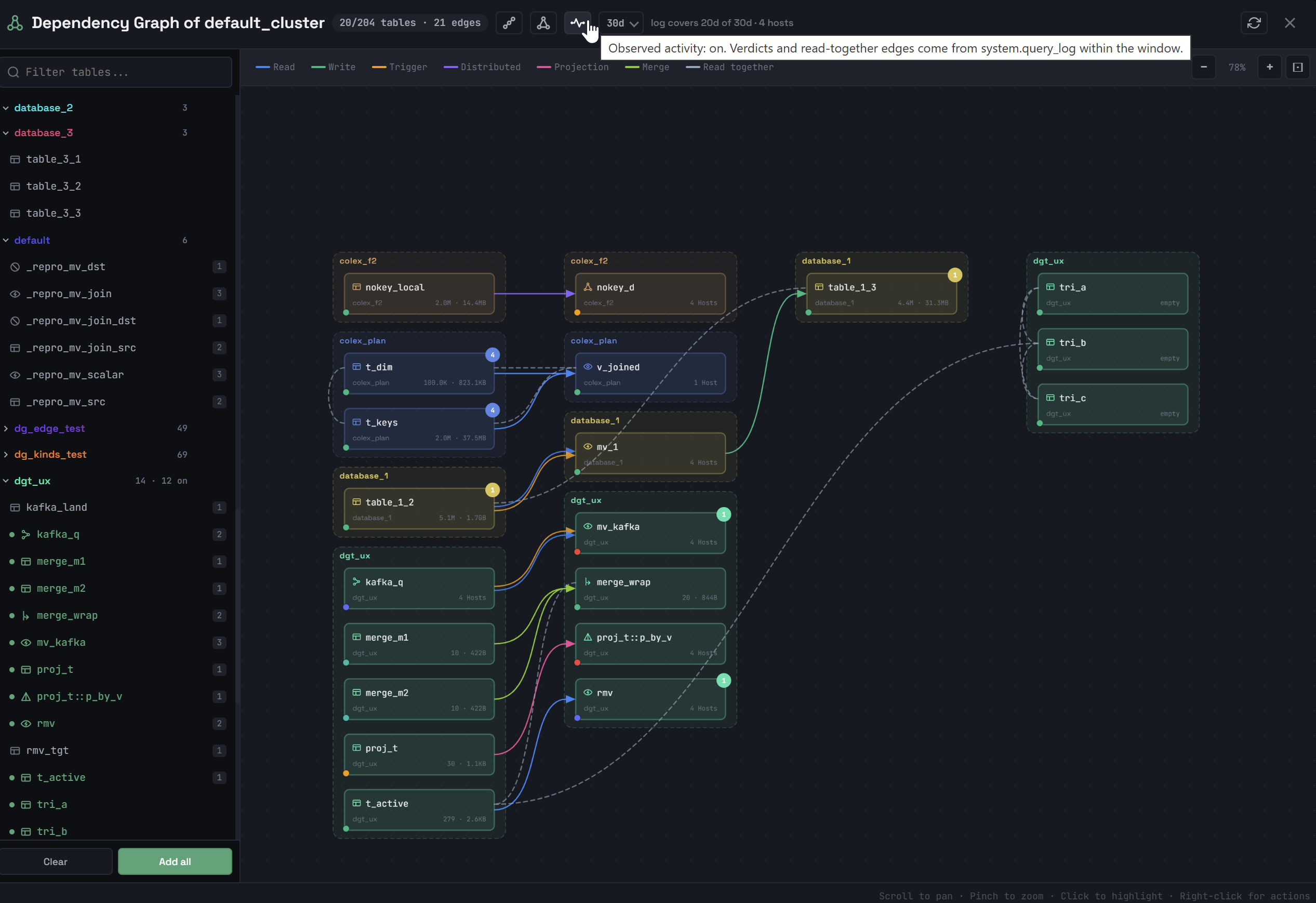
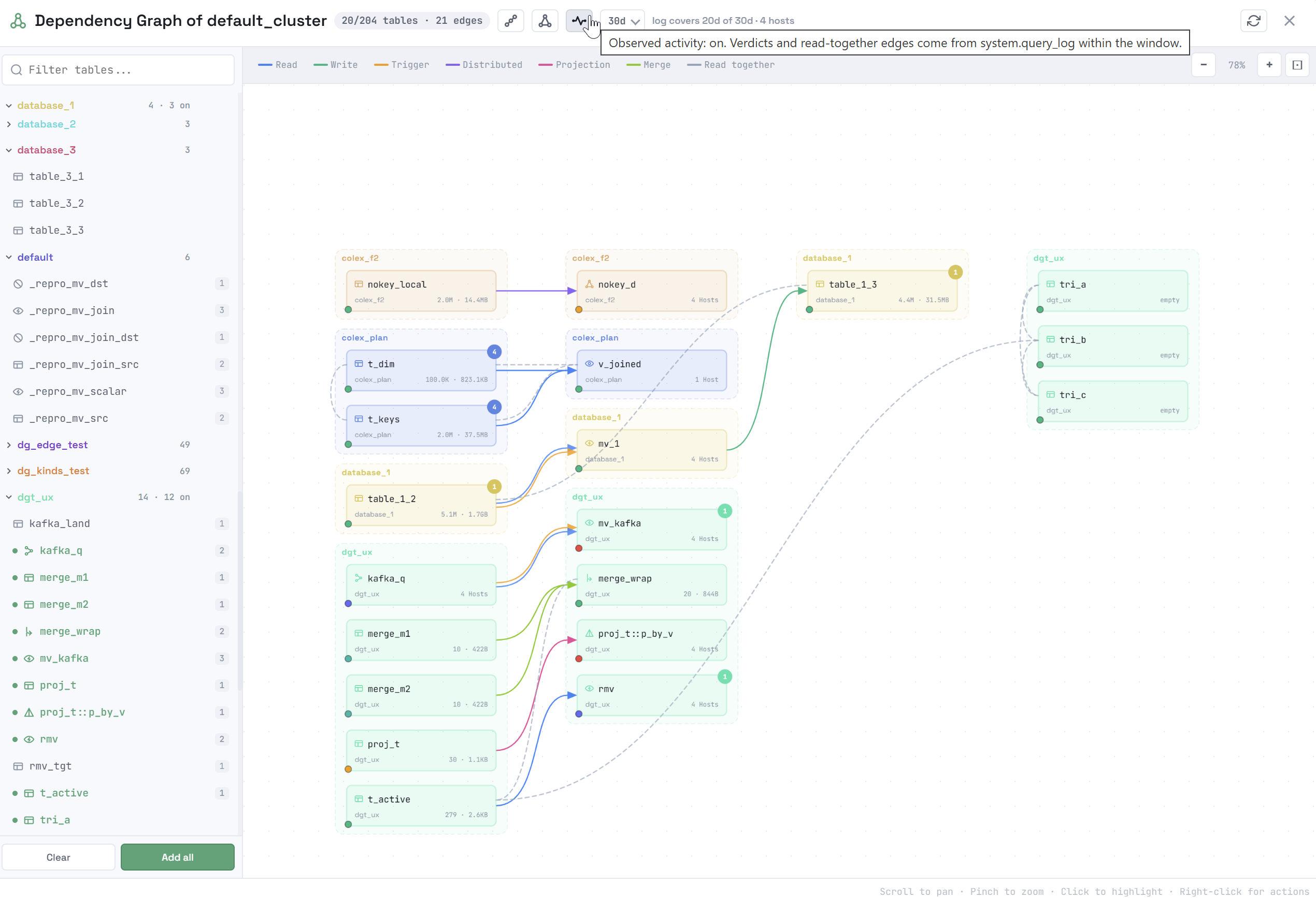
The graph can also show query-level dependencies between database objects (for example, if tables were joined in a query). These are dependencies of the Read together type obtained from the system.query_log table (read permissions for this table on the cluster are required). To enable this functionality, click the 
 Observed activity icon — from the drop-down list to the right of it, you can then select the time interval for observing activity based on queries to tables. In this mode, a marker point is displayed in the lower left corner of an object on the graph, indicating the actual use of the object during the selected time interval:
 — data was read from a table;
 — data was only written into a table;
 — a table was used internally;
 — a table was not used.
To disable the mode of observing the activity of using objects, click the icon 
 .
.
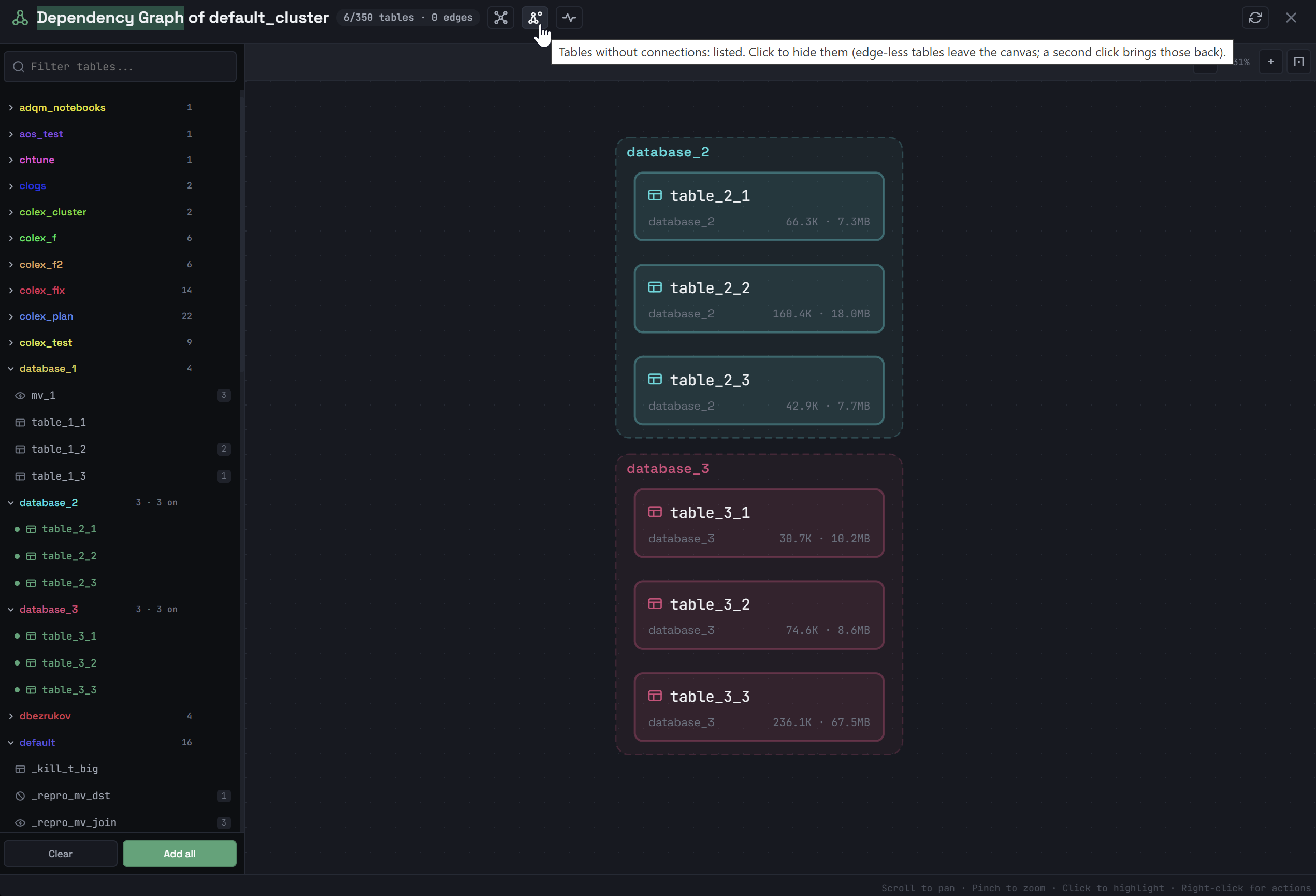
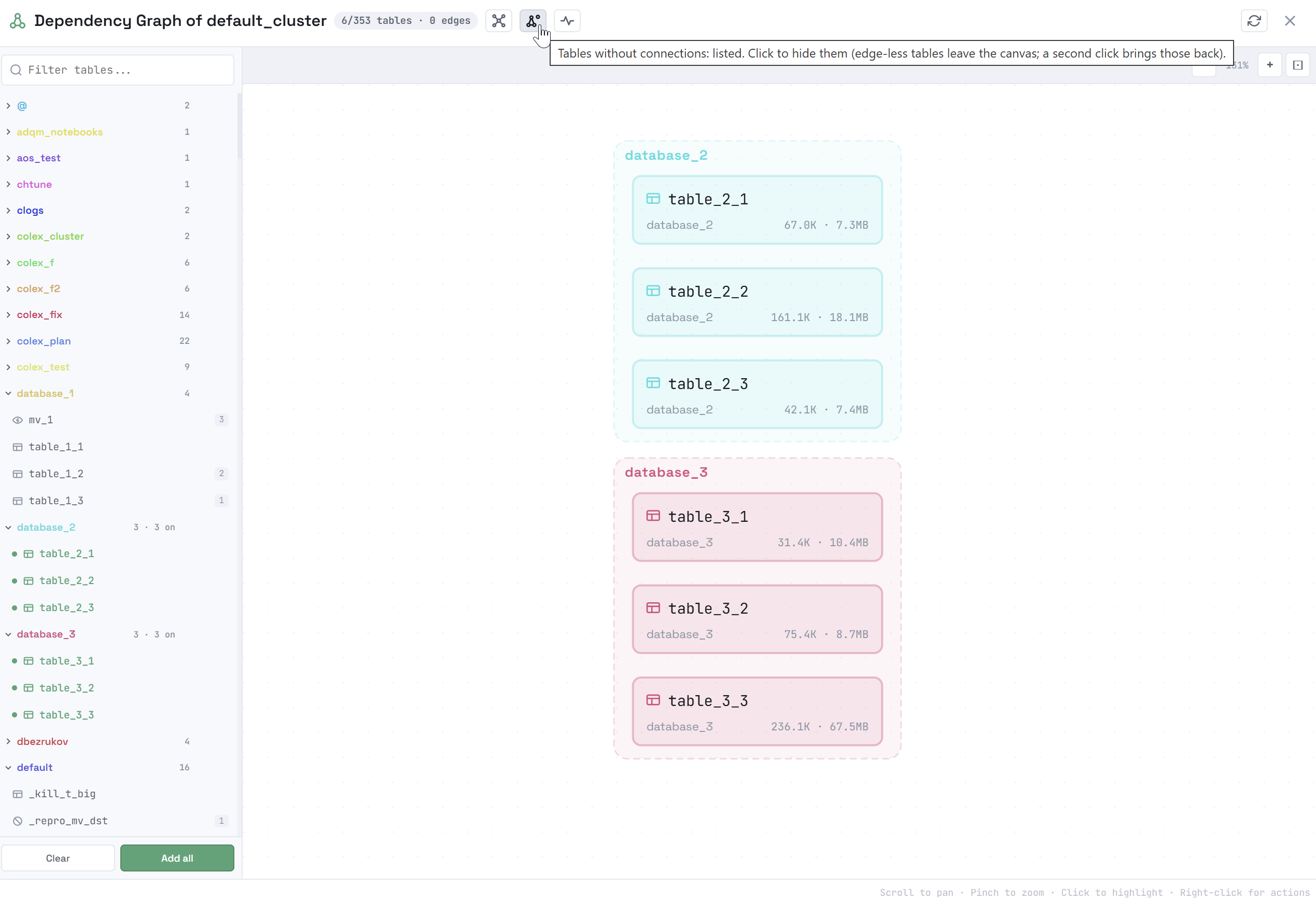
By default, objects without connections are not shown in the Dependency Graph window. Click the 
 Tables without connections icon — objects that do not have any dependencies will appear in the list, after which they can be added to the graph.
To hide objects without connections (from the list and from the graph), click the icon 
 .
.
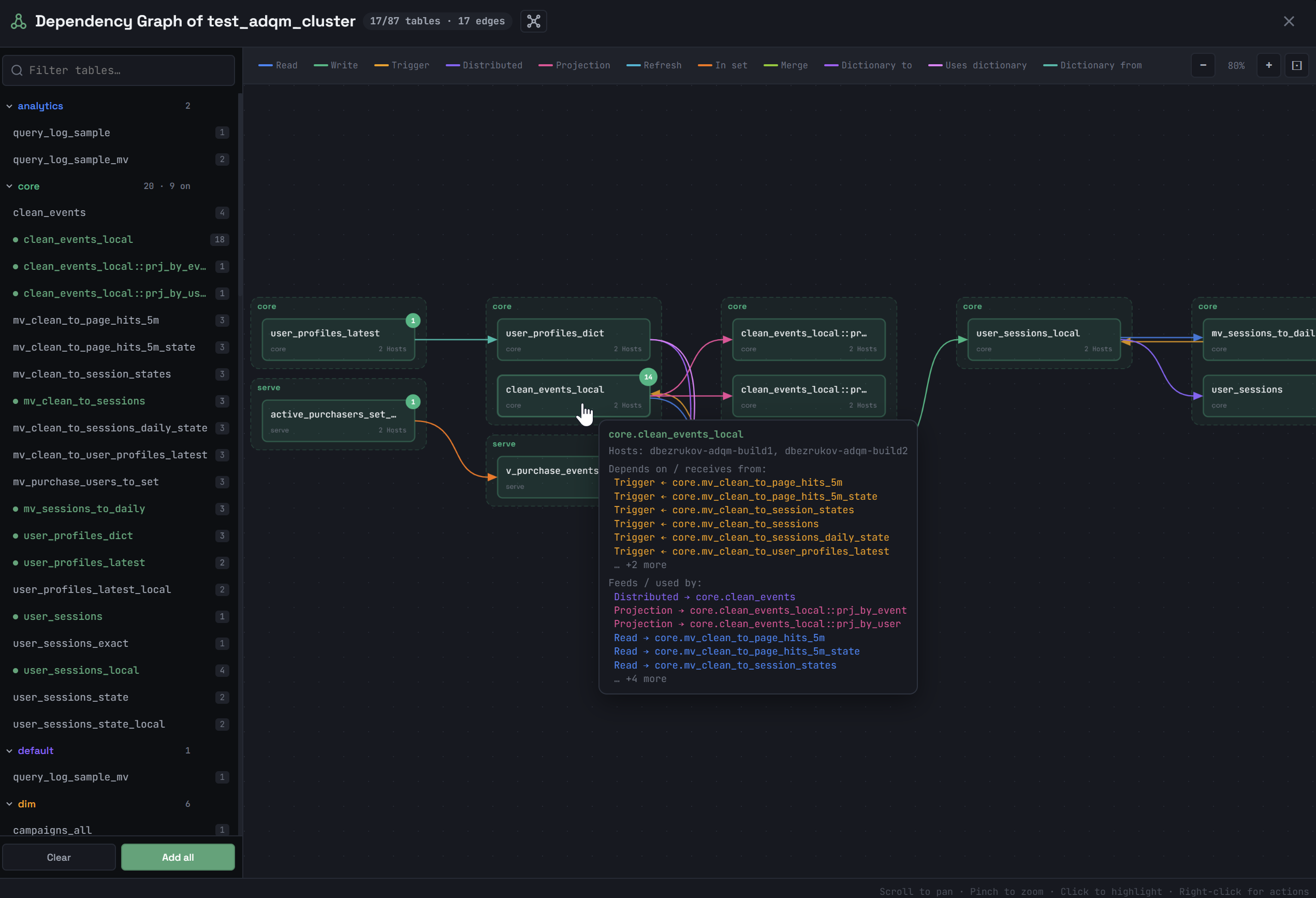
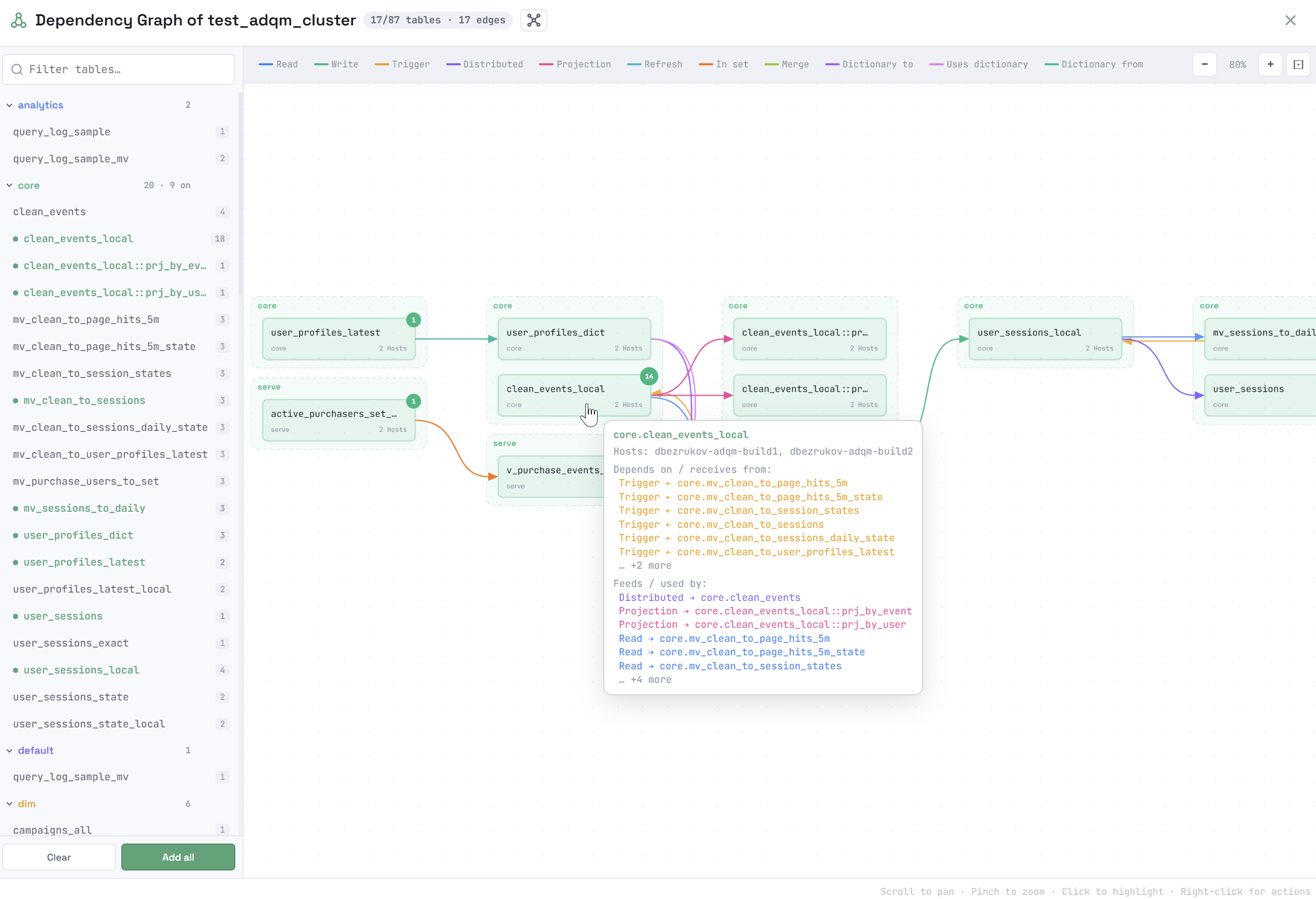
When you hover over an object, a tooltip displays more detailed information about this object and its dependencies:
-
which hosts the object is located on;
-
general information on the object depending on its type (for example, for a MergeTree table, the number of rows, data size, number of active data parts, and the time of the last data insertion into the table are displayed);
-
which objects are the data source for this object (Depends on);
-
for which objects this object itself is the data source (Feeds);
-
which objects are requested simultaneously with this object in queries (Read together with) and general information about the frequency of access to the object in queries for the selected time interval (Observed <selected_time_interval>) when the mode for observing the activity of accessing objects in queries is enabled.
The upper-right corner of an object shows the number of its dependencies that are not yet built on the graph. To display all the dependencies of an object added to the graph, right-click it and select Upstream (the Depends on dependencies), Downstream (the Feeds dependencies), Read together (the Read together with dependencies detected in the observed-activity mode), or Expand all (all object dependencies) from the context menu. The Remove command removes an object from the graph.
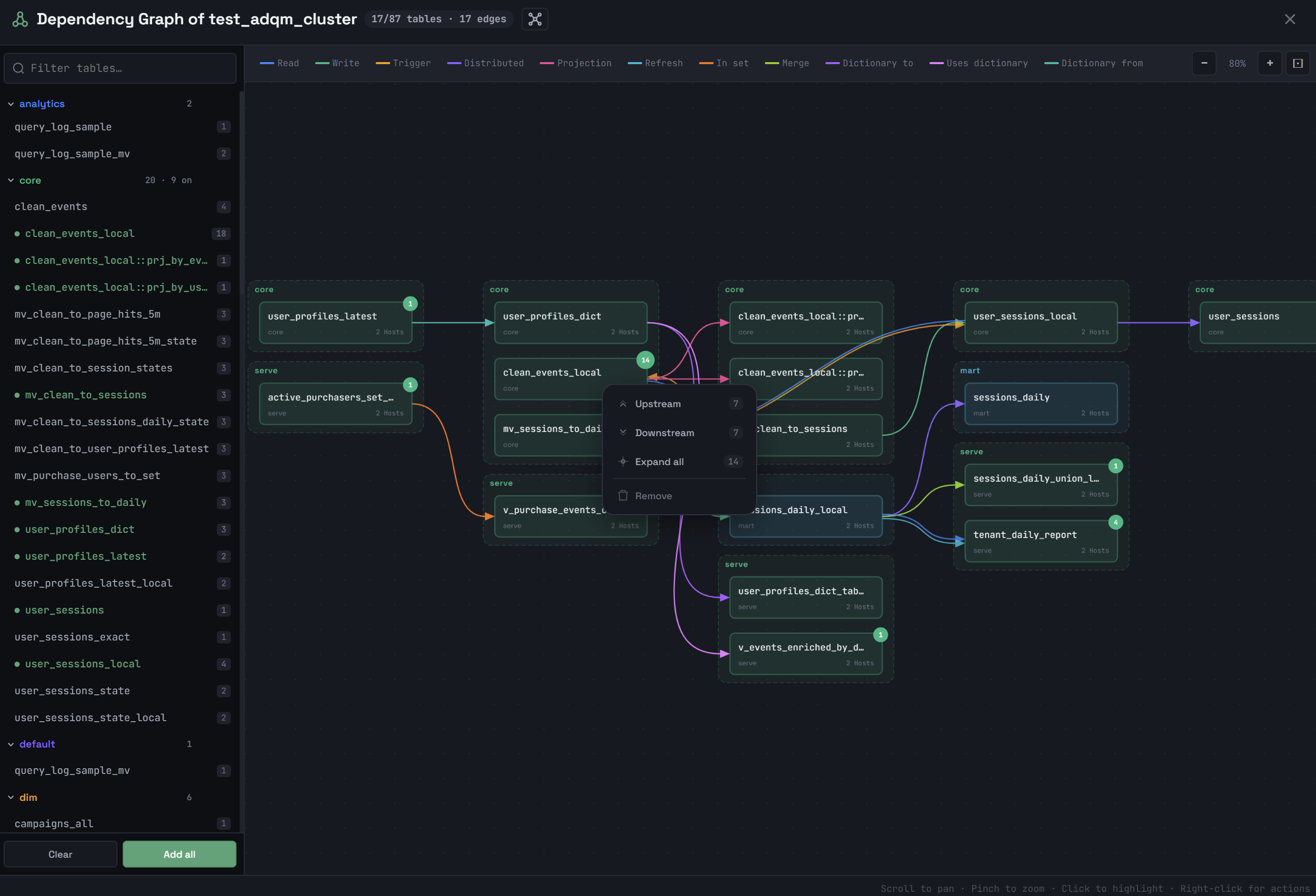
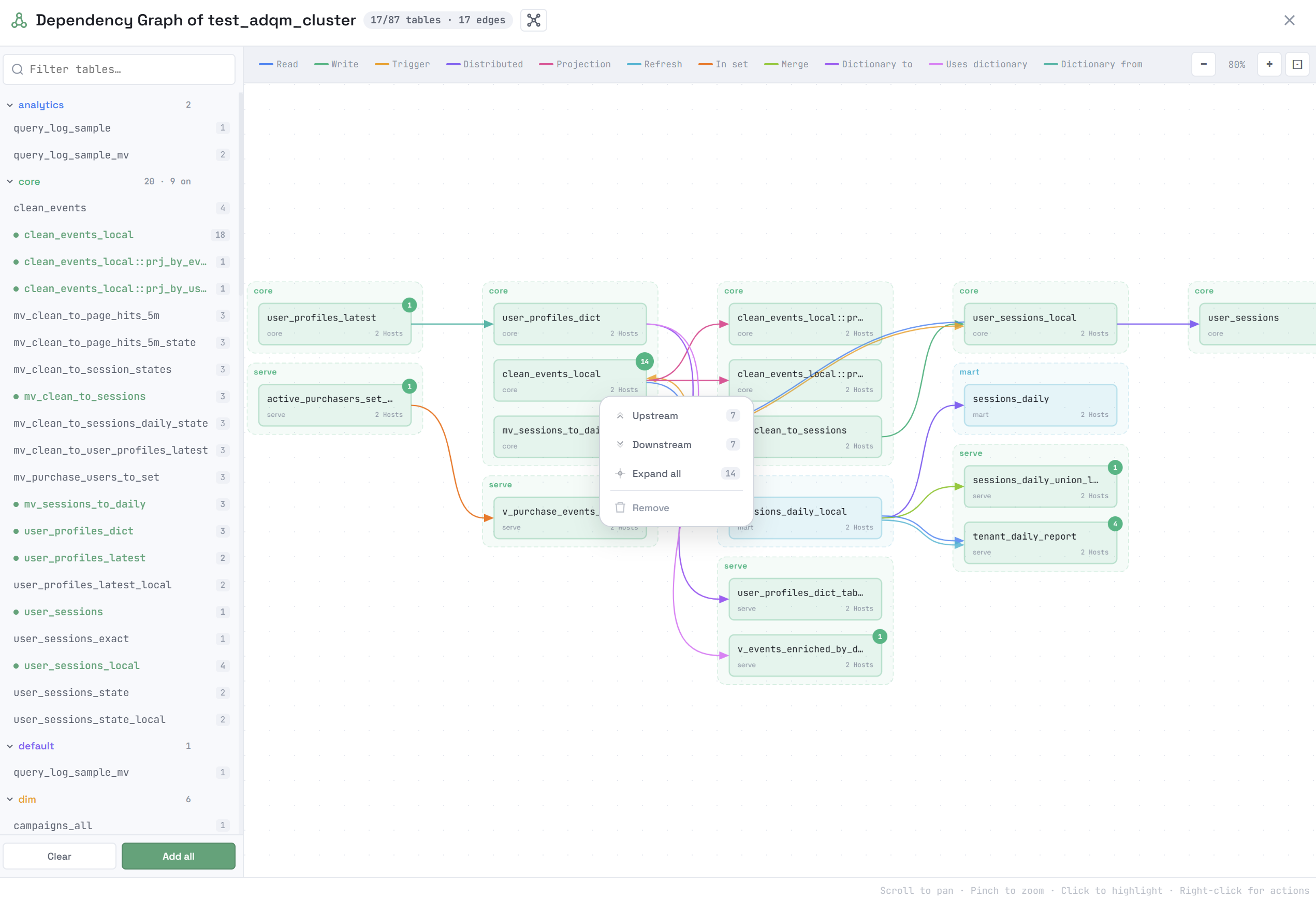
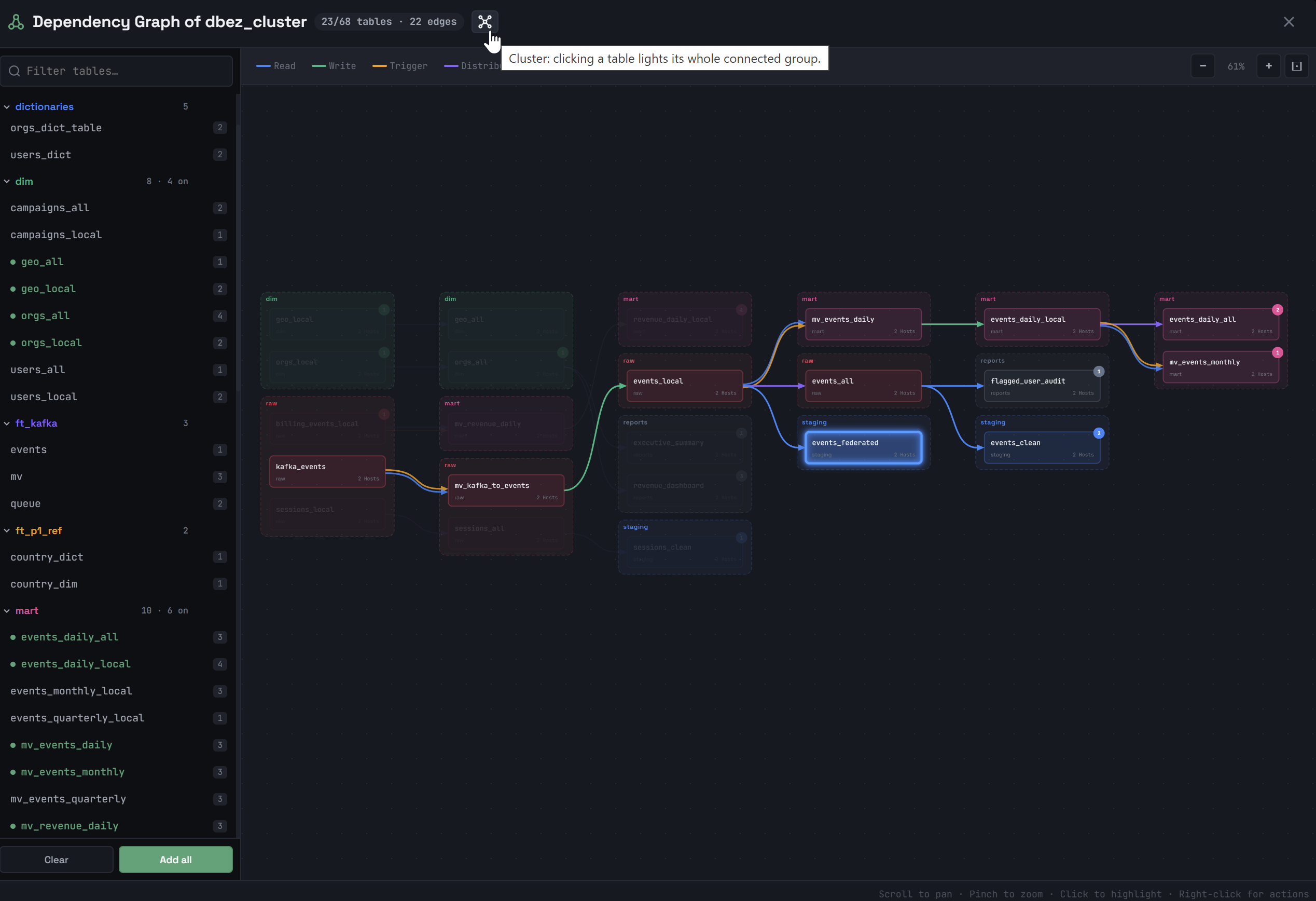
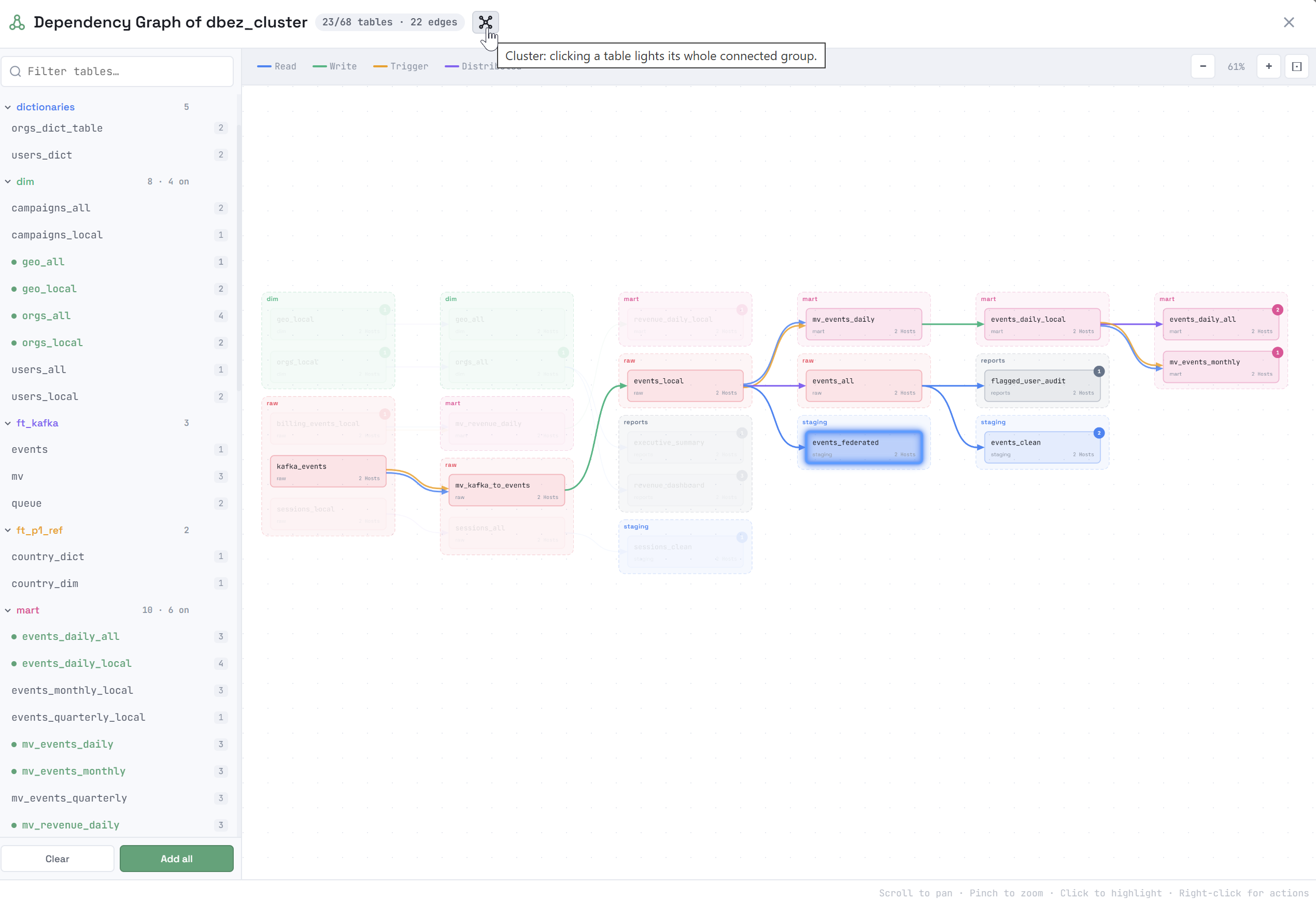
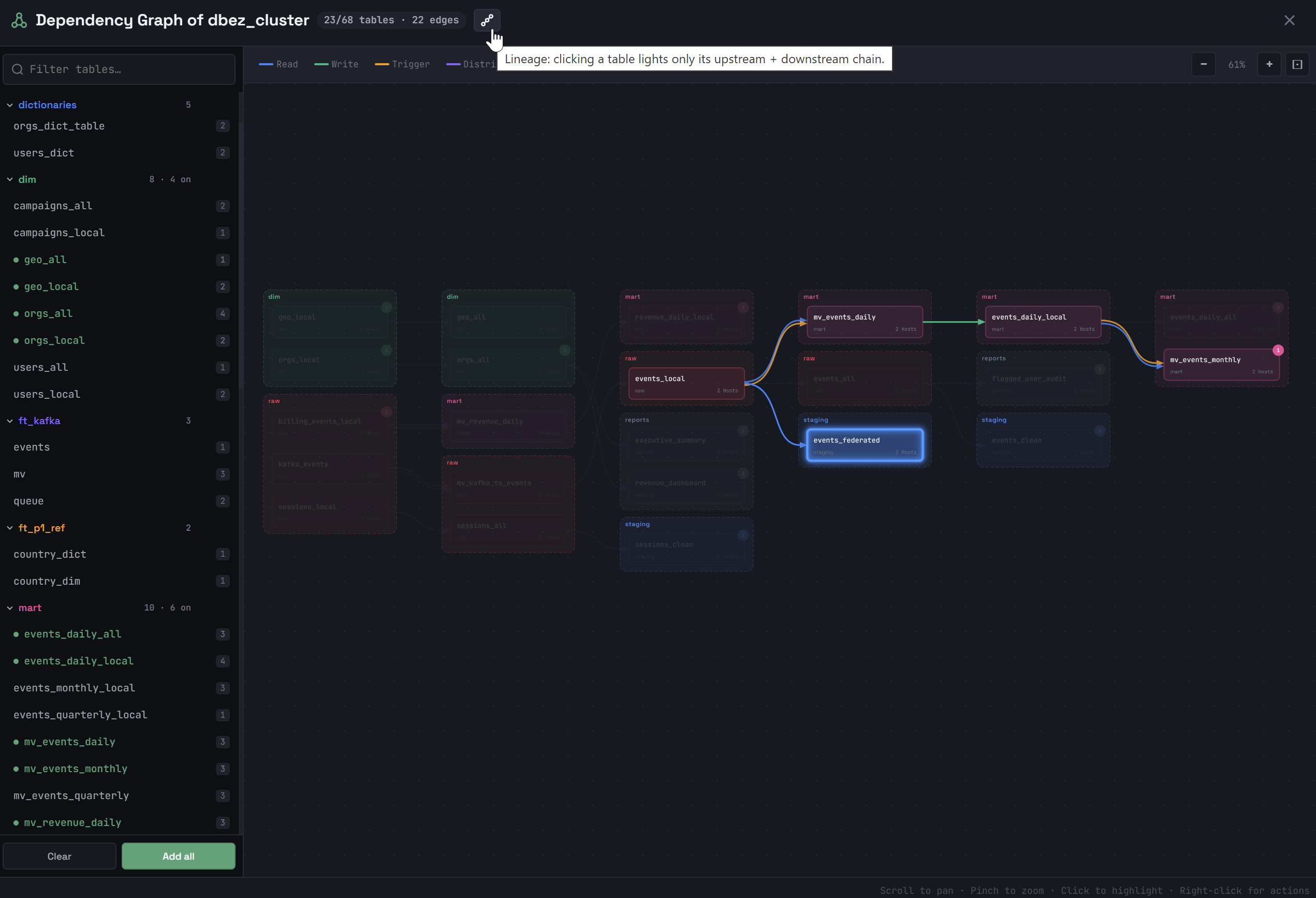
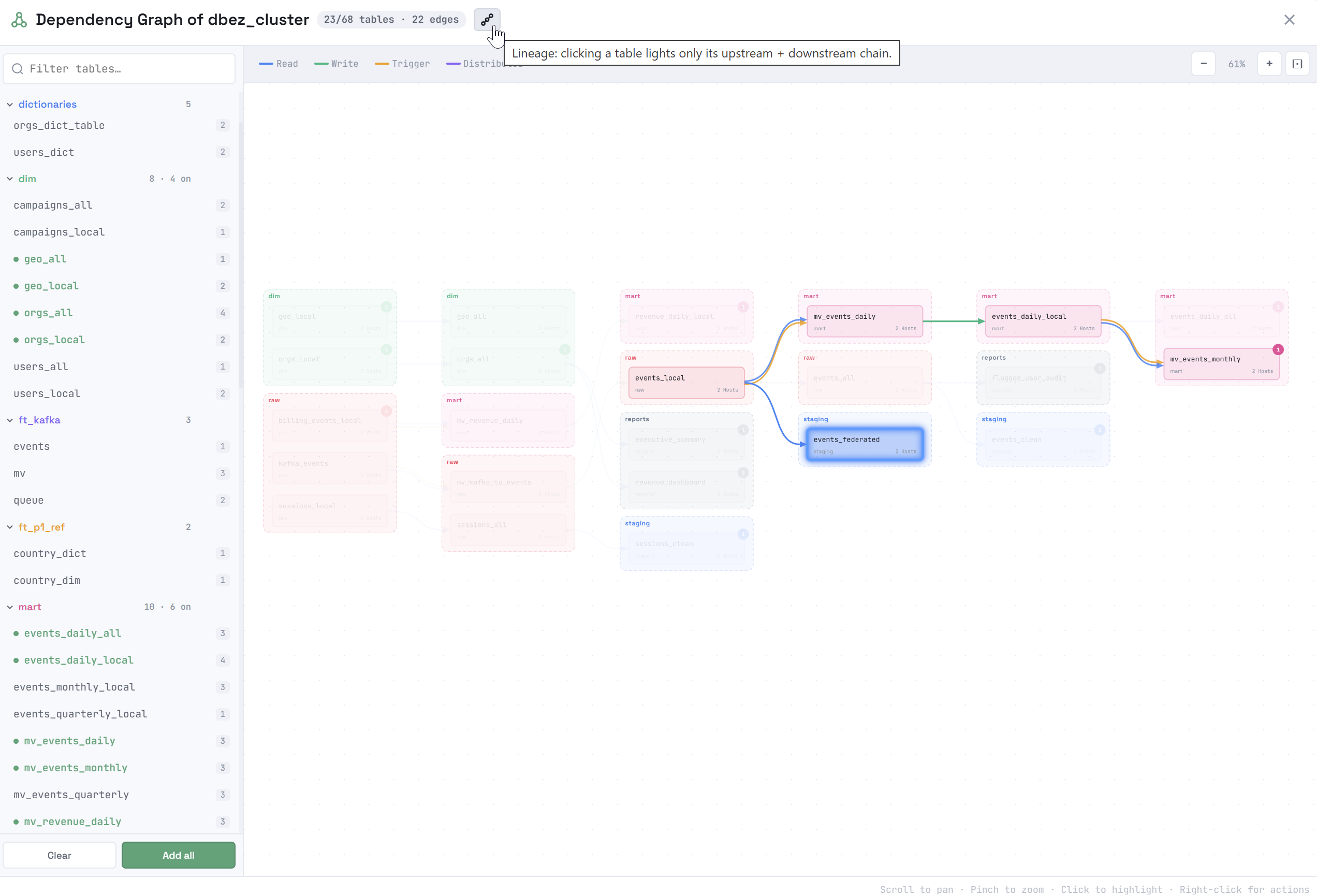
Clicking an object in the dependency graph highlights a subgraph, which includes the following objects depending on the option selected in the window title:
-

 Cluster — all connected objects. If you click another object in the same subgraph, the highlighted subgraph will not change.
 -

 Lineage — only the object’s ancestors and descendants (that is, a "neighboring" object that has the same source as the selected object, but does not belong to the directed path, is not included in the highlighted subgraph). Clicking another object in this subgraph will highlight another subgraph — that object’s lineage.