

Use ADCM Wizard for ADQM installation
ADQM provides the Assisted install cluster action, which installs an ADQM cluster using ADCM Wizard. The Wizard inspects your hosts first and requests only the required settings. For the remaining parameters, it suggests values based on the host analysis and also performs a final check before installation. The Assisted install action is available for an ADQM cluster that is not installed yet.
|
NOTE
|
Prerequisites
The following prerequisites are required to use the Wizard:
-
ADCM must connect to every host over SSH, and the ADCM user must be able to use
sudowithout a password. -
Every host must run a supported OS (x86_64).
-
Hosts must be without packages or data left from a previous ADQM installation.
-
The package repositories in the cluster configuration must be correct and reachable from the hosts. To install from an offline mirror, import it into the cluster first.
-
Every host must resolve the names of all cluster hosts to their addresses, through DNS or the /etc/hosts file.
-
System time on the hosts must be synchronized (NTP).
-
It is recommended to have at least 4 GiB RAM and 2 vCPU per host, and a separate data disk for large data volumes.
-
For ADM monitoring, bind the ADM cluster on the Import tab of the ADQM cluster before you start. Two hosts that run VMAgent must be able to install Docker from their repositories and pull images from the Docker registry of the cluster configuration.
Before you run the Wizard, create the cluster from the ADQM Enterprise bundle and add hosts to it. Do not add services — the Wizard adds them later.
Installation with Wizard
Open the Clusters page in ADCM. Click the icon 
 to open a drop-down list with available actions and select the Assisted install action.
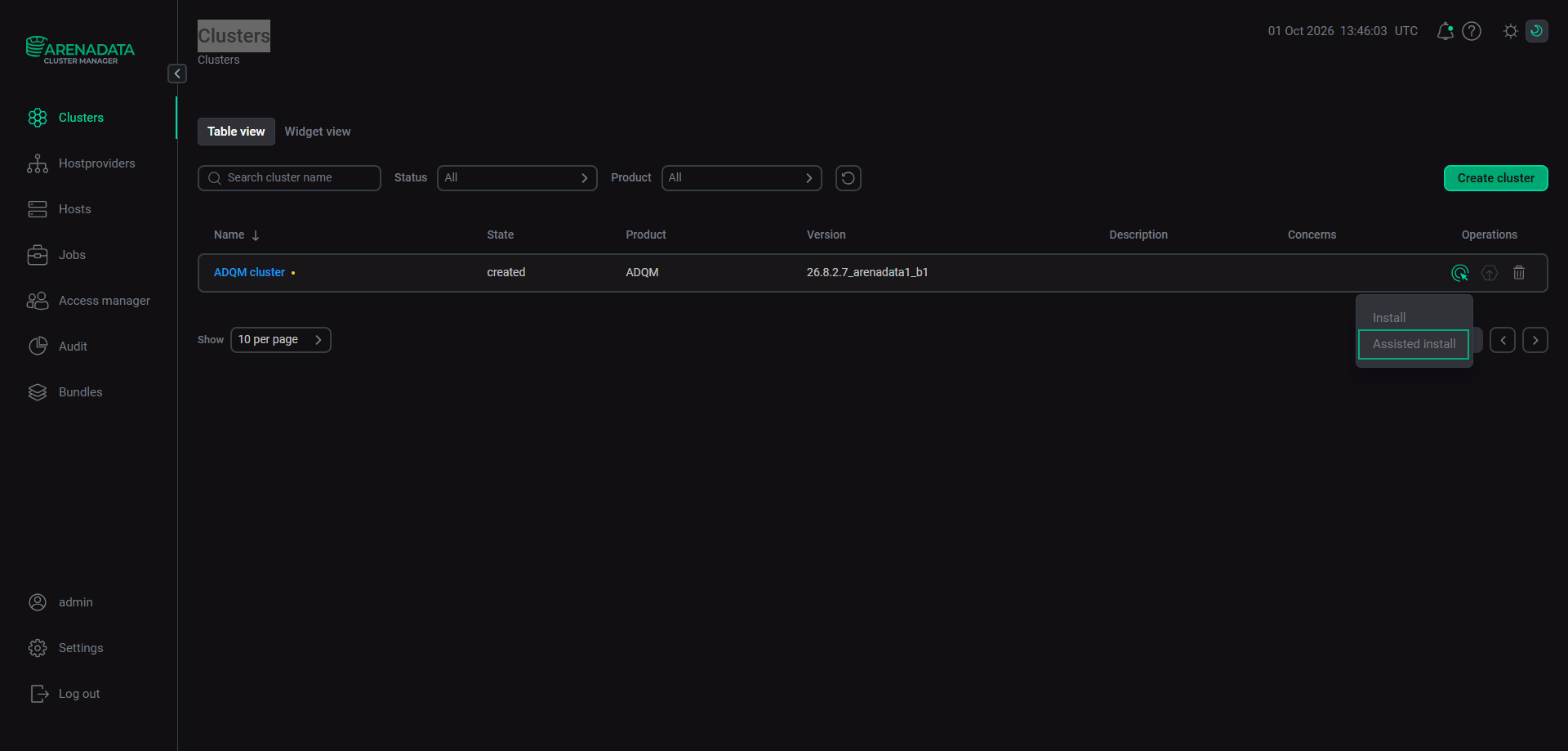
The Wizard opens. The installation steps are listed on the left.
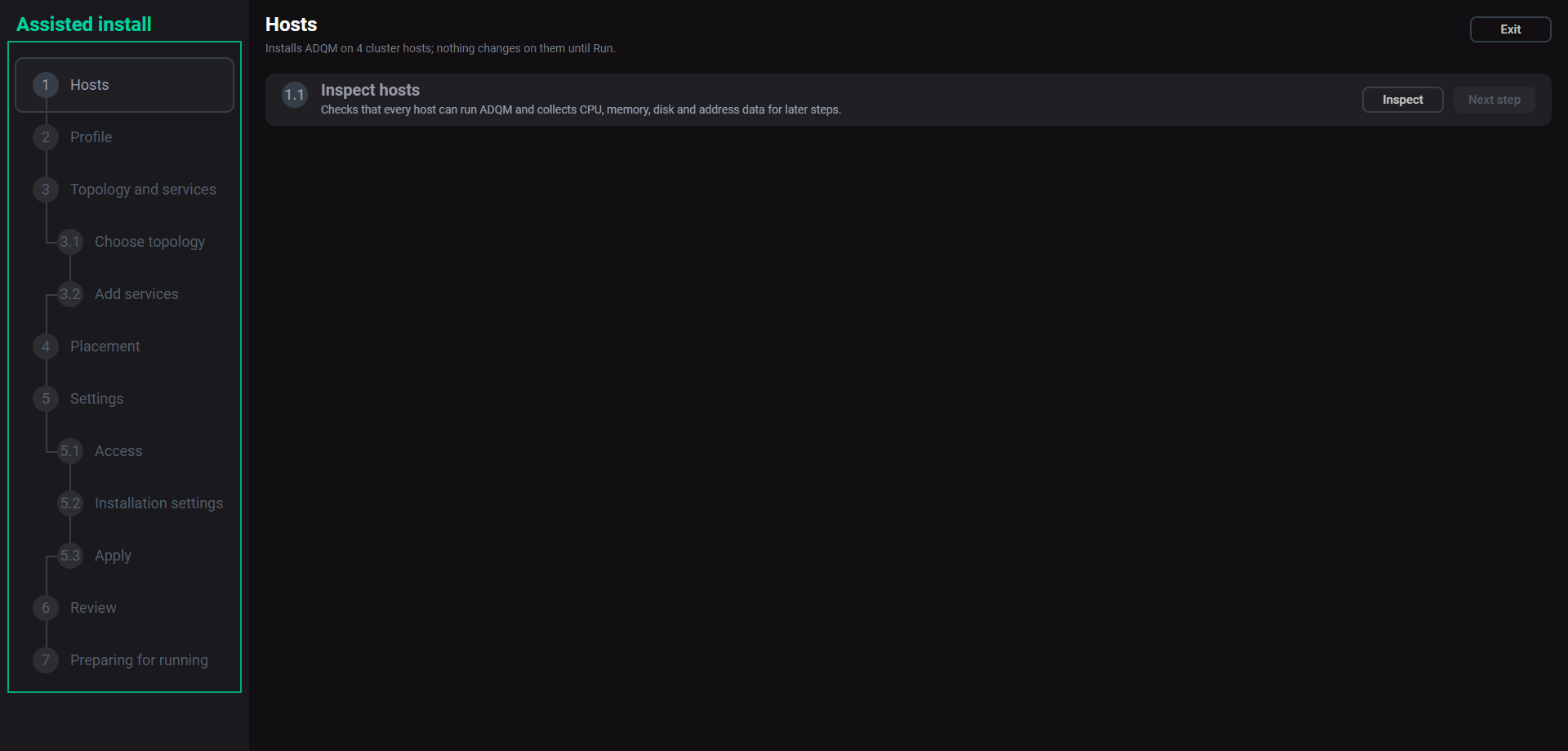
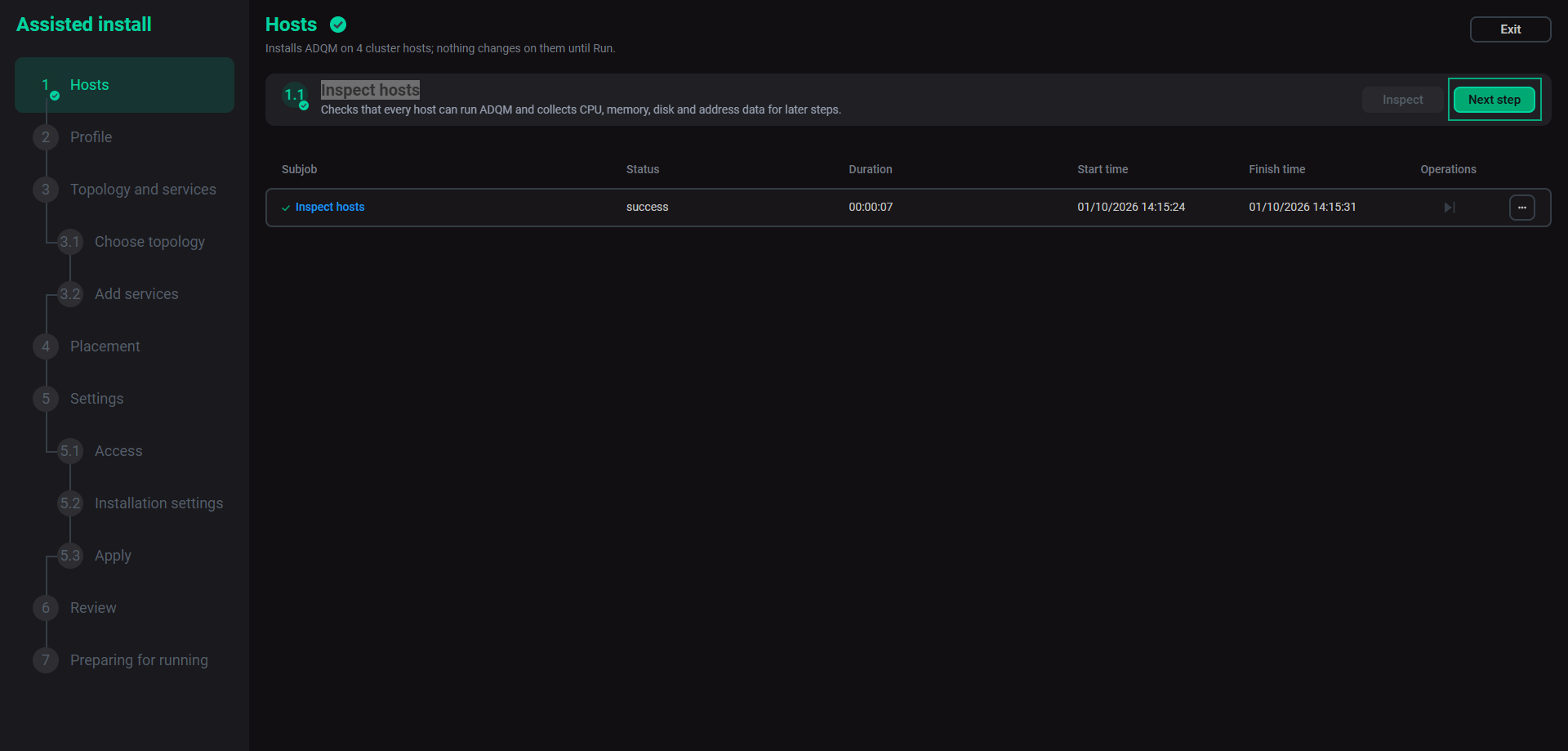
When a step is finished, click Next step to go forward.
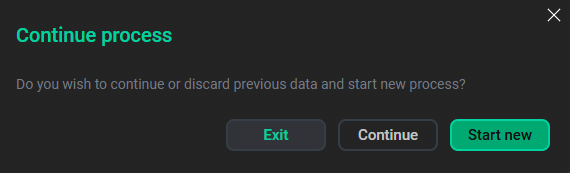
If you close the Wizard, it keeps your installation progress. When you open it again, a dialog window will be opened where you can choose whether to go on by clicking Continue or to begin from scratch by selecting Start new.
In the Wizard, some fields are hidden until you turn on Advanced at the top of a step. Expand content opens all groups.
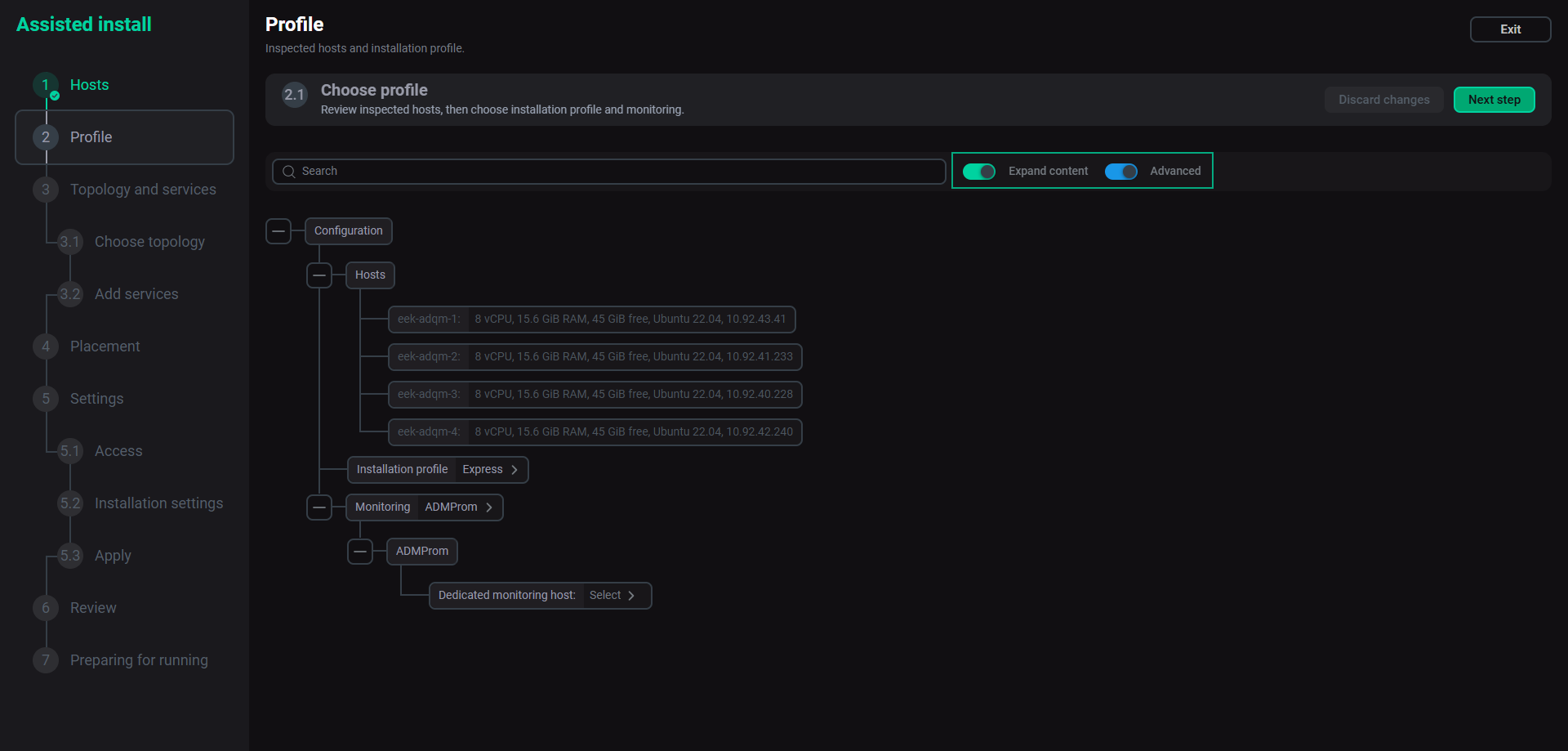
If you need to reset step settings, click Discard changes.
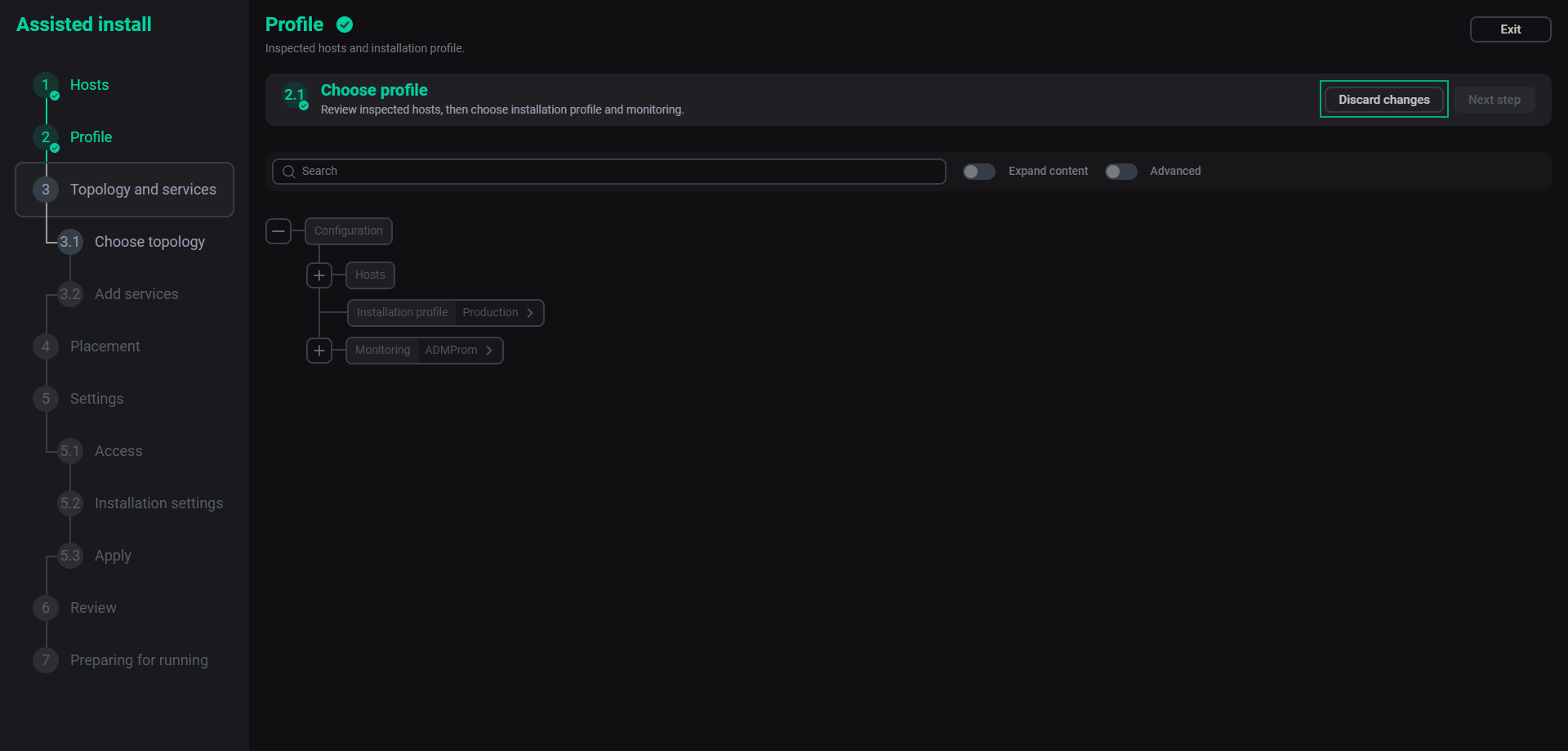
The Wizard performs the steps described below.
Step 1. Hosts: Inspect hosts
The host check is performed at this step. Click Inspect to start it.
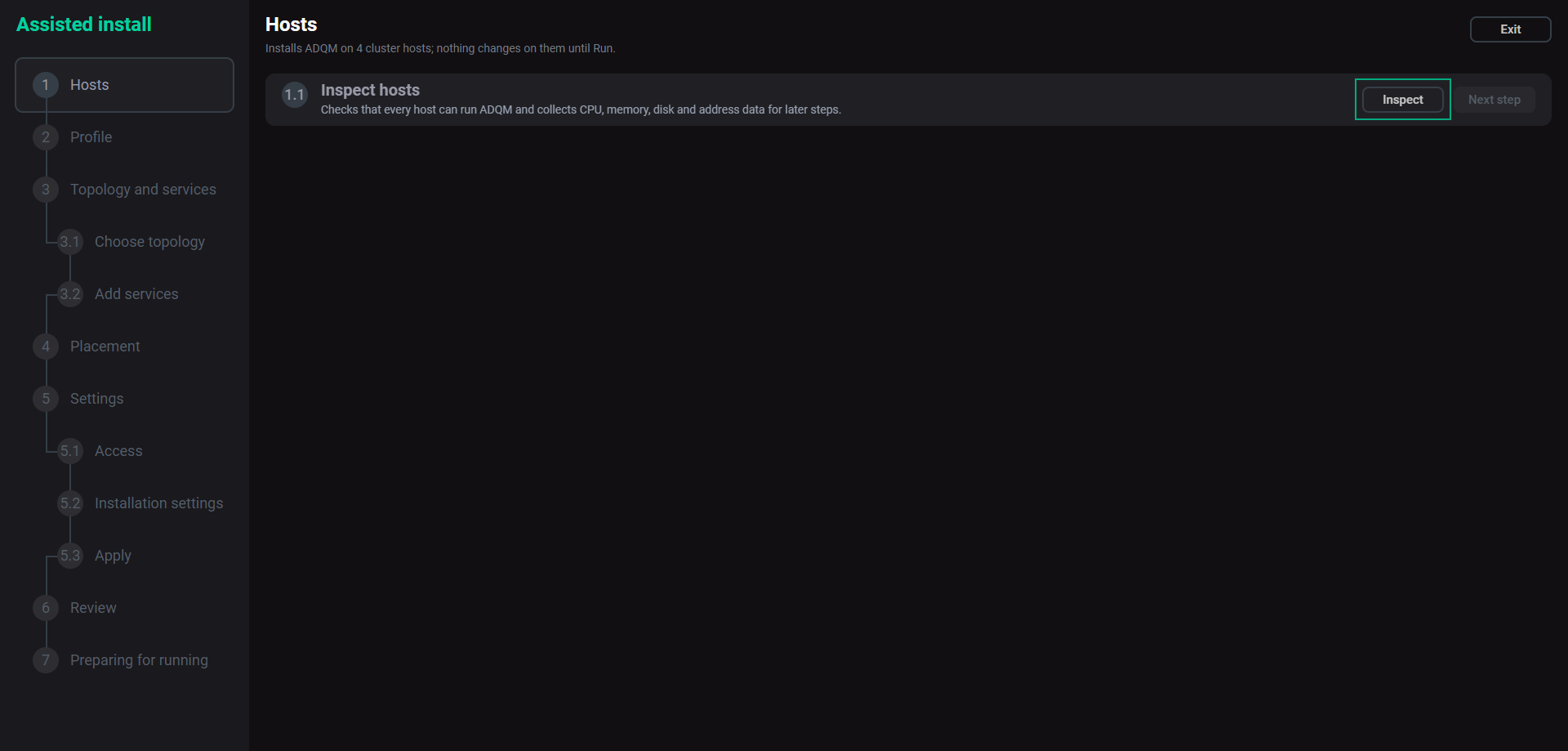
The Wizard connects to each host and verifies whether it can run ADQM. It checks the OS, permissions on the sudo command, memory, CPU, disks, ports (8123, 9000, 9009, 2129, 9444, 2181, 9090, 11200, 11210, 9091, 11203), host names, package repositories, and anything left from a previous installation. It also records the CPU, memory, disk, and network data characteristics for the next steps, and checks on how many hosts the installation will run simultaneously (see Installation speed).
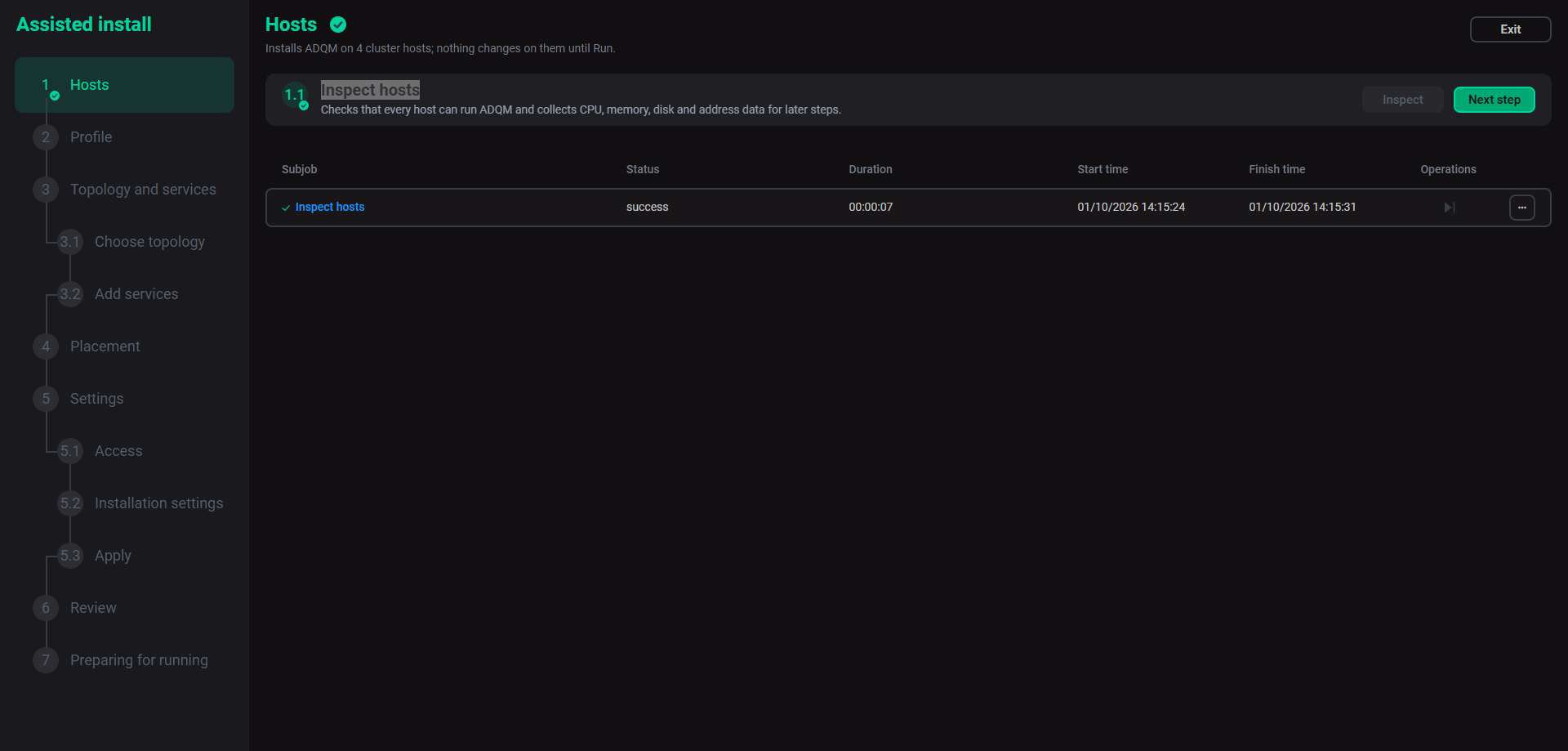
If the inspection finds a problem, the step fails. You can open the failed job and find the list of problems at the end of the log. Fix them and click Inspect again.
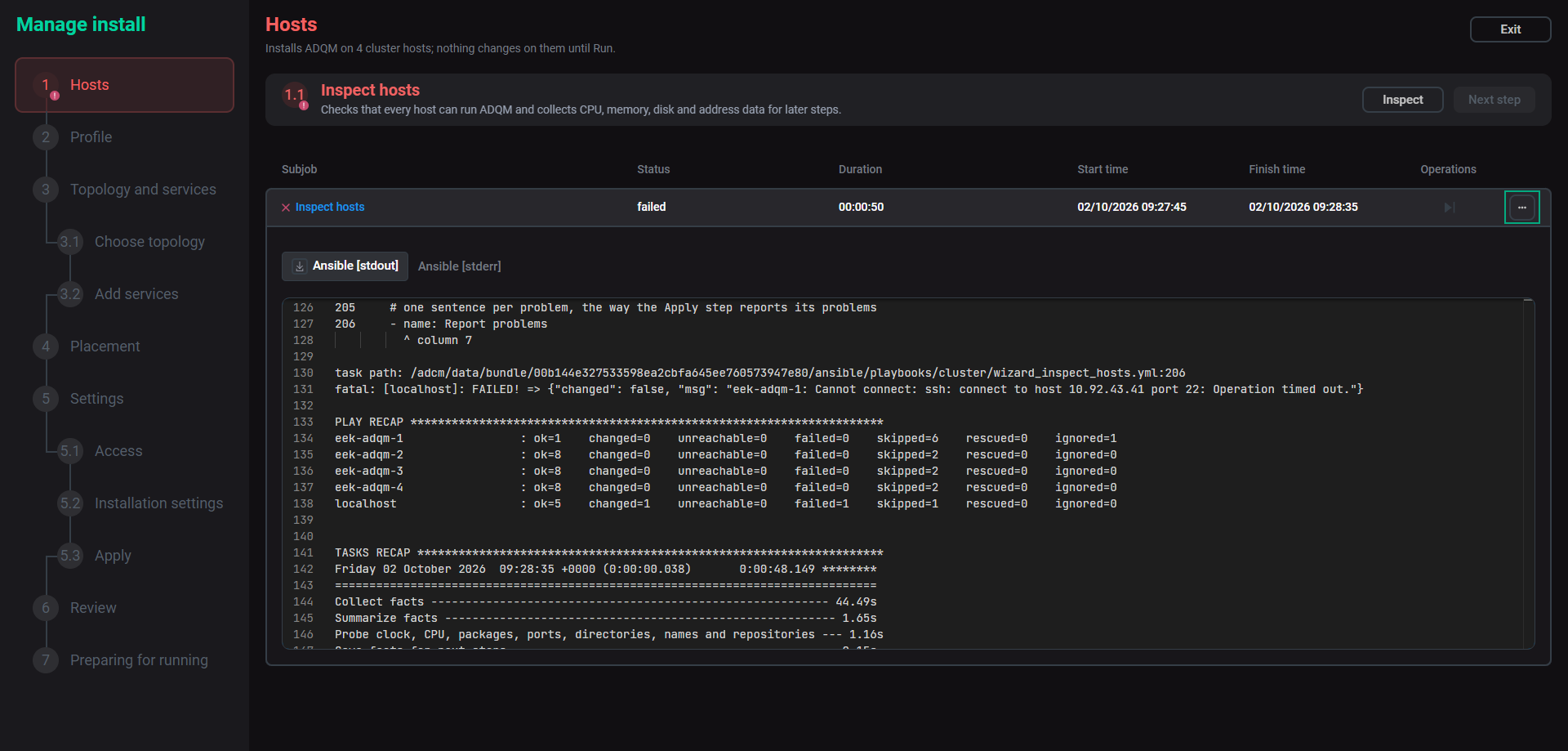
Warnings do not stop the Wizard. You will see them at the next step.
The tables below contain error and warning messages and their explanation. The Wizard displays a host name before each message.
| Message | How to fix |
|---|---|
Cluster has no hosts. Add them and press Inspect again |
Add hosts to the cluster |
Cannot connect: … |
Check that the host is running and reachable over SSH from ADCM |
Cannot collect facts: … |
Check SSH access and ensure that Python 3 is installed on the host |
ADCM user cannot use sudo: … |
Allow the ADCM user to use |
… is not supported. Supported: … |
Use a host with a supported OS |
Previous ADQM installation found: … Remove it or use a clean host. |
Remove old ADQM packages and data or use another host |
CPU lacks SSE 4.2, which ADQMDB requires |
Use a host or VM CPU model with SSE 4.2 |
Only N GiB free on…; packages need at least 2 GiB. |
Free up space on the root file system |
… and … have the same host name … |
Give every host a unique name |
Cannot resolve … / … resolves to …, not to an address of … |
Change DNS settings or the /etc/hosts file so that each host name points to the corresponding host |
Repository … is not reachable: … |
Change the repository address in the cluster configuration or network and proxy settings |
| Message | Meaning |
|---|---|
N GiB RAM: ADQMDB needs at least 4 GiB |
Not enough memory for stable operations. A warning appears when RAM is less than 3.5 GiB |
N vCPU: at least 2 are recommended |
Too few CPUs |
Port N, which ADQM uses, is taken by … |
Another program or service uses an ADQM port. Stop it or use another port. "A systemd socket" often means that a service from a removed package is still listening on a port, in this case, stop the socket |
/var/lib/clickhouse is not empty; … |
Clean the directory or choose another data path in the Production profile |
RAM differs between hosts …; memory settings follow the smallest ADQMDB host |
Memory values are sized for the host with the least amount of memory. A warning appears when the RAM size of the host with the most RAM size is more than twice the RAM size of the host with the least RAM size |
Host clocks differ by N s; synchronize them (NTP). |
Set up time synchronization — this is necessary for replication and the coordinator. A warning appears if the difference is more than 30 seconds |
Hosts use different time zones: … |
Align time zones or set one for ADQMDB for the Production profile |
Ansible runs tasks on N of M hosts at a time. Set forks to K in Configuration -> Ansible settings for faster installation |
Installation will work in rounds of N hosts. Set forks as suggested. See Installation speed |
Note that when an offline mirror is imported, repositories are checked during installation, not at step 1.
The current step warns about ports with default numbers. The Apply step checks the ports actually configured for your components.
Hosts added or removed after this step are not taken into account until you open this step, click Discard changes, and run Inspect hosts again.
Step 2. Profile: Choose profile
At this step, you can select an installation profile and monitoring system.
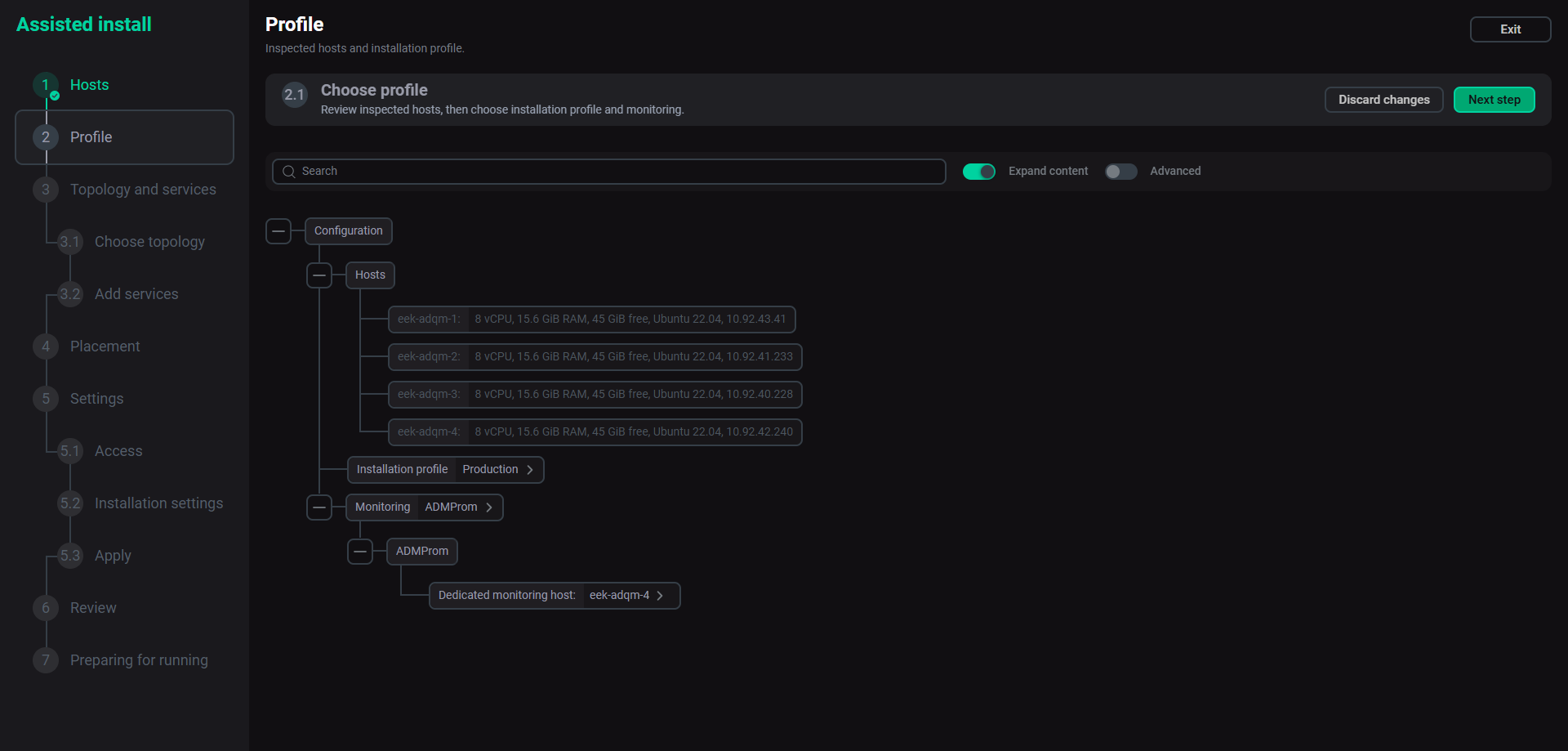
The table below can help you to choose a profile.
| Option | Express | Production |
|---|---|---|
Use |
Quick installation with recommended values: tests, demos, small clusters |
Production clusters where you control every important option |
Coordination system |
ClickHouse Keeper inside ADQMDB |
ZooKeeper or ClickHouse Keeper (as a separate service or inside ADQMDB) |
Replication factor |
You can set this option; the default value is 1 (no replication) |
You can set this option; the default value is replication up to 3 |
Monitoring |
ADMProm (one password), ADM, or none |
ADMProm (two passwords), ADM, or none |
Chproxy |
Not offered |
Optional |
Installation settings |
Minimum of settings — values come from the host analysis |
Data path, listen address, Chproxy, memory, host hardening, time zone |
The Profile page contains the Configuration tree with the following fields:
-
Warnings — warnings detected on the "Inspect hosts" step.
-
Hosts — system information on hosts, one line per host, for example,
4 vCPU, 7.8 GiB RAM, 86 GiB free, Ubuntu 22.04, 10.92.38.3. -
Installation profile — you can select one of the values:
ExpressorProduction. See the Profile comparison table. -
Monitoring — the monitoring system. Possible values are:
ADMProm,ADM, andNone. Inner fields specific to each system are displayed below. Node Exporter runs on every host with ADMProm and ADM. The default value isADMwhen an ADM cluster is bound, otherwiseADMProm. If the cluster already has monitoring, only the option corresponding to it is offered.-
ADMProm — the monitoring system that includes the Prometheus, Grafana, and Pushgateway components.
-
Dedicated monitoring host — specifies the host to install Prometheus, Grafana, and Pushgateway components. This field appears for clusters with three or more hosts. It is recommended to use a dedicated host for monitoring when the hosts have less than 16 GiB of RAM.
-
-
ADM — VMAgent on two hosts collects the metrics of every host and sends them to the ADM cluster (VictoriaMetrics) bound on the Import tab, its Grafana component displays dashboards. To use ADM, install an ADM cluster first and import the ADM cluster to the current ADQM cluster on the Import tab. As a result, ADM will be selected automatically at this step.
-
ADM write endpoint — the read-only field. The value specifies an endpoint where VMAgent sends the metrics or displays a reminder to bind the ADM cluster first.
-
-
Step 3. Topology and services
Step 3.1. Choose topology
The settings displayed at this step depend on the selected profile. Fields marked in red are mandatory.
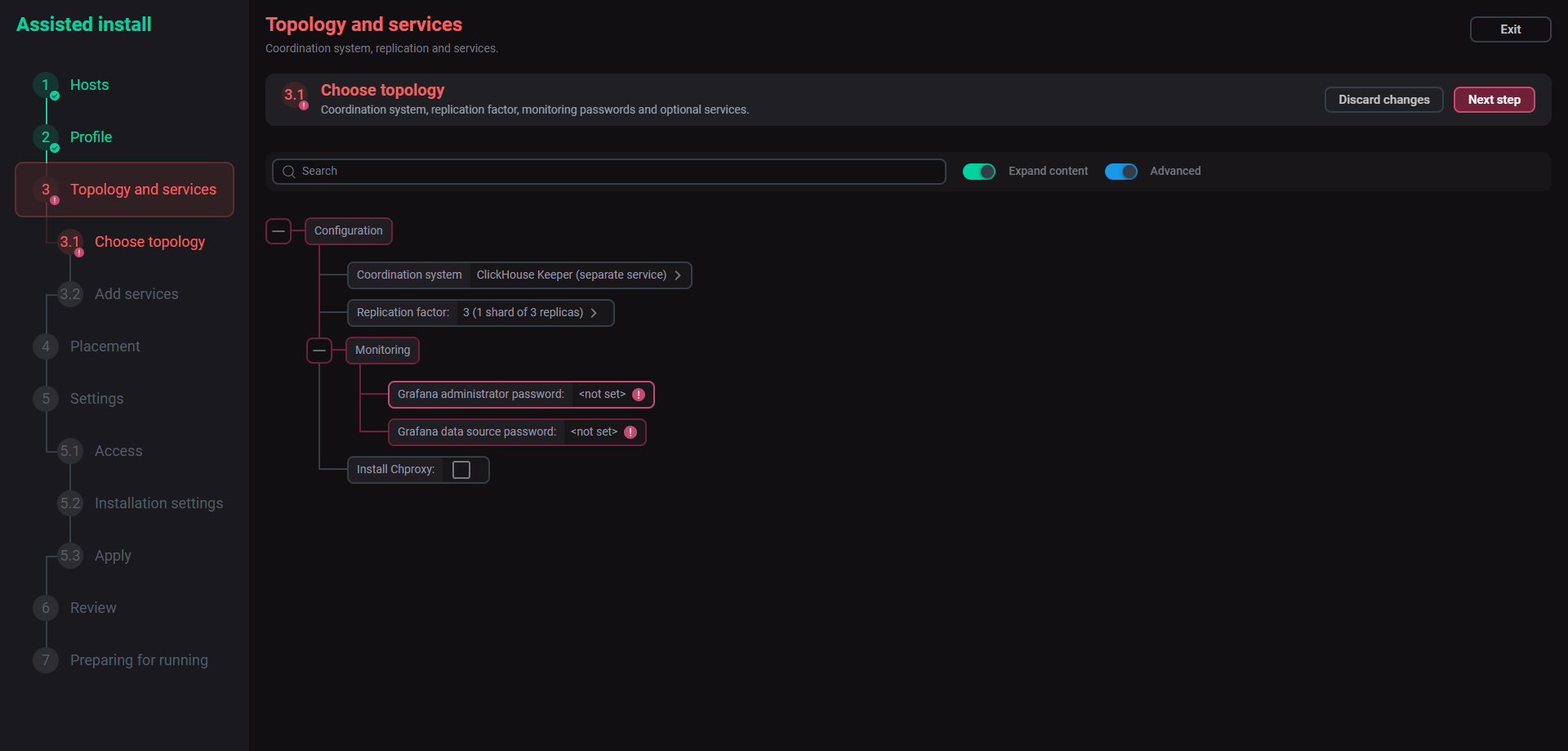
The table below contains a description of the parameters configured at this step.
| Name | Profile | Description |
|---|---|---|
Coordination system |
Express, Production |
Stores replication and DDL metadata. Express always uses ClickHouse Keeper inside ADQMDB on the first three ADQMDB hosts or on one host in smaller clusters. Production offers the following options:
|
Replication factor |
Express, Production |
Replicas in each shard. Only values that split the ADQMDB hosts evenly are offered. For example, for a cluster with three hosts: |
Monitoring password |
Express with ADMProm |
Used for the Grafana administrator and by Grafana to read metrics from Prometheus |
Grafana administrator password |
Production with ADMProm |
Used to log in to the Grafana web interface. The password should have a minimum length of 8 characters and should not contain the special characters: |
Grafana data source password |
Production with ADMProm |
Used by Grafana to read Prometheus metrics. The password should have a minimum length of 8 characters and should not contain the special characters: |
Install Chproxy |
Production |
HTTP proxy and load balancer for ADQMDB |
Step 3.2. Add services
At this step, click Add services.
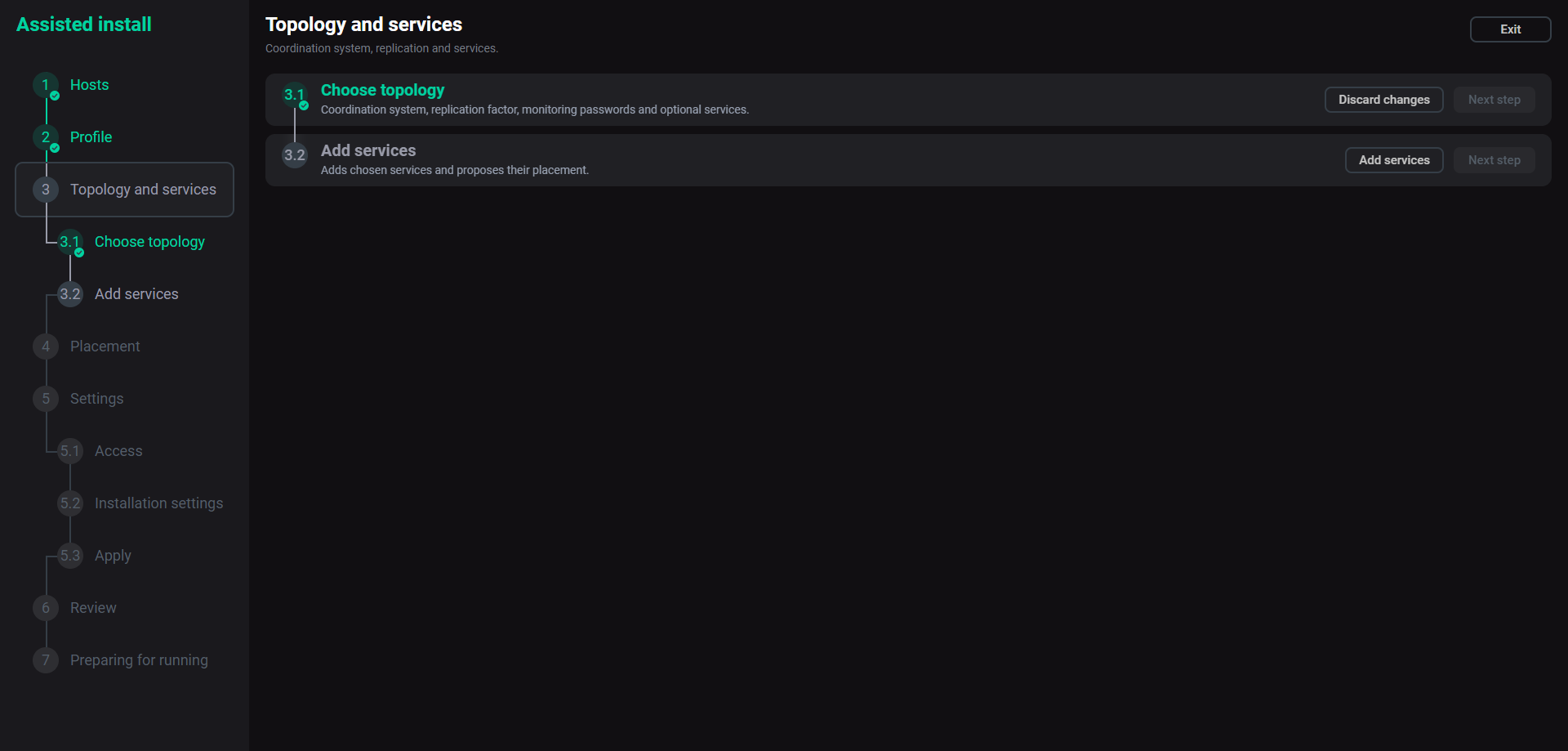
The Wizard checks your choices, adds the services to the cluster, and suggests where each component runs. You can check and modify the component placement at the next step.
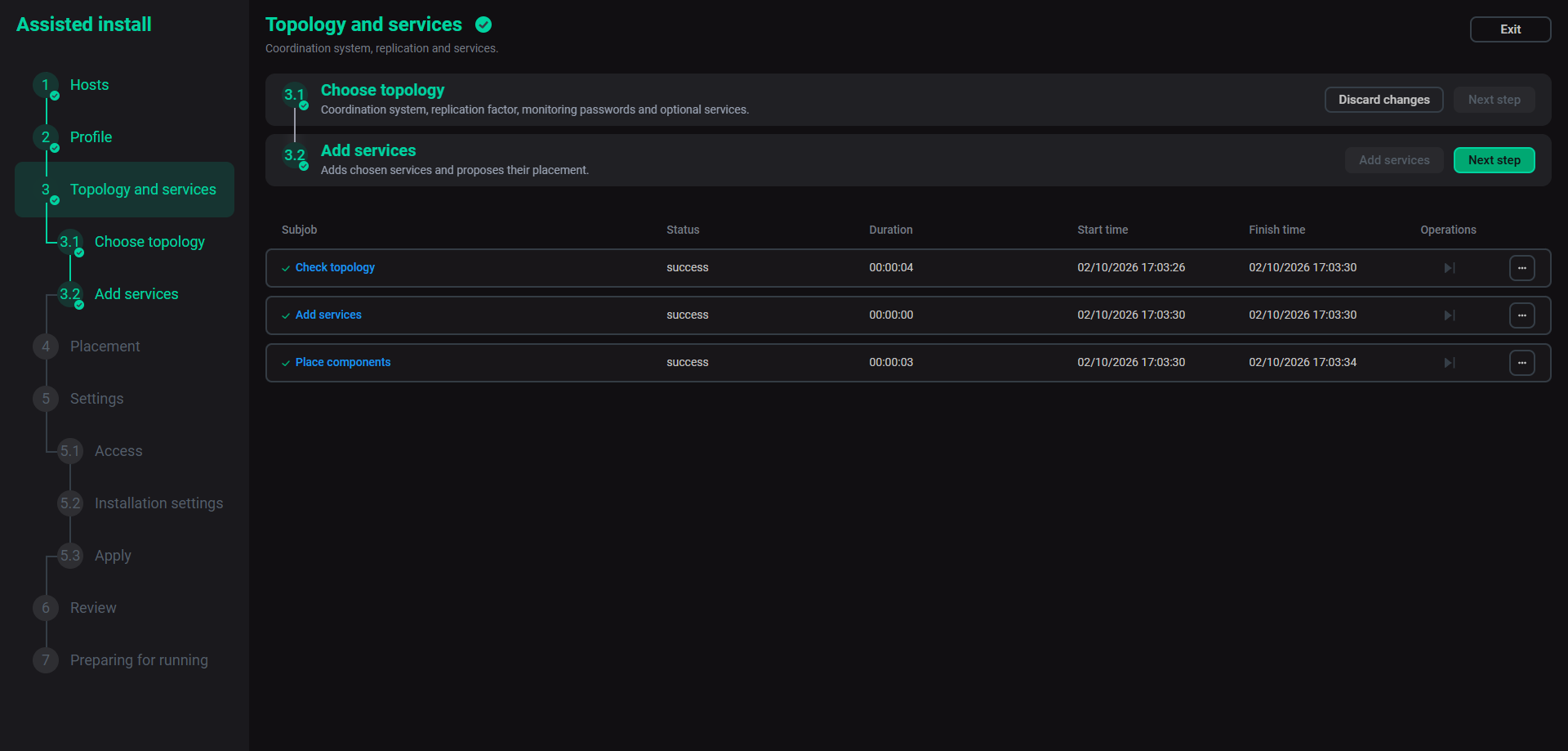
The table below contains error messages that may occur at this step.
| Message | How to fix |
|---|---|
Replication factor N does not split M ADQMDB hosts into equal shards; … |
Choose another replication factor or change the number of hosts |
No host left for ADQMDB; … |
Add hosts and inspect them again at step 1 or clear the dedicated monitoring host at step 2 |
Cluster has no hosts. Add them and inspect them again |
Hosts were removed after step 1. Add hosts to the cluster, open step 1, click Discard changes, and then click Inspect again |
Dedicated monitoring host … is no longer in the cluster; … |
Choose another dedicated host for monitoring at step 2 |
ADM monitoring needs an ADM cluster to send metrics to, but none is bound. … |
Bind an ADM cluster on the Import tab of the ADQM cluster, then, in the Wizard, click Add services again |
An ADM cluster bound on the Import tab after step 2 counts at once: click Add services again. Services in the cluster are kept as they are, the Wizard adds only the missing ones.
Step 4. Placement: Check placement
The Wizard displays standard service mapping interface and proposes the placement of the ADQM cluster components described in the table below.
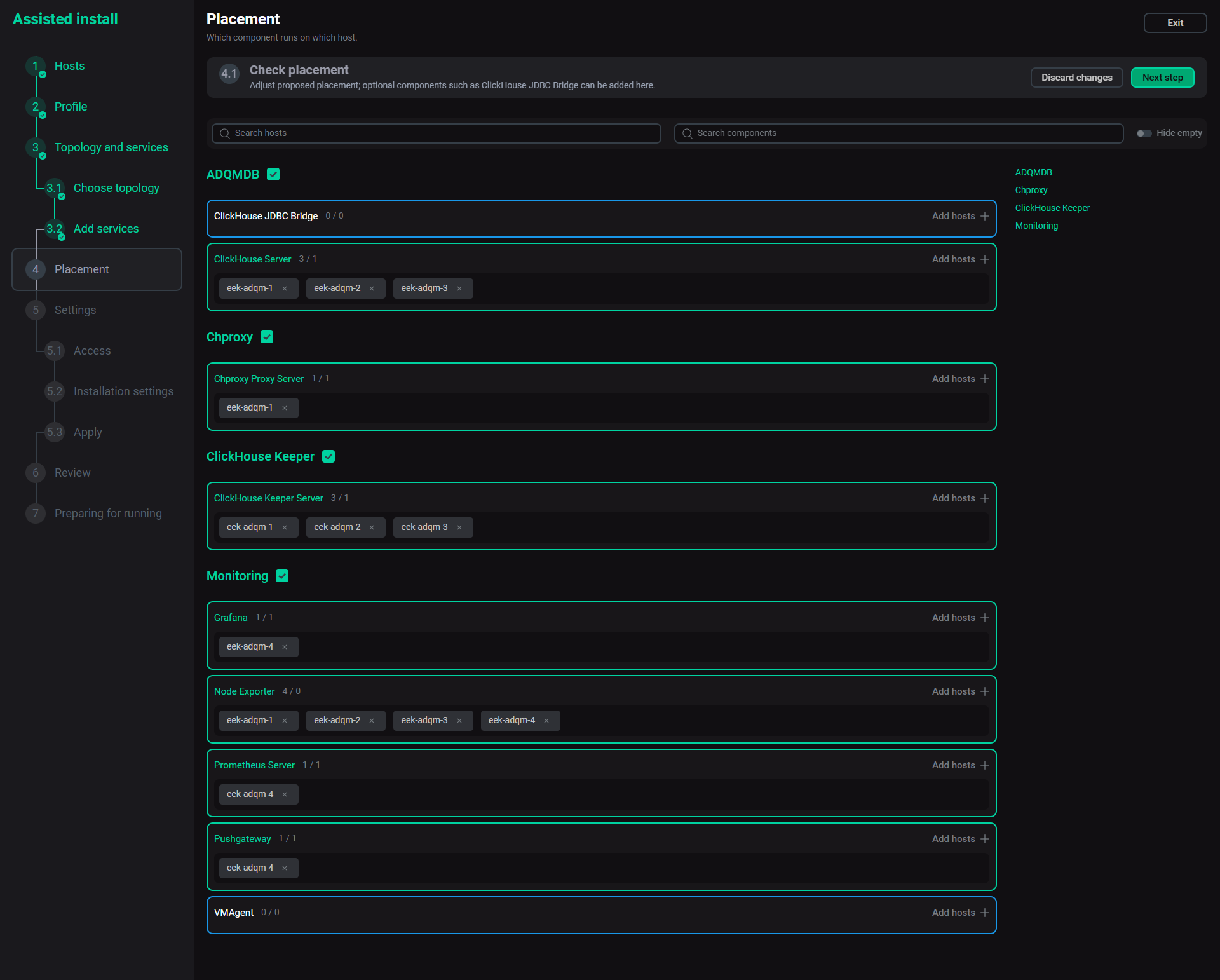
| Component | Proposed hosts |
|---|---|
ClickHouse Server |
Every host except the dedicated monitoring host. These hosts are ADQMDB hosts |
ClickHouse Keeper Server or ZooKeeper Server |
The first three ADQMDB hosts or one in smaller clusters |
Chproxy Proxy Server |
The first ADQMDB host |
Prometheus Server, Grafana, Pushgateway |
For ADMProm only. The components are located on the dedicated monitoring host. If a host is not dedicated, the components are spread across other hosts |
VMAgent |
For ADM only, the last two hosts or a single host |
Node Exporter |
Every host |
Not placed. If you need this component, add it at this step |
You can modify the proposed component placement. Note that the Wizard does not check the changes made at this step. When modifying the component placement, you should observe the following rules:
-
Keep ClickHouse Server on all ADQMDB hosts. Their number must be a multiple of the replication factor.
-
Keep an odd number of ClickHouse Keeper or ZooKeeper servers.
Step 5. Settings
At this step, you can configure the access and installation parameters for the ADQM cluster.
Step 5.1. Access
This step allows you to specify the settings of the default ADQMDB user. They are described in the table below.
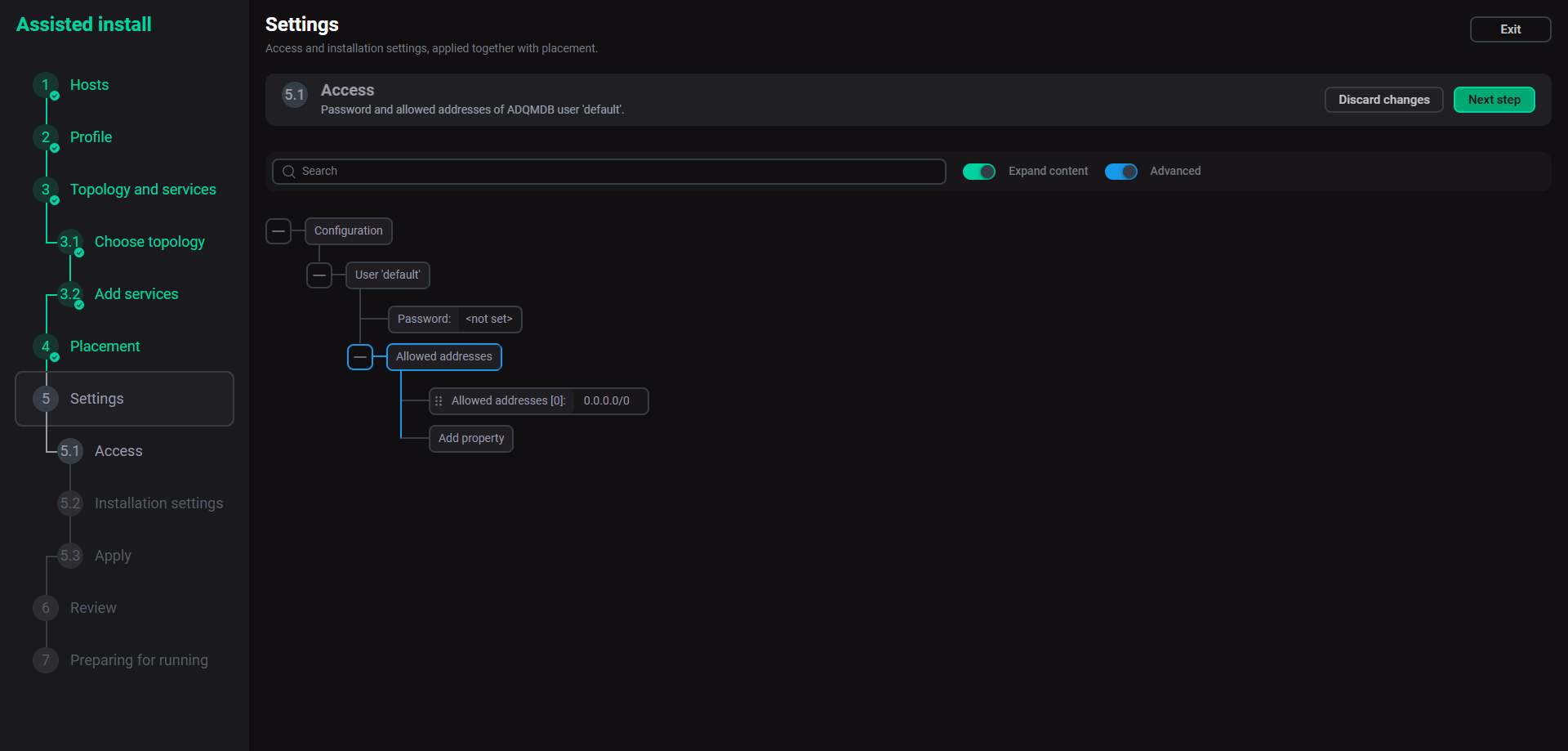
| Name | Description | Default value |
|---|---|---|
Password |
The password of the |
Empty |
Allowed addresses |
Addresses or subnets that are allowed to connect. The field is displayed if the Advanced toggle is enabled |
|
Step 5.2. Installation settings
If you use the Express installation profile, this step only shows the values that the Wizard will use: Data path, Memory limit per query, and Mark cache. You cannot change these values.
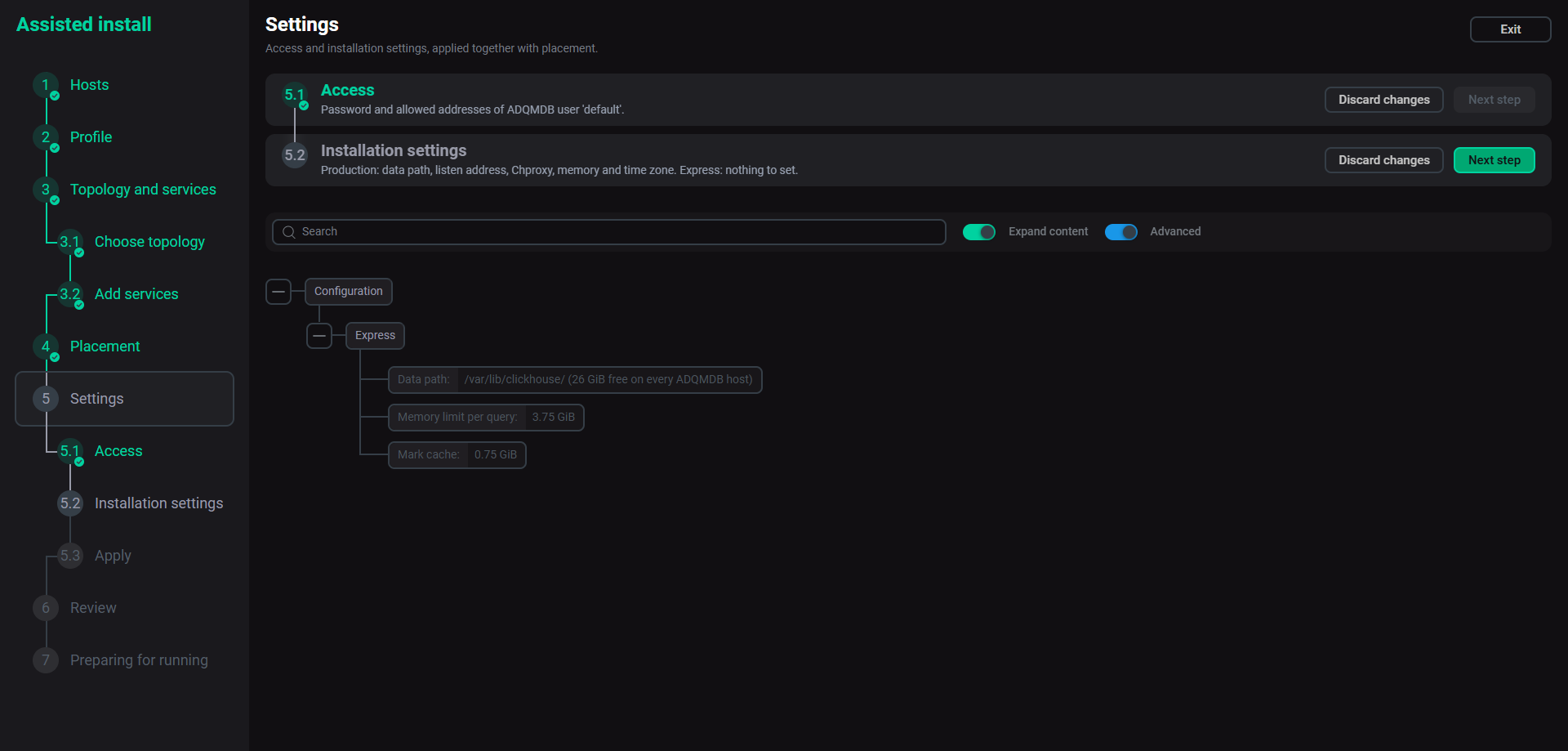
For the Production profile, you can specify the settings described in the table below.
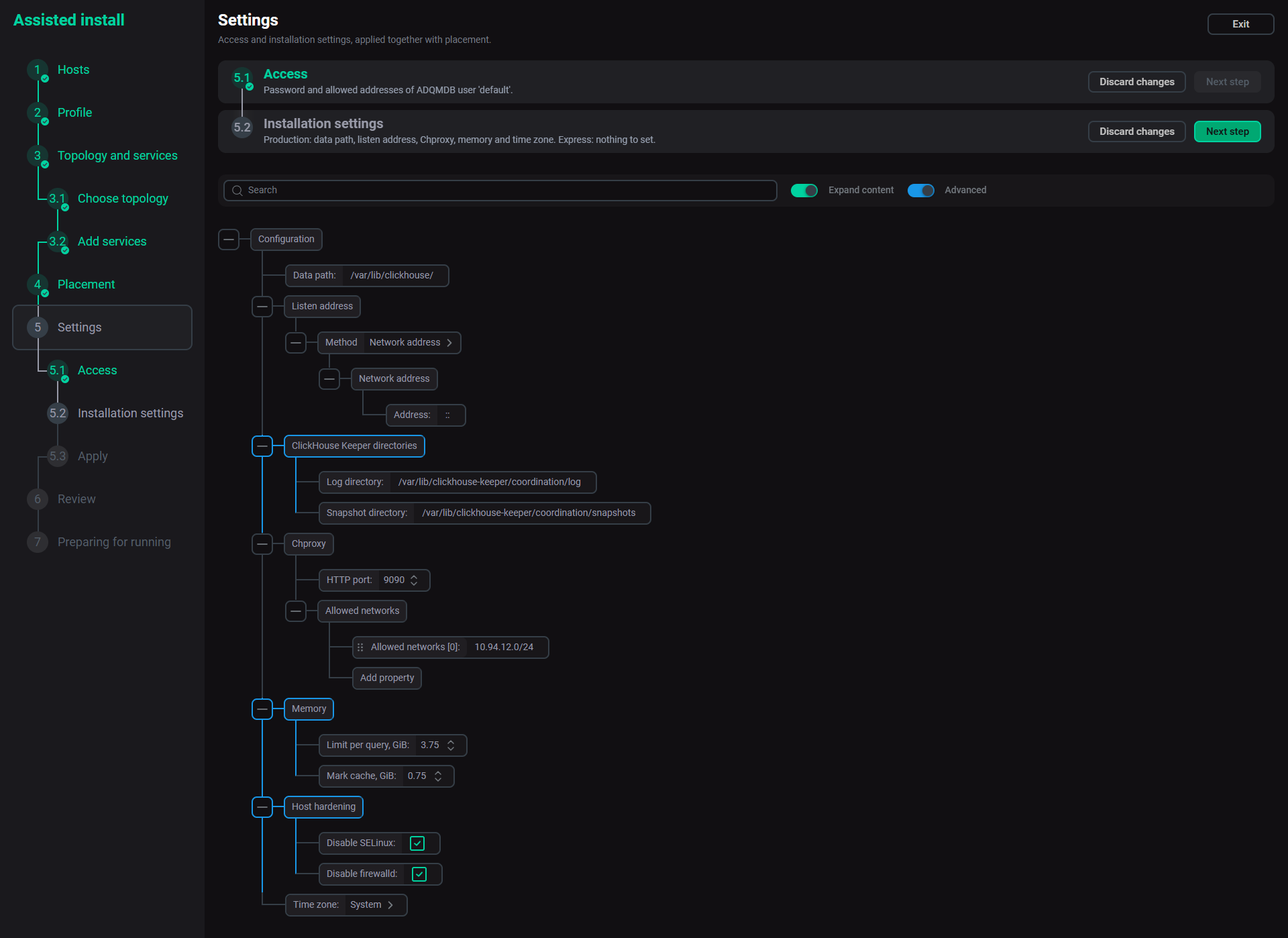
| Name | Description | Default value |
|---|---|---|
Data path |
The ADQMDB data directory to store temporary files, user files and access data. The tooltip (shown when you hover over the field) displays the available free space |
Suggested value that is calculated based on the disk analysis, see Suggested values |
Listen address |
The addresses where ADQMDB, ClickHouse Keeper, and Chproxy listen on. You can set it using one of the following methods:
|
The |
ClickHouse Keeper directories |
|
|
Chproxy |
Specifies the following parameters for Chproxy:
The |
|
Memory |
Specifies the |
Suggested value that is calculated based on the available RAM, see Suggested values |
Host hardening |
Allows you to disable SELinux and firewalld. The field is displayed if the Advanced toggle is enabled |
|
Time zone |
ADQMDB time zone |
|
The Wizard suggests parameter values based on the analysis of the inspected hosts. The dedicated monitoring host is not taken into account. The table below describes how the Wizard chooses suggested values.
| Value | How it is chosen |
|---|---|
Data path |
/var/lib/clickhouse/, unless every ADQMDB host has the same separate data disk with significantly more free space: at least 1.5 times the amount required for the default location. In such cases, a path like |
Memory limit per query |
Half the RAM of the smallest ADQMDB host |
Mark cache |
An eighth of the RAM of the smallest ADQMDB host, at most 5 GiB |
Listen subnet |
The subnet shared by all hosts |
Address per host |
The main address of each host |
Chproxy allowed networks |
The subnets of all hosts |
A separate data disk counts only if it:
-
is a local writable disk of at least 10 GiB with a common Linux file system (ext4, xfs, btrfs, and similar);
-
is mounted outside system directories such as /, /boot, /home, /tmp, /usr, /var, or /mnt.
The table below shows examples of memory calculation.
| Host RAM | Memory limit per query | Mark cache |
|---|---|---|
3.8 GiB (4 GB) |
1.75 GiB |
0.25 GiB |
7.8 GiB (8 GB) |
3.75 GiB |
0.75 GiB |
15.6 GiB (16 GB) |
7.75 GiB |
1.75 GiB |
62.8 GiB (64 GB) |
31.25 GiB |
5 GiB |
Step 5.3. Apply
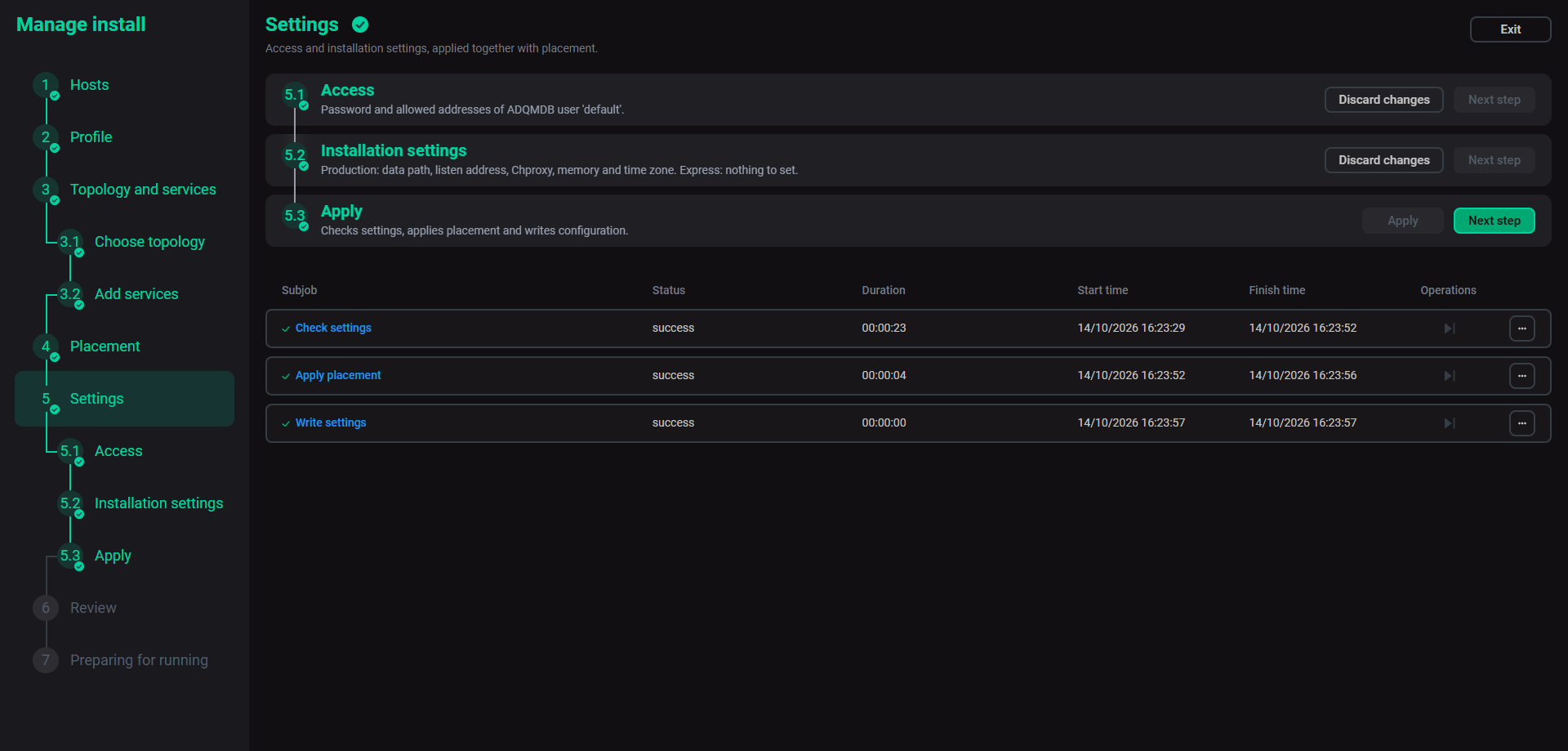
At this step, the Wizard checks settings and the hosts once again, then applies the component placement and saves the settings to the configurations of the cluster and services. Hosts are still unchanged.
The host check should confirm the following things:
-
The ports required by each component are free or already used by ADQM.
-
Data directories are empty.
-
At least 2 GiB of free space is available for data on each ClickHouse Server host.
Click Apply to run operations.
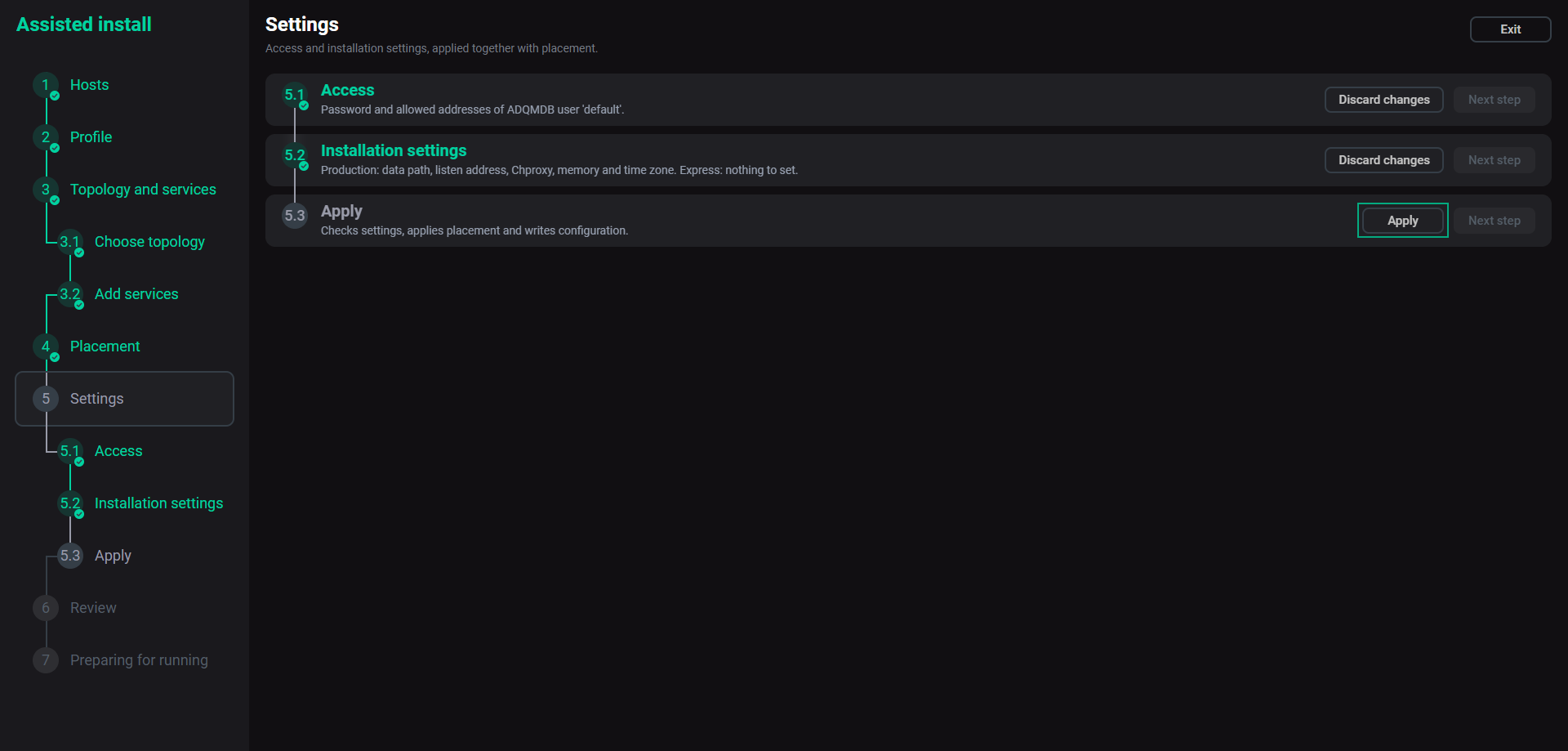
If Apply fails, open the failed job and look for a list of issues at the end of the log. If it is required to change any setting, click Discard changes on the Installation settings step — the values you previously entered will be displayed. Correct the value, then click Next step and Apply again.
If the issue is on a host, for example, if a required port is already in use, resolve the issue and click Apply again.
| Message | How to fix |
|---|---|
Port N is taken by …; … needs it. |
Stop the program or service on the host or change the component port |
… is not empty; installation needs an empty directory. |
Clean the directory or choose another path |
Only N GiB free for …; at least 2 GiB is needed. |
Set the |
… is not an address or subnet. / … is not an IP address. / … is not in CIDR notation … |
Correct the address, subnet, or network settings that you typed |
No listen address for host …, and fallback to default interface is off. |
Add the host’s address or enable the Fallback to default interface setting |
Data path … must be absolute. / ClickHouse Keeper directory … must be absolute |
Use a full path starting with |
No network may use Chproxy; … |
Add at least one allowed network for Chproxy |
Not checked: host is unavailable, for example, in maintenance mode |
Take the host out of maintenance mode or check it is running |
Step 6. Review: Summary
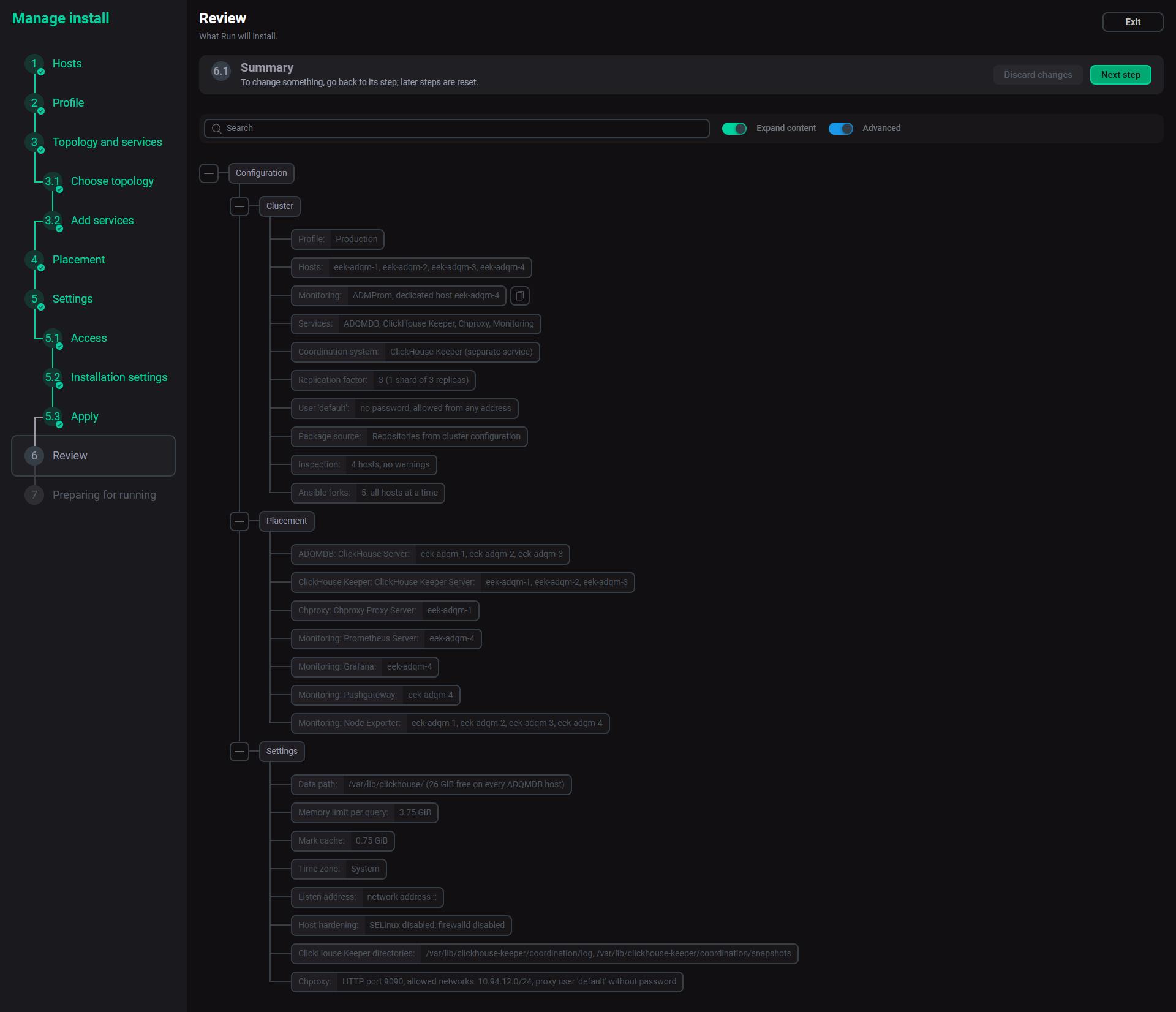
At this step, a read-only summary in three groups is displayed:
-
Cluster — shows the profile, hosts, services, coordination system, replication factor, the
defaultuser settings, package source, inspection results, monitoring (with the dedicated host or the ADM write endpoint), and Ansible forks — how many hosts the installation works on at a time, with the recommended value in case the current one is too low. -
Placement — shows which hosts run each component.
-
Settings — shows the data path and memory, and for the Production profile, also shows the time zone, listen address, and values of the
Host hardening,ClickHouse Keeper directories, andChproxyparameters.
To change any setting, go back to the corresponding step.
Step 7. Preparing for running
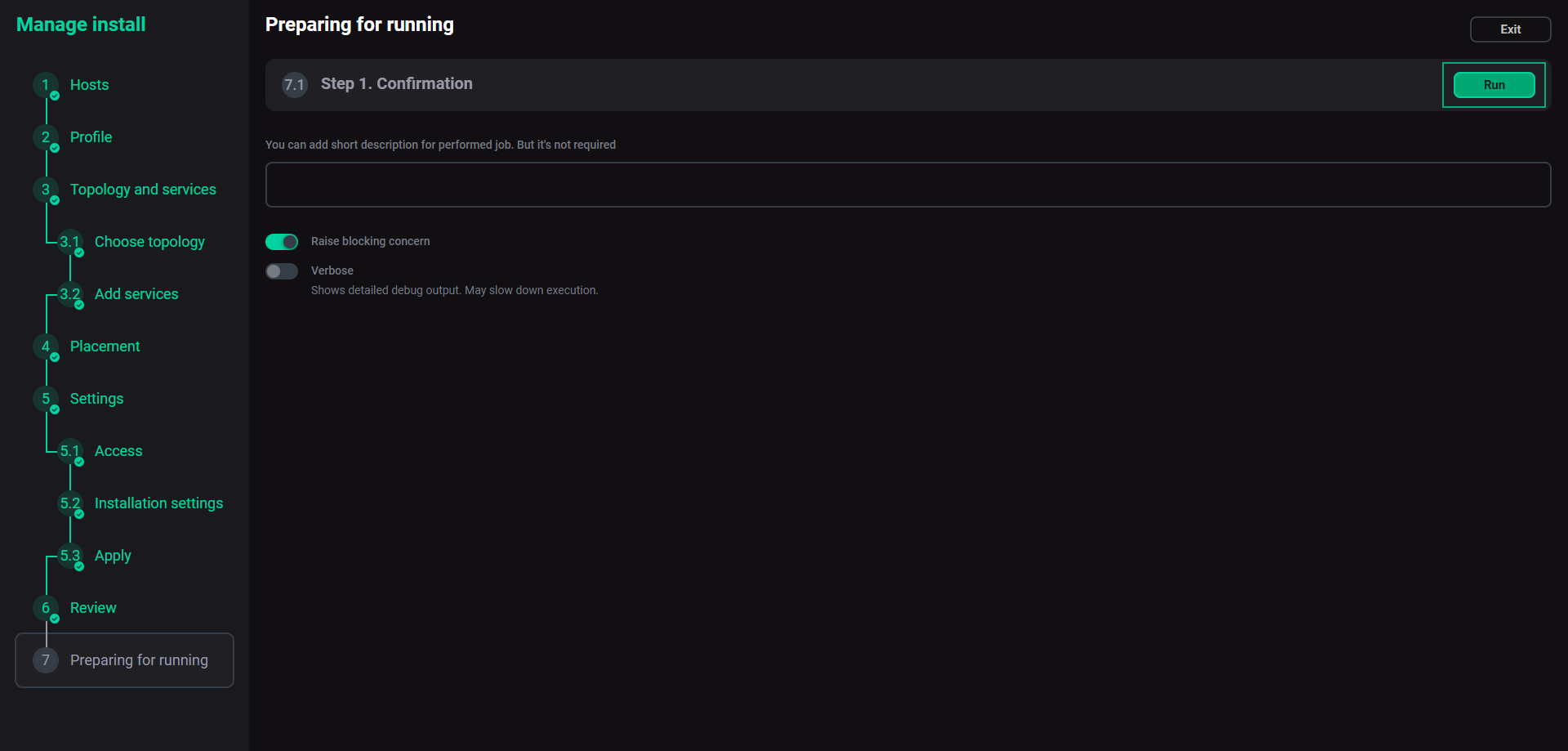
At this step, you can optionally add a description and then click Run to launch the cluster installation.
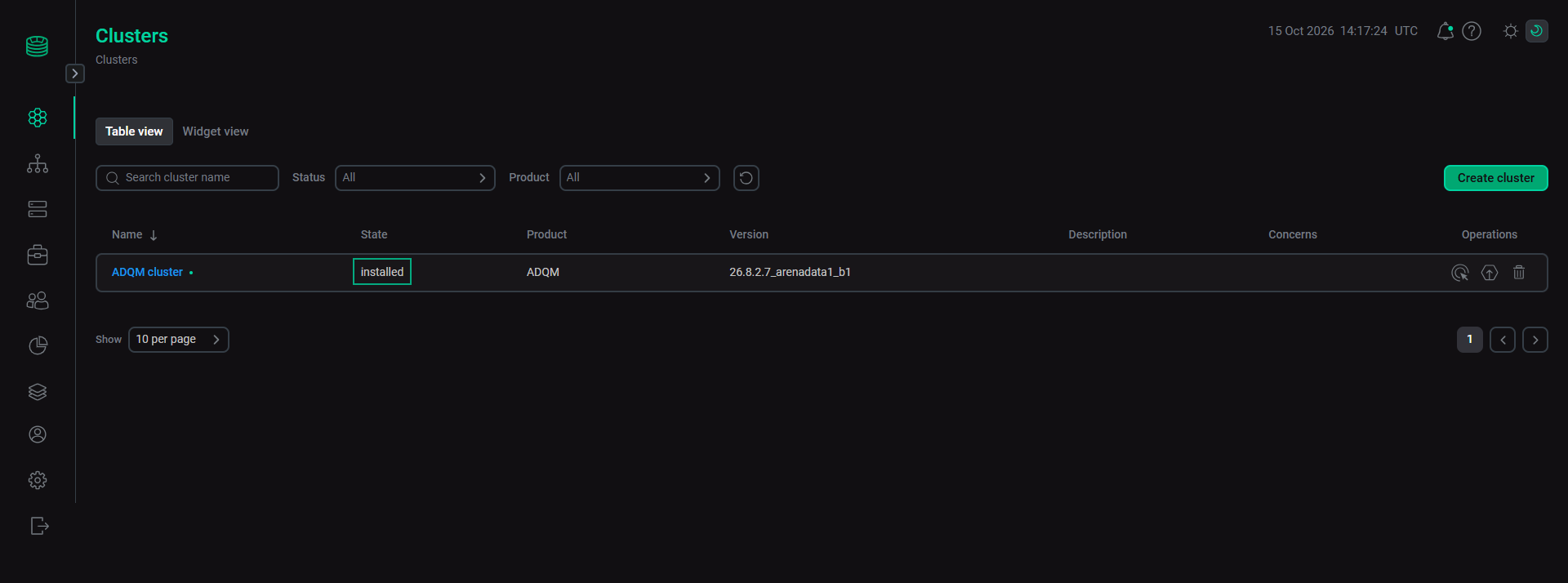
As a result of successful installation, the cluster state, displayed in the State field on the Clusters page, will be changed from created to installed.
If the installation fails, it is possible to see detailed information about the errors that occurred by clicking the failed job on the Jobs page. Fix the issues, then run the Install cluster action. The component placement and settings from the Wizard are kept and will be used during the Install action.
Installation speed
ADCM installs several hosts at the same time. The forks cluster setting determines this number. The default value is 5. With more hosts than forks, every installation step runs in rounds: with 10 hosts and forks 5, steps on hosts take about twice as long.
To change the forks value, go to the Configuration tab for the ADQM cluster. The forks parameter can be found under the Ansible settings tab. See Configure a cluster.
If forks is lower than the number of hosts, step 2 (Profile: Choose profile) shows a warning with the recommended value to set. At step 6 (Review: Summary), the Ansible forks parameter shows the value the installation will use.
The suggested value for forks is equal to the number of hosts, up to 20. A value exceeding the number of hosts does not change the installation speed. Each fork is a process on the ADCM host. A new forks value applies to the next job, even when the installation is already running. You do not need to start the Wizard again.
The warning at step 2 stays until you run Inspect hosts again. To update the Ansible forks parameter displayed at step 6, open step 5.3 (Apply), click Discard changes, then click Apply again.