

Text-to-SQL
Overview
Text-to-SQL is an LLM-based service, available in the Enterprise version of ADQM 26.8.2.7 and later, that turns natural language text questions into corresponding SELECT SQL queries for reading ADQM cluster data. Resulting SQL queries are not executed automatically in a client — a user should first review a query, and then run it manually.
The service uses a fine-tuned language model of the Qwen3.6 family, which is deployed locally on one of the hosts within an ADQM cluster using llama.cpp — this ensures that all queries, the data schema, and the data itself remain inside the cluster.
To use the Text-to-SQL functionality:
-
Install the Text-to-SQL (tech preview) service in your ADQM cluster.
-
Ask text questions (like
How many orders were paid for yesterday?,Revenue from stores for the current year— up to 4000 characters) to query the cluster data:-
in the ADQM Notebook interface (any ADQMDB host);
-
in special SQL functions (any client on any ADQMDB host);
-
in HTTP queries of the provided API (with an API key).
-
|
CAUTION
The current version of the Text-to-SQL service is in technical preview and is not intended for use in production environments.
|
Requirements
Software requirements for installing the Text-to-SQL (tech preview) service:
-
Operating system: Ubuntu 22.04 LTS, Ubuntu 24.04 LTS, or RHEL 9.
-
Python version 3.9 or higher.
Minimum host requirements for installing the model:
-
CPU: x86-64 with AVX2.
-
Memory: 32 GB or more (48 GB recommended).
-
Free disk space: 48 GB (for two model versions).
Local path to the model: the model must not be installed in the /home, /root, /run/user, /tmp, or /var/tmp directory.
Service installation
-
In the ADCM interface, open the Clusters page and click your ADQM cluster name. On the cluster page that opens, switch to the Services tab and click Add services.
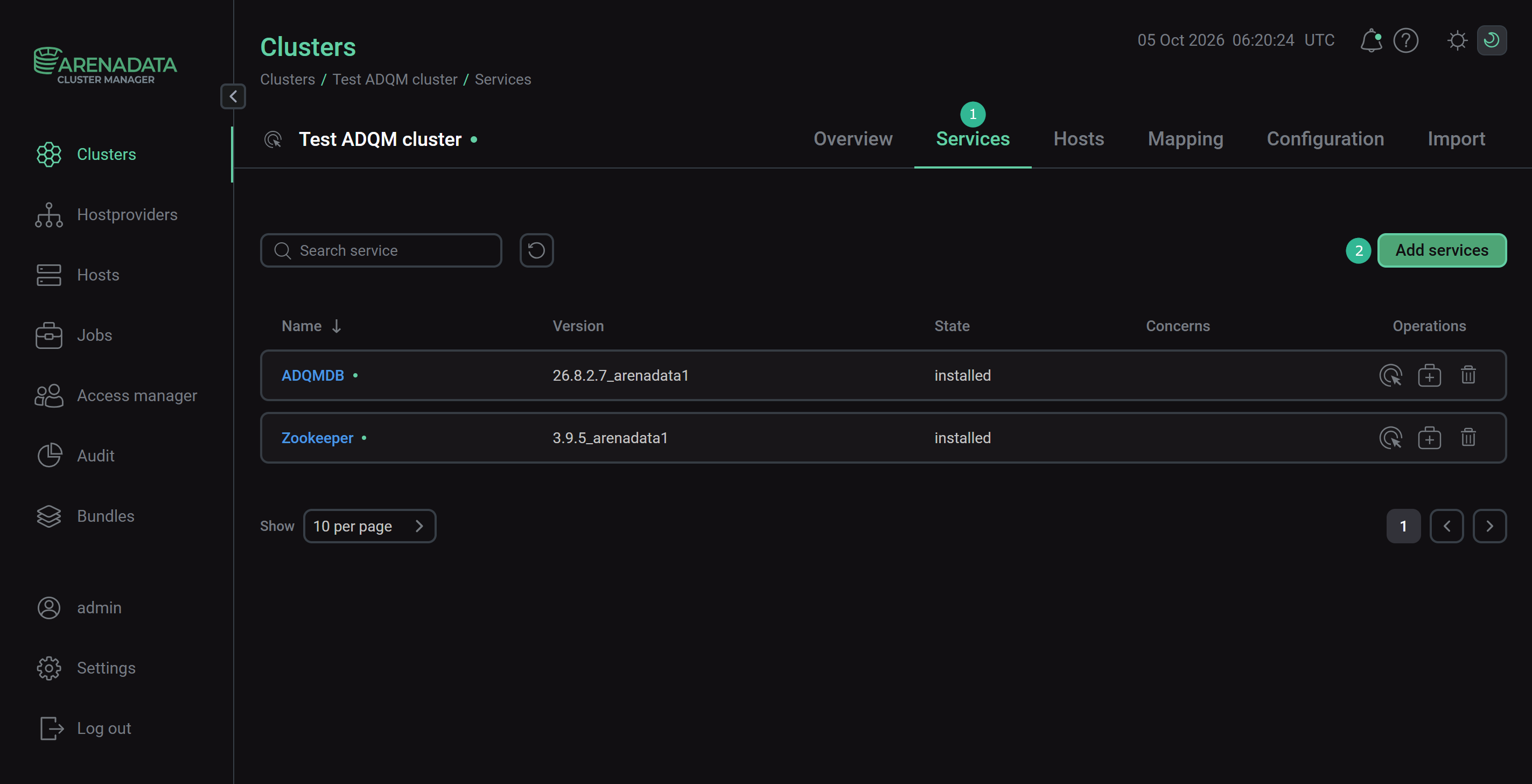 Switch to adding services
 -
In the opened dialog, select Text-to-SQL (tech preview) and click Add.
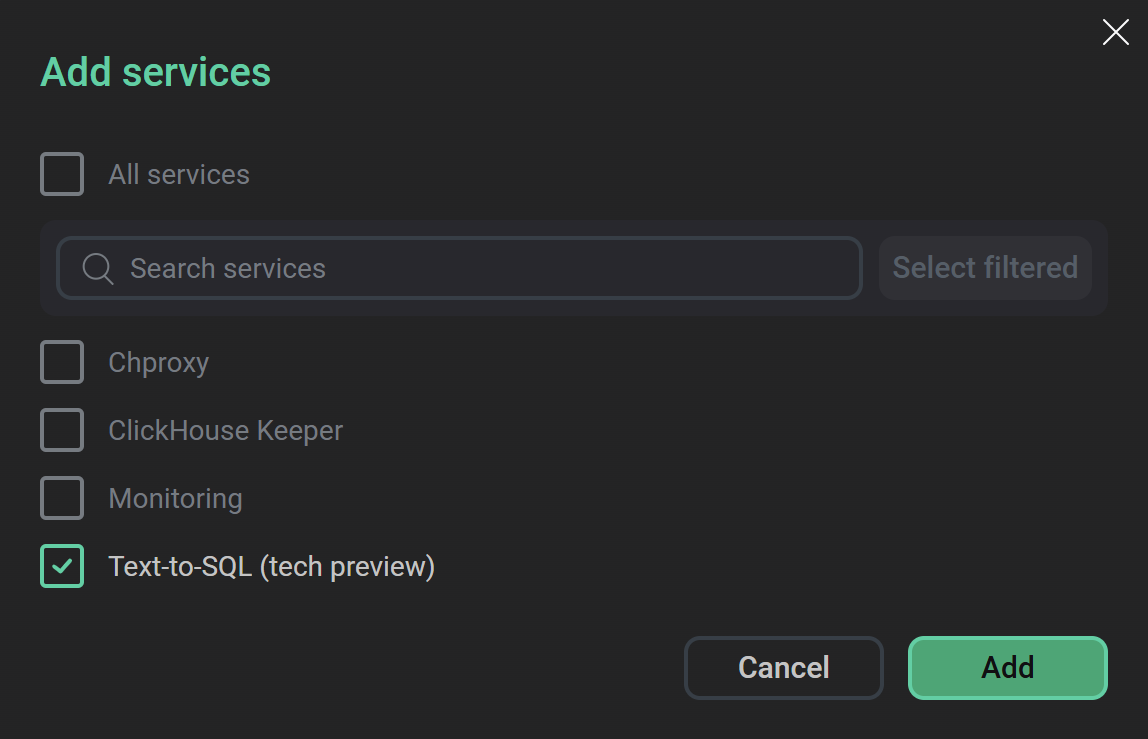 Select the service
As a result, the added service is displayed on the Services tab.
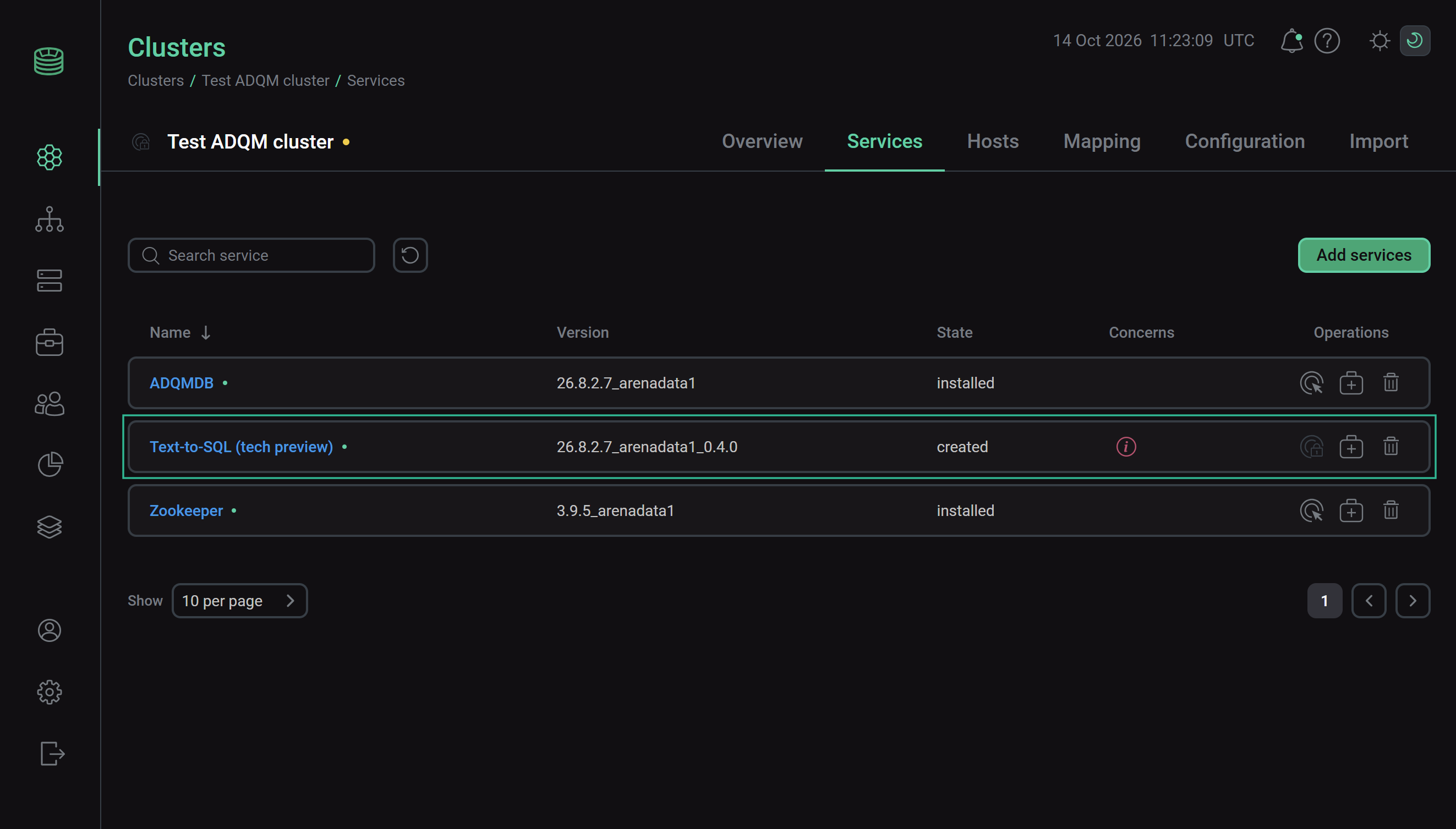 Result of successfully adding the service to the cluster
 -
On the cluster page, open the Mapping tab to proceed to mapping instances of the Text-to-SQL Engine and Model Server (llama.cpp) components to cluster hosts.
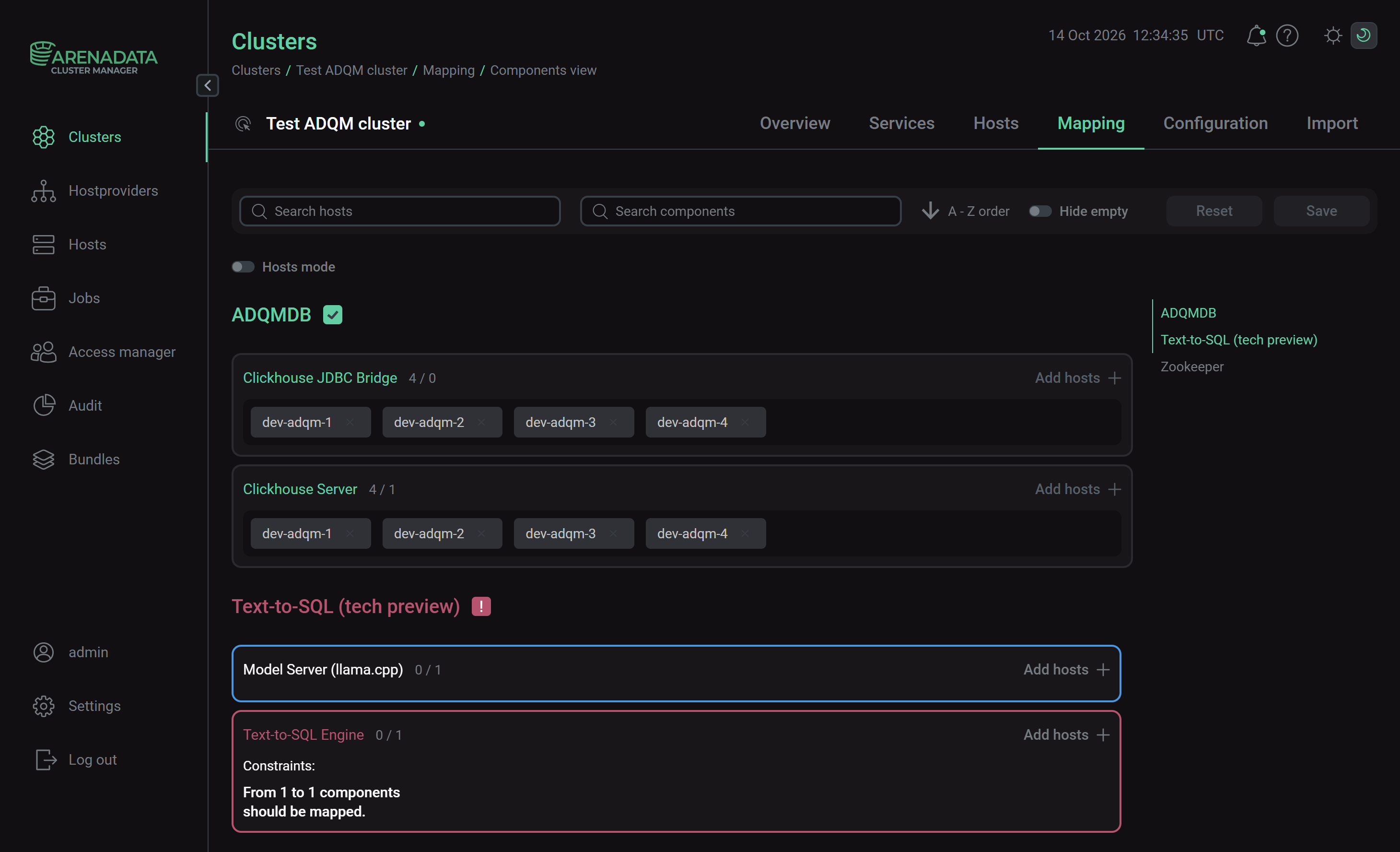 Switch to mapping service components
Assign hosts to components — click Add hosts and select the desired host in the pop-up window.
CAUTIONIt is recommended to install both components of the Text-to-SQL service on one host. They can also be hosted on the same machine as ADQMDB — however, note that processing queries and collecting cluster information by the Text-to-SQL service consumes CPU and memory of an ADQMDB server. If the Text-to-SQL Engine component is deployed on a separate host, it will require network access to the model server (the8080port) and the ADQMDB servers (the8123and8443ports for HTTP and HTTPS connections, respectively).After the distribution of components is completed, click Save.
-
To configure the Text-to-SQL service, open the Services tab on the cluster page and click the service name in the Name column.
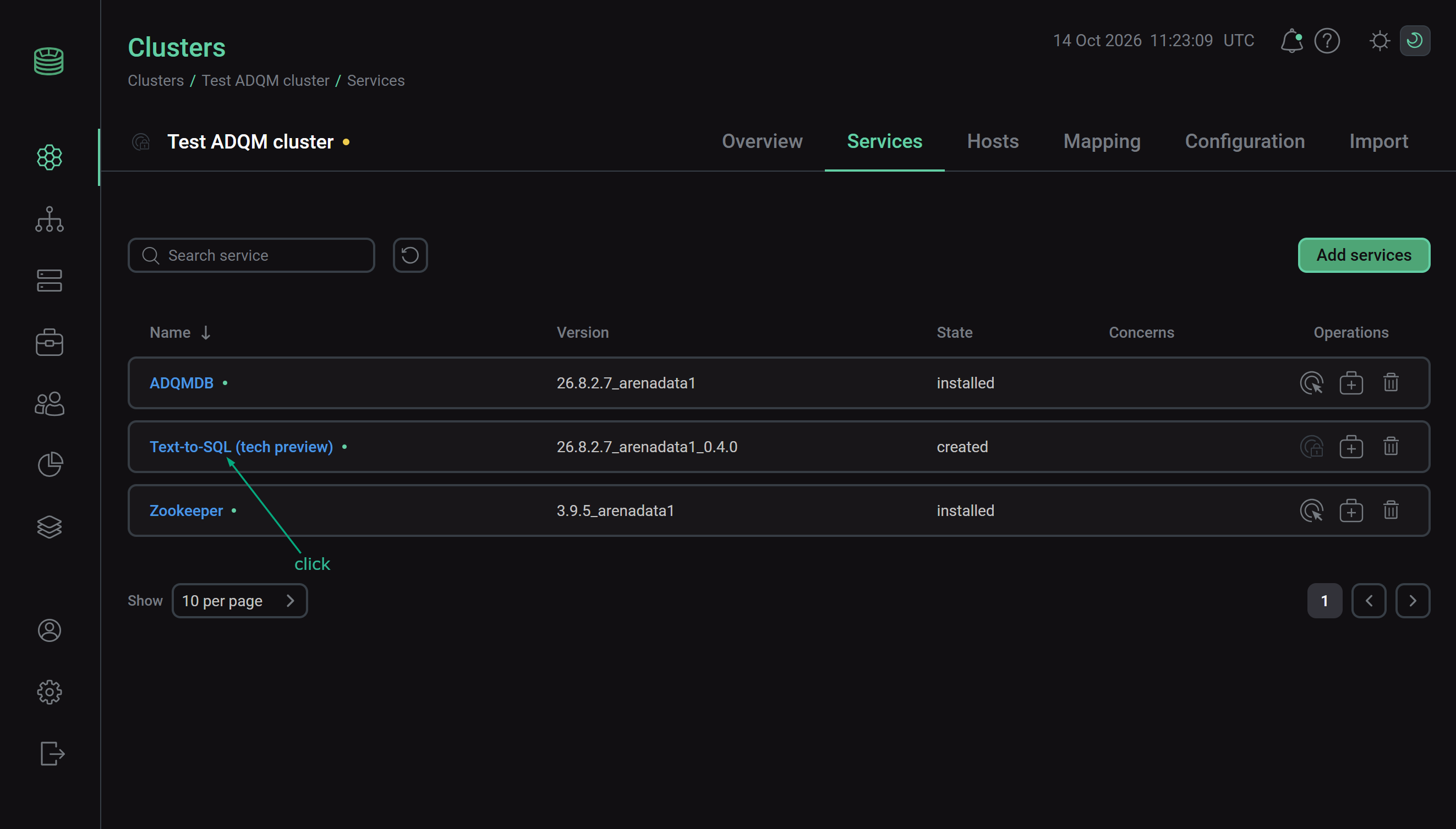 Switch to the service configuration
 -
On the page that opens, fill in or change the required configuration parameters for the service. For example:
-
Model — specify the model source (if the model comes from another mirror or it is already on the host);
-
API — add API keys (if clients will access the HTTP API directly);
-
Scope — specify the databases/tables that the Text-to-SQL engine will be allowed to read;
-
Answers — select the answer verification mode (for example, you can specify whether the service should check SQL candidates with
EXPLAINbefore sending an answer or return the first rows of the result in an answer).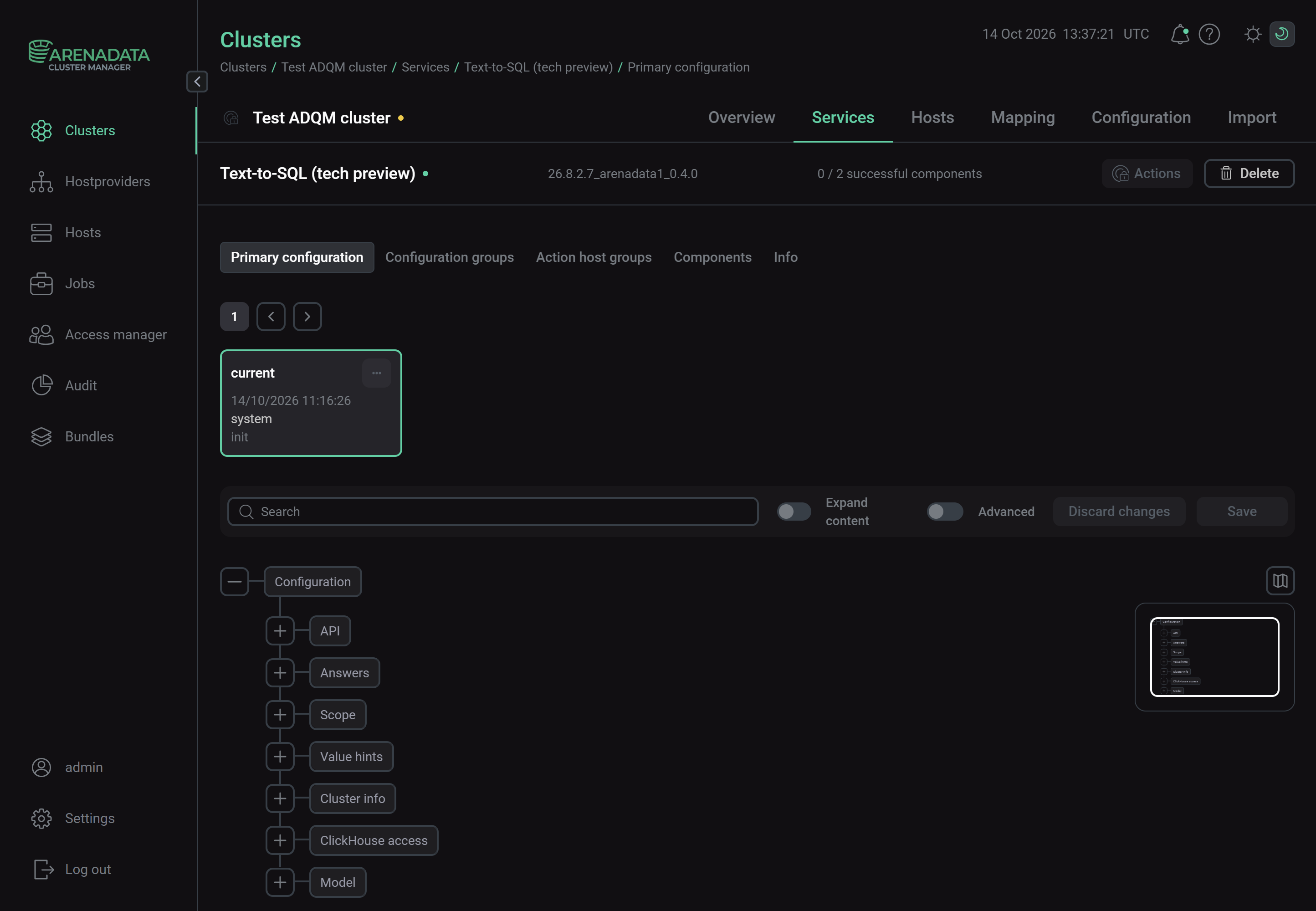 Configure the Text-to-SQL service
After specifying all necessary parameters, click Save.
-
-
Install the service. To do this, on the Services tab, click the icon

 in the Actions column and run the Install action.
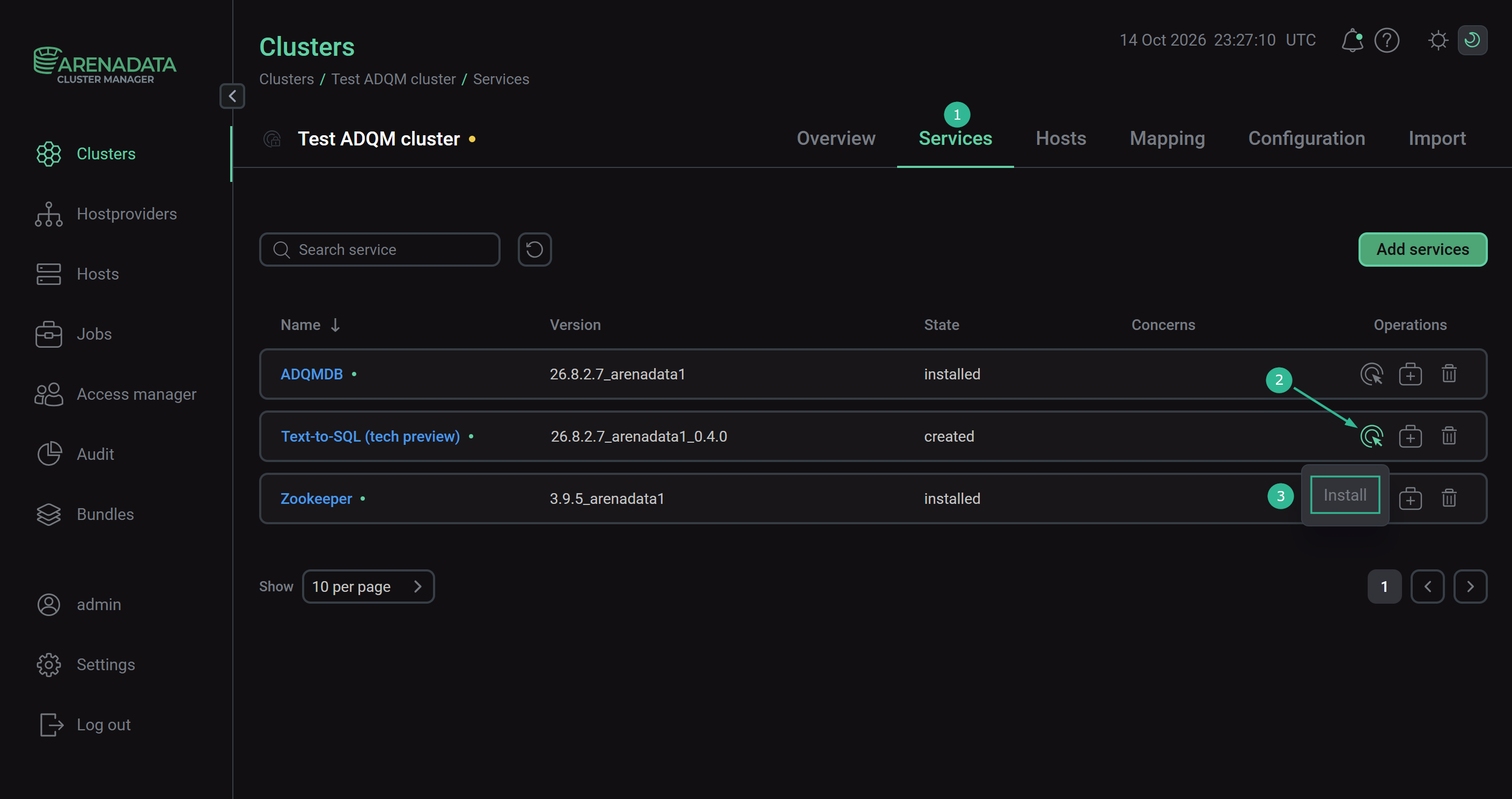 Switch to the service installation
Wait until the installation is completed. Then check that the service state has changed from
createdtoinstalled.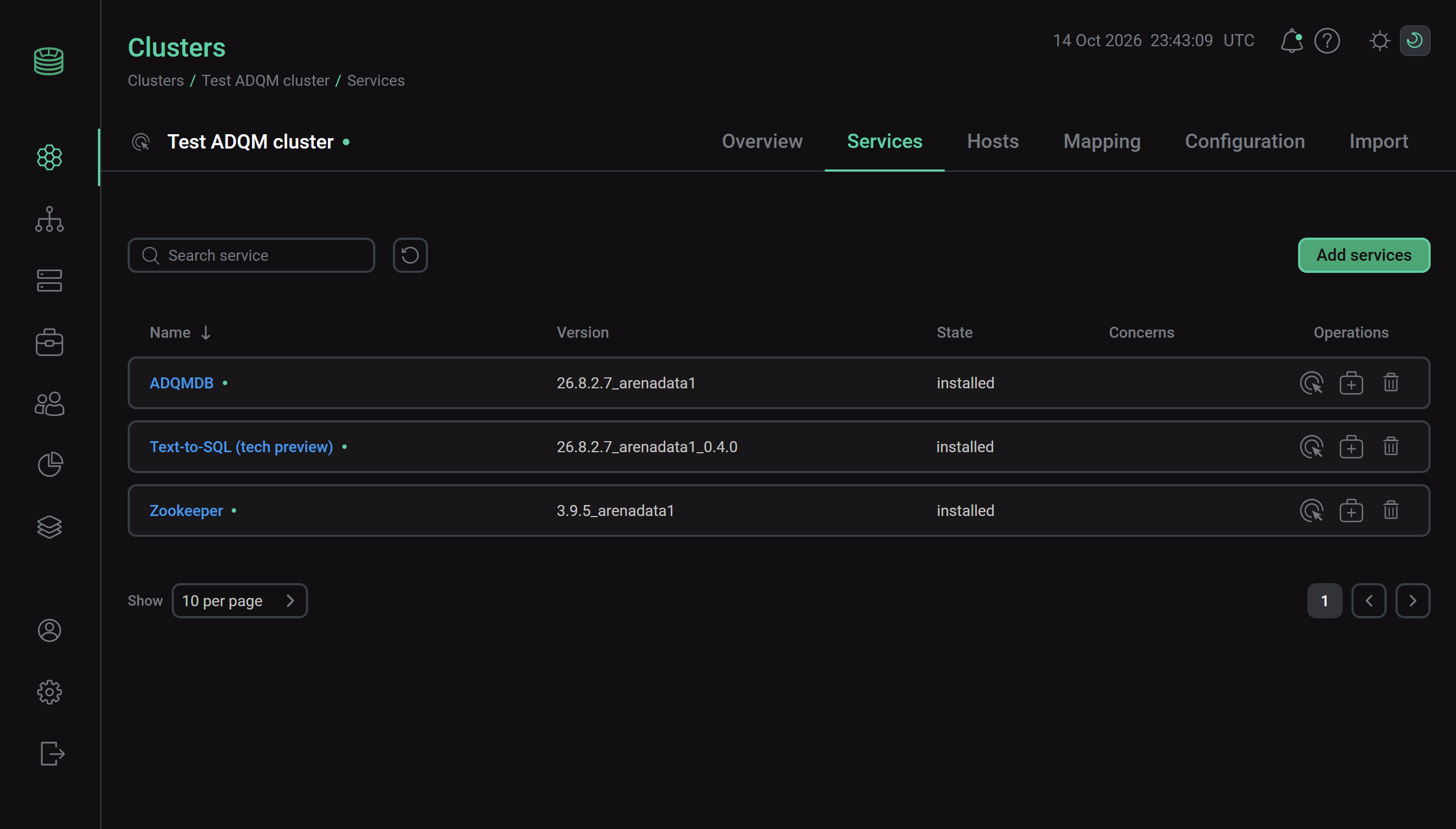 Installation is complete
To view the service installation process and analyze errors if they occur, select Jobs in the left navigation menu and click the Install job name in the Jobs list.
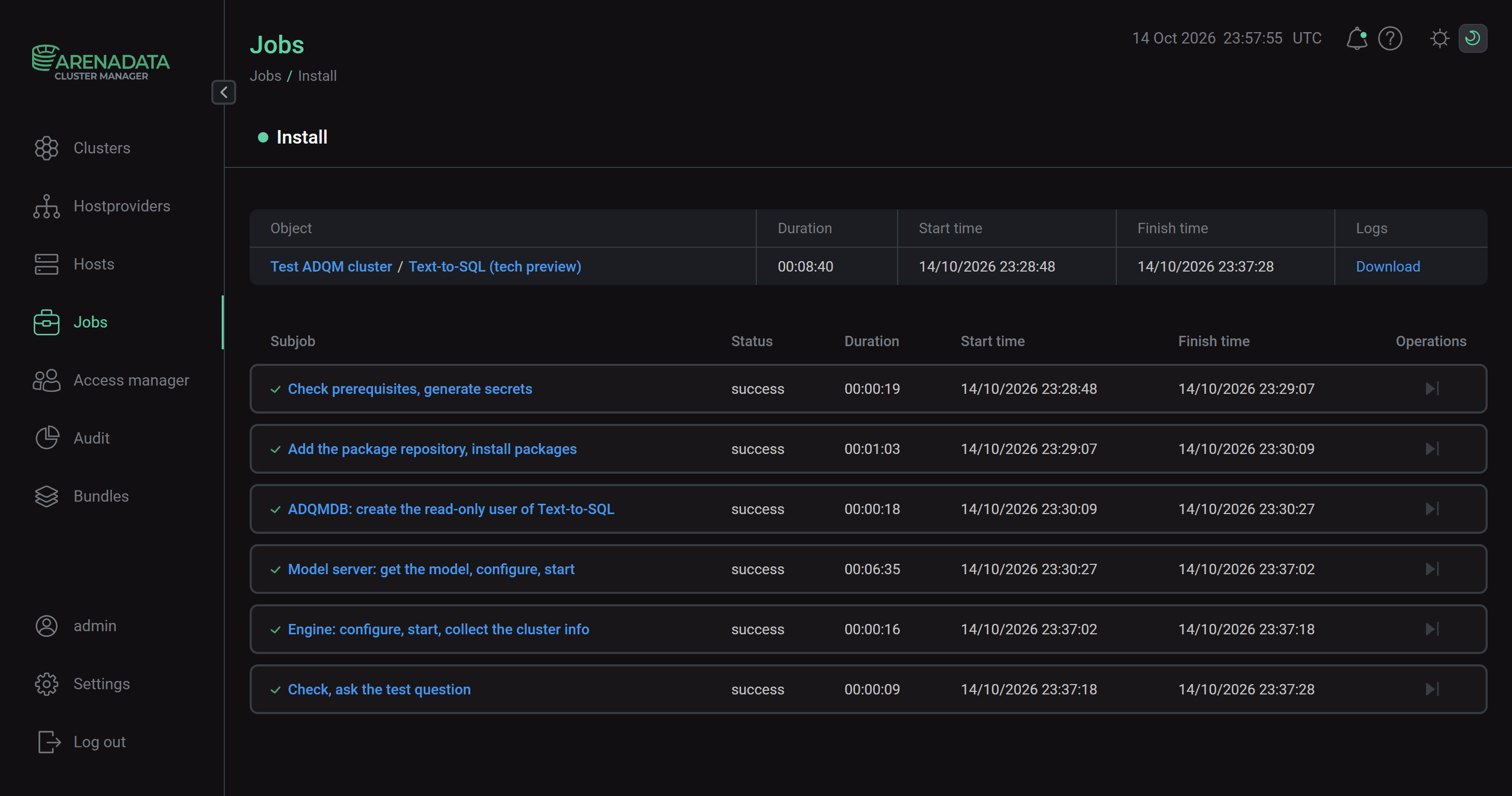 Install service job page
Text-to-SQL usage
ADQM Notebook
-
Open ADQM Notebook.
-
Enter a text question into an SQL cell and click the

 AI icon in the cell control panel.
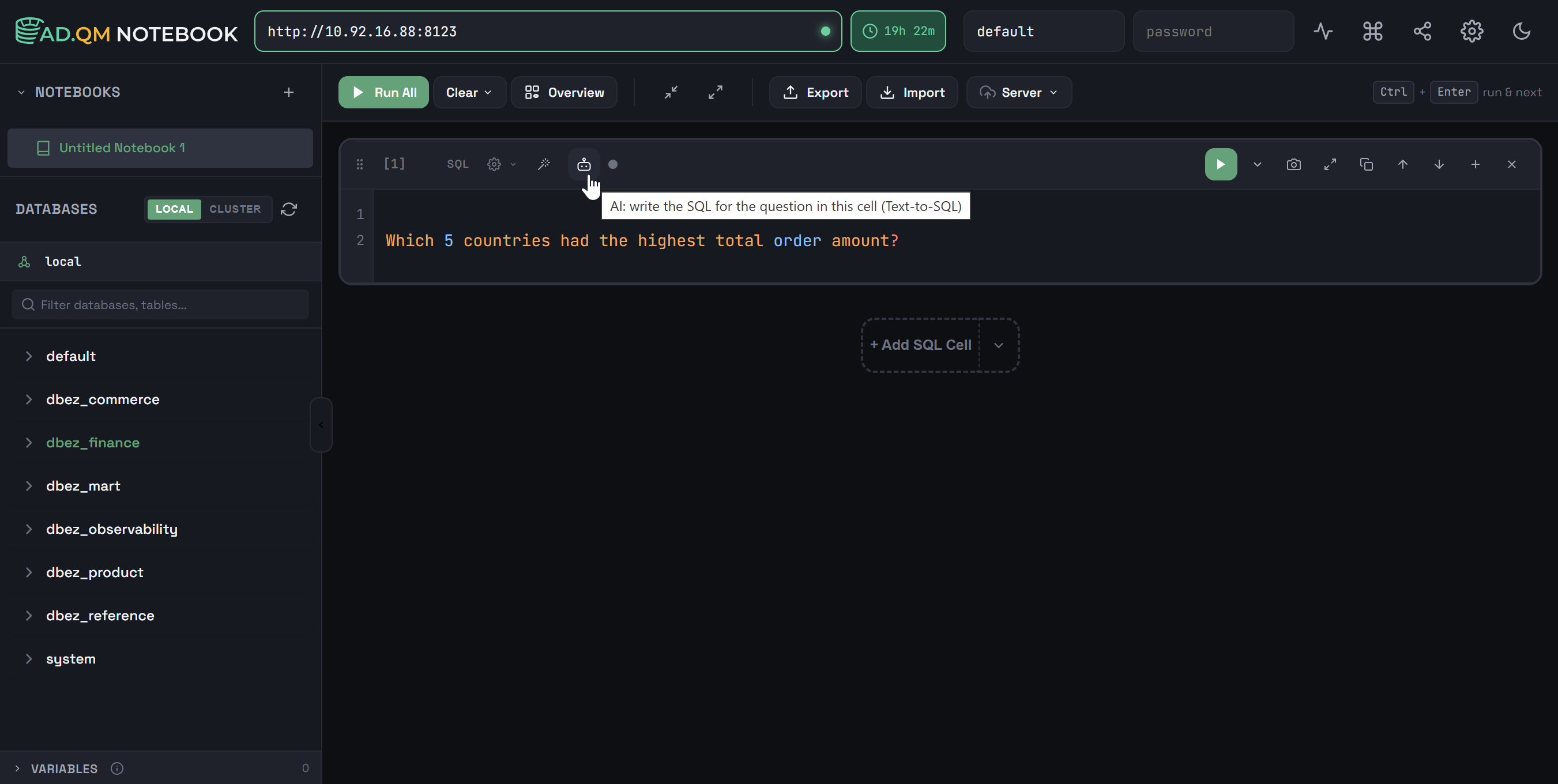 Convert text to SQL
 -
Once the conversion is complete, the original text question will be commented out, and the corresponding SQL code will be displayed below in the cell. Click
 Run to execute the query.
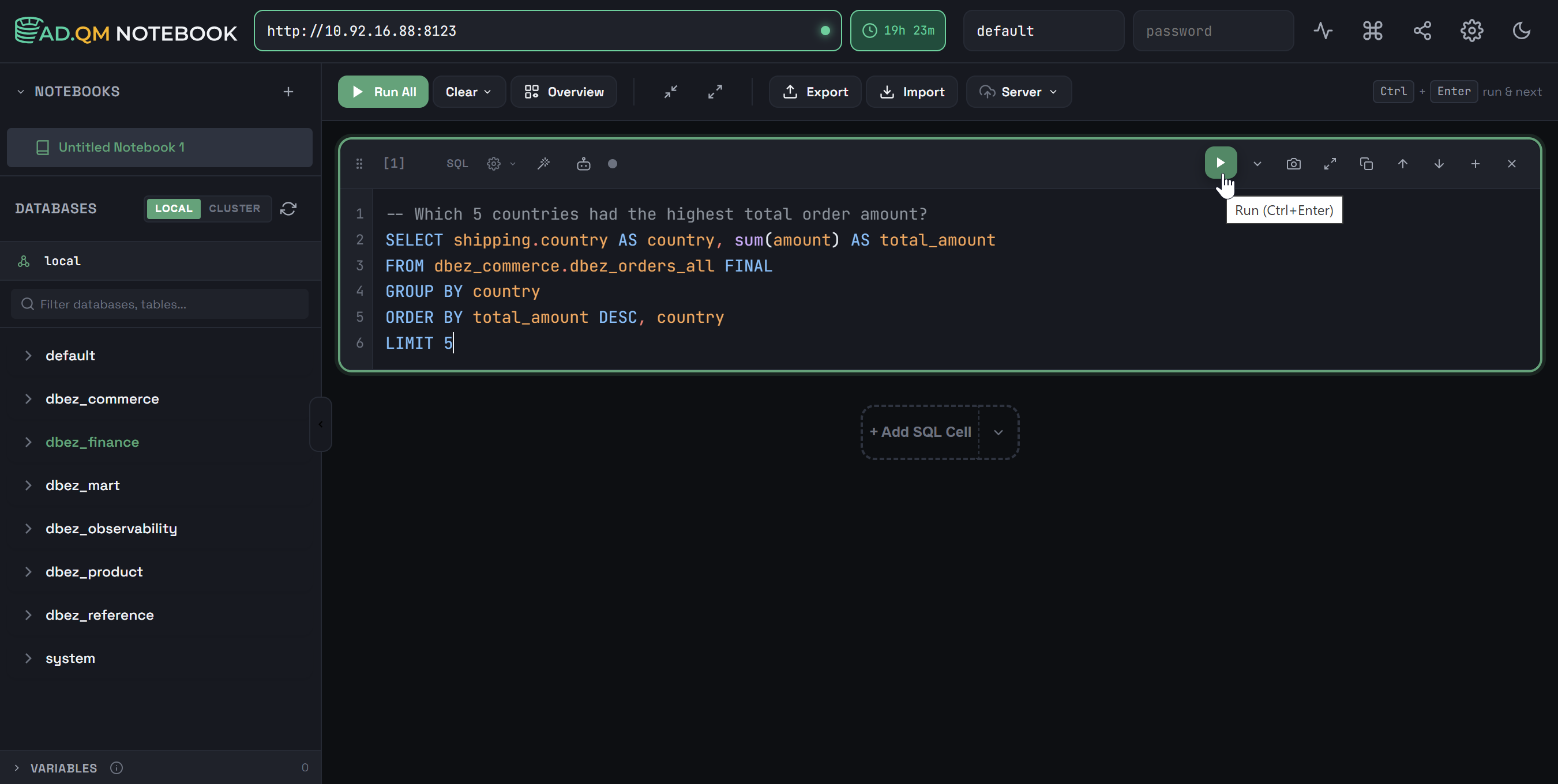 Run a query
 -
After the query is executed, the resulting dataset will be displayed in the results table.
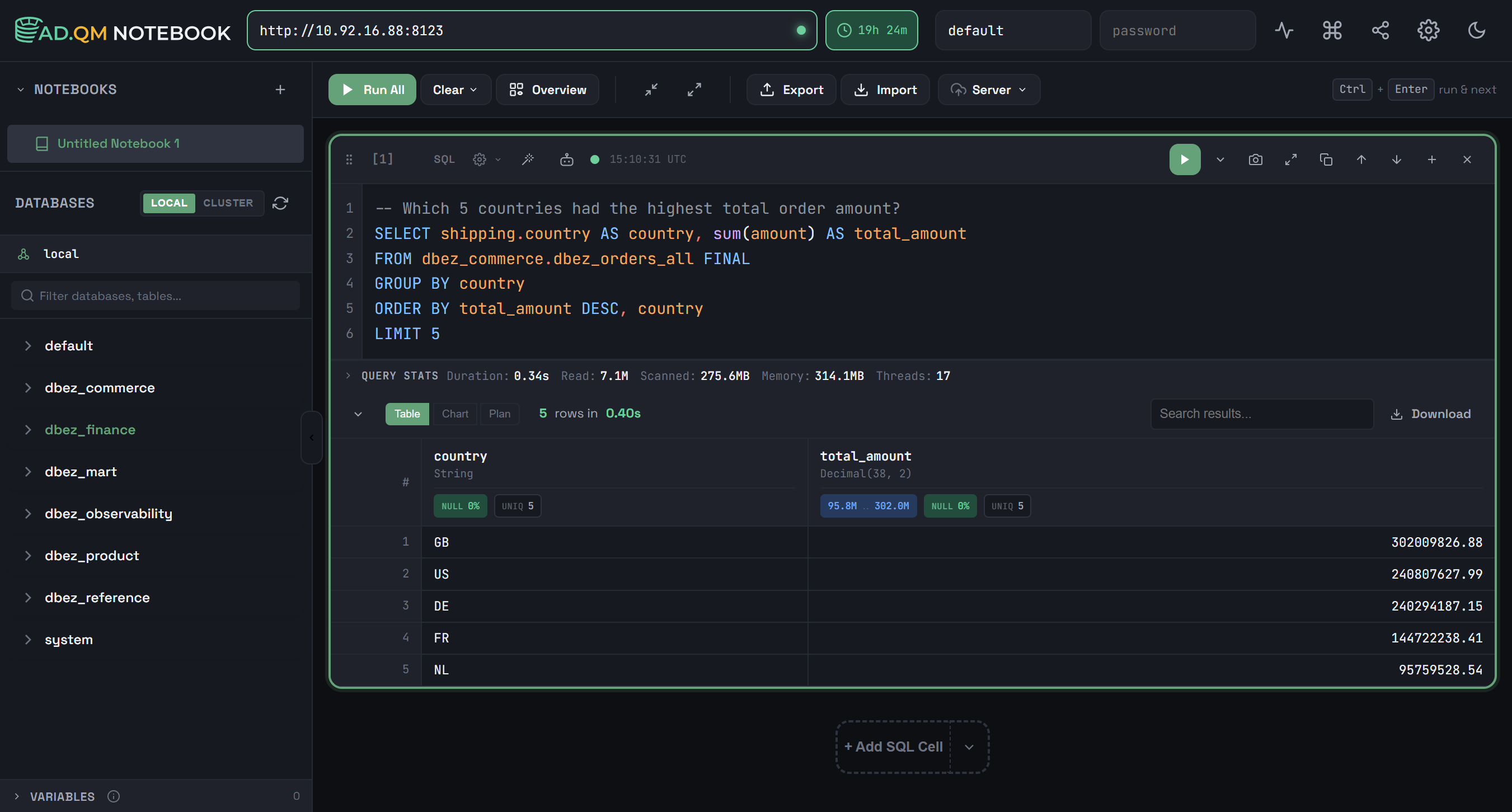 Query execution result
SQL functions
After installing the Text-to-SQL service, the following SQL functions are available on each ADQMDB server.
| Function | Description |
|---|---|
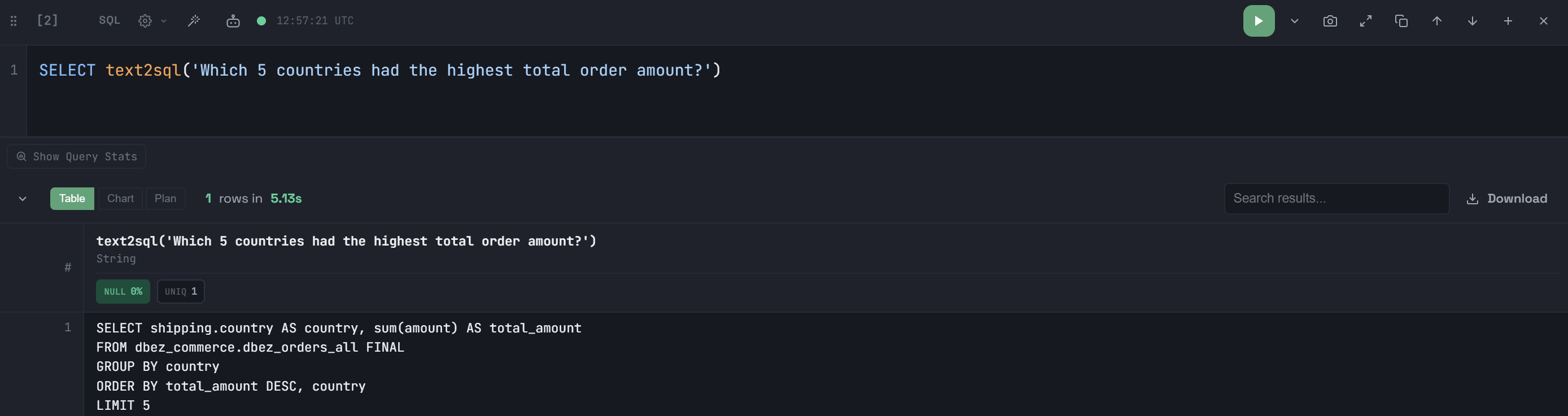
text2sql(question) |
Returns SQL text of a query or a message explaining why it cannot be received |
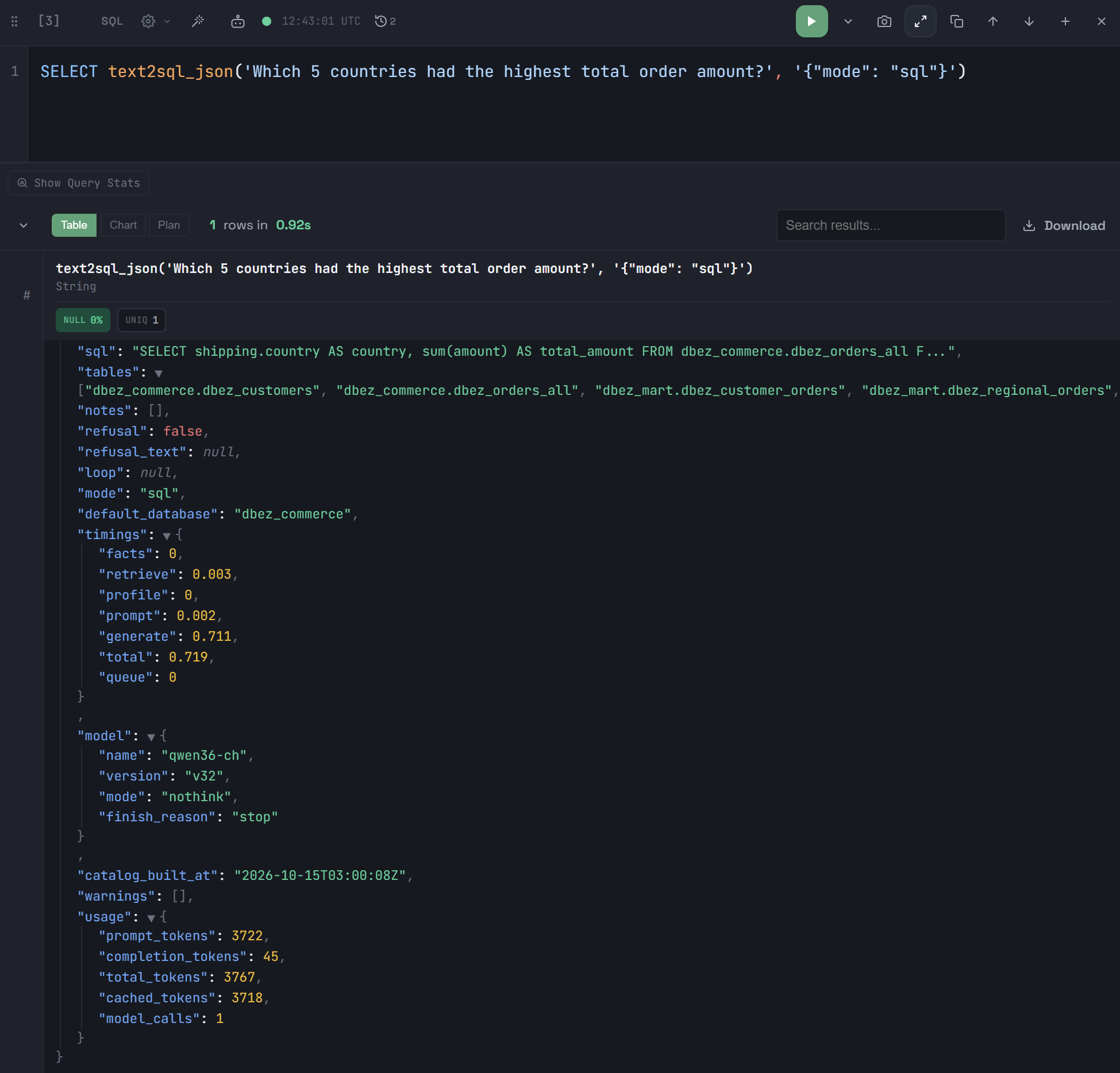
text2sql_json(question, options) |
Returns the whole answer of the Text-to-SQL engine as JSON (answer of the |
text2sql_feedback(request_id, verdict, corrected_sql, comment) |
Sends feedback to the service about the correctness of an answer, which is saved to the Text-to-SQL engine’s audit log. Return value: |
text2sql_status() |
Returns the service readiness report as JSON |
text2sql_call(op, payload, caller) |
The executable function that the |
|
NOTE
Any ADQMDB user can call these functions, no special privileges are required.
When a function is called, the Text-to-SQL engine reads a cluster as its own read-only user ( |
You can call the text2sql* functions in any ADQMDB client.
HTTP API
The Text-to-SQL engine provides an HTTP API at http://<text2sql_engine_host>:8090 (or https://… if the HTTPS parameter is enabled in the API section of the Text-to-SQL service configuration), where <text2sql_engine_host> is the IP address of the host with the Text-to-SQL Engine component installed, and 8090 is the API access port (defined by the API port parameter in the API section of the Text-to-SQL service configuration).
ADQM Notebook and SQL functions access the API via the text2sql_call executable function. Other clients can access the API directly — for authentication (with the exception of access to /healthz), pass a user API key as the Authorization: Bearer <key> header (where <key> is the value of the service’s API keys configuration parameter). User roles are specified via the API key roles parameter (user, admin, or metrics).
The table lists HTTP methods and endpoints supported by the API, as well as the user roles that have access to them.
| HTTP method and endpoint | User role | Description |
|---|---|---|
POST /v1/sql |
user, admin |
Sends text to be turned into an SQL query |
POST /v1/chat/completions |
user, admin |
Sends text to be turned into an SQL query through the OpenAI chat API |
GET /v1/models |
user, admin |
Returns the model identifier ( |
POST /v1/feedback |
user, admin |
Sends feedback on an answer |
GET /v1/catalog |
user, admin |
Returns the state of cluster info (snapshot of the cluster, which the Text-to-SQL engine builds within its scope) |
POST /v1/catalog/refresh |
admin |
Rebuilds cluster info |
GET /v1/readiness |
user, admin |
Returns a service readiness report (what the engine "knows" about the cluster and what information is missing) |
GET /readyz |
user, admin |
Returns |
GET /healthz |
API key not required |
Returns the process state |
GET /metrics |
Any user |
Returns Prometheus metrics of the engine and llama.cpp |