Use DBeaver to connect to ADB
To connect to ADB, you can use DBeaver — a third-party client tool that supports different databases.
Starting with version 25.2.1, DBeaver supports Greengage DB. In earlier versions of DBeaver, you can select Greenplum to connect to ADB.
For information on how to install DBeaver, refer to Installation.
Connect to ADB
To connect to ADB, launch DBeaver and follow the steps below:
-
Click Database → New Database Connection and select Greengage in the Connect to a database window.
If you use a version of DBeaver lower than 25.2.1, select Greenplum.
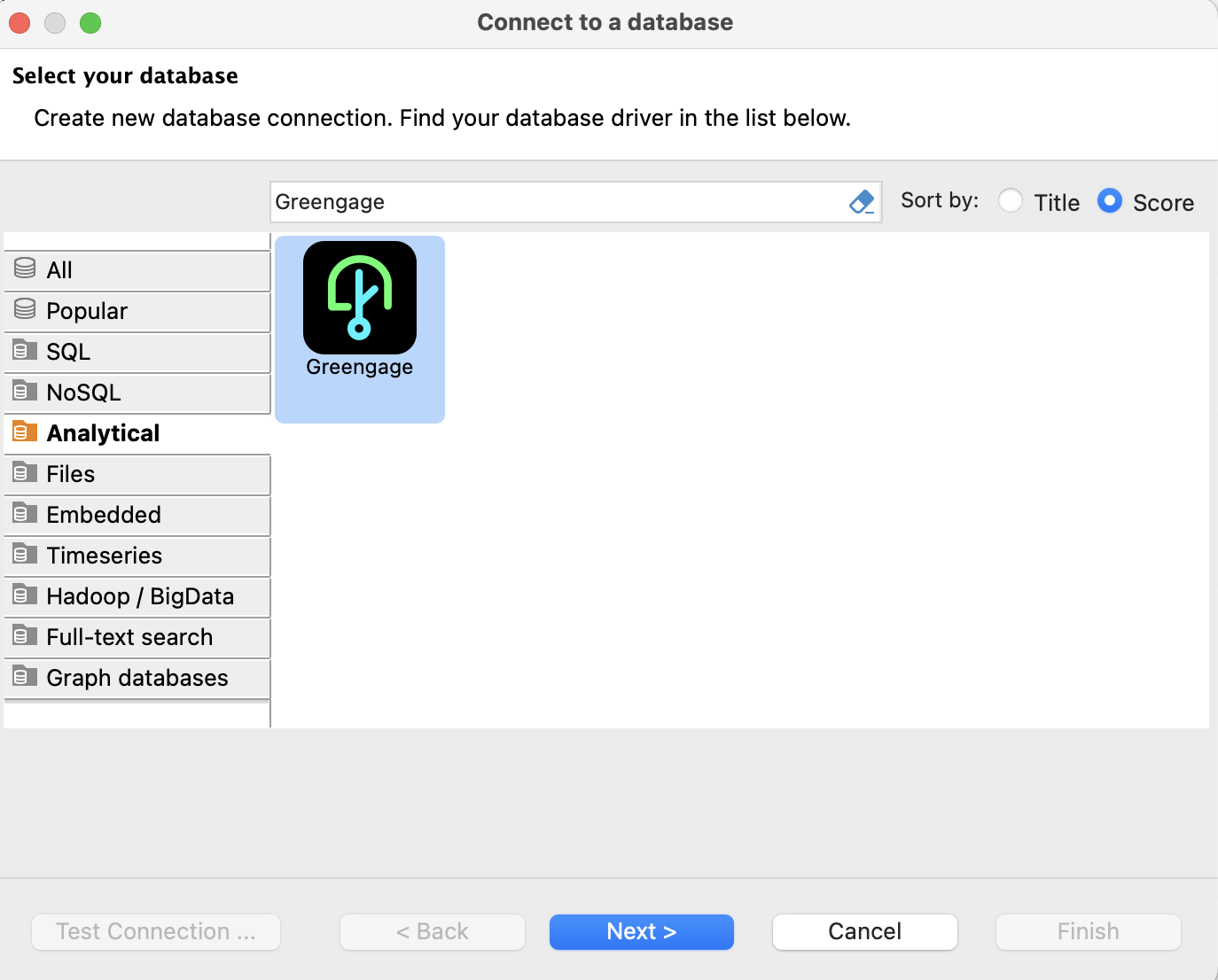 Select a database type
 -
In the Connection Settings window that opens, specify the following:
-
Host — the address of the ADB master host.
-
Database — the name of a database to connect to, for example
adb. -
Username — the database username, for example
gpadmin.
NOTEMake sure the master accepts connections from the host where you run DBeaver. If necessary, add the IP address of your client host to the pg_hba.conf file as described in Remote connection.
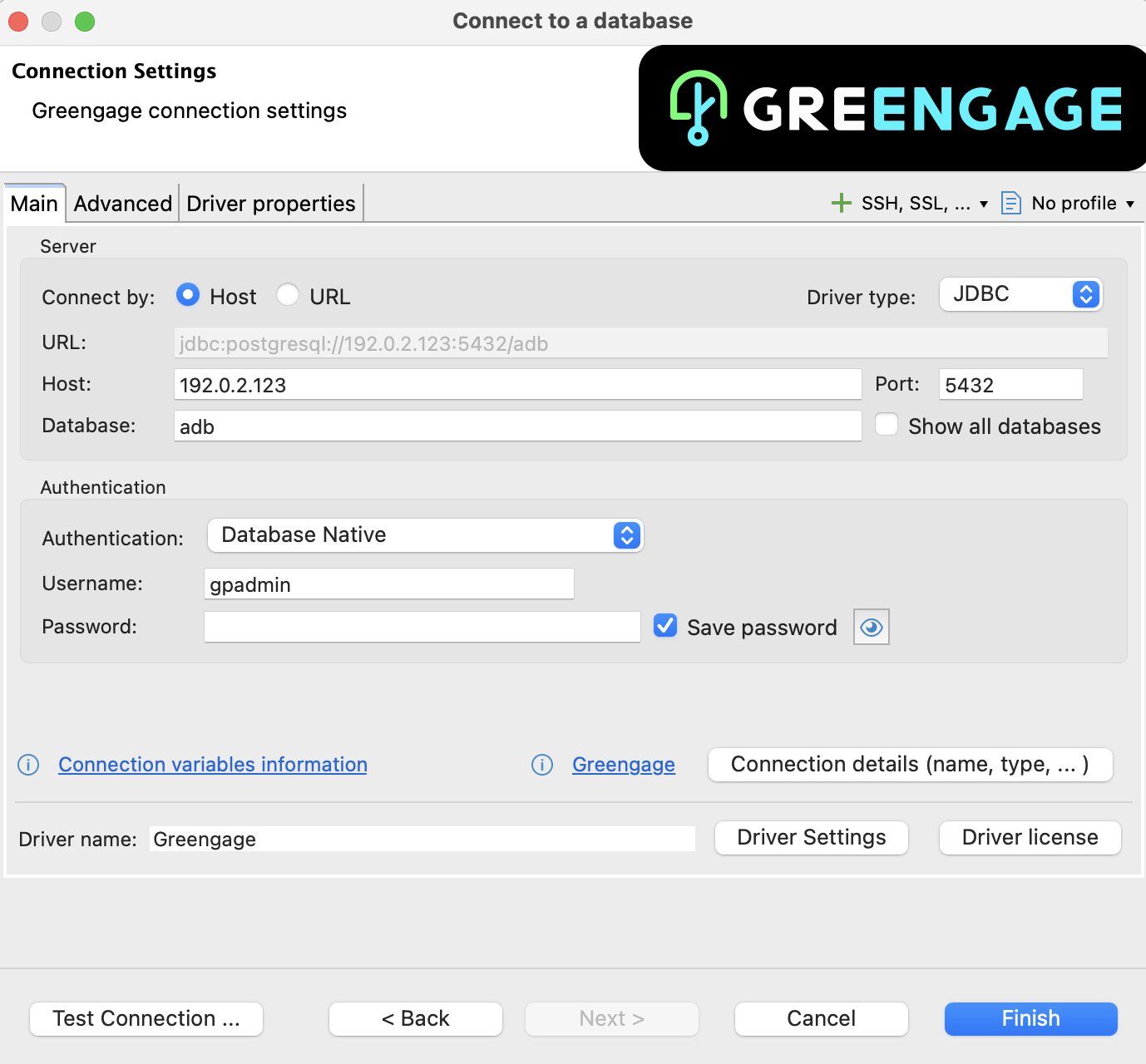 Supply connection settings
 -
-
Click Test Connection. If the connection is established correctly, DBeaver displays the versions of Greengage DB and its underlying PostgreSQL.
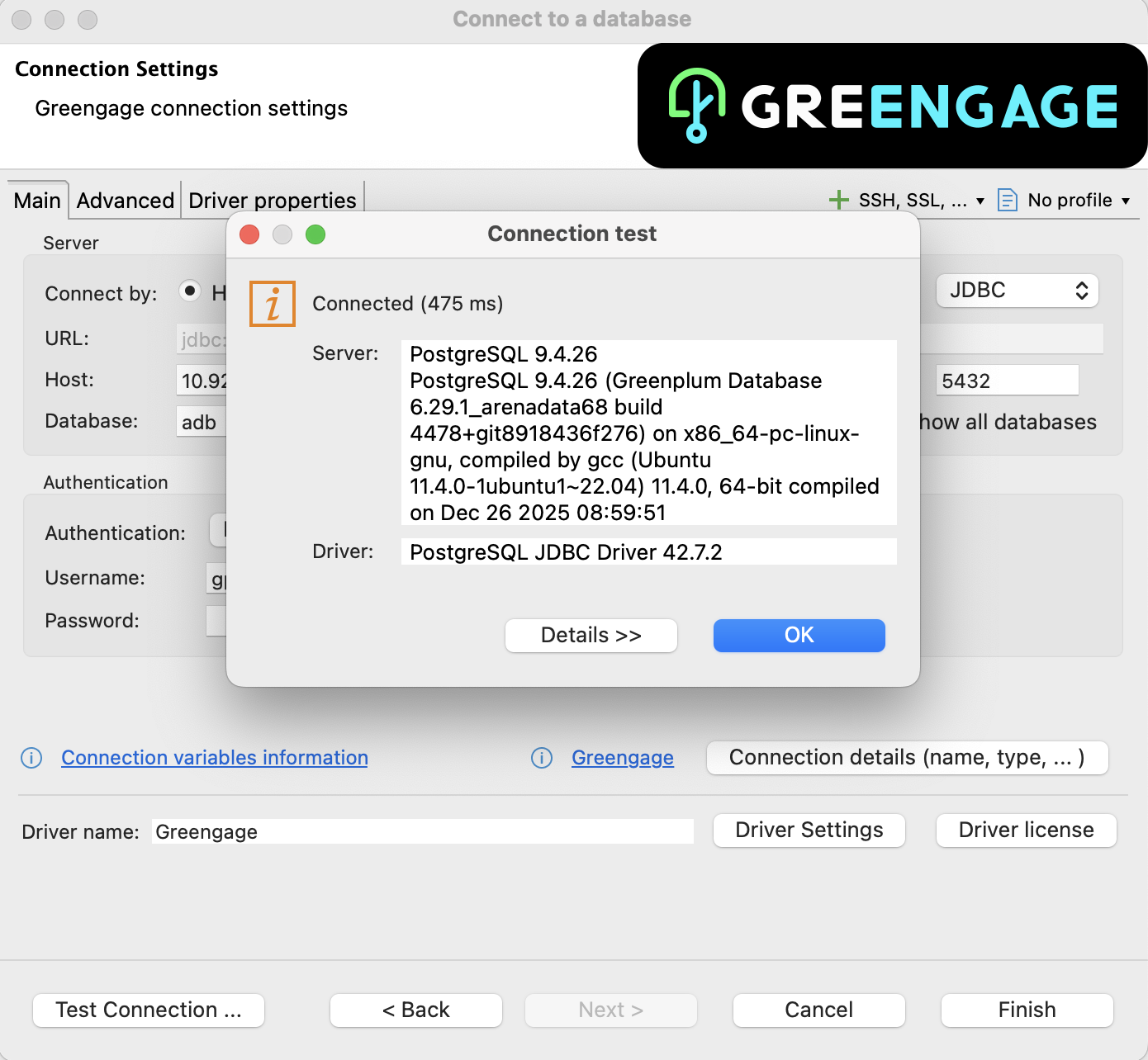 Successful connection via DBeaver
 -
Click Finish.
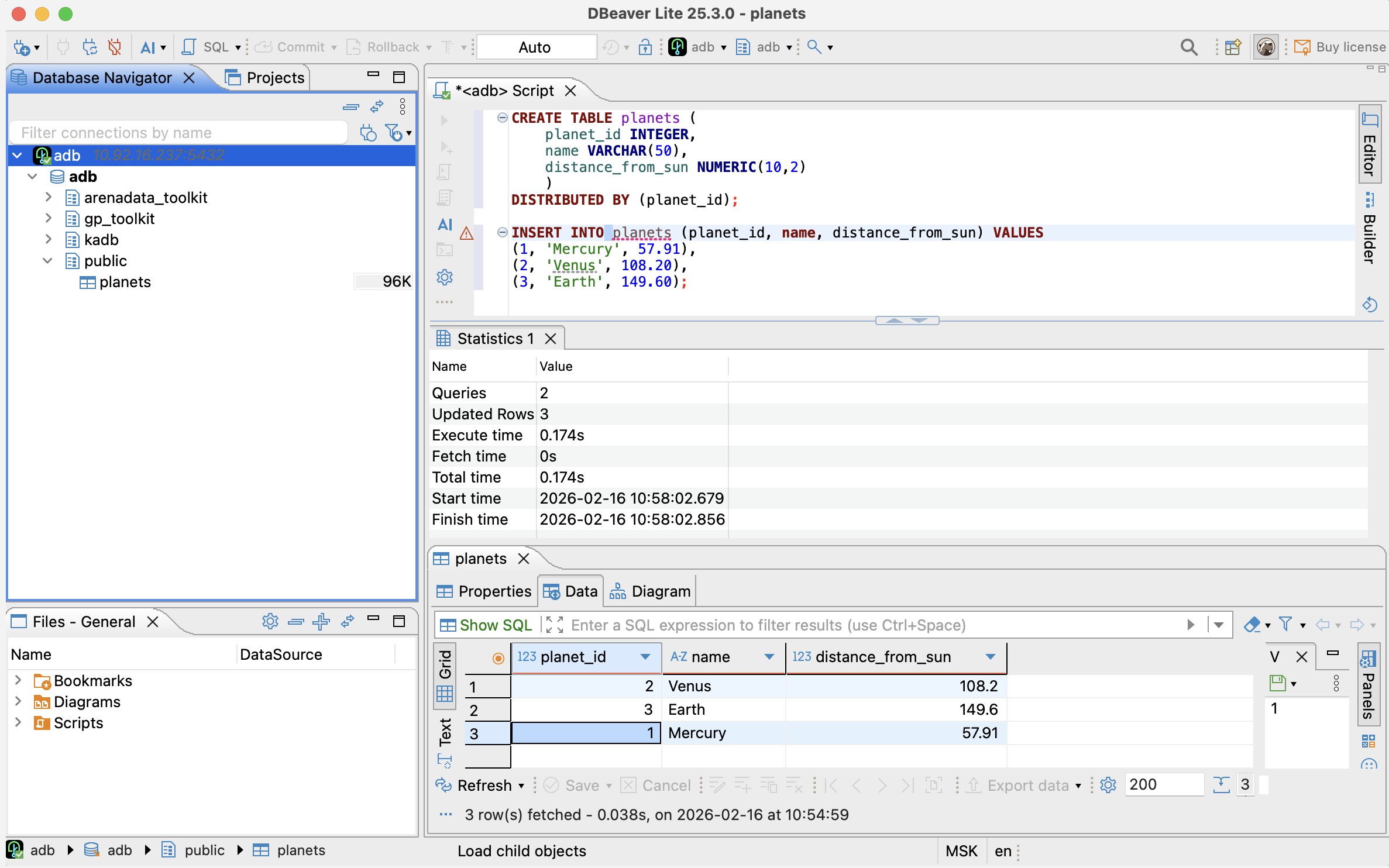
The Database Navigator tab displays the content of the ADB database you are connected to.
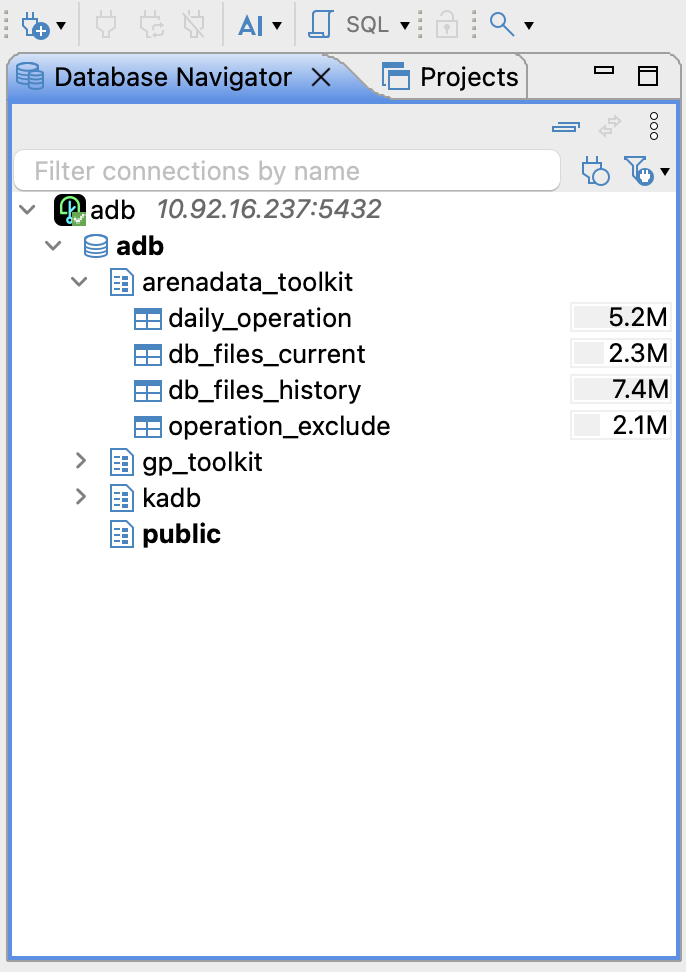 Database Navigator in DBeaver
Run a sample query
You can now use DBeaver to interact with ADB. For example:
-
On the Database Navigator tab, right-click the
publicschema and select SQL Editor → Open SQL Script. -
In the SQL editor that opens, write a command to create a table and populate it with data. For example:
CREATE TABLE planets ( planet_id INTEGER, name VARCHAR(50), distance_from_sun NUMERIC(10,2) ) DISTRIBUTED BY (planet_id); INSERT INTO planets (planet_id, name, distance_from_sun) VALUES (1, 'Mercury', 57.91), (2, 'Venus', 108.20), (3, 'Earth', 149.60); -
Click Execute SQL Script to run the two commands in sequence.
-
Refresh connection to ADB: press
F5or right-clickadbon the Database Navigator tab and select Refresh. The newly createdplanetstable then appears on the Database Navigator tab. You can double-click the table to view its content.