

Cluster groups
Overview
Starting with ADBM 2.10.0, you can use cluster groups. A cluster group is a mechanism for managing a shared backup configuration and for using a shared backup repository across multiple ADB clusters registered in ADBM.
When clusters are not part of a group, each maintains its own independent backup repository. Clusters within a group share a single repository managed by the group leader.
This approach reduces the time required to restore the original production cluster from a DR cluster: the original cluster can perform an incremental restore from the shared repository rather than take a full backup on the DR cluster and then restore from it. Cluster groups also reduce storage consumption because a shared backup chain in one storage repository is kept and reused for the entire group.
Key characteristics of cluster groups:
-
All clusters in a group share a single backup configuration (which includes storage, archiving, and compression settings) inherited from the current leader. While a cluster is in a group, its backup configuration cannot be edited.
-
The first cluster added to a group becomes the initial leader. Its storage is used as the shared repository for all other members. The initial leader cannot be removed from the group even if another cluster is the current leader. It can leave the group only when the entire group is deleted.
-
Only the group leader writes data to the shared repository. Running any backup action is not available to the non-leader members.
-
The leader schedule is used to run scheduled jobs (such as backups, restore points, and cleanups). Non-leader members have their scheduled jobs disabled. When a cluster is promoted to leader, the new leader’s schedule becomes active and is used for the group.
The following constraints apply to cluster groups:
-
Data flows are allowed between clusters of the same group or between clusters that are not part of any group.
-
In data flows between group members, only the group leader can be the source cluster.
-
Clusters in a group must meet the same requirements as clusters in a data flow: all clusters in the group must share the same ADB major version, the same number of primary segments, and the same operating system on their hosts.
-
A cluster can belong to only one cluster group at a time.
-
If POSIX storage is used, the mount point must be identical on all clusters in the group.
Group member states
Each cluster within a group can have one of the following states.
| State | Description |
|---|---|
INIT |
A temporary state indicating that the cluster is added to the group, but the leader configuration has not yet been applied to it |
CONFIGURED |
The leader backup configuration has been successfully applied to the cluster. The cluster is ready to begin restoring data from the shared repository. When another cluster is promoted, the previous leader also gets this state |
JOINED |
The cluster has been fully restored from the group repository. Clusters of this state are eligible for leader promotion |
PROMOTING |
A temporary state indicating that the promotion process is in progress for this cluster |
LEADER |
The cluster is the group leader |
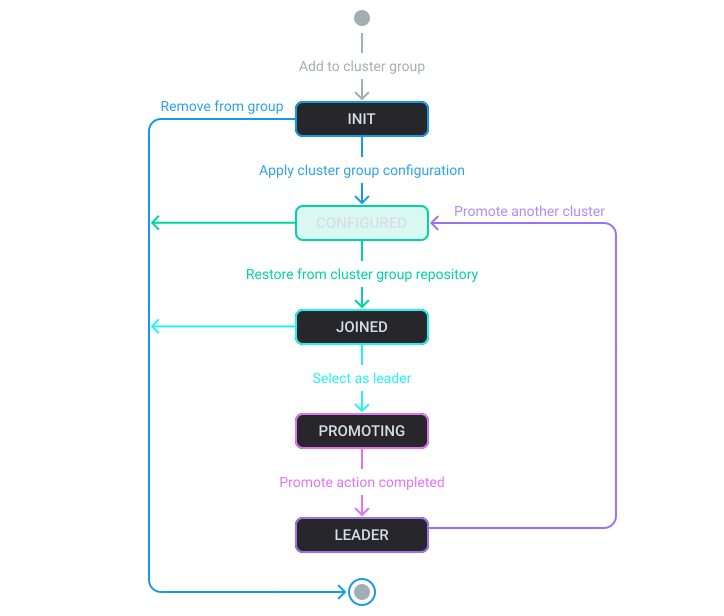
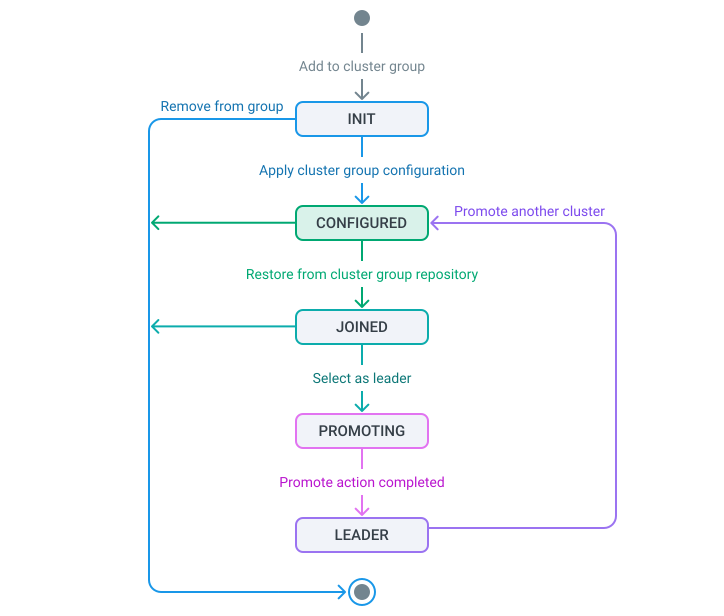
A typical workflow for cluster groups is as follows:
-
Create a group (initially containing only one cluster).
-
Add clusters to that group.
-
Restore data to synchronize new clusters with the rest of the group. This is required for a cluster that you plan to promote.
-
Promote a cluster if you want to change the group leader.
Create a cluster group
-
Open the Backup manager page and navigate to Data flow → Cluster groups.
-
Click Create cluster group.
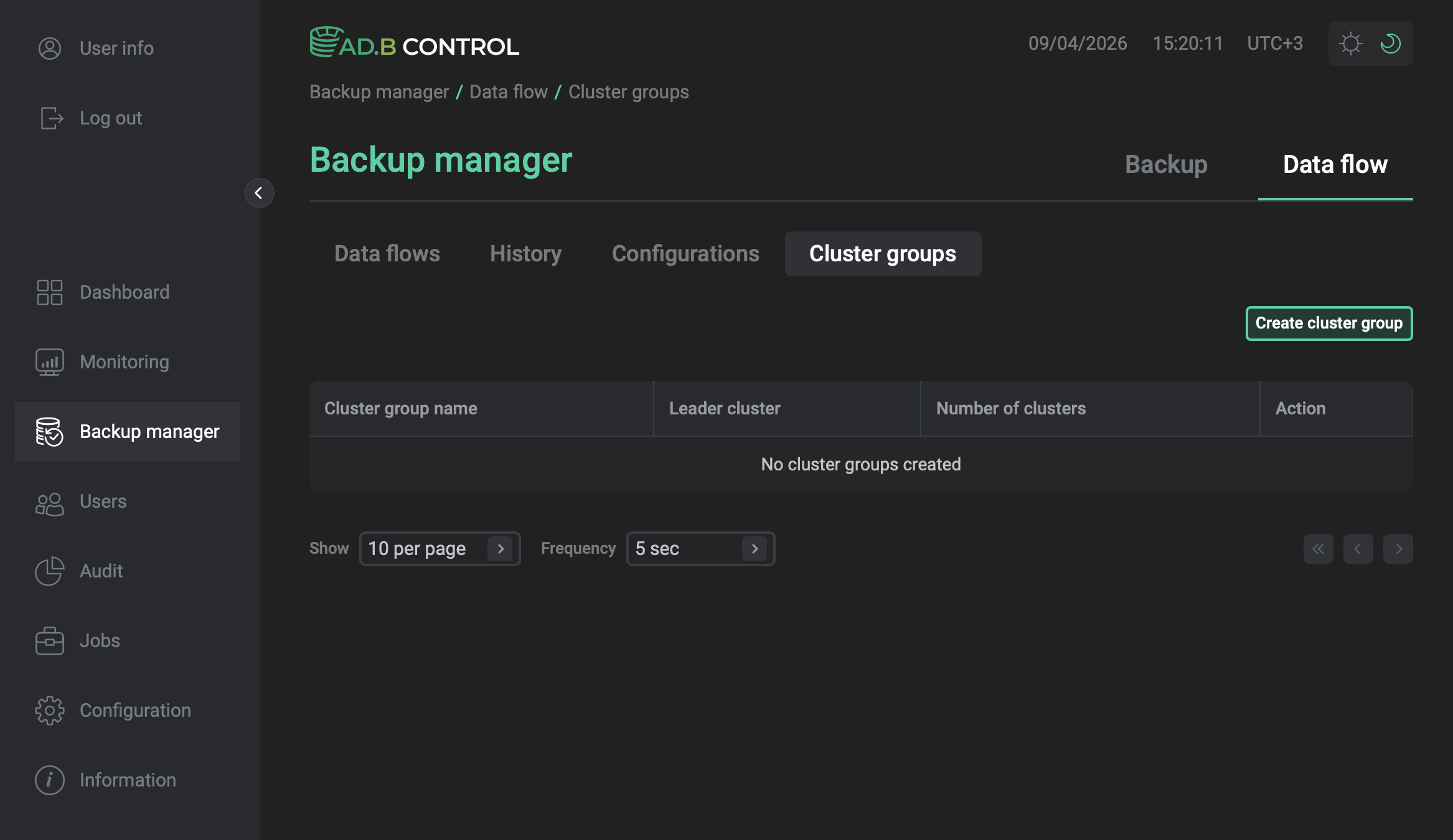 Cluster groups page
 -
In the window that opens, configure the following parameters:
-
Group name — a unique name for the new cluster group.
-
Initial leader — the first cluster to be added to the group. The selected cluster becomes the initial leader of the group. Its backup configuration becomes the shared configuration for the entire group, and its storage is used as the shared repository.
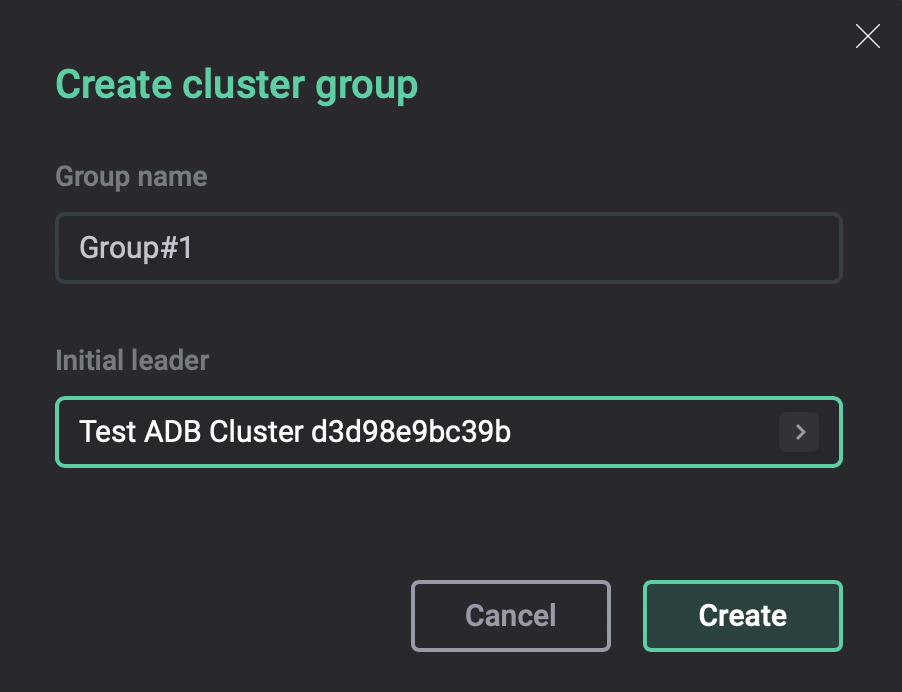 Create cluster group dialog
 -
-
Click Create. As a result, the cluster group is displayed on the Data flow → Cluster groups tab.
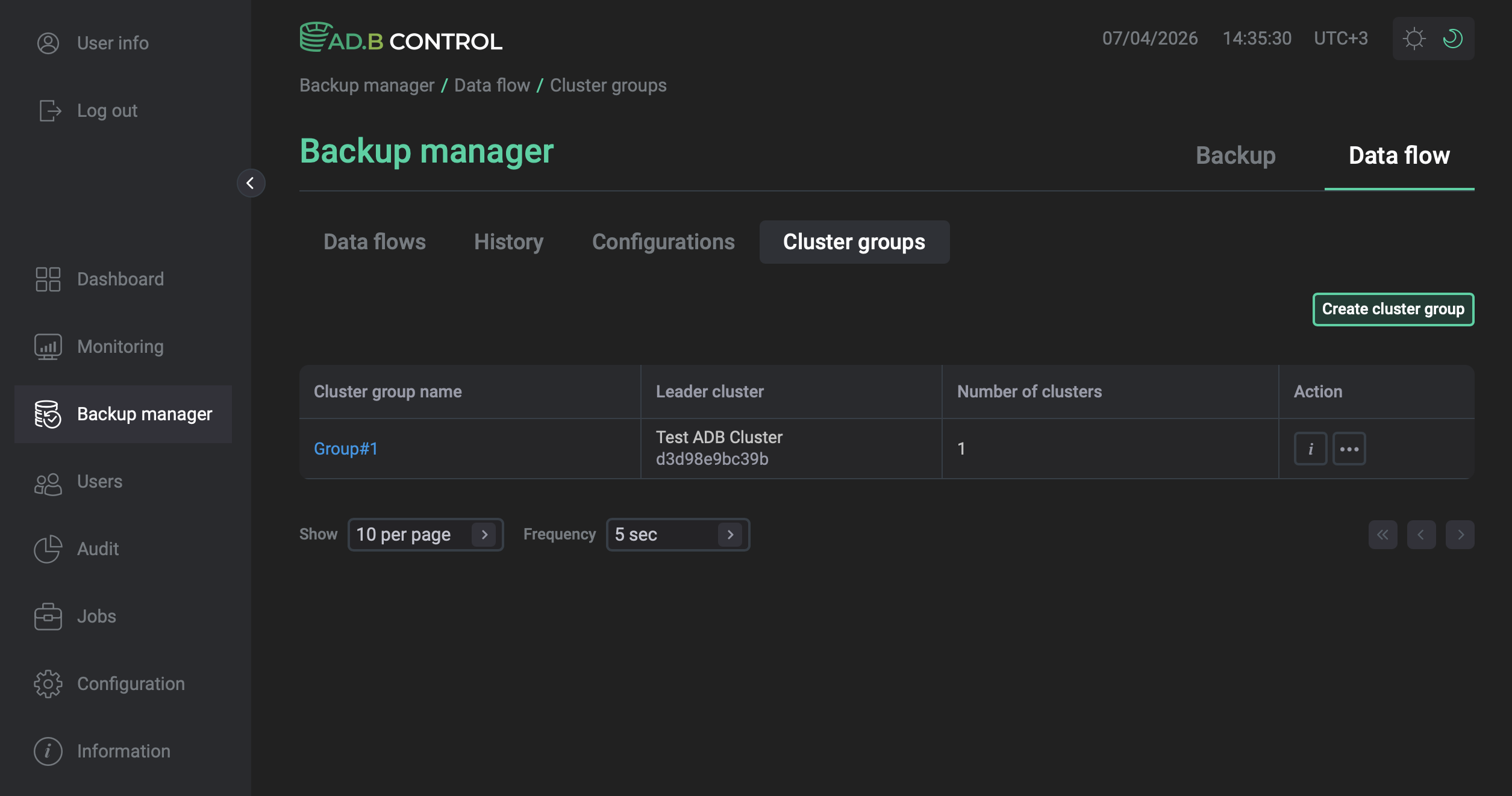 Cluster group created
Add clusters to a group
For a cluster to be added to a group:
-
It must have a backup configuration.
-
It must not be in a
Downstate. -
It must not belong to another cluster group.
To add clusters:
-
Open the Backup manager page and navigate to Data flow → Cluster groups.
-
In the Action column, click

 and select Manage clusters.
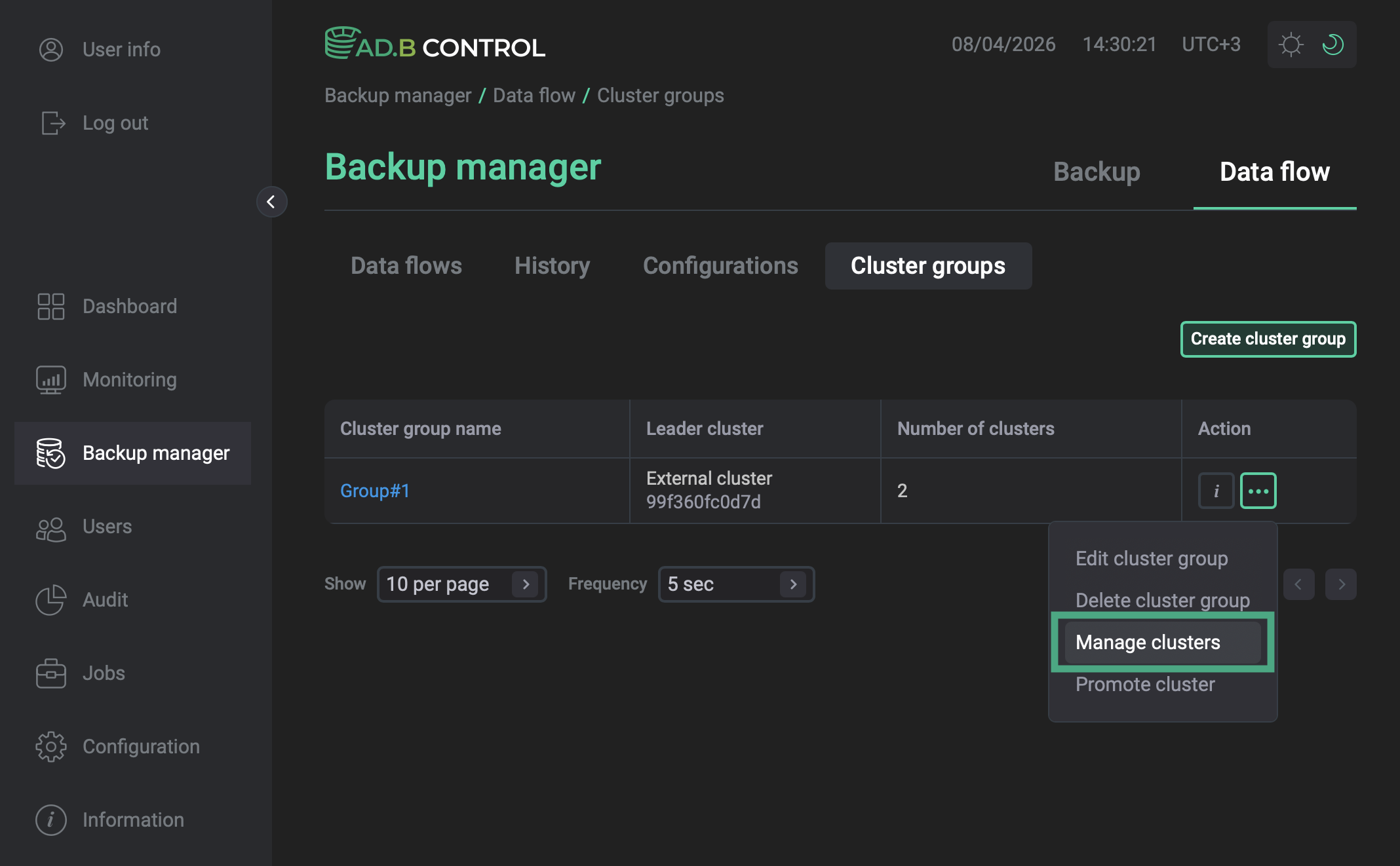 Manage clusters action
 -
In the window that opens, select clusters to be added to the group and click Save.
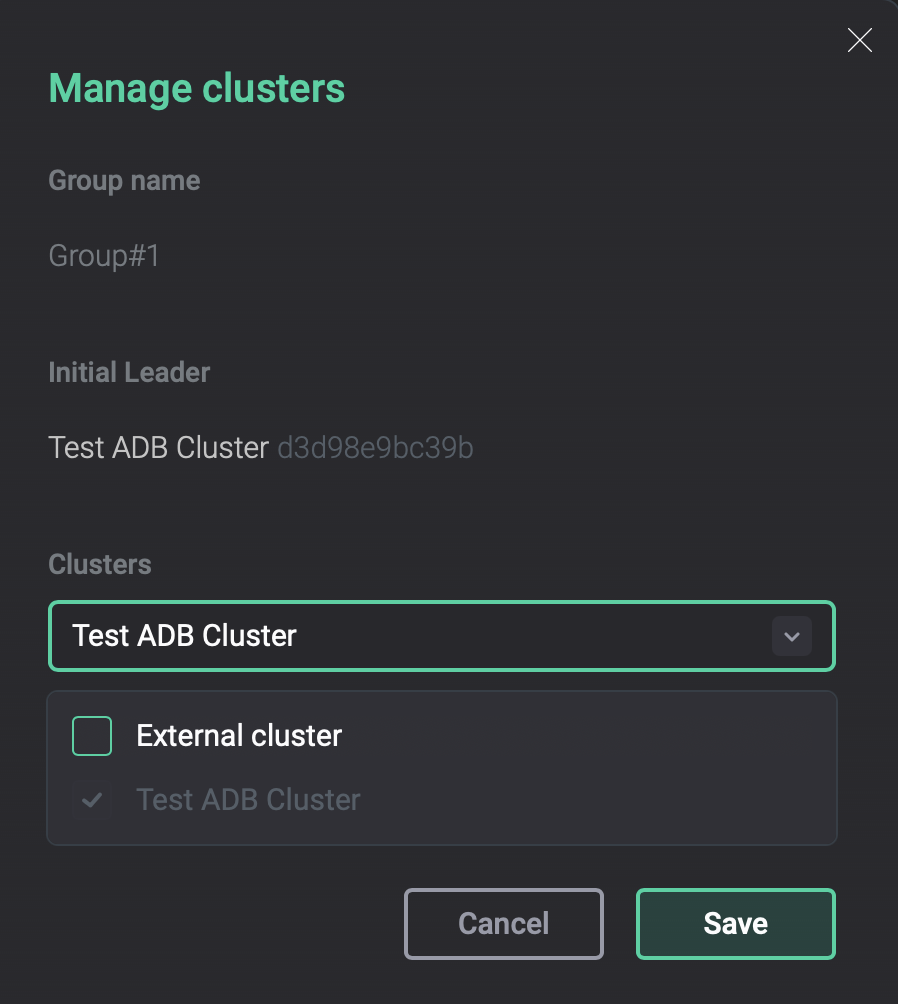 Manage clusters dialog
The initial state of a new cluster is INIT.
Adding a cluster starts the Add cluster to group action that will apply the leader backup configuration to the newly added clusters.
When it completes, the cluster state changes to CONFIGURED.
|
NOTE
The original backup configuration of the added clusters is preserved, but it cannot be modified. If a cluster is later removed from the group, it will revert to this original configuration. |
Preview a cluster group
To quickly preview the group content, use the 
 icon in the Action column of the Cluster groups page.
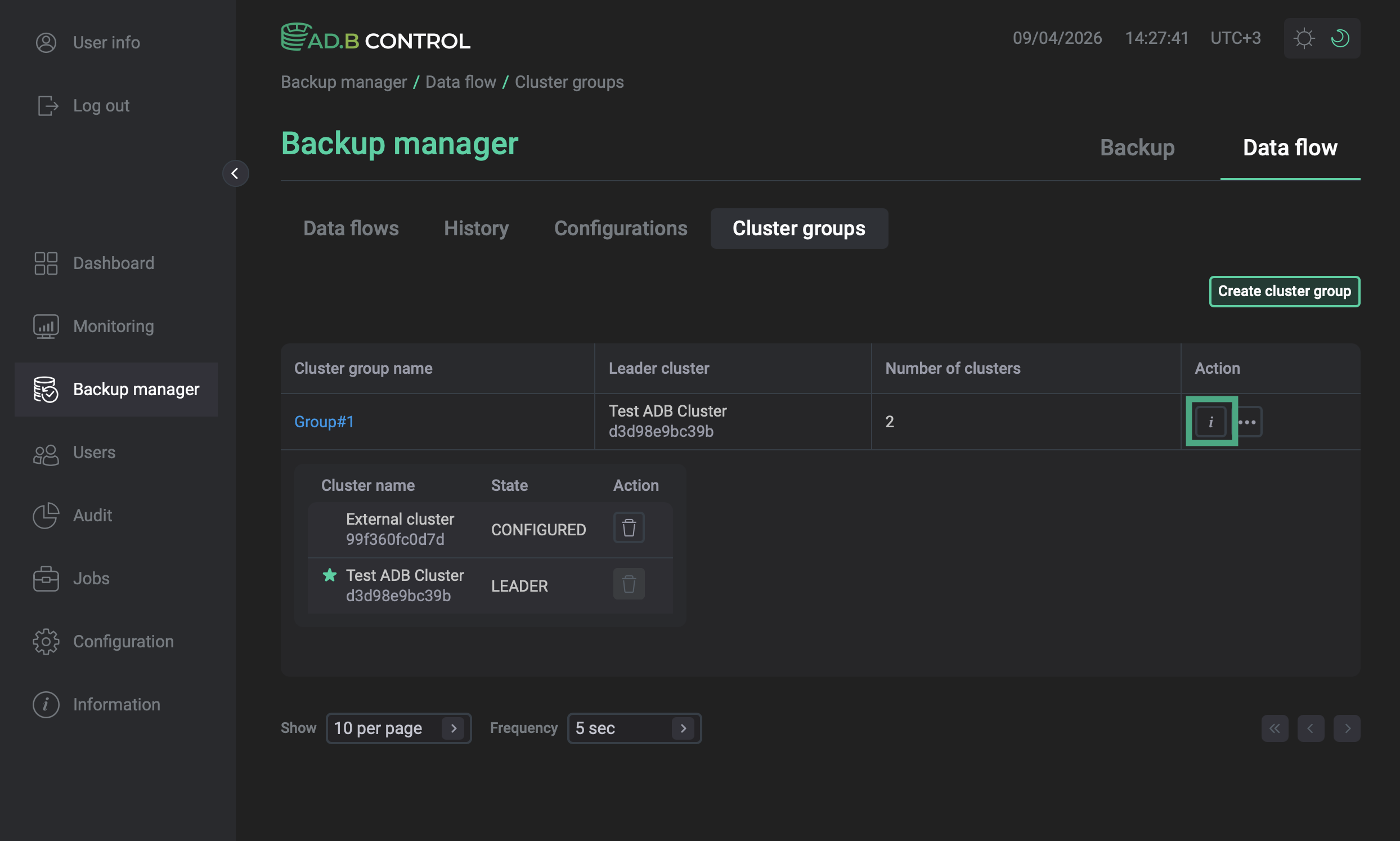
To get details about the latest restore point in a cluster, open the group and click the icon in the Latest restore point column.
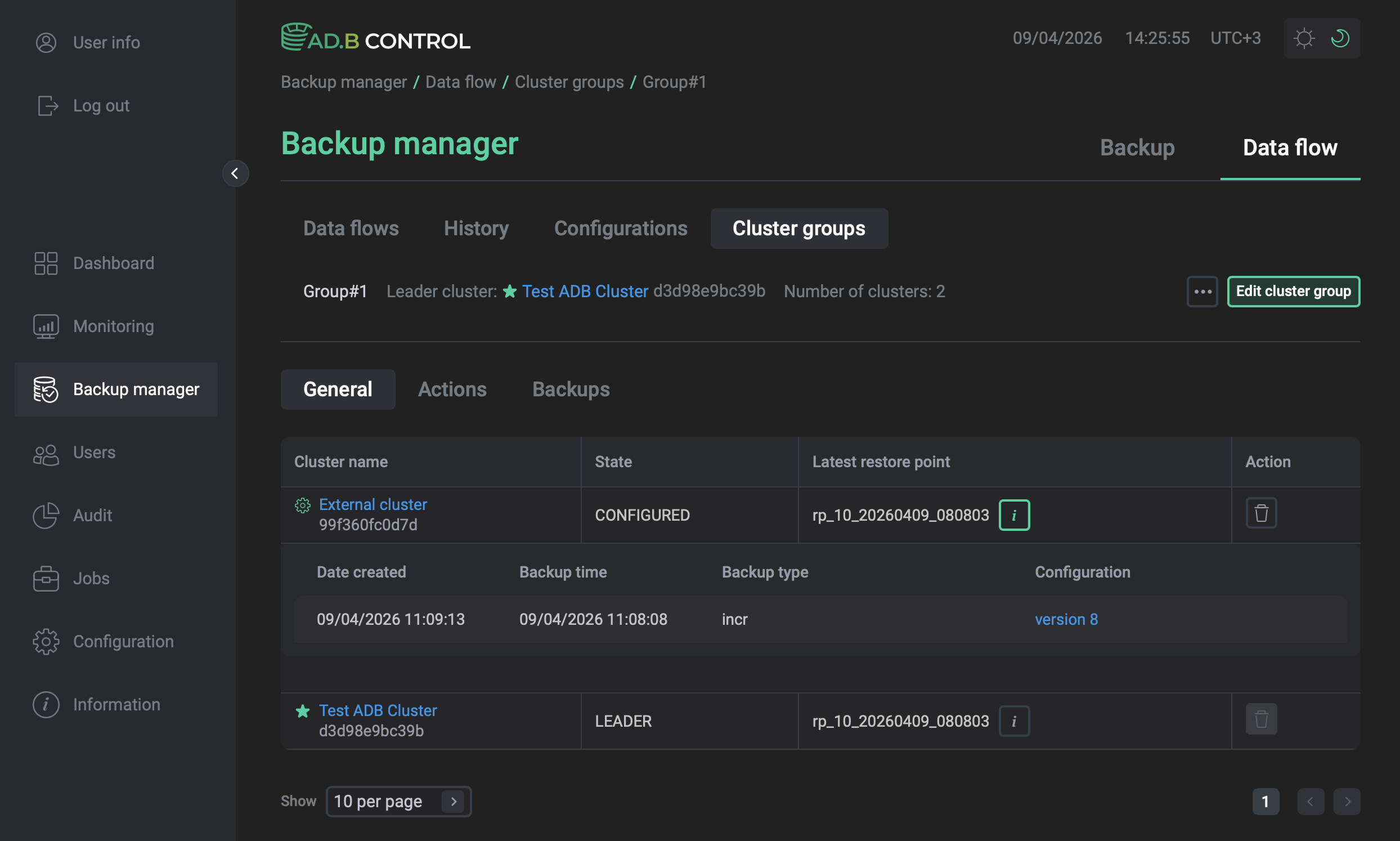
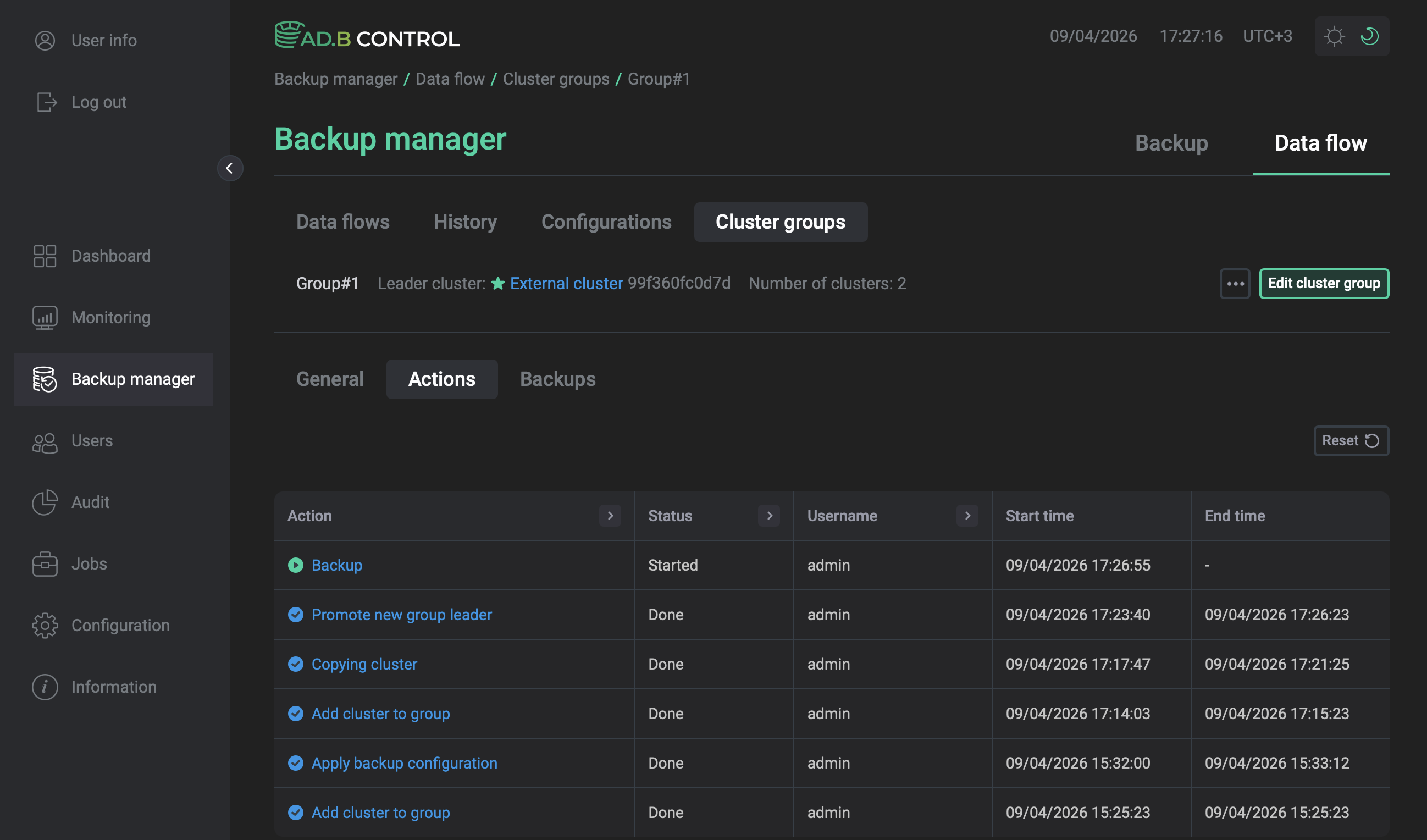
To view actions and backups performed on the group clusters, use the Actions and Backups tabs. Selecting an action in the list redirects you to the Backup → Actions page where you can get more details about subactions and end results.
Get the backup from the leader
Once a cluster has been added to a group, it can be synchronized with the group shared repository through a copy or streaming data flow.
-
On the Data flow → Configurations tab, click Create and create a data flow configuration with the leader as the source cluster and a newly added cluster as a target cluster.
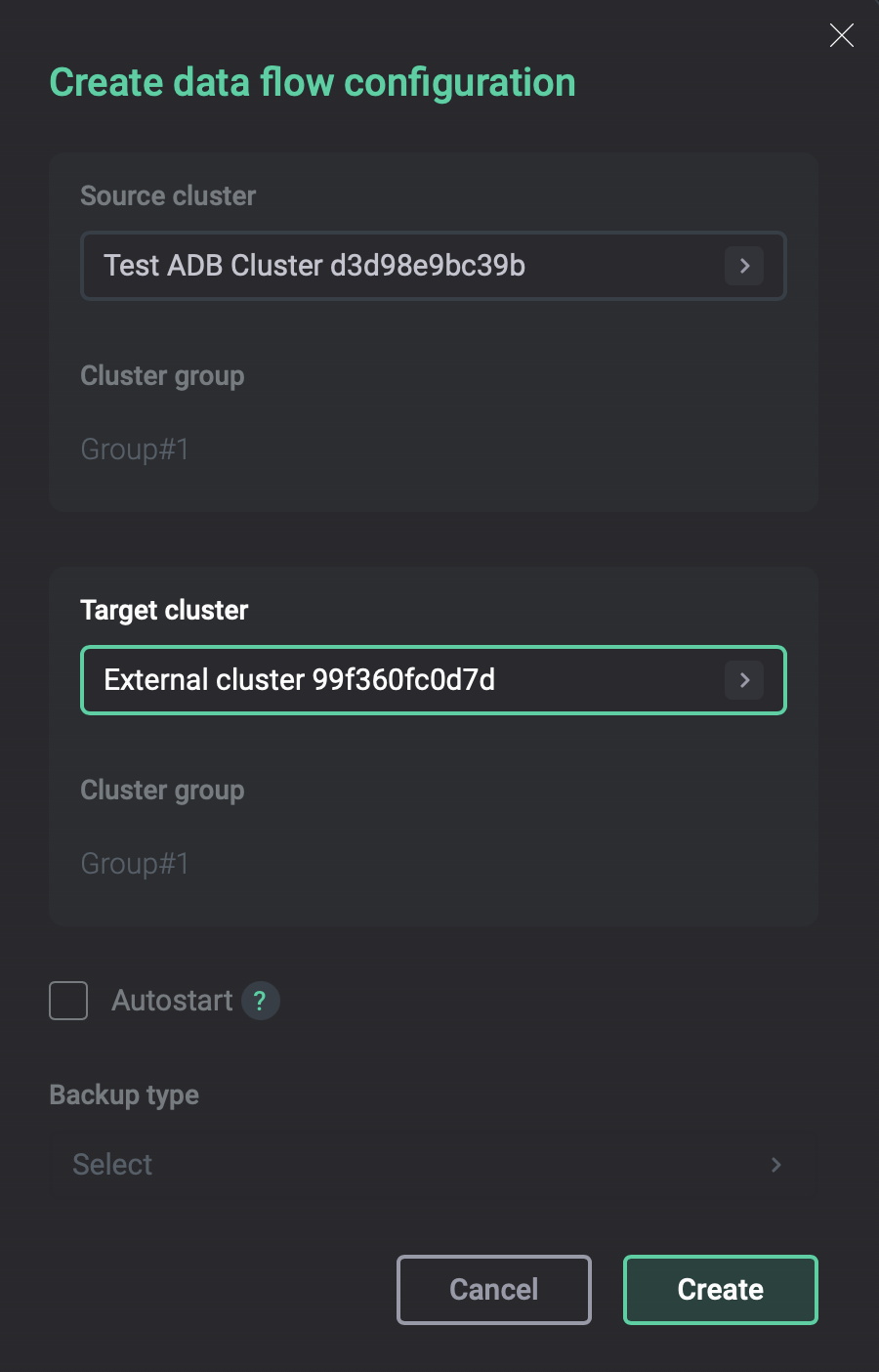 Create a data flow configuration
 -
On the Data flow → Data flows tab, click Create data flow and run the data flow with the created configuration. For more information on the data flow configuration parameters, refer to Disaster recovery.
Optionally, select the Promote flag to make the target cluster the leader after the data flow is completed.
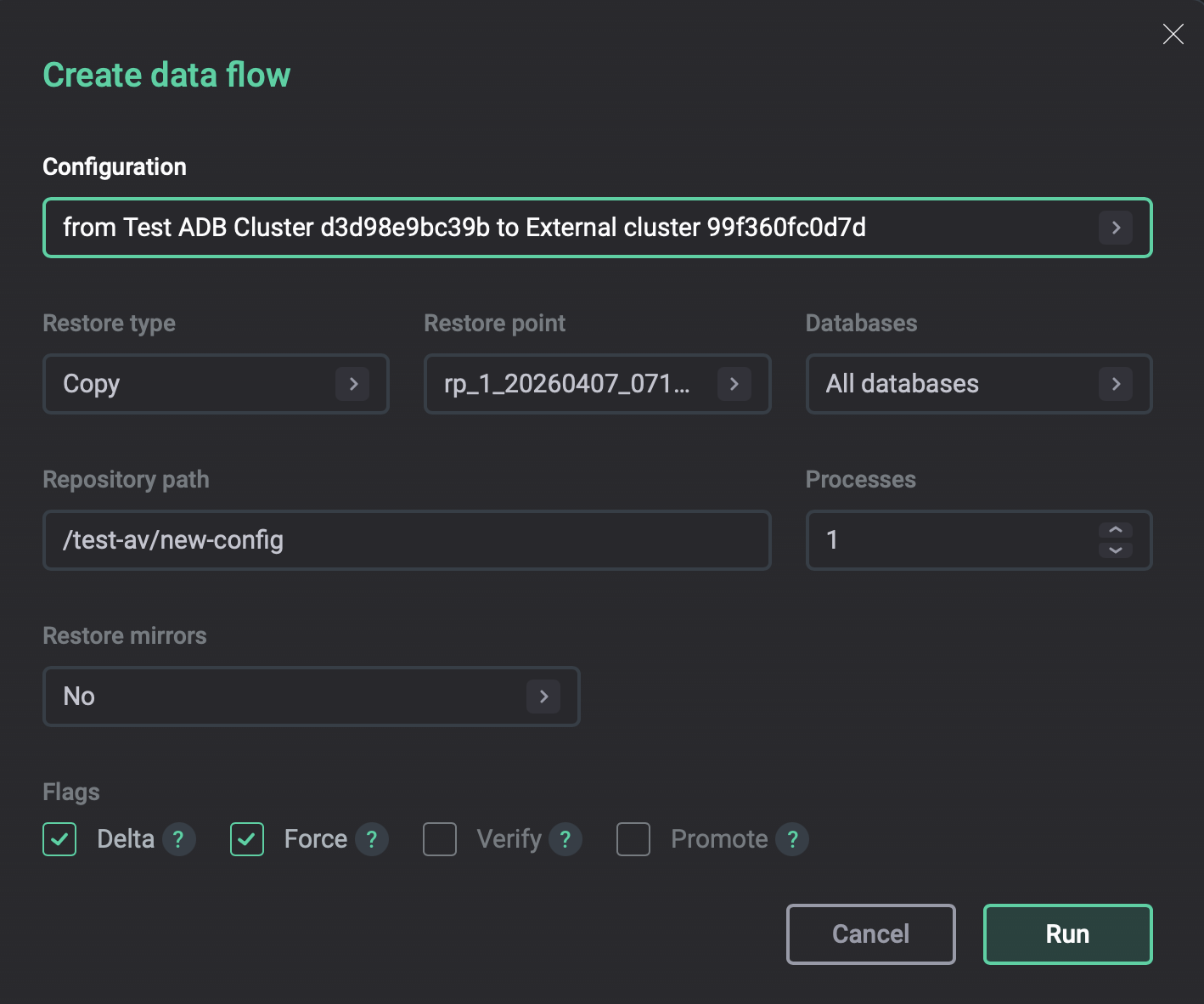 Run a data flow
This will start the Copying cluster (for the Copy data flow type) or Streaming cluster (for the Streaming data flow type) action.
When it completes, the cluster state changes to JOINED.
Promote a new leader
Only one cluster in the group can be the leader. You can change the leader through a promotion process — either manually or automatically at the end of a data flow.
When a cluster becomes the new leader, its backup configuration is used as the group configuration, and its schedule becomes active.
The state of the previous leader changes to CONFIGURED.
You can only promote a cluster in the JOINED state.
Note that whether the cluster data is up to date with the leader is determined by the restore point, not by the JOINED state.
Manual promotion
-
Open the Backup manager page and navigate to Data flow → Cluster groups.
-
In the Action column, click
and select Promote cluster.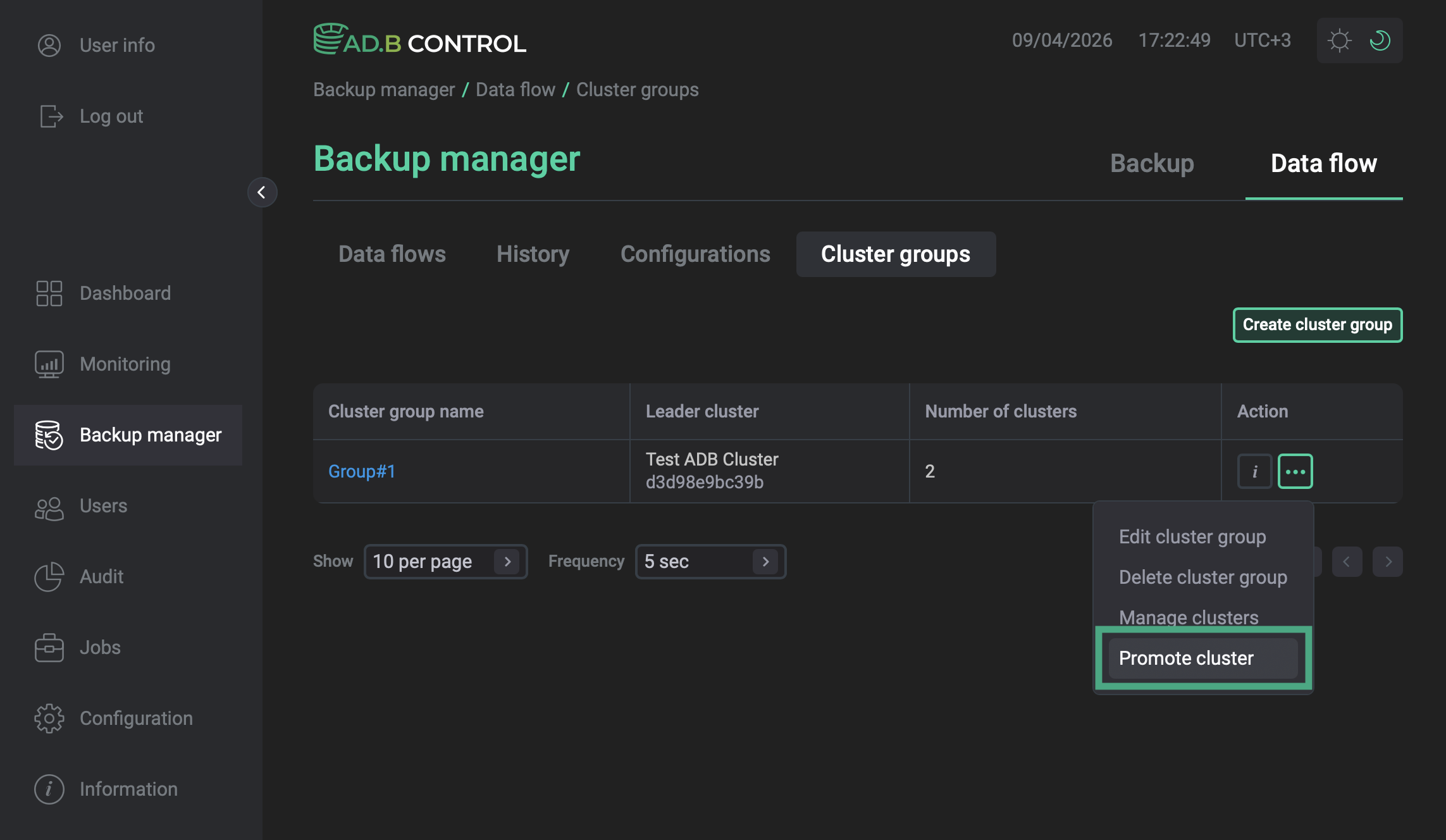 Promoting a cluster
 -
In the window that opens, in the Candidate list, select the cluster to promote and click Run.
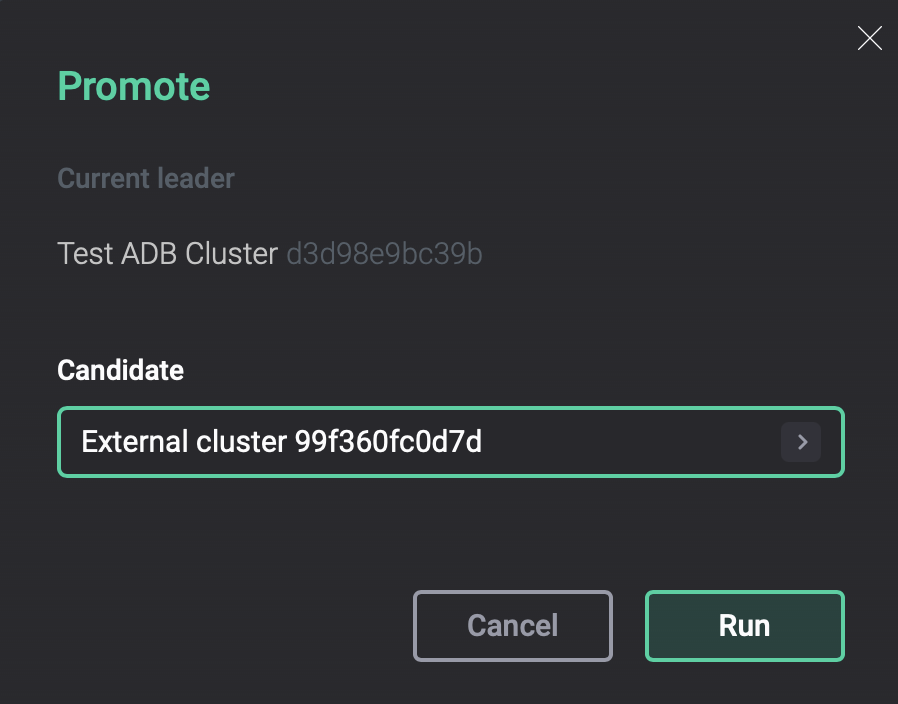 Manual promotion
After the Promote new group leader action completes successfully, the selected cluster becomes the leader.
Automatic promotion
When running a data flow between two clusters that belong to the same cluster group, you can enable the Promote option in the data flow creation form.
-
Open the Backup manager page and navigate to Data flow → Data flows.
-
Click Create data flow.
-
In the window that opens, select the Promote flag.
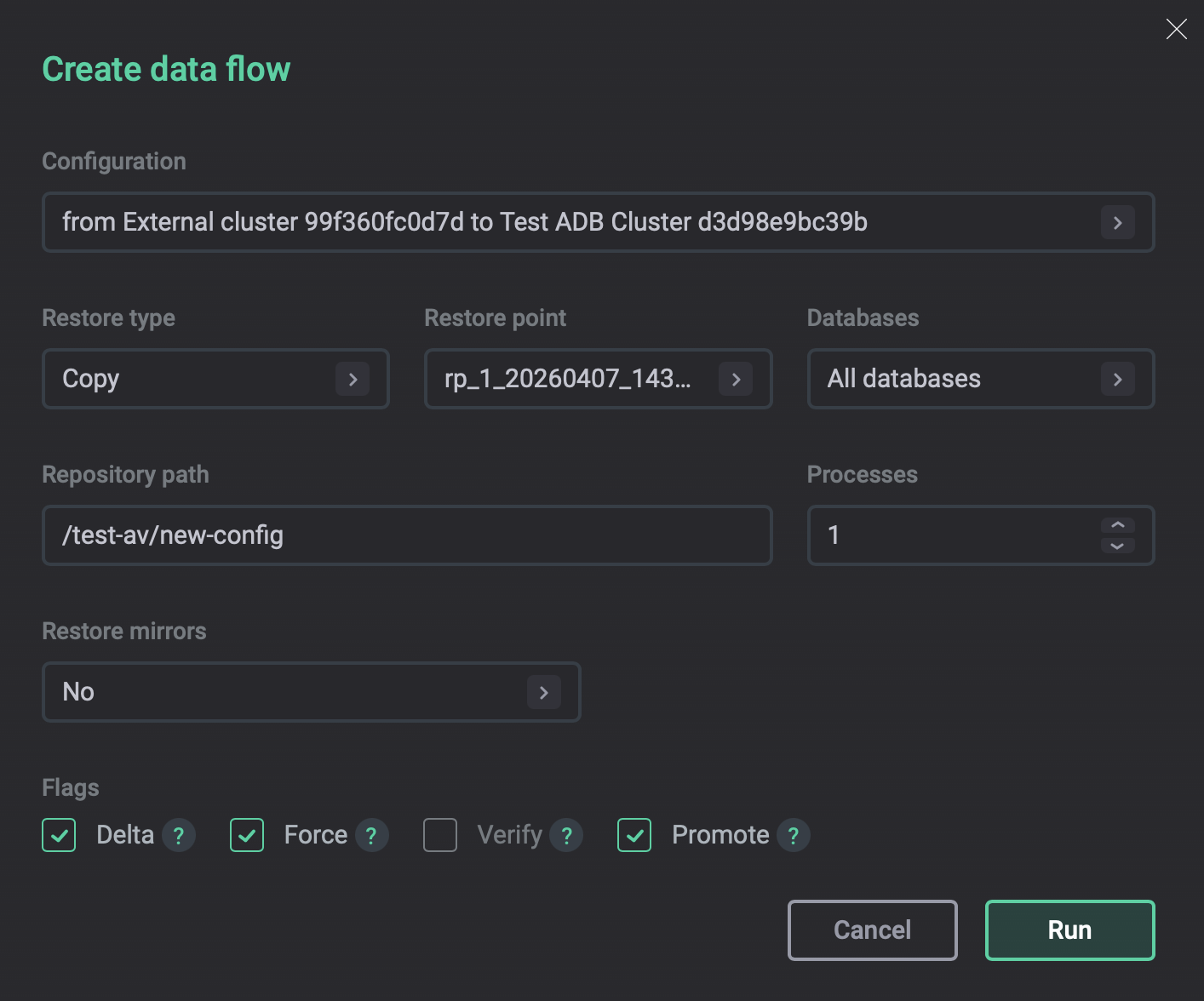 Automatic promotion
After the data flow completes successfully, the target cluster becomes the new group leader.
Rename a group
-
Open the Backup manager page and navigate to Data flow → Cluster groups.
-
In the Action column, click
and select Edit cluster group.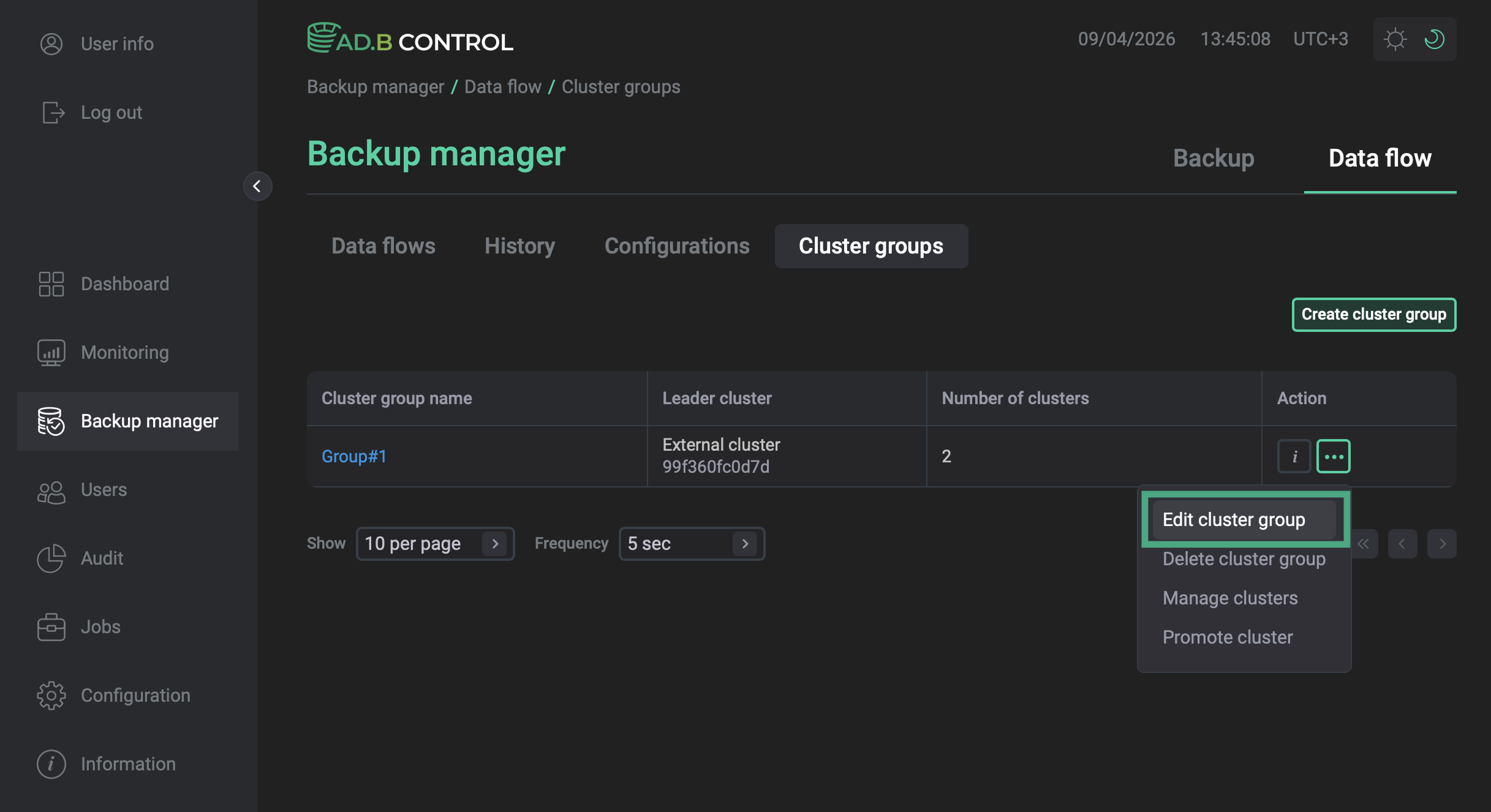 Renaming a group
 -
In the window that opens, enter the new name for the group and click Apply.
Remove a cluster
For removing clusters, two limitations apply:
-
The current leader cannot be removed. If you need to remove the leader, first promote another cluster to become the new leader.
-
The initial leader can never be removed from the group as its storage is used by all clusters in the group. Delete the entire group if you don’t want the initial leader to be part of a group.
To remove a cluster:
-
Open the Backup manager page and navigate to Data flow → Cluster groups.
-
Click the name of the group to open the group page.
-
In the Action column, click the

 icon.
icon.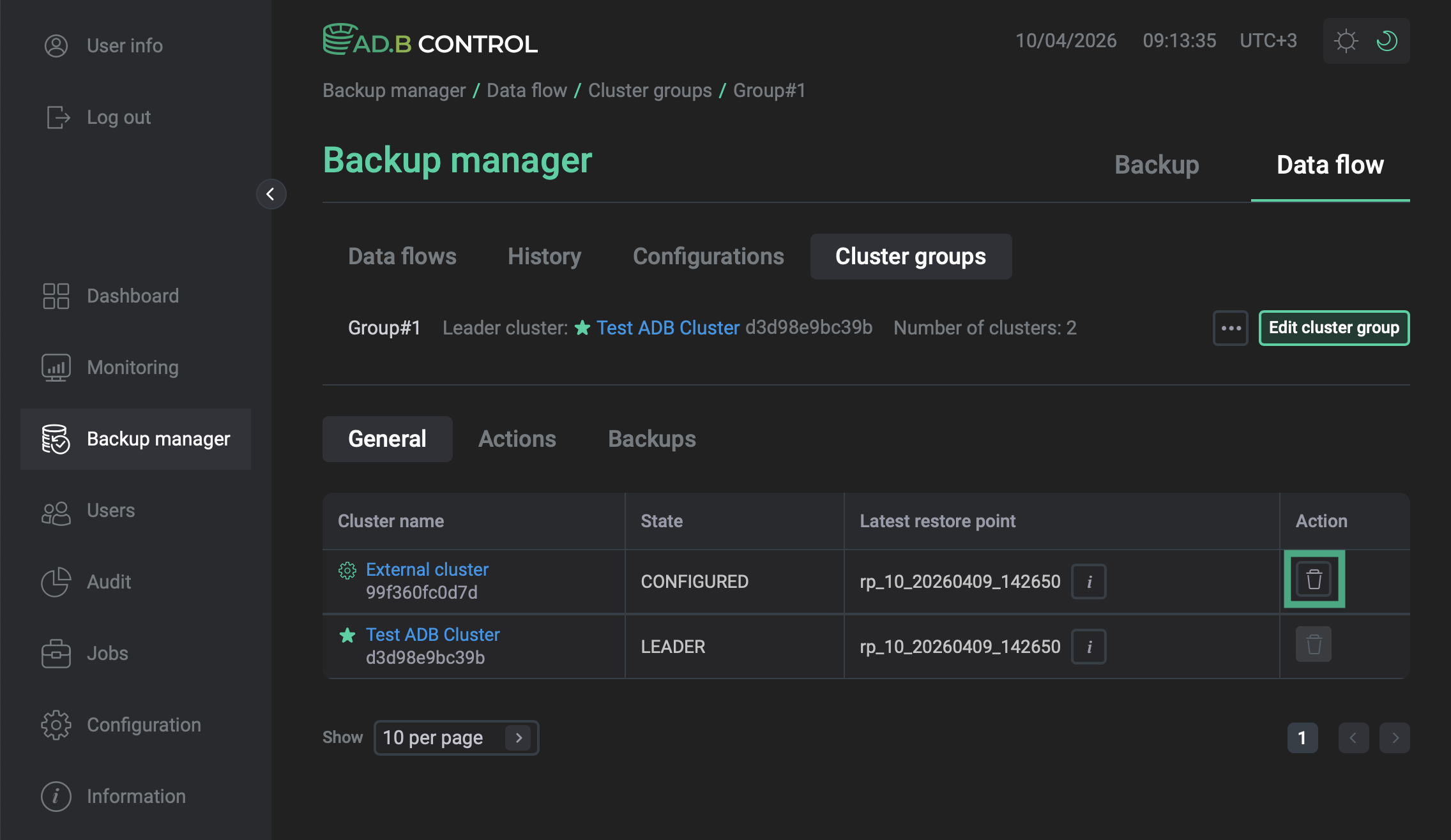 Removing a cluster
 -
In the window that opens, click Delete to confirm deletion.
Delete a group
When you delete a group, all clusters except for the leader and the initial leader receive a new draft backup configuration that reflects their state before joining the group. You can save these configurations to be able to create new ones. The current leader and initial leader clusters automatically have their new backup configurations applied.
-
Open the Backup manager page and navigate to Data flow → Cluster groups.
-
In the Action column, click
and select Delete cluster group.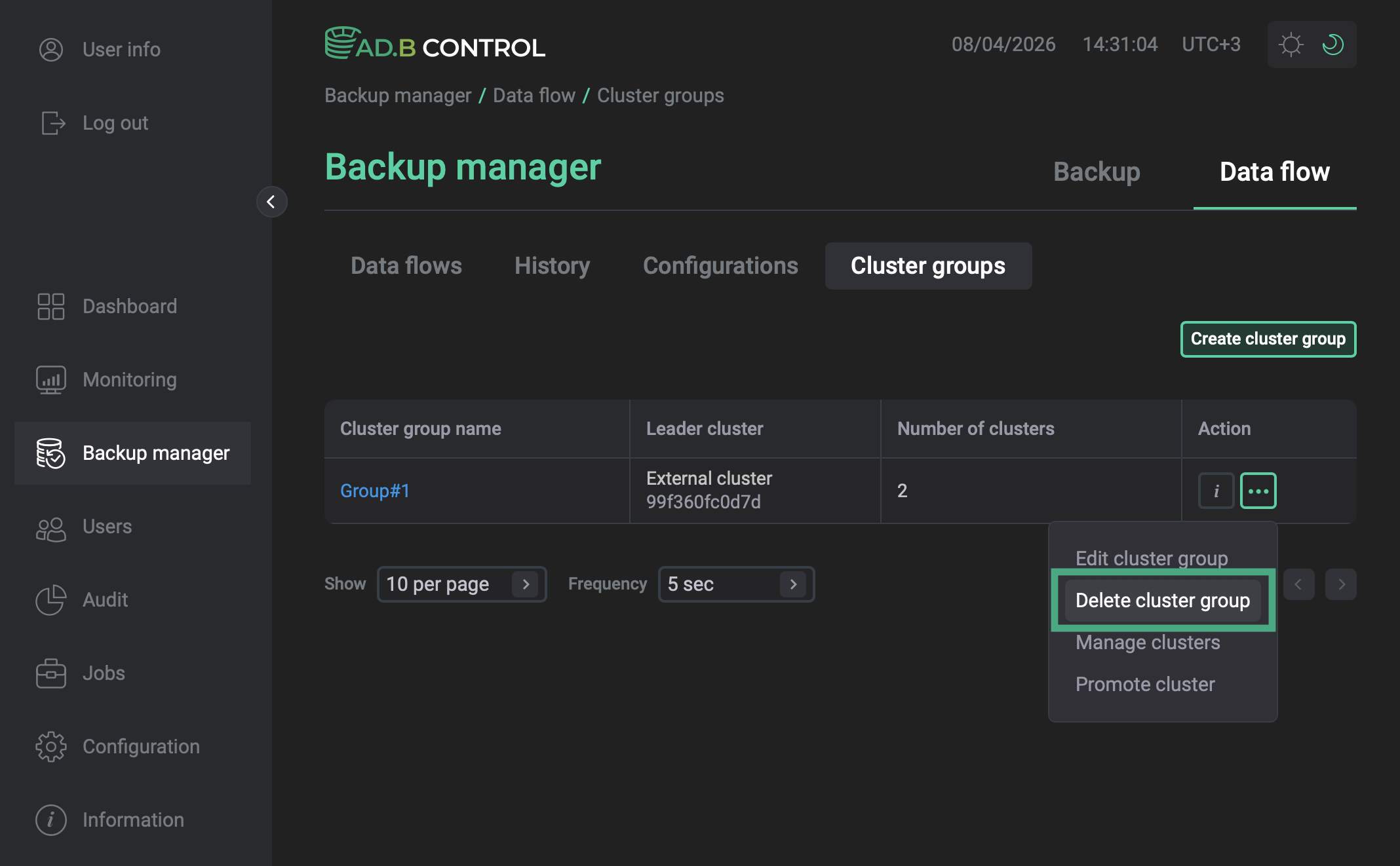 Group deletion
 -
In the window that opens, click Delete to confirm deletion.