
Connect to ADP Control
You can work with the ADP Control via its web interface, which currently uses only the unsecured HTTP protocol. ADP Control UI is available at http://<adpgc_host>:8090, where:
-
<adpgc_host>— the IP address of the host with the ADP Control component installed. -
8090— the default value of the Listening WEB UI port parameter in the Backend parameters section of the ADP Control service’s configuration. You can change the port in ADCM UI.
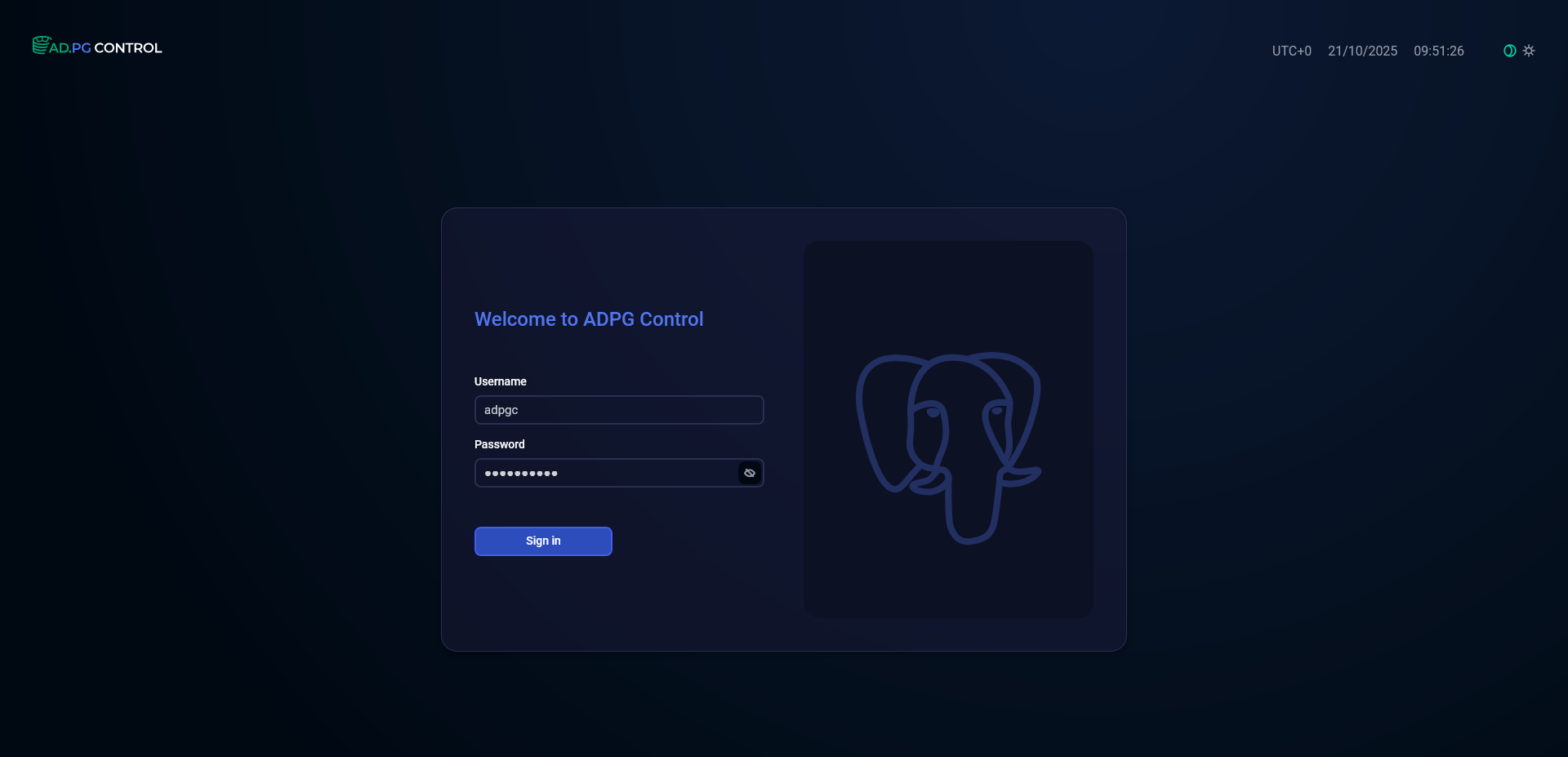
To get started with ADP Control, enter its IP address and port in a browser. In the window that opens, type the user credentials:
-
Username —
adpgc(the automatically created user with administrator rights); -
Password — the password specified during installation in the Admin’s password parameter of the UI component parameters section in the ADP Control service’s configuration.
If you need to change the password of the adpgc user, as well as to manage ADP Control users, including creating new users, go to the Users page. Refer to the following article for details: Manage users.
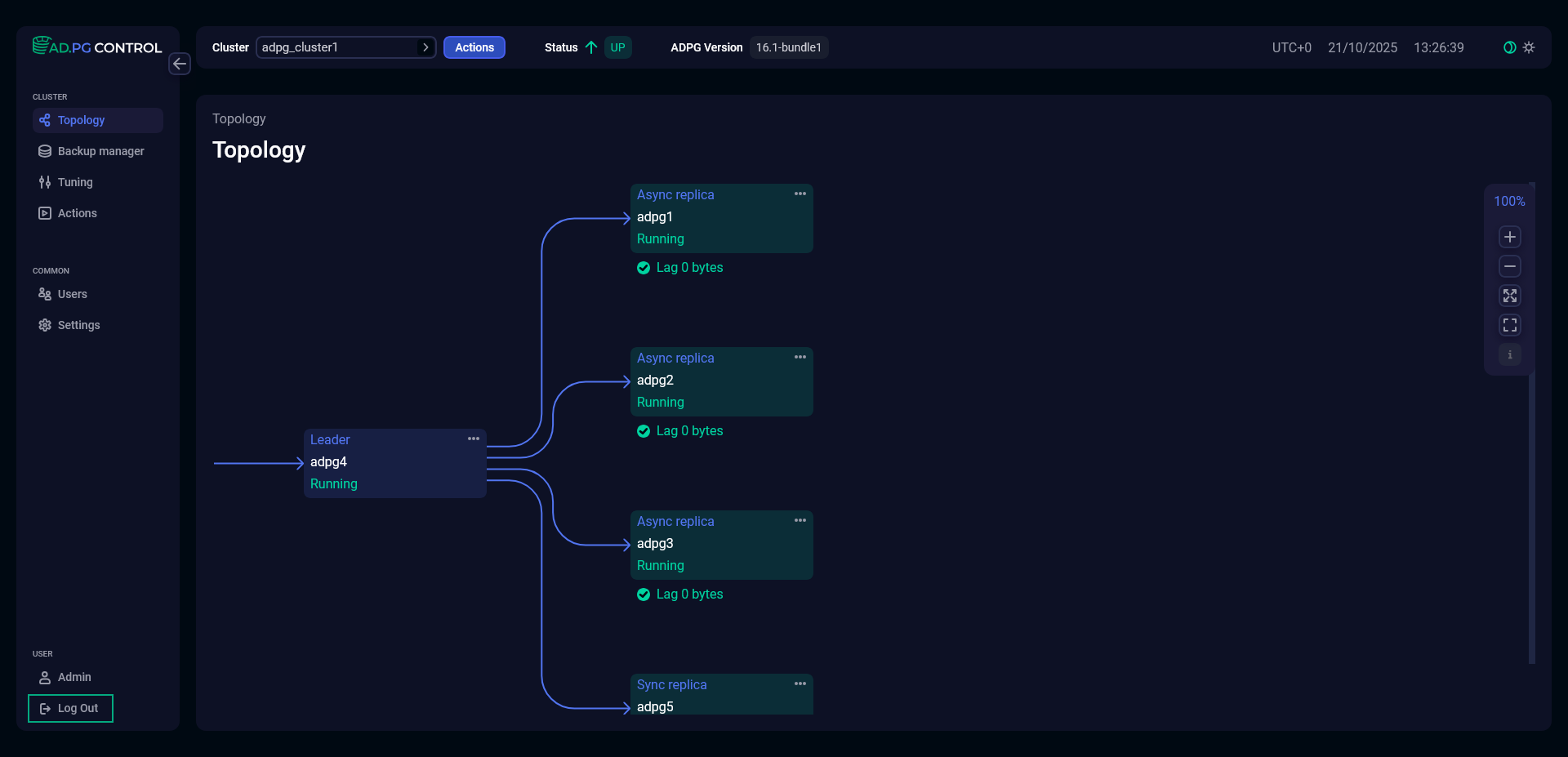
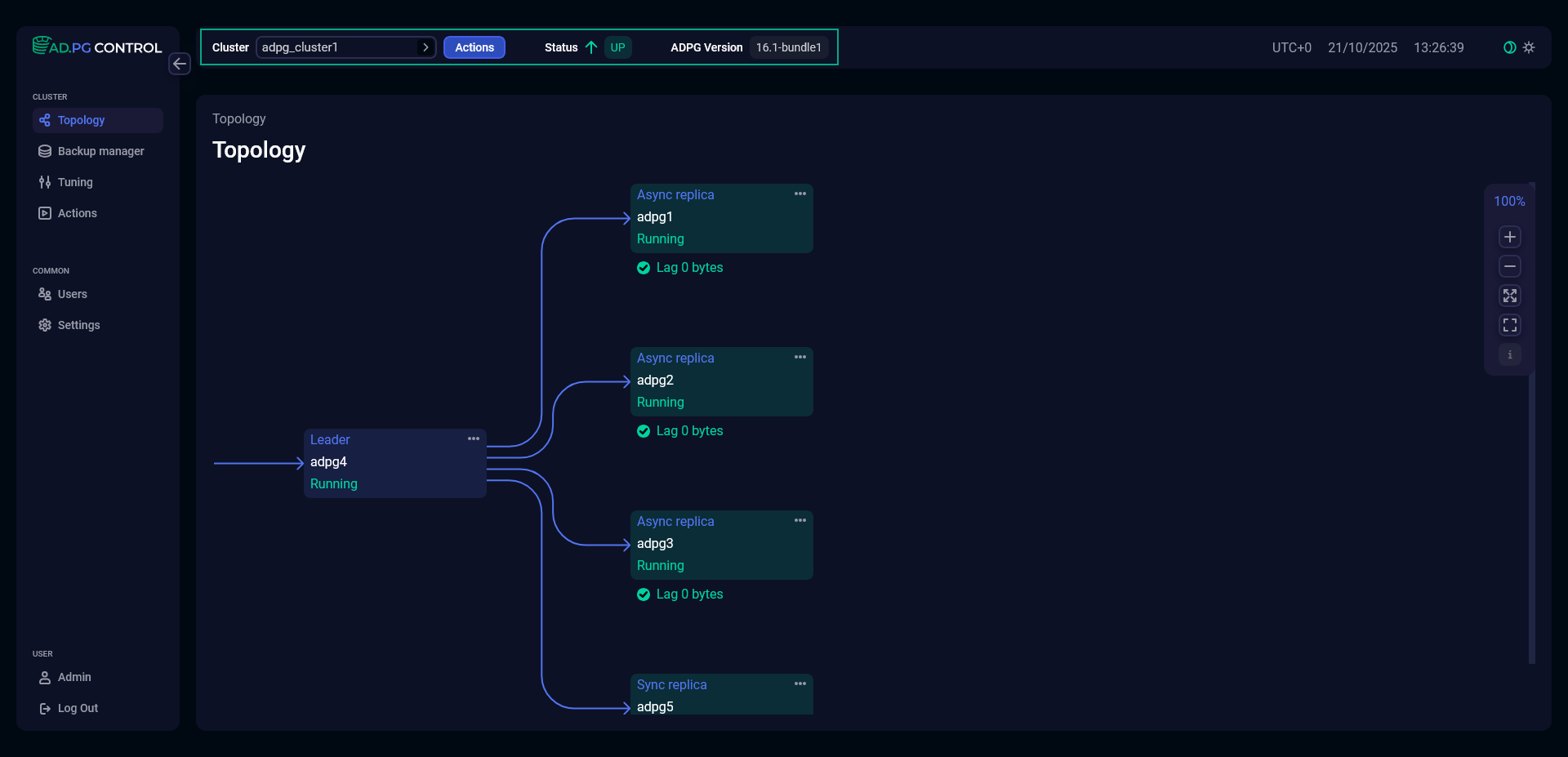
After you sign in, the Topology page is opened. At the top of the page, you can select an ADP/PostgreSQL cluster to manage, run patroni-specific actions for this cluster, find ADP/PostgreSQL and patroni versions, and view the cluster status:
-
UP— the cluster works correctly; -
DOWN— the cluster encountered problems.
The current user role is displayed in the lower left corner.
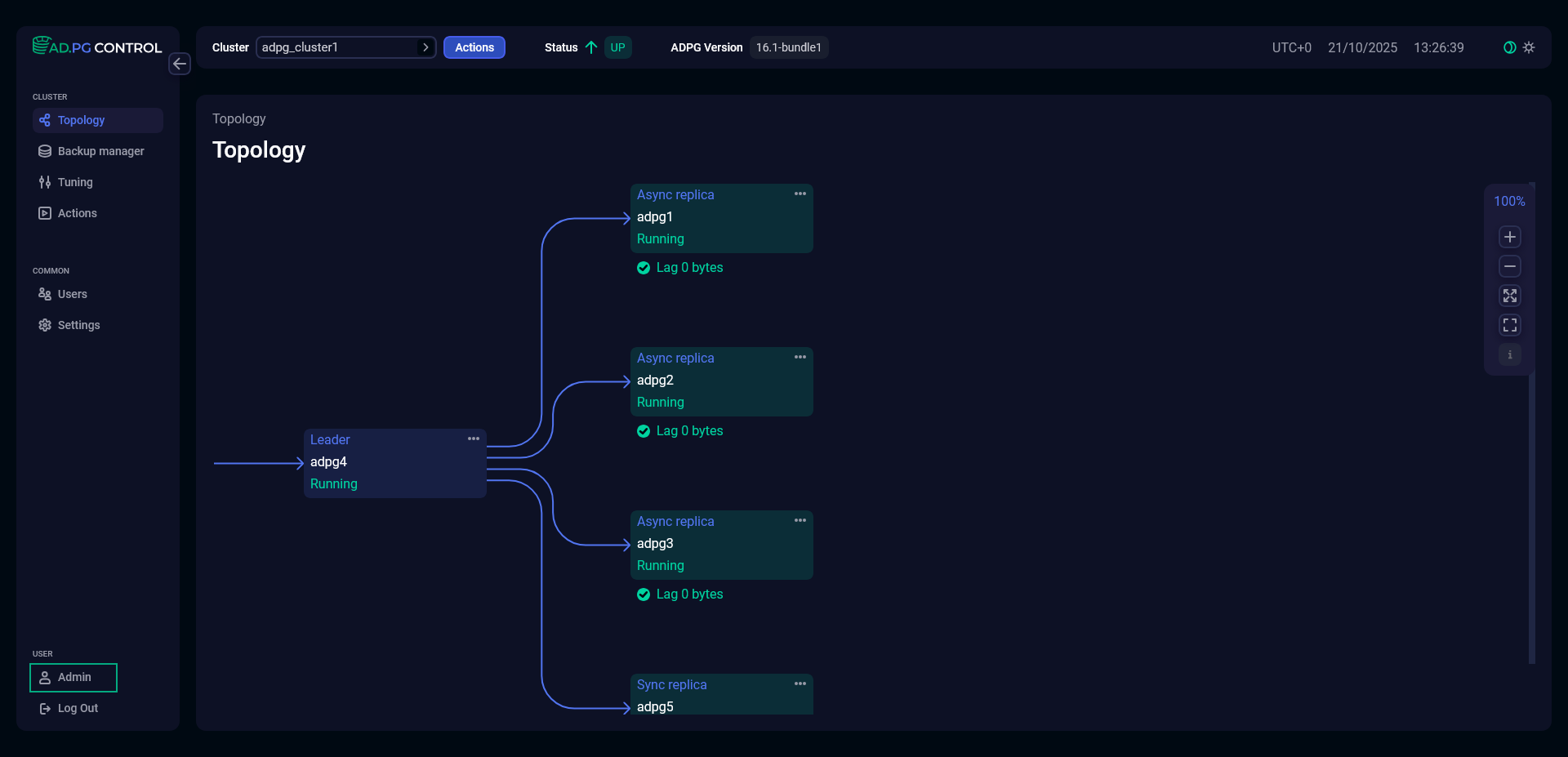
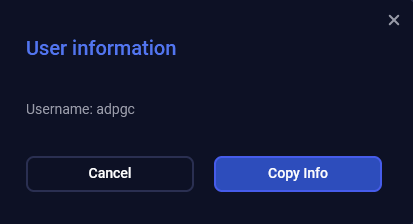
Click the role to see a username.
The current username will be displayed in the window that opens. You can click Copy info to copy this information to the clipboard.
To log out from ADP Control, click Log out in the lower left corner.