

DuckDB extension for Vault/OpenBao secret storage
The Vault/OpenBao extension for DuckDB allows users to store persistent DuckDB secrets in an external secret management system. It supports HashiCorp Vault and OpenBao using the KV v2 secrets engine.
By default, DuckDB stores persistent secrets locally. When Vault/OpenBao storage is enabled, CREATE PERSISTENT SECRET stores secrets in the configured Vault/OpenBao backend instead. This allows multiple DuckDB processes and hosts to share persistent secrets through a central secret store.
The extension is included with the DuckDB service in ADO and is managed through ADCM. A separate installation is not required.
The extension supports:
-
Token, user/password, and LDAP authentication.
-
Configurable KV v2 mount points and secret path prefixes.
-
Vault namespaces and custom authentication paths.
-
HTTPS, custom CA certificates, and mutual TLS (mTLS).
-
HTTP proxy configuration, connection and request timeouts, and connection retries.
-
Secret version limits, compare-and-set (CAS) checks, and soft deletion.
Prerequisites
Before enabling the extension, ensure that:
-
A Vault or OpenBao server is available and reachable from the DuckDB service.
-
A KV v2 secrets engine exists at the mount point that you intend to use.
-
The authentication method is enabled on the server, and the credentials have the required permissions.
-
The server URL, namespace, TLS certificates, and proxy settings are available, if required by your environment.
For HashiCorp Vault, create a KV v2 mount point named secret if it does not already exist:
$ vault secrets enable -path=secret kv-v2For OpenBao, use:
$ bao secrets enable -path=secret kv-v2If the mount point already exists, do not create it again. The extension uses the configured mount point and path prefix to locate secrets.
Enable or disable the extension
To enable or disable the Vault/OpenBao extension through ADCM:
-
On the Clusters page, select the required cluster.
-
Open the Services tab and select DuckDB.
-
In the ADO extensions configuration section, enable or disable the Vault/OpenBao secret storage extension using the corresponding switch. Configure the required parameters.
-
Click Save.
-
In the Actions drop-down menu, select Restart. Make sure that Apply configs from ADCM is set to
true, and click Run.
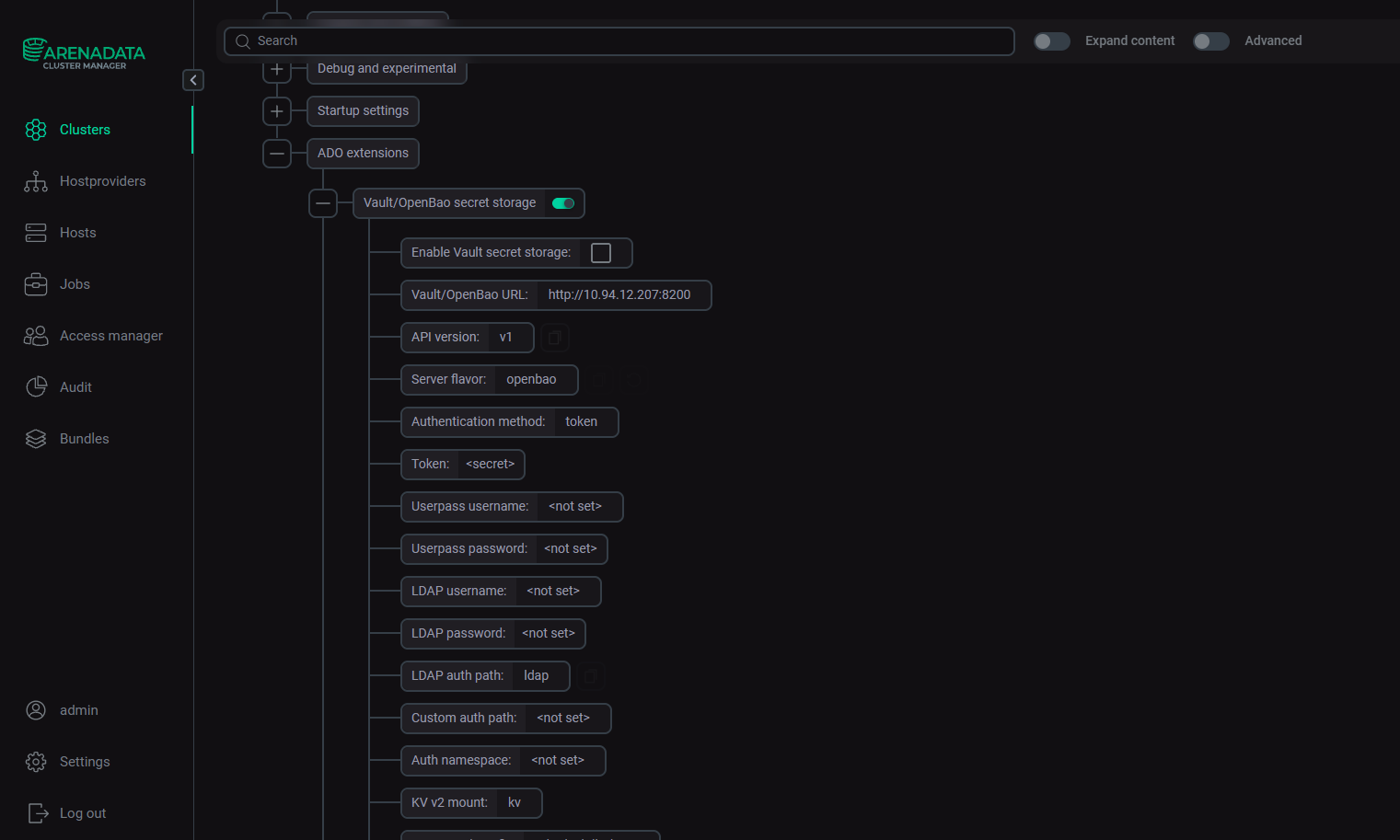
After the service restarts, DuckDB uses the updated service configuration.
When secret_vault_enabled is set to true, Vault/OpenBao becomes the default storage backend for persistent DuckDB secrets. Existing local persistent secrets are not migrated automatically. If you need to preserve them in the external backend, plan and perform the migration separately.
Limitation for unsigned extensions
In ADO 3.0.0, the allow_unsigned_extensions parameter is available in ADCM, but its value is not applied to DuckDB runtime launches performed through /usr/bin/duckdb. Consequently, an ADO-provided unsigned extension may fail to load even when this parameter is enabled.
The extension must be loaded with the -unsigned command-line option. If the extension fails to load, check the DuckDB startup parameters and service configuration.
For Airflow tasks that use the DuckDB provider, you can apply the following workaround:
-
In the Airflow UI, open the Connections page.
-
Edit the connection used by
DuckDbOperator. -
In the Extra field, specify:
{ "cli_params": ["-unsigned"] } -
Save the connection and rerun the task.
Configuration
Configure the extension through the DuckDB service parameters in ADCM. For the complete list of DuckDB configuration parameters, see DuckDB configuration parameters.
The extension uses global DuckDB settings. In a standalone DuckDB process, you can set these parameters using SQL SET statements or environment variables. SQL settings take precedence over the corresponding environment variables.
In ADO, configure the service-level parameters through ADCM and restart the service to apply changes. Settings supplied to an unrelated DuckDB process are not automatically available to ADO runtime processes.
Enable Vault/OpenBao storage
The minimum configuration requires the following parameters:
-
secret_vault_enabled— enables Vault/OpenBao-backed persistent secret storage. -
secret_vault_url— URL of the Vault/OpenBao server. -
Authentication method and credentials — configure these according to the server’s authentication settings.
The KV v2 secrets engine must also be available at the configured mount point, and the configured credentials must have permission to access the relevant secret paths.
Server URL and KV v2 settings
The following parameters control the connection to Vault/OpenBao and the location of stored secrets.
| Parameter | Description | Default value |
|---|---|---|
secret_vault_enabled |
Enables Vault/OpenBao-backed persistent secret storage |
false |
secret_vault_url |
Vault/OpenBao server URL, for example, |
— |
secret_vault_flavor |
Server type: |
vault |
secret_vault_api_version |
API version used in request paths |
v1 |
secret_vault_mount |
KV v2 mount point |
secret |
secret_vault_path_prefix |
Prefix used to construct secret paths |
duckdb/secrets |
secret_vault_cas |
Compare-and-set version. A value of |
0 |
secret_vault_soft_delete |
Marks secrets as deleted instead of physically deleting them |
false |
secret_vault_max_versions |
Maximum number of stored secret versions. A value of |
0 |
With the default mount and path prefix, a secret named my_s3 is stored at the following Vault/OpenBao API path: /v1/secret/data/duckdb/secrets/my_s3.
The path consists of the API version, KV v2 mount point, data endpoint, path prefix, and secret name. Changing the mount point or prefix changes the resulting path.
Authentication
The extension supports three authentication methods:
-
Token (
secret_vault_auth_method,secret_vault_token); -
User/password (
secret_vault_auth_method,secret_vault_username,secret_vault_password); -
LDAP (
secret_vault_auth_method,secret_vault_ldap_username,secret_vault_ldap_password,secret_vault_ldap_auth_path).
Token authentication is the default. The token must have the permissions required for the intended operations, including reading, creating, updating, deleting, and listing secrets as applicable.
For user/password authentication, set secret_vault_auth_method to userpass and provide the user name and password. For LDAP authentication, set it to ldap and configure the LDAP credentials and authentication mount path.
The extension also supports the following parameters:
-
secret_vault_auth_path— custom authentication mount path. -
secret_vault_auth_namespace— namespace for authentication requests. -
secret_vault_namespace— sets theX-Vault-NamespaceHTTP header for Vault Enterprise or compatible namespace-aware deployments.
Use the authentication method configured on the server. Ensure that the credentials have the required permissions for the configured KV v2 mount point and secret paths.
TLS, certificates, and proxy settings
The extension supports HTTPS and, when TLS support is available in the DuckDB build, custom CA certificates and mutual TLS (mTLS).
| Parameter | Description | Default value |
|---|---|---|
secret_vault_tls_skip_verify |
Disables TLS certificate verification when set to |
false |
secret_vault_tls_ca_cert |
Path to the CA certificate |
— |
secret_vault_tls_client_cert |
Path to the client certificate for mTLS |
— |
secret_vault_tls_client_key |
Path to the client private key for mTLS |
— |
secret_vault_tls_min_version |
Minimum TLS version |
1.2 |
secret_vault_http_proxy |
HTTP proxy URL |
— |
secret_vault_http_proxy_username |
Proxy user name |
— |
secret_vault_http_proxy_password |
Proxy password |
— |
For production deployments, keep certificate verification enabled and configure the required CA certificates. Disabling verification can expose connections to interception and should be limited to controlled troubleshooting scenarios.
HTTPS support depends on OpenSSL being available in the DuckDB extension build. If the extension was built without OpenSSL support, HTTPS cannot be used through that build.
Timeouts, retries, and HTTP settings
The extension provides parameters for connection timeouts, request timeouts, retries, and HTTP behavior.
| Parameter | Description | Default value |
|---|---|---|
secret_vault_connect_timeout |
Connection timeout in seconds |
10 |
secret_vault_request_timeout |
Request timeout in seconds |
30 |
secret_vault_max_retries |
Maximum number of retries for transient errors |
3 |
secret_vault_retry_backoff_ms |
Initial retry backoff in milliseconds |
100 |
secret_vault_retry_max_backoff_ms |
Maximum retry backoff in milliseconds |
5000 |
secret_vault_http_keep_alive |
Enables HTTP keep-alive |
true |
secret_vault_headers |
Additional HTTP headers specified as JSON |
— |
secret_vault_debug |
Prints HTTP requests and responses to standard error for troubleshooting |
false |
The default timeout and retry values are a starting point for many environments. If the server is reached over a high-latency network, adjust the timeouts and retry settings as needed. Retries can increase the time required for a query to fail when the server is unavailable.
The secret_vault_debug parameter helps diagnose connectivity and API errors. Sensitive values are redacted in the extension’s debug output, but diagnostic logs must still be handled securely.
Sensitive parameters
Authentication tokens, user passwords, LDAP passwords, proxy passwords, and client private keys are sensitive information. Configure them through the appropriate protected service parameters in ADCM. Do not include actual credentials in documentation, source control, or task logs.
Use credentials with the minimum permissions required by the workload. Avoid using an administrative Vault/OpenBao token when a token restricted to the required KV v2 paths is sufficient.
Usage examples
The following SQL examples illustrate how to use the extension. In ADO, configure the connection settings and credentials through ADCM before running the SQL statements.
Create a persistent secret
After enabling the extension and configuring the Vault/OpenBao URL and authentication credentials, create a persistent S3 secret:
CREATE PERSISTENT SECRET my_s3 (
    TYPE S3,
    KEY_ID 'example-key-id',
    SECRET 'example-secret-key',
    REGION 'eu-central-1'
);
DuckDB stores the secret in Vault/OpenBao rather than in a local persistent secret file.
To verify the secret metadata, run:
SELECT name, type, provider, persistent, storage
FROM duckdb_secrets();
The result includes the secret name, type, provider, persistence status, and storage backend. For a secret stored by this extension, the storage value identifies Vault as the backend.
The secret can then be used by DuckDB operations that support S3 credentials. For example:
SELECT *
FROM read_parquet('s3://analytics-bucket/events.parquet')
LIMIT 10;
This example assumes that the required S3 endpoint and any additional connection settings have been configured for the environment.
Delete a persistent secret
To delete a secret, run:
DROP SECRET my_s3;The extension deletes the secret from the configured backend and removes its local catalog entry. If secret_vault_soft_delete is enabled, the backend marks the secret as deleted instead of physically deleting it.
Configure user/password authentication
If the Vault/OpenBao server uses user/password authentication instead of token authentication, configure secret_vault_auth_method as userpass and provide the credentials.
For a standalone DuckDB process, the equivalent SQL configuration is:
SET secret_vault_auth_method = 'userpass';
SET secret_vault_username = 'alice';
SET secret_vault_password = 'example-password';
SET secret_vault_url = 'https://vault.example.com:8200';
SET secret_vault_enabled = true;
In ADO, configure the corresponding parameters through ADCM and restart the service to apply the changes.
Configure LDAP authentication
For LDAP authentication, set secret_vault_auth_method to ldap and configure the LDAP credentials and authentication mount path.
For a standalone DuckDB process:
SET secret_vault_auth_method = 'ldap';
SET secret_vault_ldap_username = 'alice';
SET secret_vault_ldap_password = 'example-password';
SET secret_vault_ldap_auth_path = 'ldap';
SET secret_vault_url = 'https://vault.example.com:8200';
SET secret_vault_enabled = true;
In ADO, configure the corresponding parameters through ADCM. Verify that LDAP authentication is enabled on the server and that the authenticated identity has access to the configured KV v2 mount point.
Troubleshooting
If DuckDB cannot connect to Vault/OpenBao or access a stored secret, check the following:
-
The extension is enabled in ADCM and the DuckDB service has been restarted with Apply configs from ADCM set to
true. -
The server URL and network connectivity are correct.
-
The selected authentication method, credentials, authentication mount path, and namespace are correct.
-
The KV v2 secrets engine exists at the configured mount point.
-
The credentials have the required permissions for the configured mount point and secret paths.
-
TLS certificates, proxy settings, connection timeouts, and retry limits are configured correctly.
If the extension fails to load, check the unsigned-extension limitation described in the enablement section and the DuckDB startup parameters.
For additional diagnostic information, enable extension debugging. In a standalone DuckDB process, run:
SET secret_vault_debug = true;The extension prints HTTP request and response diagnostics to standard error. Sensitive values are redacted, but logs must still be handled according to your environment’s security requirements.
To inspect the persistent secrets known to DuckDB, run:
SELECT name, type, provider, persistent, storage
FROM duckdb_secrets();
Check that the secret is persistent and that its storage backend is Vault. If a secret was written directly through the Vault/OpenBao CLI, verify that its JSON structure matches the format expected by the extension and that it was written to the configured mount point and path prefix.
Persistent secret storage details
The extension stores DuckDB persistent secrets in Vault/OpenBao KV v2 as structured objects. The stored representation includes the secret type, provider, scope, redaction metadata, and secret-specific key-value fields.
When DuckDB creates a persistent secret, the extension writes it to the remote backend and adds it to the local DuckDB catalog cache. When a secret is looked up, the extension synchronizes the stored secrets with the remote backend and selects the best match by secret type and scope.
Updates are written to the remote backend. KV v2 versioning and the compare-and-set configuration determine how updates interact with stored versions and concurrent changes. When a secret is dropped, the extension removes it from the remote backend according to the configured deletion behavior and removes its local catalog entry.
Existing local persistent secrets are not migrated automatically when Vault/OpenBao storage is enabled. Plan any required migration separately.
A secret named my_s3 stored with the default mount point and path prefix has the following KV v2 data structure:
{
  "data": {
    "data": {
      "type": "s3",
      "provider": "config",
      "persistent": true,
      "scope": [],
      "redact_keys": ["secret"],
      "extra_config": {},
      "KEY_ID": "example-key-id",
      "SECRET": "example-secret-key",
      "REGION": "eu-central-1"
    },
    "options": {
      "cas": 0,
      "max_versions": 0
    }
  }
}
The outer data and options fields follow the Vault/OpenBao KV v2 API format. The inner secret data contains the fields used to reconstruct the DuckDB secret.
If a secret must be created directly through the Vault/OpenBao CLI, use the configured mount point and path prefix and preserve the expected secret structure. For example, create a JSON file containing the inner secret fields:
{
  "type": "s3",
  "provider": "config",
  "scope": [],
  "redact_keys": ["secret"],
  "KEY_ID": "example-key-id",
  "SECRET": "example-secret-key",
  "REGION": "eu-central-1"
}
For OpenBao, write the secret to the configured KV v2 mount point and path:
$ export BAO_ADDR='https://openbao.example.com:8200'
$ export BAO_TOKEN='your-token'
$ bao kv put -mount=secret duckdb/secrets/my_s3 @my_s3.json
The secret becomes available to DuckDB when the extension can access the path and the stored data matches the expected format. Ensure that the credentials used by DuckDB have the necessary permissions to read it.