

Work with Cruise Control
Prerequisites and limitations
-
Working with the Cruise Control functionality in ADS Control is available starting from version ADS 3.9.1.1.b1.
-
When using the ADS Control 2.6.0 and 2.6.2 versions, the following settings should be configured in the ADS and ADS Control clusters:
Cruise Control page overview
The Clusters → <cluster name> → Cruise Control page in the ADS Control web interface is designed for configuring the Cruise Control module, as well as creating and applying the rebalance proposals.
The Cruise Control page becomes available after selecting a cluster in the cluster management section and going to the desired tab on the General page.
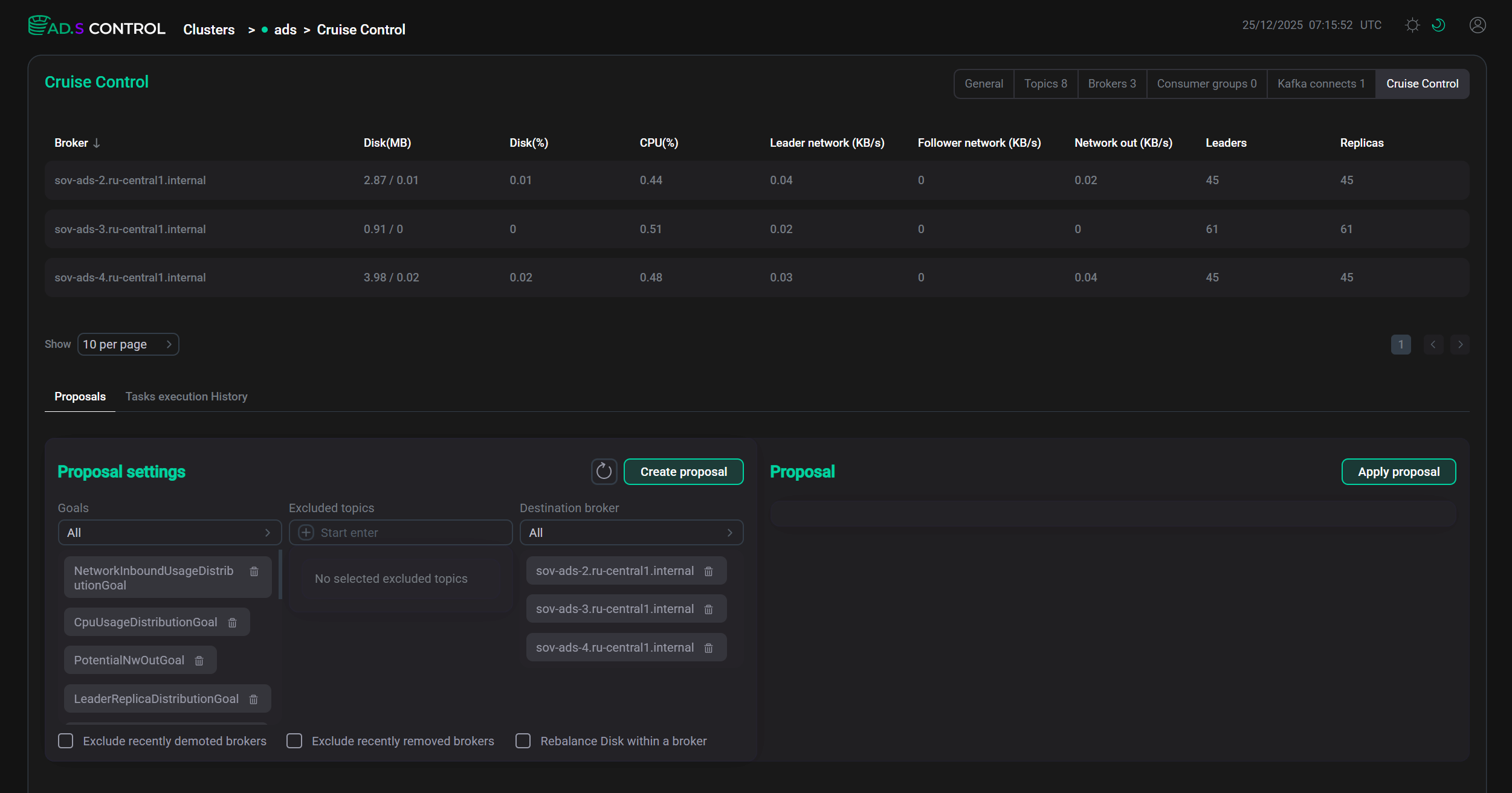
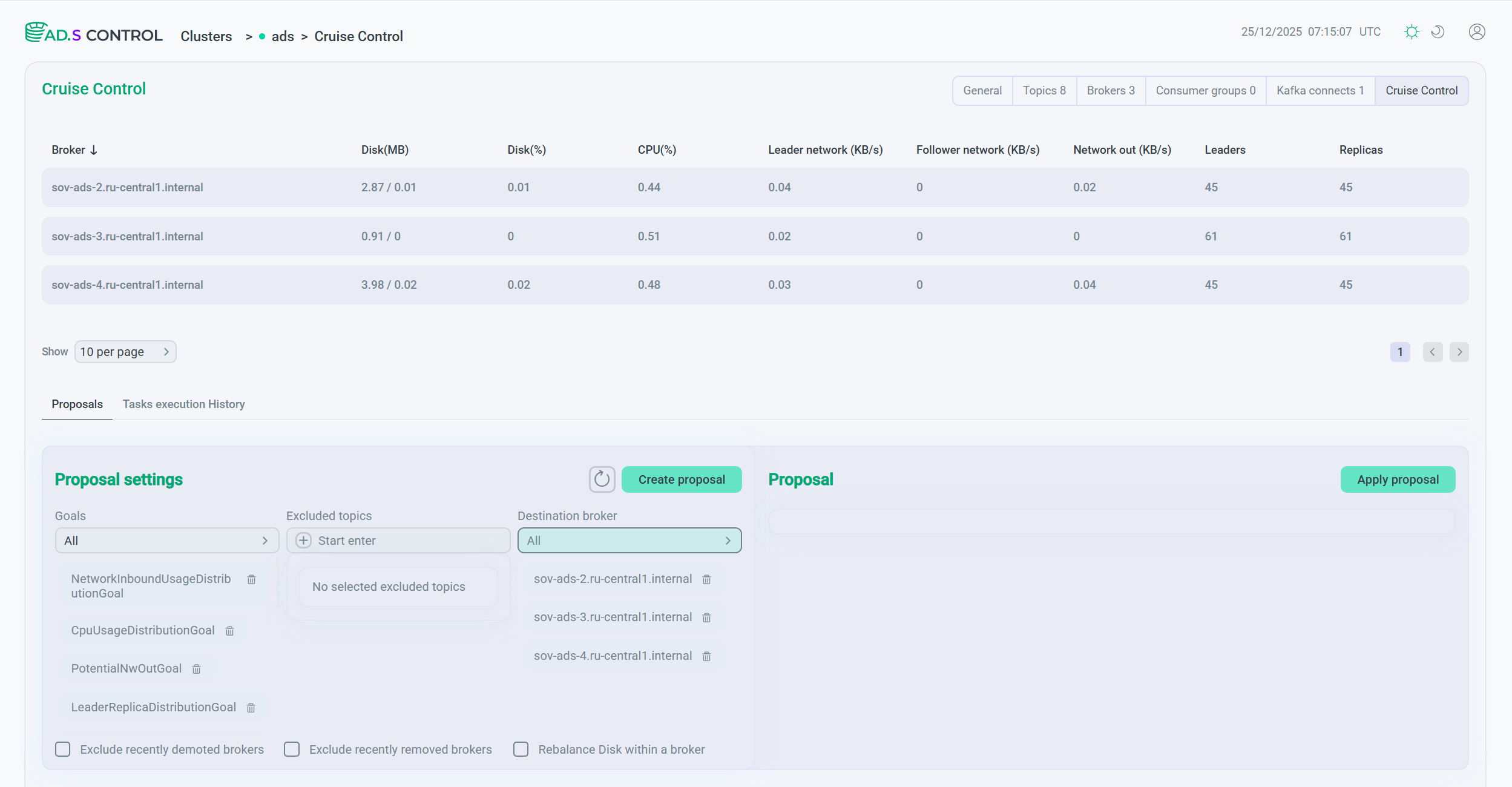
At the top of the Cruise Control page, there is a table with information about the cluster load and broker status. The description of the table columns is given below.
| Field | Description |
|---|---|
Broker |
Full name of the host acting as the Kafka broker |
Disk(MB) |
Disk usage in MB / Disk usage in percentage |
Disk(%) |
Disk usage in percentage |
CPU(%) |
Total CPU usage percentage for all broker tasks |
Leader network (KB/s) |
Incoming traffic for leaders |
Follower network (KB/s) |
Incoming traffic for followers |
Network out (KB/s) |
Outgoing traffic |
Leaders |
Number of leaders on the broker |
Replicas |
Number of replicas on the broker |
The tabs are displayed below:
Proposals tab
The Clusters → <cluster name> → Cruise Control → Proposals tab opens by default when you go to the Cruise Control page. The tab provides the ability to configure, get, view, and apply proposals for cluster rebalance (optimization).
The tab contains sections:
-
Proposal settings
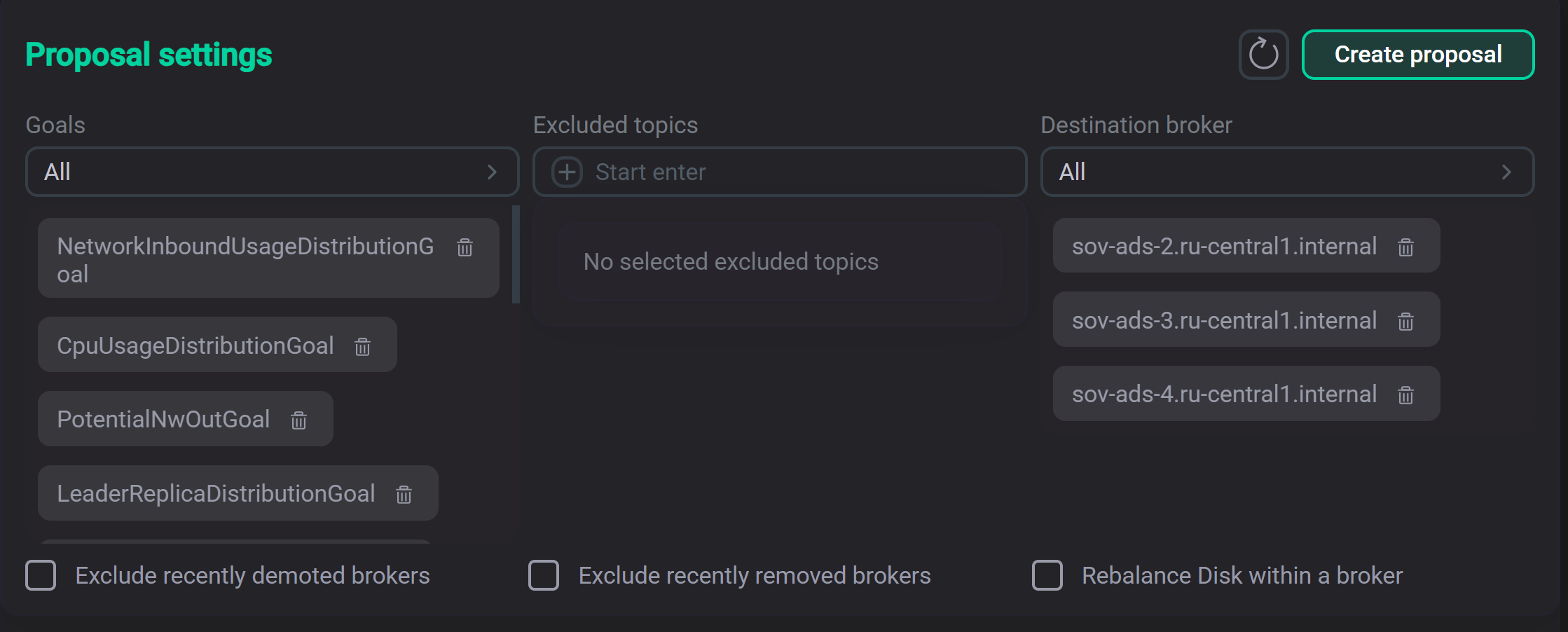
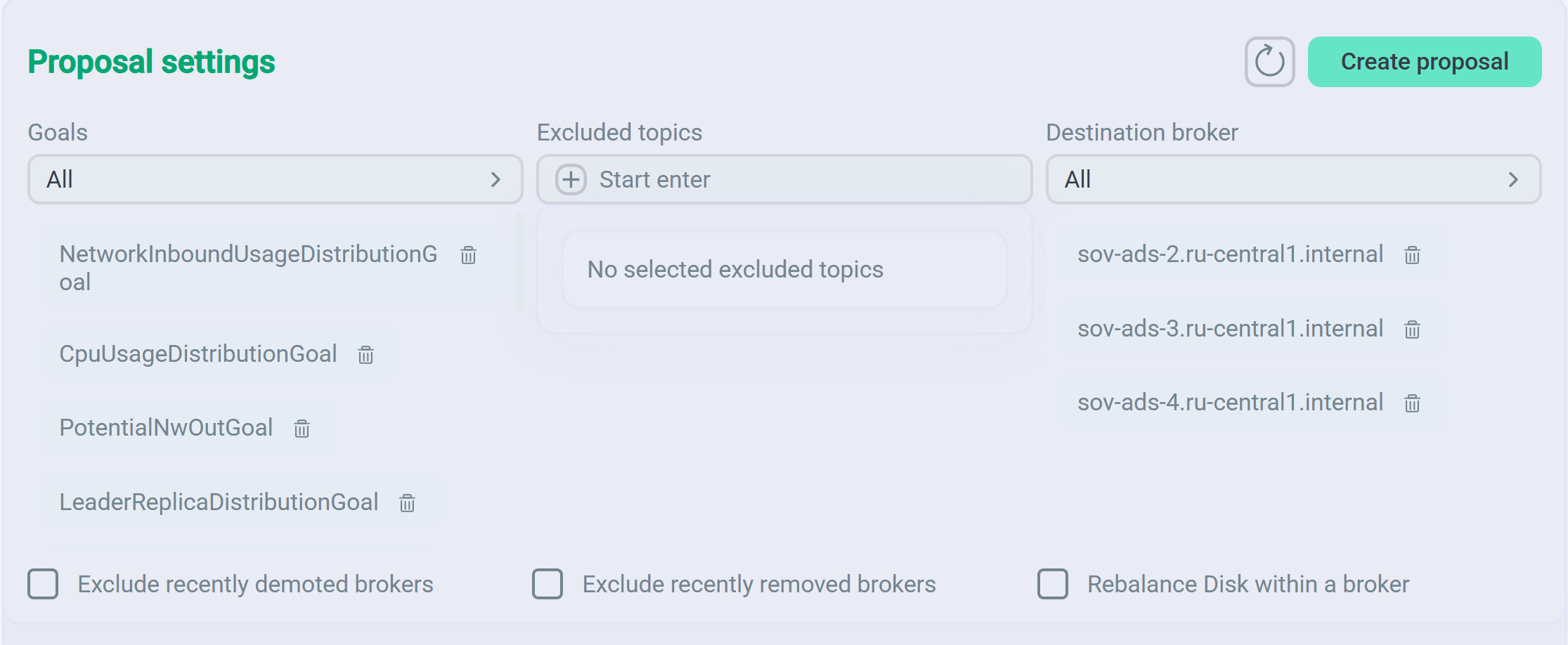
The section provides the ability to configure a proposal.
 Proposal settings
 Proposal settings
The section contains:
-
The Goals drop-down list that allows you to edit the set of Cruise Control goals.
-
The Excluded topics field where you can specify a regular expression to indicate topic names that will be excluded when generating a proposal (for example, the
mm-connect.*expression will exclude all topics whose names start withmm-connect). -
The Destination broker drop-down list that allows you to edit the list of brokers to be considered when creating a proposal.
-
Fields to activate the flags described below.
Field Description Exclude recently demoted brokers
Enable if brokers recently downgraded in priority need to be excluded from optimization
Exclude recently removed brokers
Enable if brokers recently removed need to be excluded from optimization
Rebalance Disk within a broker
Enable if disk rebalancing within a broker is required
-
The

 button to reset the proposal settings.
 -
The Create proposal button. After you click it, an overview of the generated proposal appears in the Proposal section, with the Goals table shown below it.
-
-
Proposal
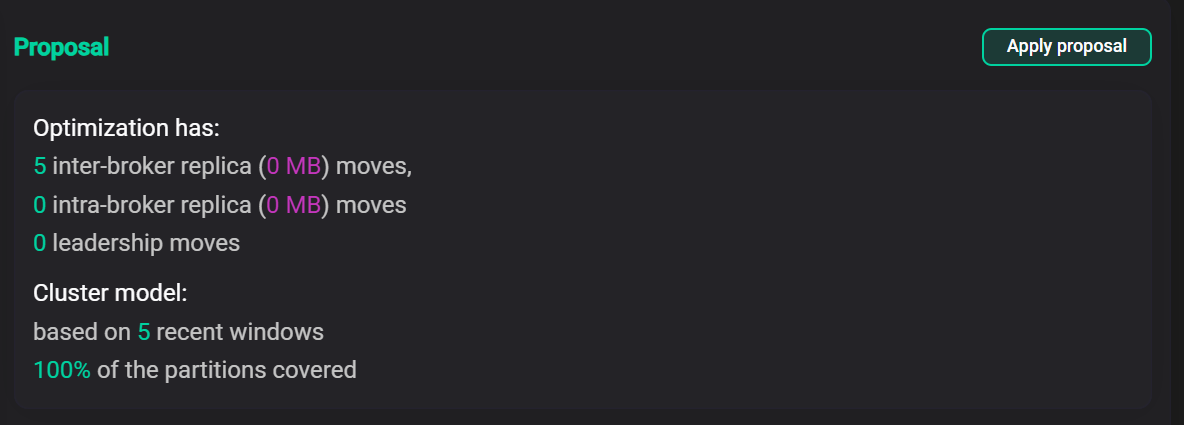
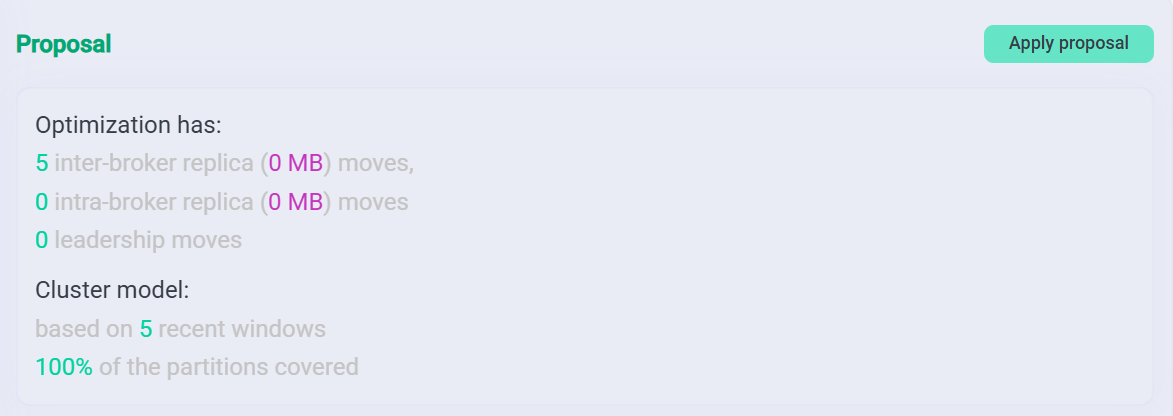
The section provides the ability to view and accept the generated rebalancing proposal after clicking the Create proposal button in the Proposal settings section.
 Proposal
 Proposal
The section contains:
-
Description of the proposal, including:
-
the number of replica movements, as well as the volume of data being moved between brokers and within brokers;
-
the number of leader changes.
-
-
Information about the cluster model on which the proposal is based:
-
the number of most recently used load windows;
-
the percentage of all partitions used in the model.
-
-
The Apply proposal button, which, when clicked, initiates the cluster rebalance.
-
-
Goals
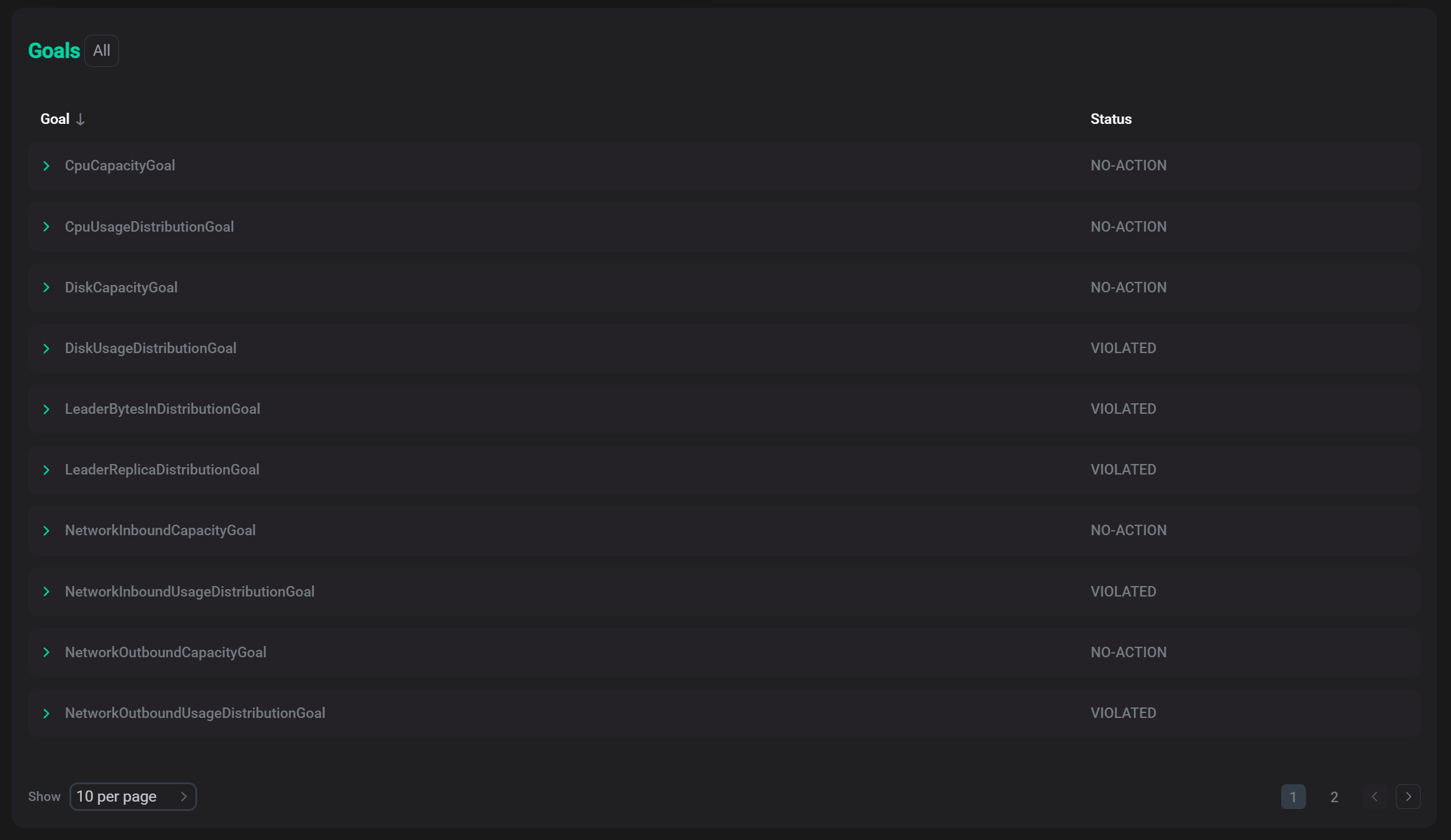
The section contains a table with information about the statuses of the goals used in the proposal.
 Goals
Goals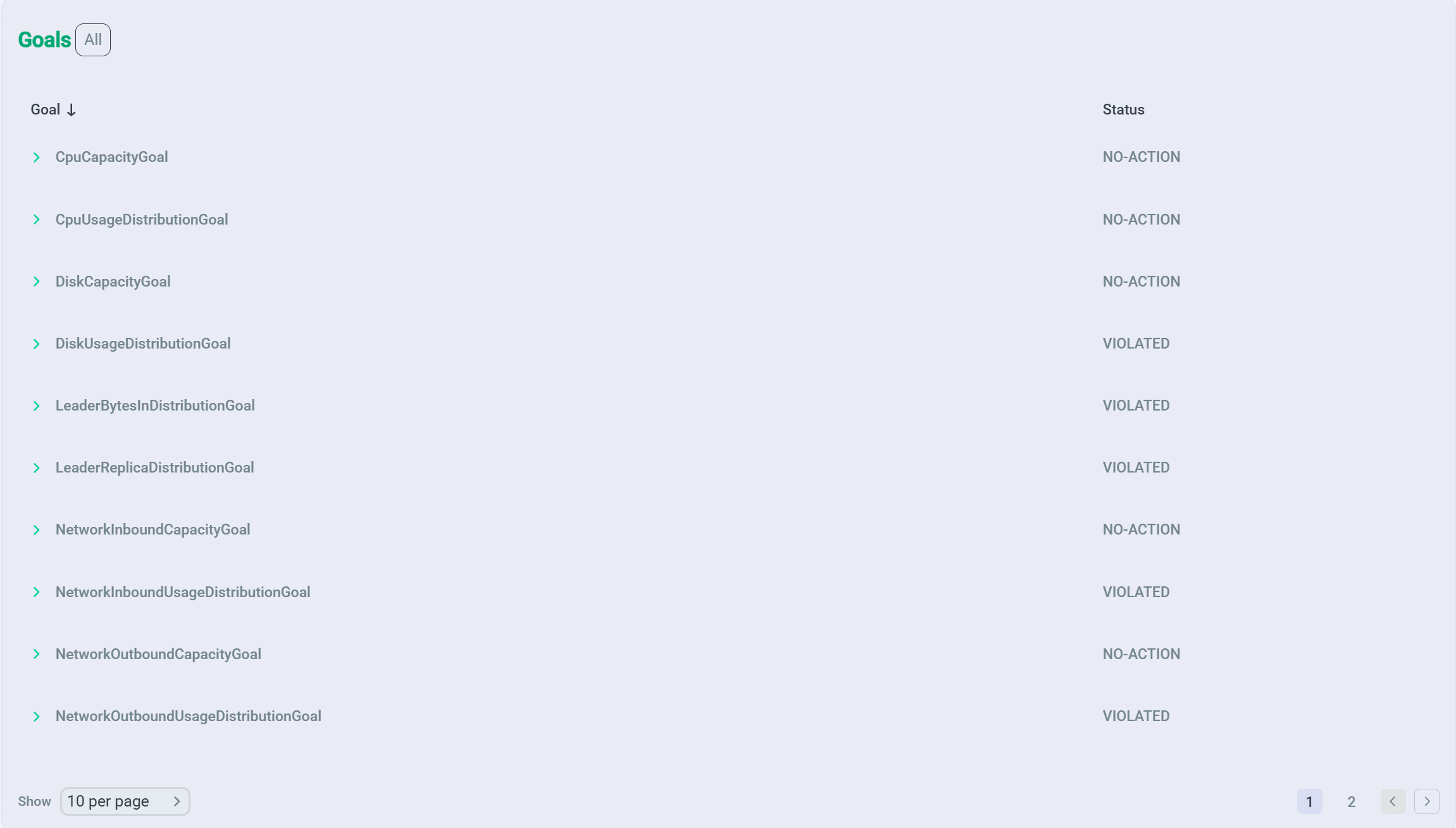 Goals
GoalsStatuses of the goals:
-
VIOLATED— violated goal; -
NO-ACTION— set but not violated goal.
By clicking on the row with the goal name, you can view metrics for certain cluster resources.
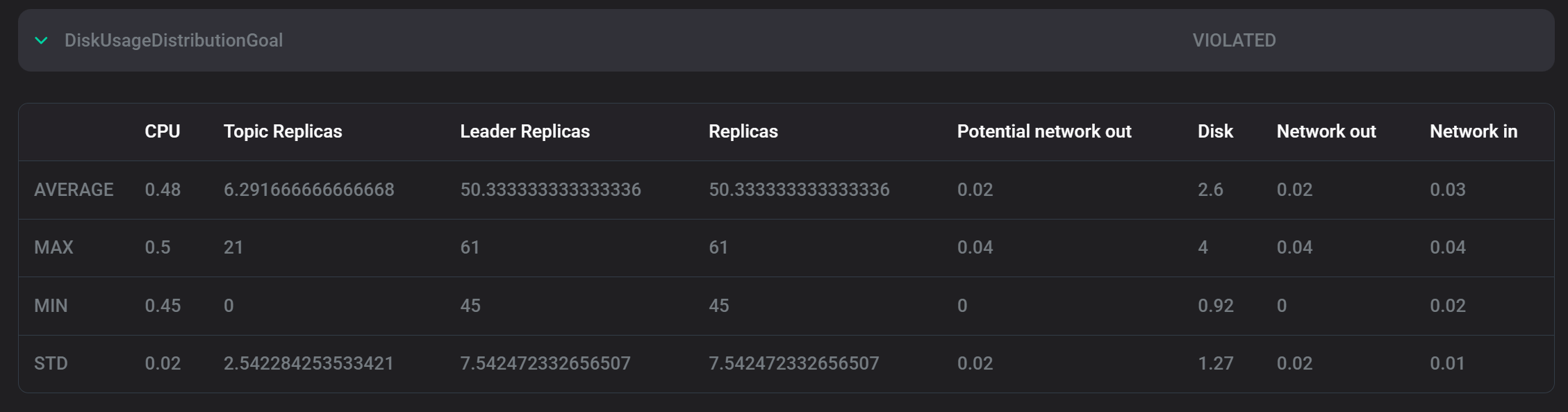 Cluster metrics
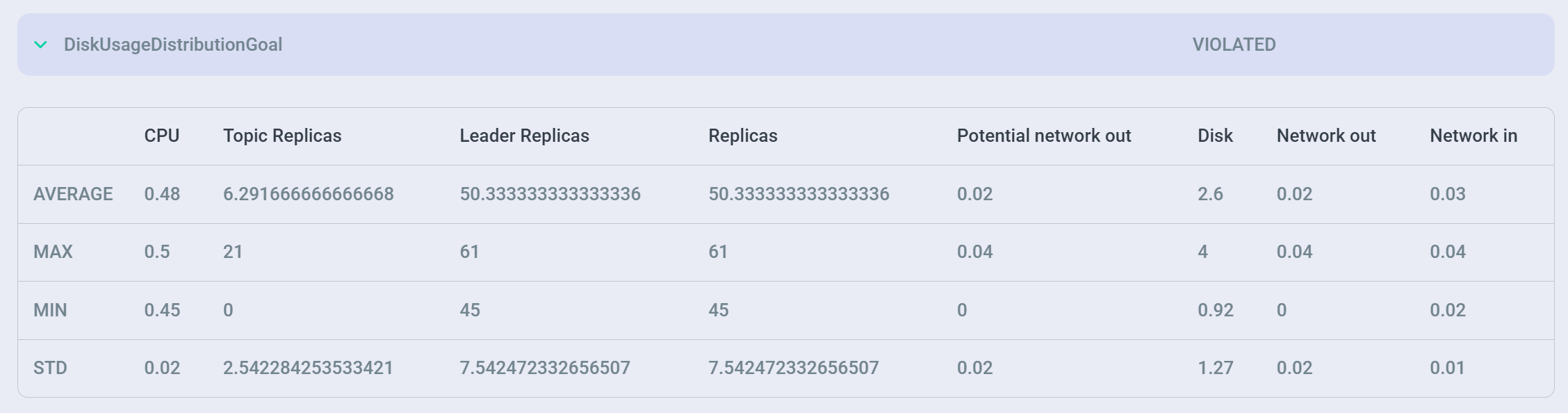 Cluster metrics
Metrics are displayed for several levels of value:
-
AVERAGE— average value of the parameter; -
MAX— maximum value of the parameter; -
MIN— minimum value of the parameter; -
STD— standard deviation of the value.
Below is a description of the cluster resources used in the presented metrics.
Field Description CPU
CPU usage
Topic replicas
Topic replicas
Leader replicas
Leader replicas
Replicas
All replicas
Potential network out
Potential outbound network bandwidth
Disk
Disk usage
Network out
Cluster outbound traffic
Network in
Cluster inbound traffic
-
Tasks execution History tab
The Clusters → <cluster name> → Cruise Control → Tasks execution History tab opens from the Cruise Control page. The tab provides information about the statuses of running tasks.
|
NOTE
In addition to the |
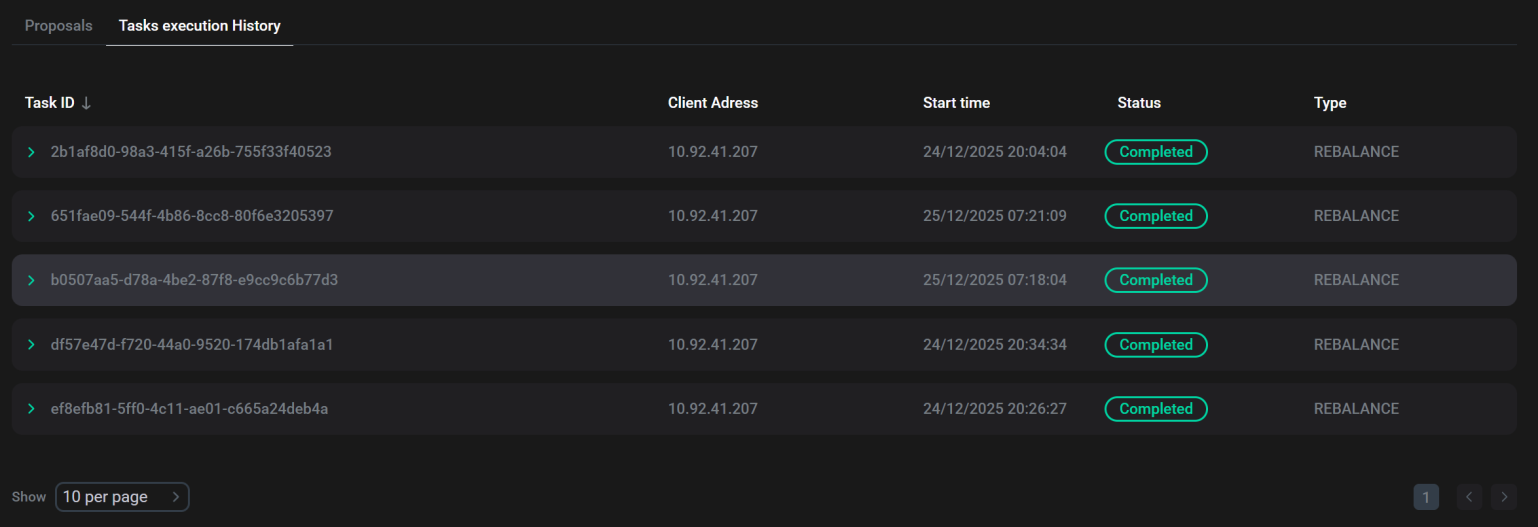
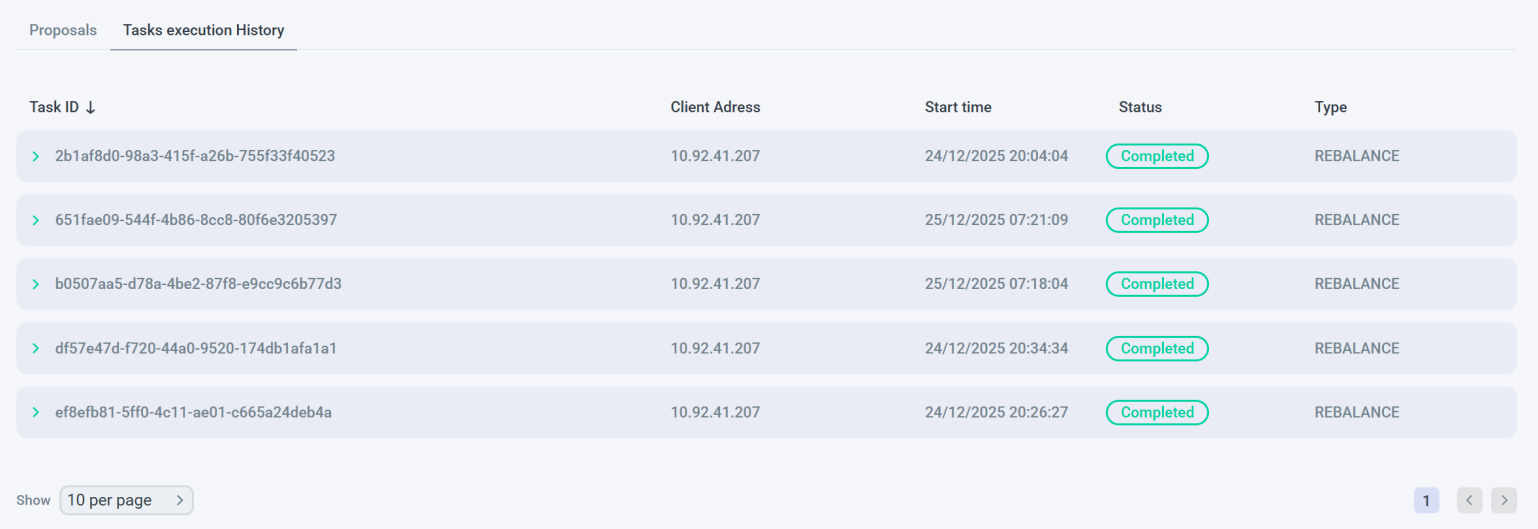
A description of the table columns is given below.
| Field | Description |
|---|---|
Task ID |
Task identifier |
Client Address |
Address from which the request was made |
Start time |
Task start time |
Status |
Task status. Possible values:
|
Type |
Type of task. Possible values:
|
By clicking on a table row, you can view information about the task being initiated, which is a response to the user’s request.
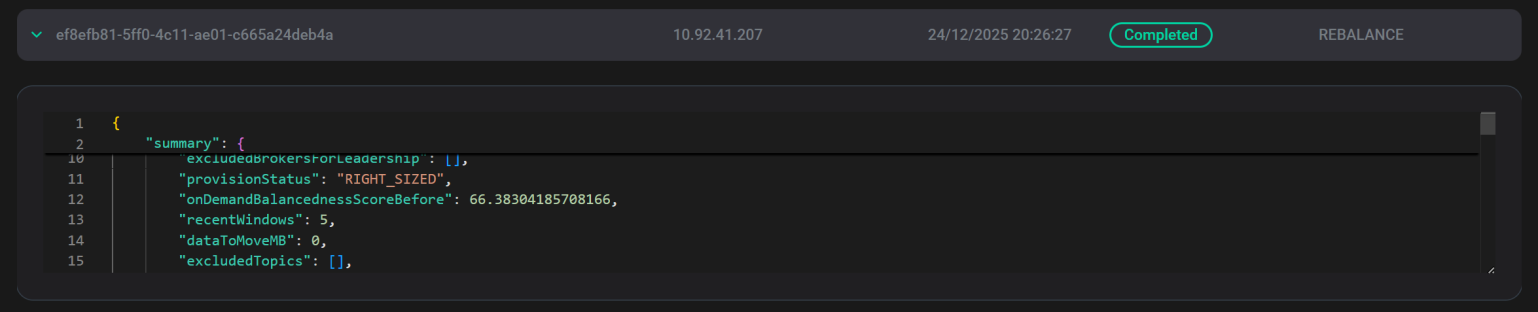
For example, for the REBALANCE task, the response contains:
-
in the
summarysection — overview of the goals used in the proposal; -
in the
proposalssection — information about the new leaders of topic partitions; -
in the
loadAfterOptimizationsection — cluster load model after the proposed optimization.
After rebalancing, in the cluster loads and broker states table, you can see that the existing cluster load matches the load model shown in the task execution details.