

Work with ACL in ADS Control
Prerequisites
ADS Control
To enable the ability to work with ACL, activate the Kafka ACL Settings switch on the ADS Control service configuration page, save the configuration, and restart the ADS Control service.
ADS
For the ADS cluster, integrated with ADS Control, configure user authentication and enable ACL (see the ACL in Kafka article for more details).
ACL management page overview
The Clusters → <cluster name> → ACL management page in the ADS Control web interface is designed for access control list management.
The ACL management page becomes available after selecting a cluster in the cluster management section and navigating to the ACL tab on the General page.
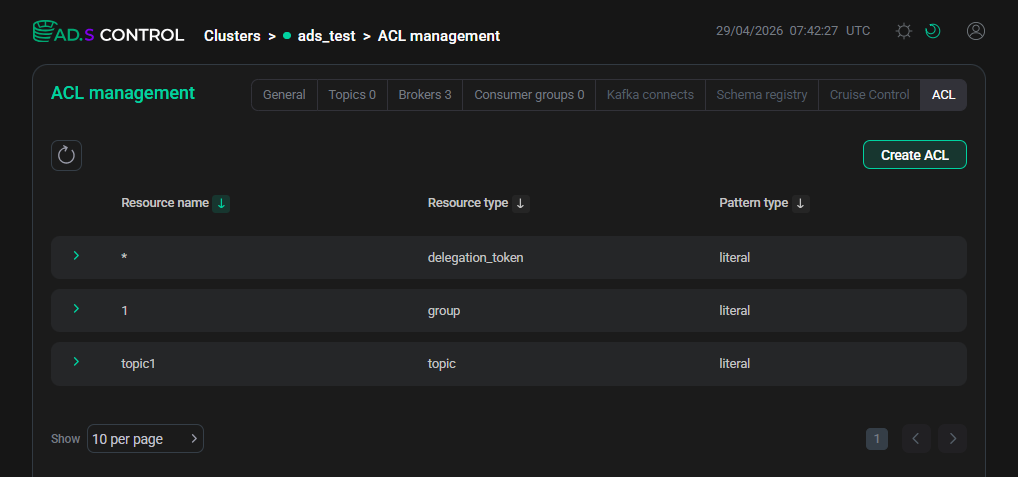
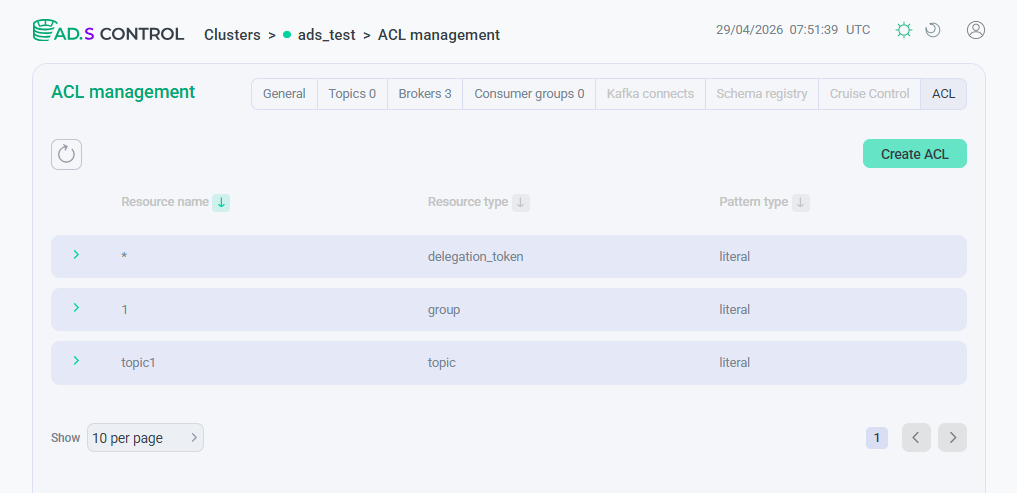
The ACL management page contains:
-
The Create ACL button to open a window for creating new ACL. The description of the window is provided below.
-
The table displaying information about the ACL created in Kafka. Clicking on a table row opens the list of permissions configured for a single resource. The description of the table columns is provided below.
| Field | Description |
|---|---|
Resource name |
Kafka resource name for which users or groups have permissions set to perform operations |
Resource type |
Type of Kafka resource for which users or groups have permissions set to perform operations |
Pattern type |
Type of resource template used in the list. Template types:
|
Create an ACL
After clicking Create ACL, the ACL creation page opens.
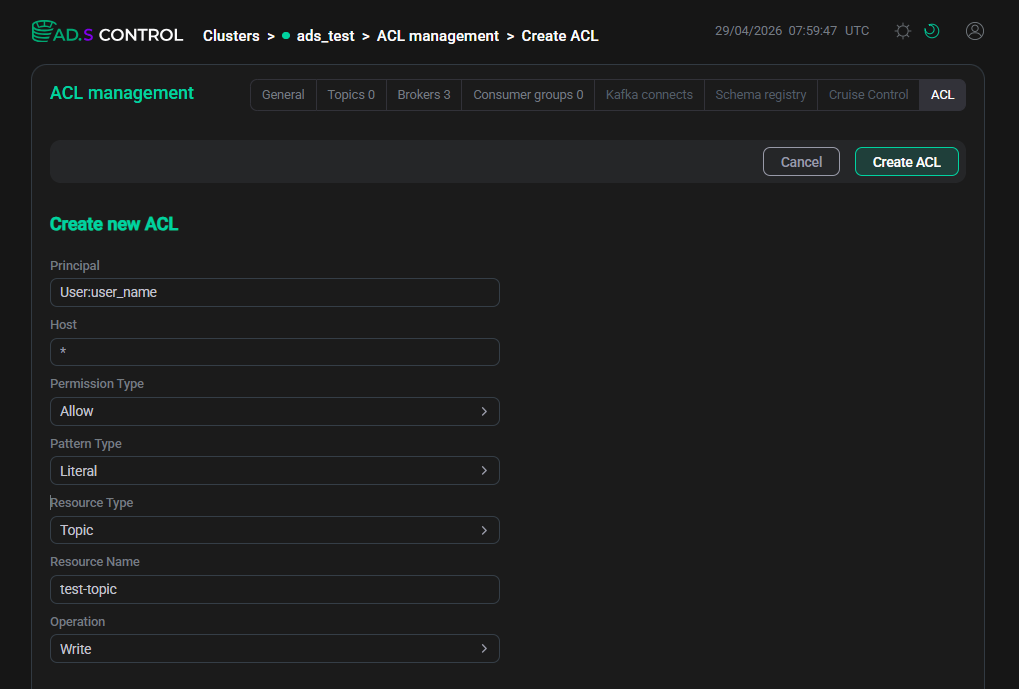
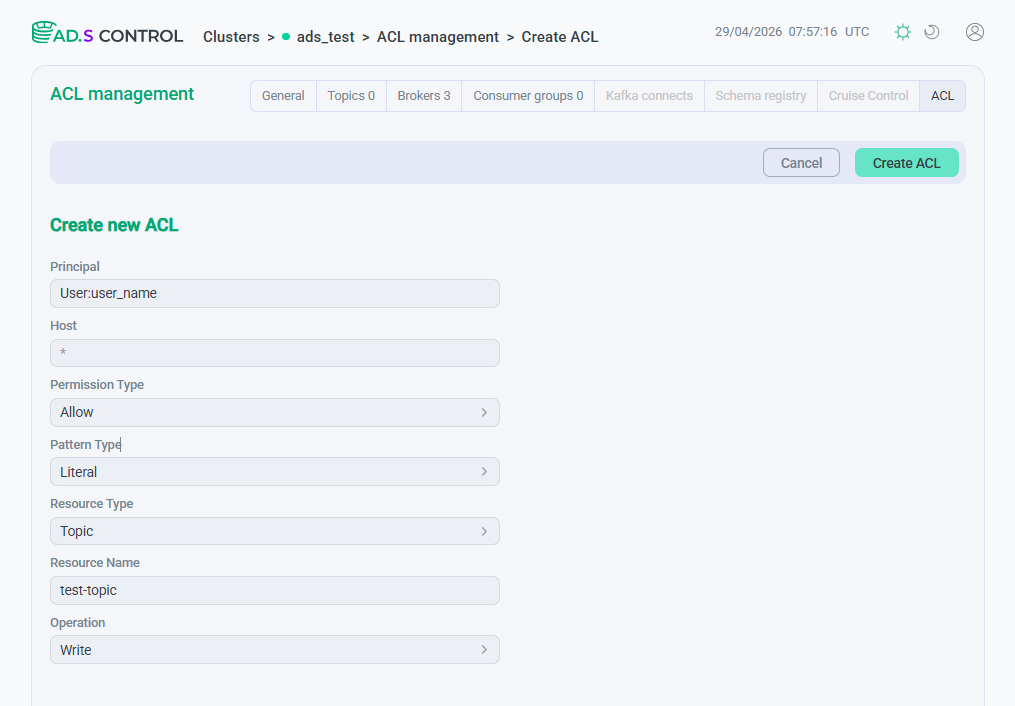
The description of the parameters for creating an ACL is provided below.
| Field | Description |
|---|---|
Principal |
Username or groupname. Specified in the |
Host |
IP address for which access to the resource is provided to users specified in Principal |
Permission Type |
Type of permission:
|
Pattern type |
Type of resource template used in the list. Available template types:
|
Resource type |
Type of resource that users or groups listed have access to for performing operations. Available resource types:
|
Resource name |
Name of the Kafka resource or name pattern to which access for performing operations is assigned for users or groups specified in the list |
Operation |
Operation, access to execution of which is assigned to a user or group. Available operations:
For information about operations for which user rights can be set, refer to the Assign rights and prohibitions to individual actions in Kafka for users section |
After filling in the parameters, click Create ACL and you will receive a message about the successful creation of the list.
View ACL
Clicking on a row opens a table containing the list of permissions configured for a single resource.
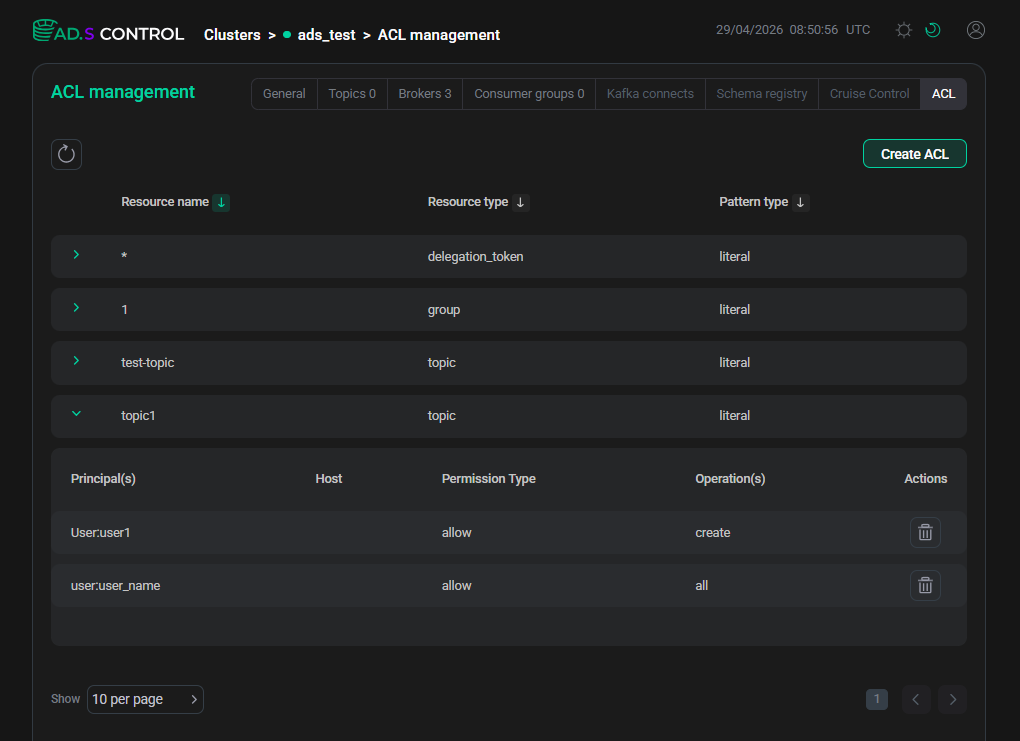
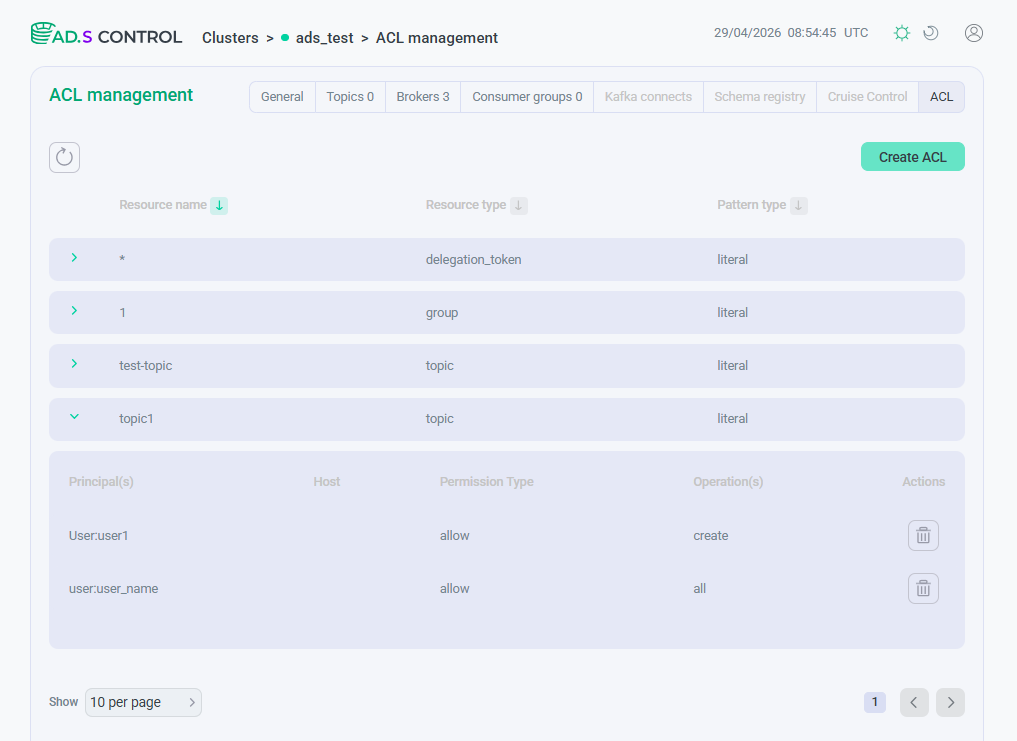
The description of the table columns is given below.
| Field | Description |
|---|---|
Principal(s) |
The username for which access is configured |
Host |
IP address for which access to the resource is provided to users specified in Principal |
Permission Type |
Type of permission |
Operation(s) |
Operation, access to execution of which is assigned to a user or group |
Actions |
Contains the |

