Query groups
The Queries → Query groups page aggregates duplicate queries, displaying statistics for each query group.
ADQM Control implements two levels of query grouping:
List of query families
The Queries → Query groups page lists query families as a table.
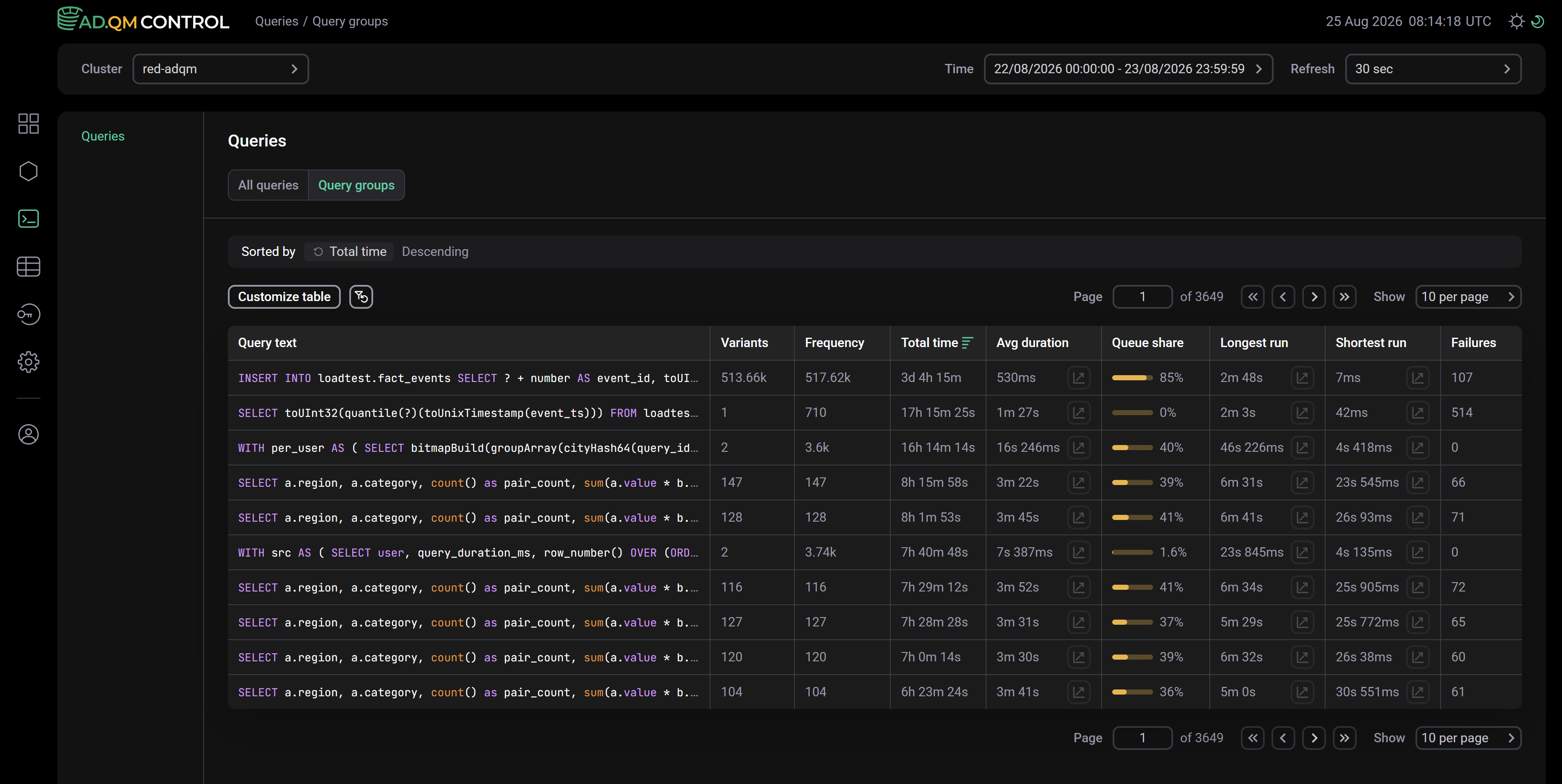
Fields of the "Query groups" table
The Query groups table can include the following fields with general information about query families.
| Field | Description |
|---|---|
Query text |
General SQL structure of queries in a group where specific literal values (numbers, strings) are replaced with the |
Type |
Query type. Possible values:
|
Variants |
Number of query variants (in other words, the number of different combinations of literal values that the query was run with). To quickly calculate the number of variants over the selected time interval, ADQM Control uses approximate calculations with an error of no more than 3% |
Comment |
|
Frequency |
How many times a query was executed during the selected time period |
Total time |
Total execution time of all queries in a family during the selected time period |
Avg duration |
Average query execution time |
Queue share |
How much the query execution time is affected by other queries running at the same time, compared to if the query were running in an empty cluster. The column shows
|
Longest run |
Maximum query execution time |
Shortest run |
Minimum query execution time |
Failures |
Number of failed query executions |
Read rows |
Total number of read data rows (for queries of the |
Written rows |
Total number of written data rows (for queries of the |
Memory usage |
Total amount of memory used by queries from a family |
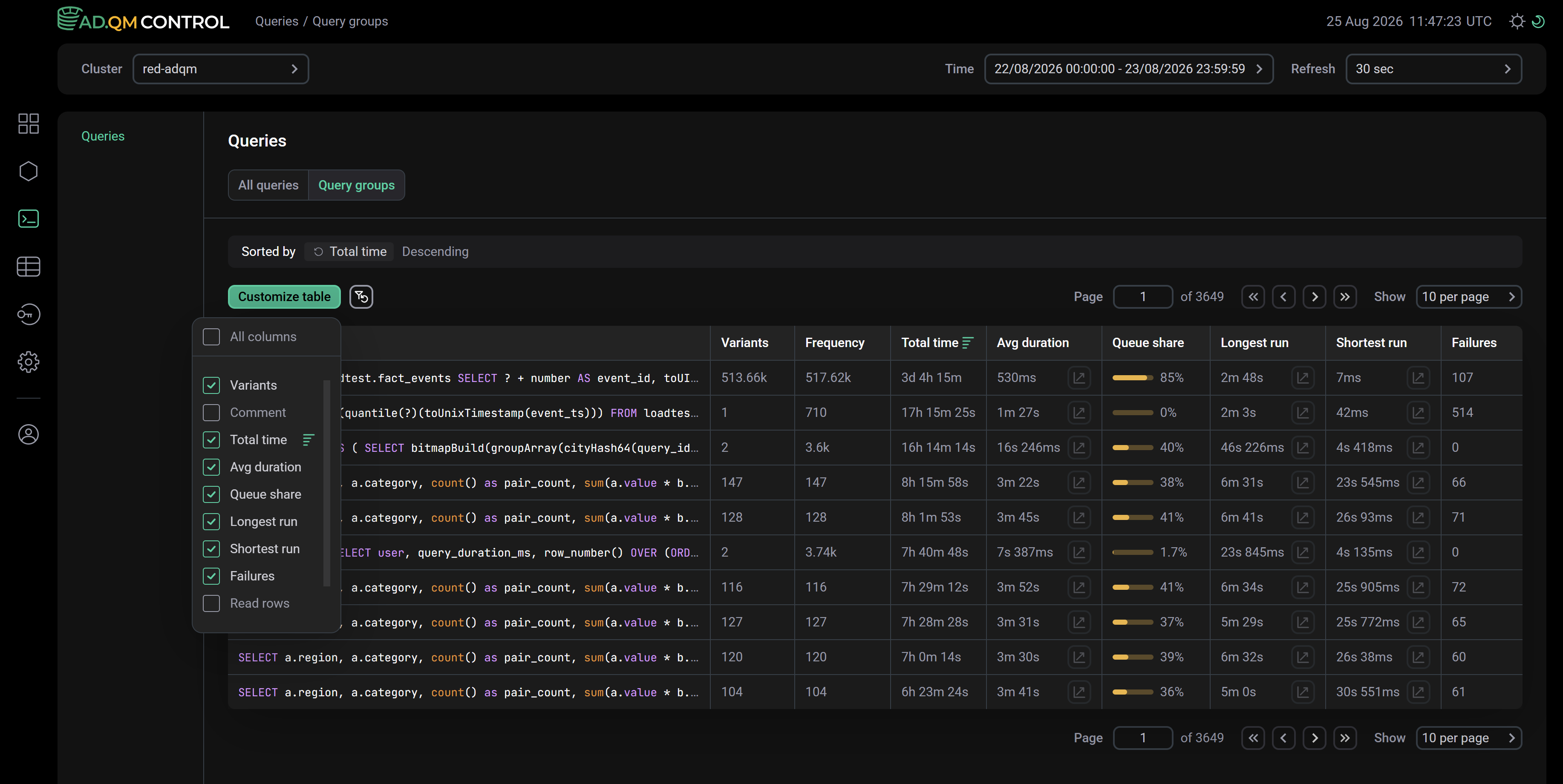
To display/hide fields of the Query groups table, click Customize table and select the desired fields in the drop-down list. The Query text and Frequency fields are always visible, they cannot be hidden.
Filter and sort data
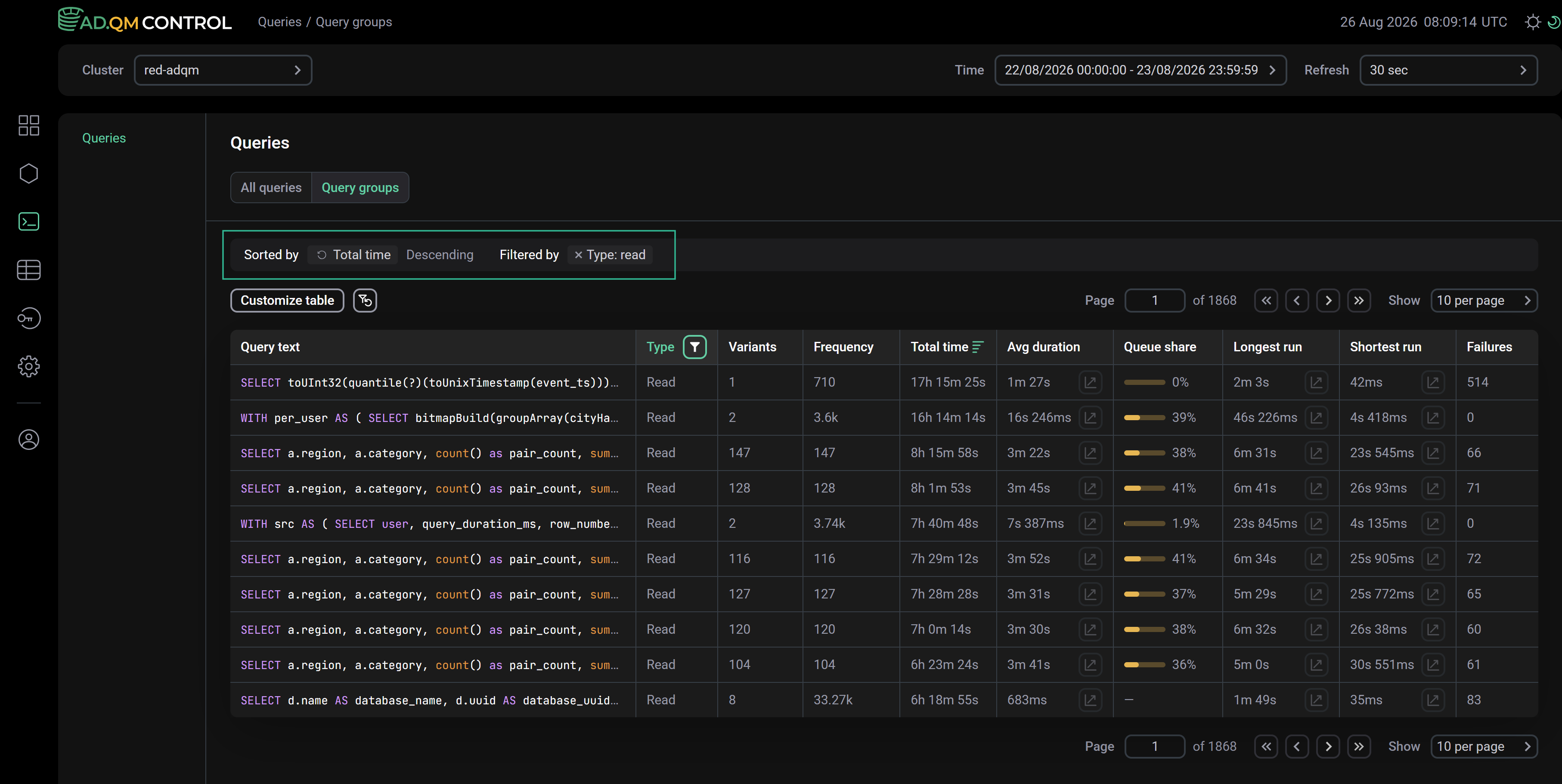
In column headers of the table on the Queries → Query groups page, there are filters that you can use to select specific data. To open a filter, click the icon 
 . Filters are available in the following columns:
-
Type — you can select a query type from the drop-down list;
-
Comment — you can enter a case-insensitive substring of a comment for a query family.
The icon 
 indicates that a filter by column values is applied. To reset all filter conditions, click
 .
.
It is also possible to sort data by any column except Query text, Type, and Comment. To apply sorting by a column, click the icon 
 or
or 
 in its header.
Above the list of tables, there is a panel that shows the sorting (Sorted by) and filtering (Filtered by) conditions currently applied to data.
Graphs
On the Queries → Query groups page, you can get graphs to track the dynamics of changes in query metrics over a selected period of time. In columns of metrics for which graphs are supported, there is the icon 
 . Click the icon — above the list of grouped queries, ADQM Control will display a panel with a graph built based on the corresponding metric of the query family. You can add up to 8 graphs (inclusive) simultaneously.
To see values of metrics at some point in time, hover the mouse over the graph area. The Detalization option allows you to choose the level of detail (number of points on the graph): Low or High.
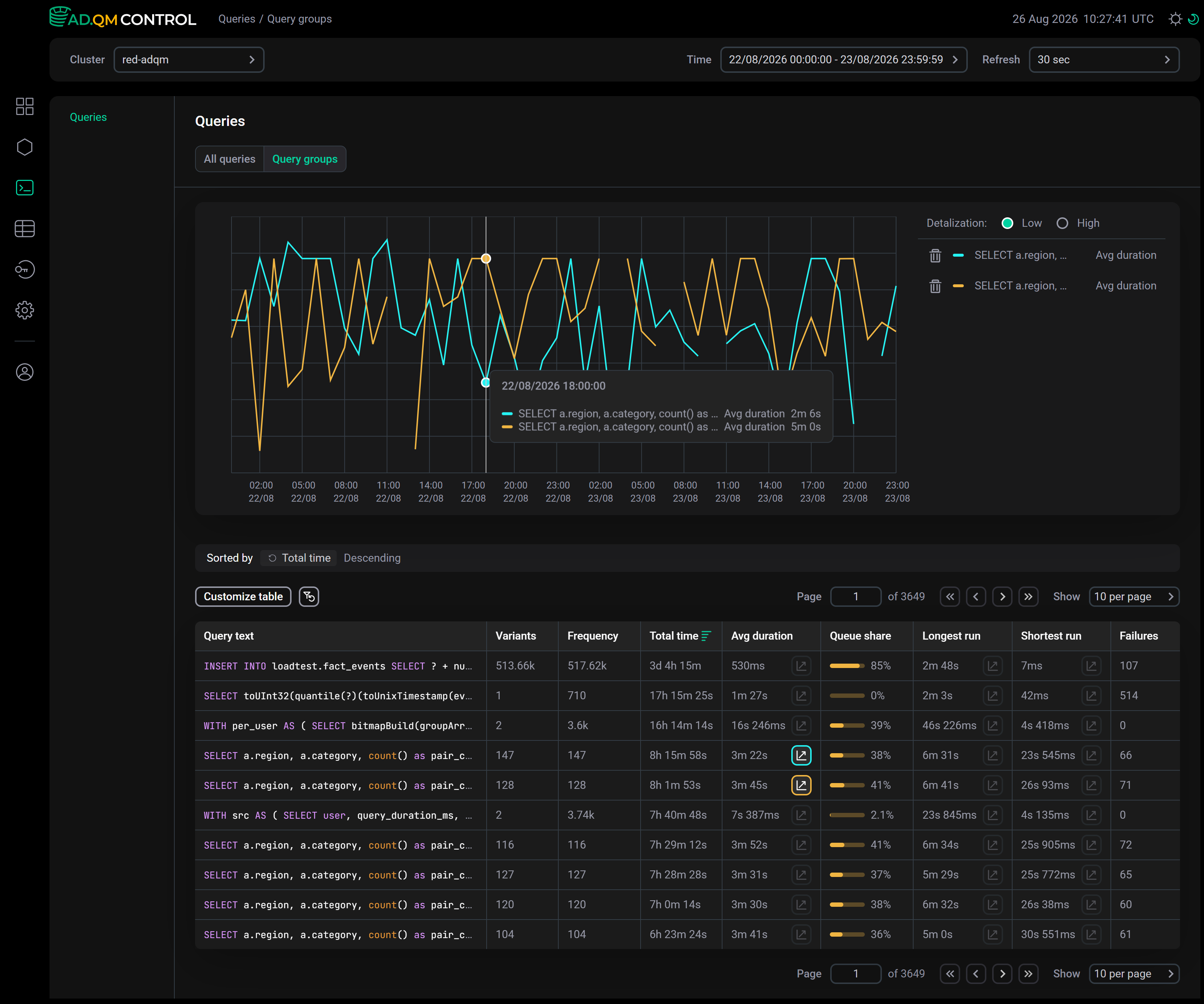
To delete a graph, click the icon corresponding to the graph color in the table (for example, 
 and
and 
 in the image above) or the icon
 in the legend to the right of the graphs.
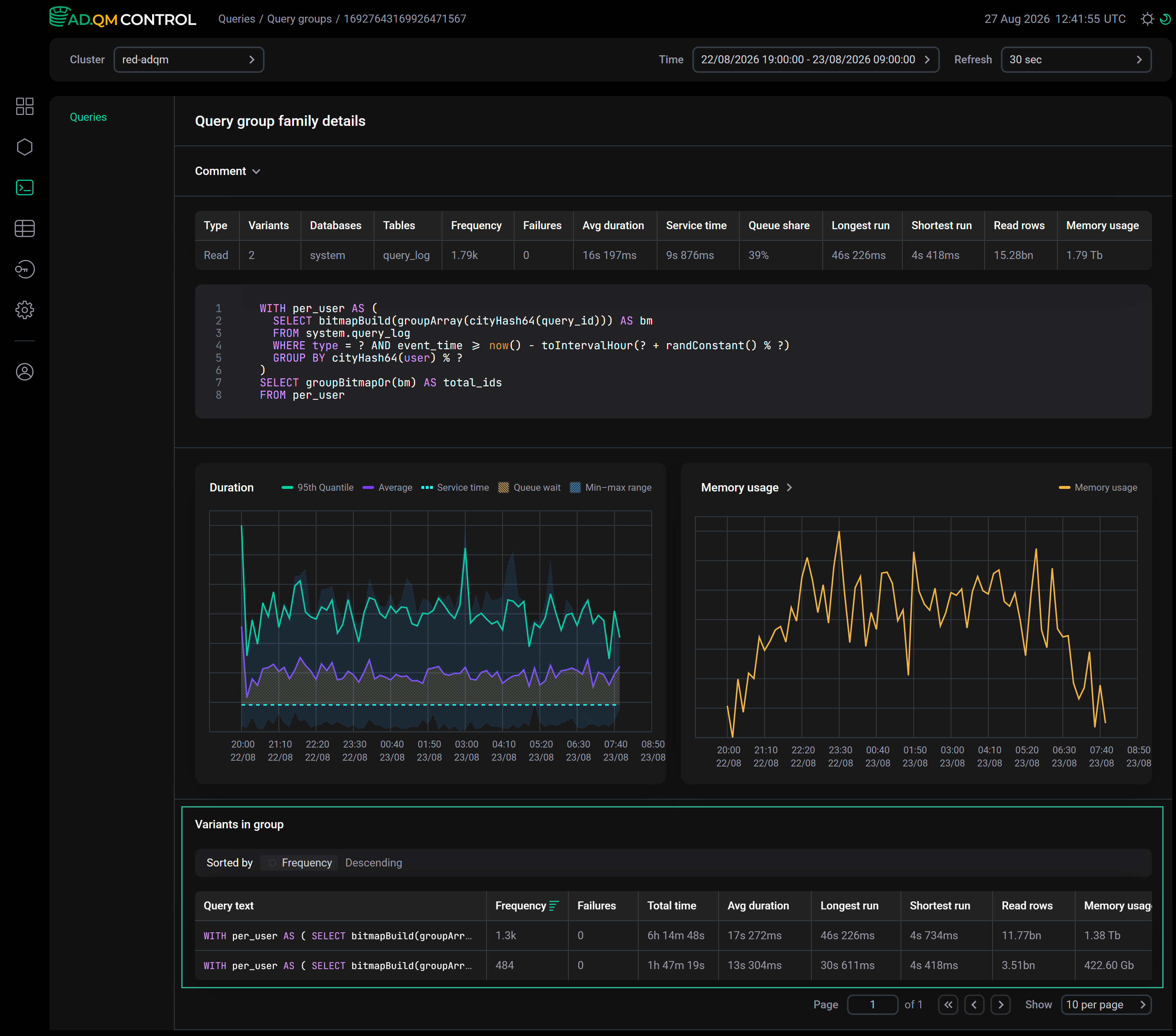
Query family details
To view detailed information on a query family, click the query text in the Query text field on the Queries → Query groups page.
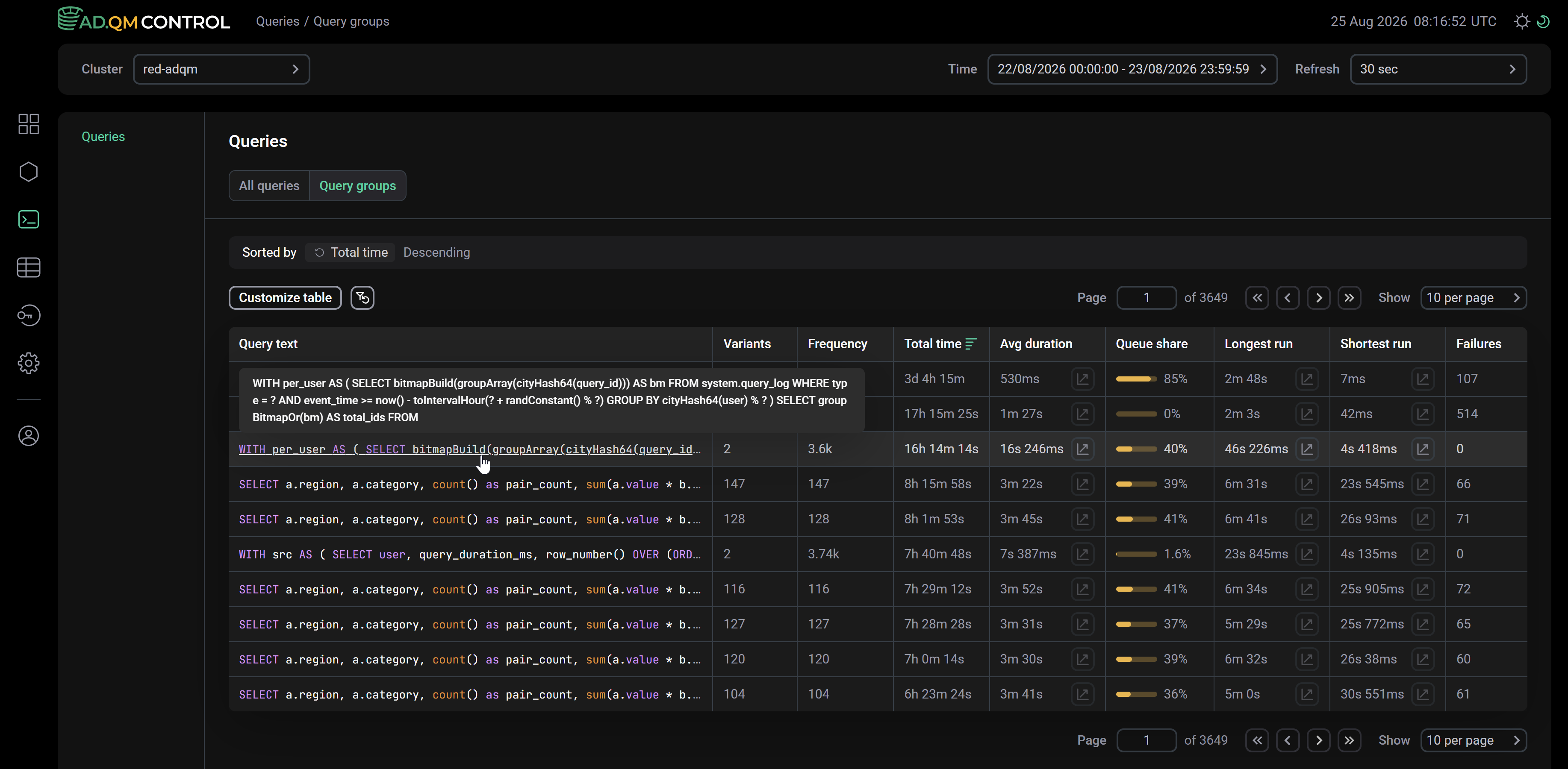
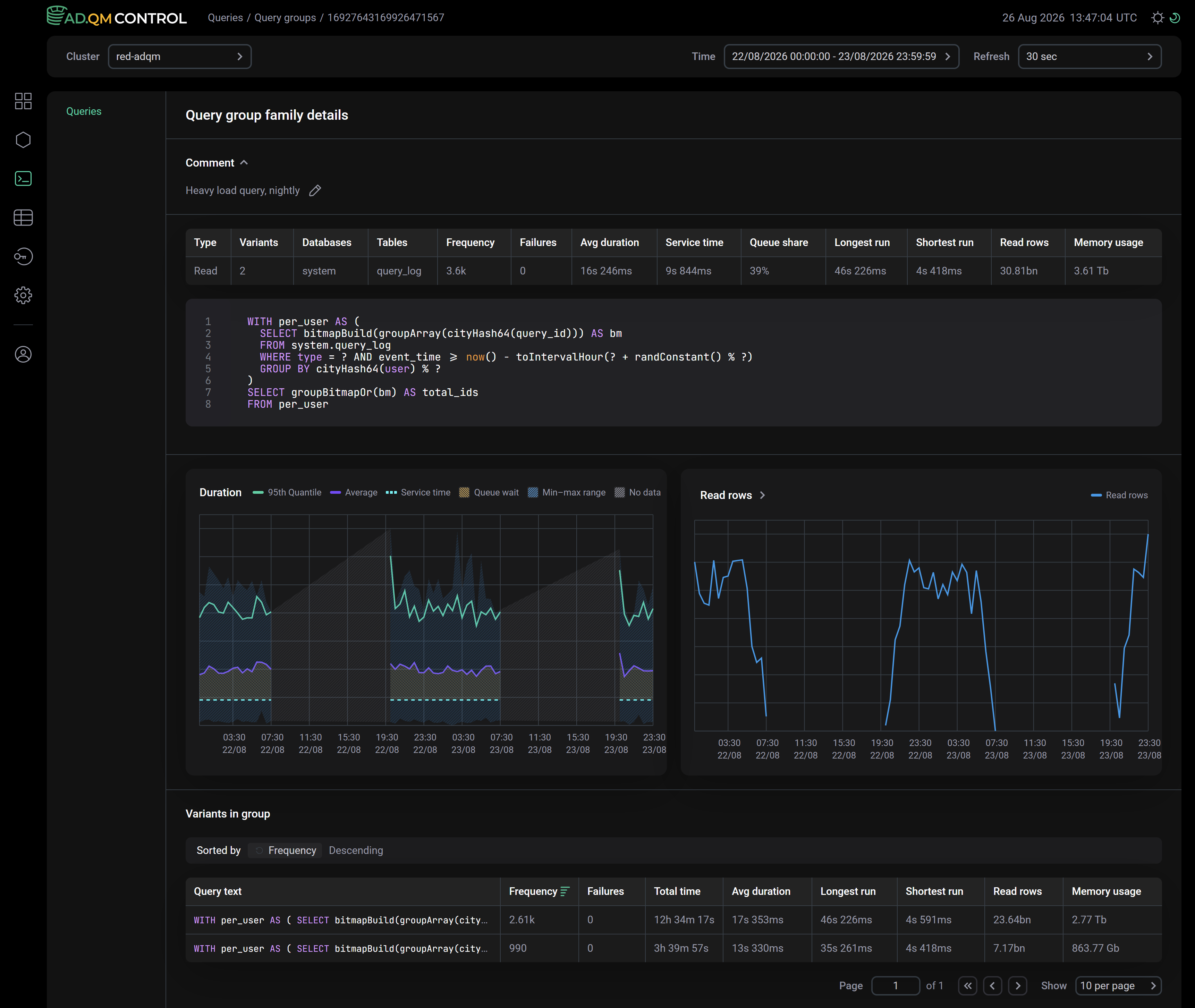
The Query group family details page that opens displays:
-
Comment — description of the query family. To expand a comment, click Comment or the icon

 . To enter or edit text (up to 4096 characters), click the icon
 .
. -
Information about the query family:
-
Table with query family metrics, which in addition to the fields from the Query groups table, includes the following fields:
-
Databases — names of databases accessed by a query;
-
Tables — names of tables accessed by a query;
-
Service time — query execution time, if it were not affected by other queries.
-
-
Full text of a query with the
?symbol substituted for literal values.
-
Graphs
The Query group family details page displays graphs that allow you to visually evaluate the following metrics of a query family:
-
Duration — query execution time;
-
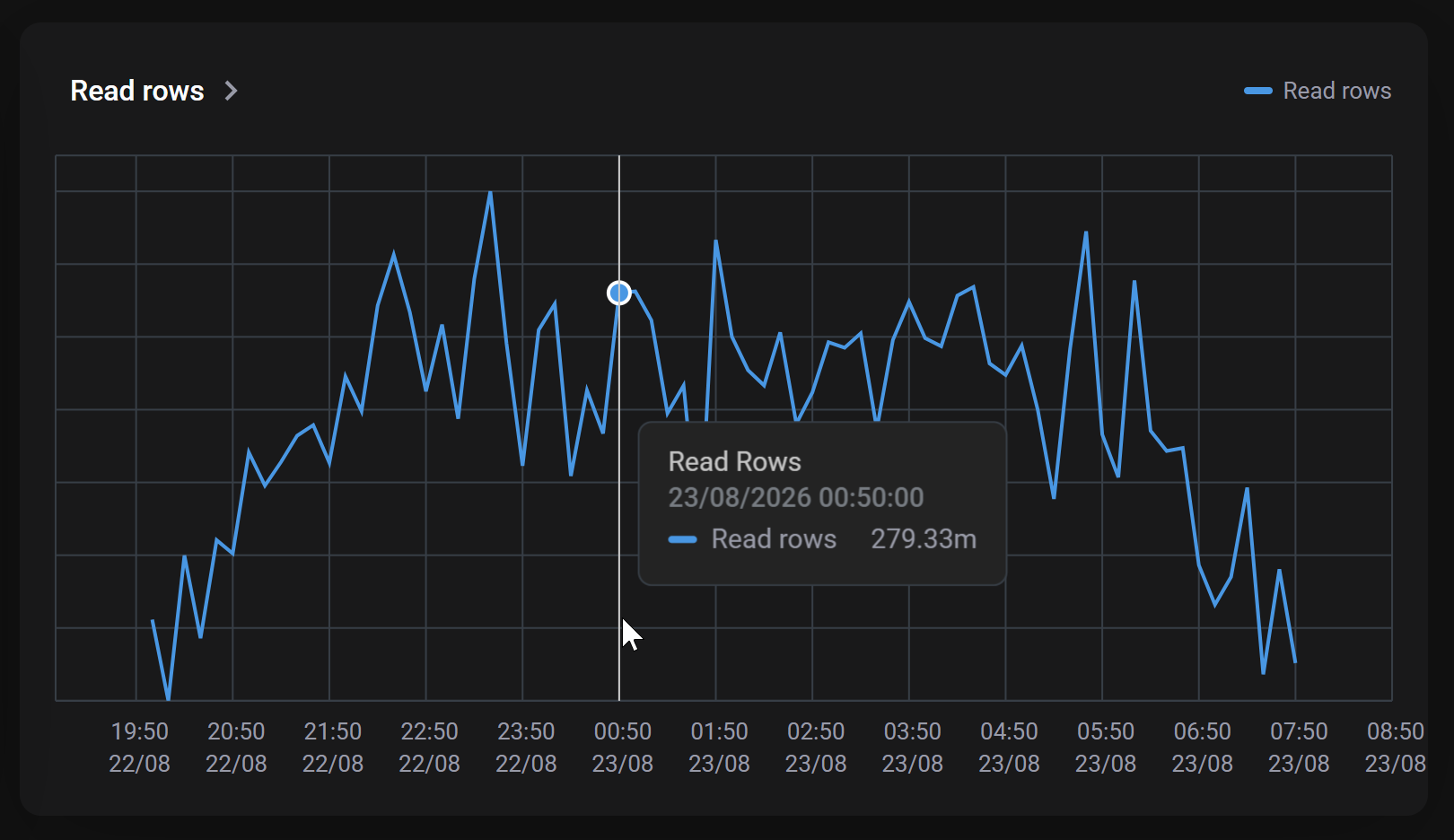
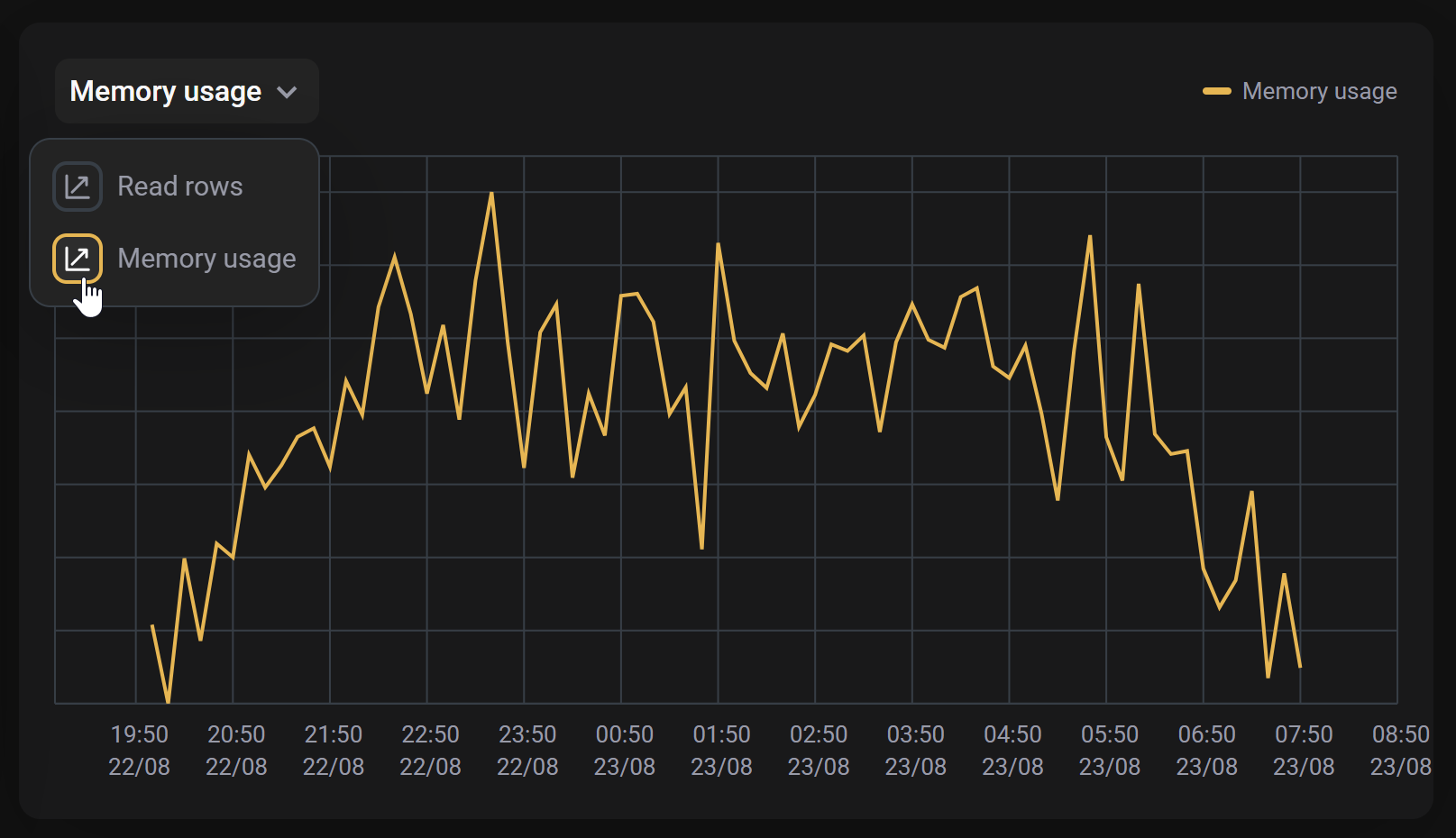
Read/Written rows — total number of rows read/written by queries of the family;
-
Memory usage — total memory used by queries of the family.
Duration
Using the Duration graph, you can analyze the overall trend of changes in query performance over a selected time interval.
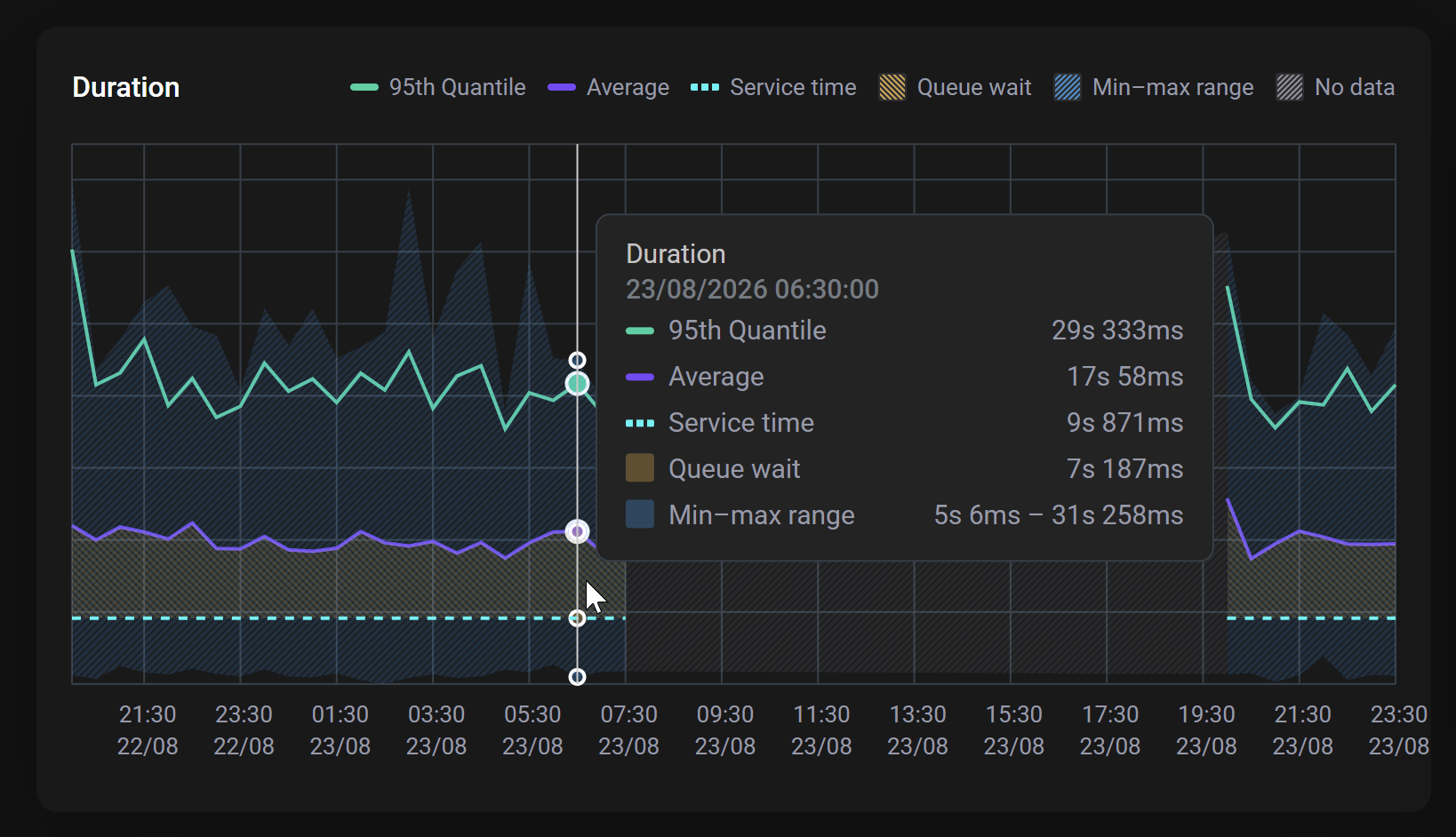
This graph displays the following information:
-
95th Quantile — 95th quantile of query execution time.
-
Average — average query execution time.
-
Service time — query execution time, if it were not affected by other queries.
-
Queue wait (area shaded in yellow) — how long the query is waiting in the queue for execution. The Service time and Queue wait metrics are shown on the graph if the Queue share value is not
—for the query. -
Min-max range (area shaded in blue) — range between the minimum and maximum query execution time.
-
No data (area shaded in gray) — time interval for which there is no data on query execution.
Clicking a metric in the legend hides/shows it on the graph.
Query variants in a family
The Variants in group section, located at the bottom of the Query group family details page, displays a table where each row is a group of runs of a particular query variant over a selected time interval. The Query text column contains the text of a query variant with specific literal values inserted instead of the ? symbol into the SQL structure of a query defining the family. Other columns of the table display metrics for each query variant based on its runs: the total number of executions (the number of unsuccessful executions is shown separately), the total/average/minimum/maximum execution time, the number of read/written data rows (depending on the query type), and the amount of used memory. You can sort the data in the table by these metrics using the icons and in the column headers.
Clicking the text of a query variant in the Query text column opens the Query group variant details page with details on runs of this query variant — see the description below.
Query variant details
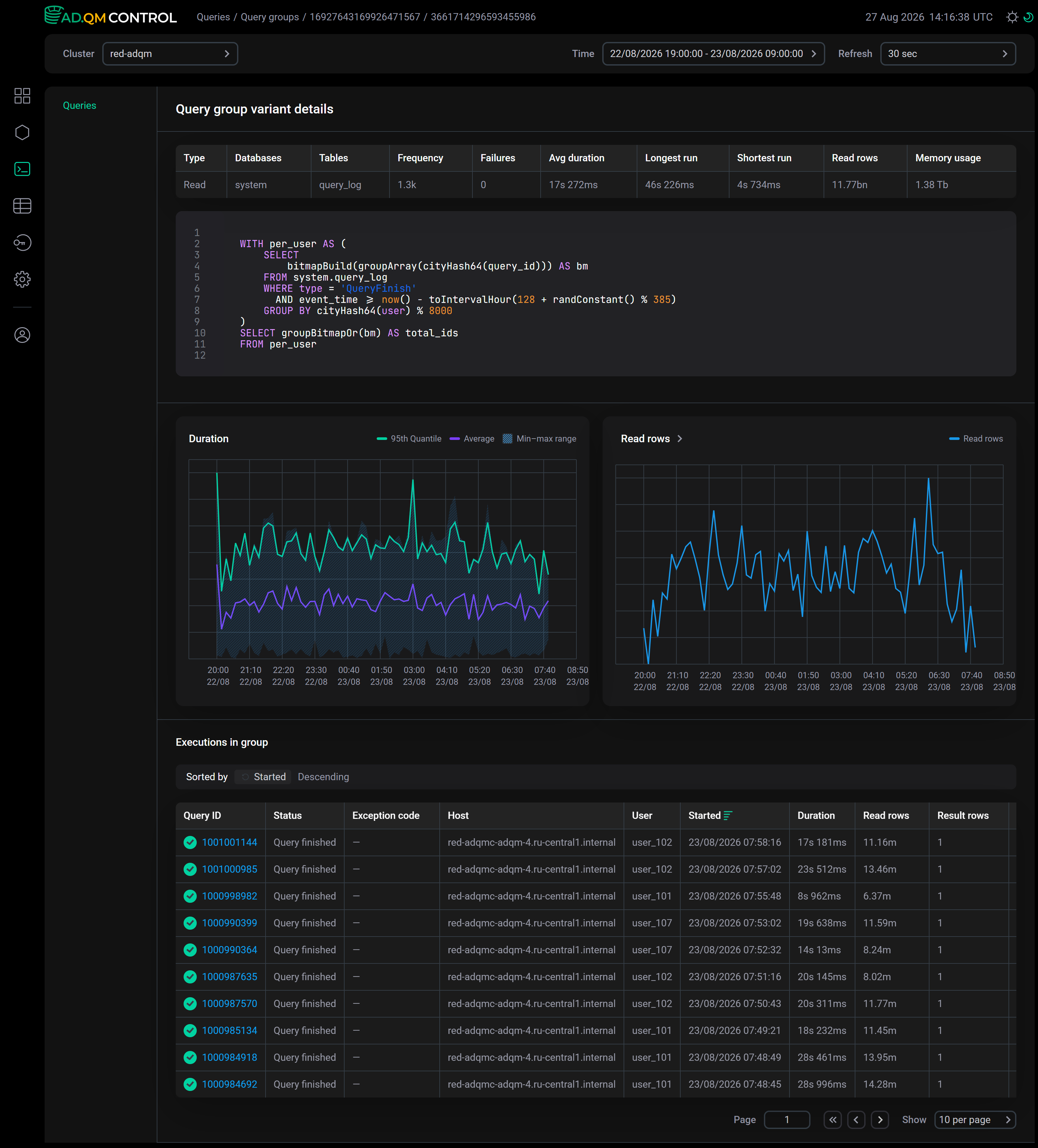
The Query group variant details page displays detailed information about runs of a specific query variant:
-
A table with general statistics about the execution of a query variant for a specified time period, which in addition to the fields contained in the Variants in group table on the Query group family details page, includes the following fields:
-
Type — query type;
-
Databases — databases accessed by a query;
-
Tables — tables accessed by a query.
-
-
Full text of a query with used literal values.
-
Graphs as on the Query group family details page (Duration, Read/Written rows, Memory usage), but based on the metrics of executing a particular query variant.
-
The Executions in group table with detailed information on each query run (see the column descriptions in the Fields of the "All queries" table section). Clicking the identifier in the Query ID field opens the Query details page.